

Translate doc site pages, one or many at once
Translate doc site pages into your site's languages from the Pages screen: one page on any plan, or many at once on Pro and higher.
Translate doc site pages from the Pages screen: one page at a time on any plan with more than one language, or many pages at once on Pro and higher. Use it when you've added a language and want your existing pages in it.
Before you start
- The site needs at least two languages. With one, Translate shows "Add a language first" and a link to Settings. See Add languages to a doc site.
- Translating spends credits, so you need a role that can spend them. Each page and language costs what a single Translate costs.
- Video pages are translated from the video editor, not here.
| Free, Starter | Pro and higher | |
|---|---|---|
| One page at a time | Yes | Yes |
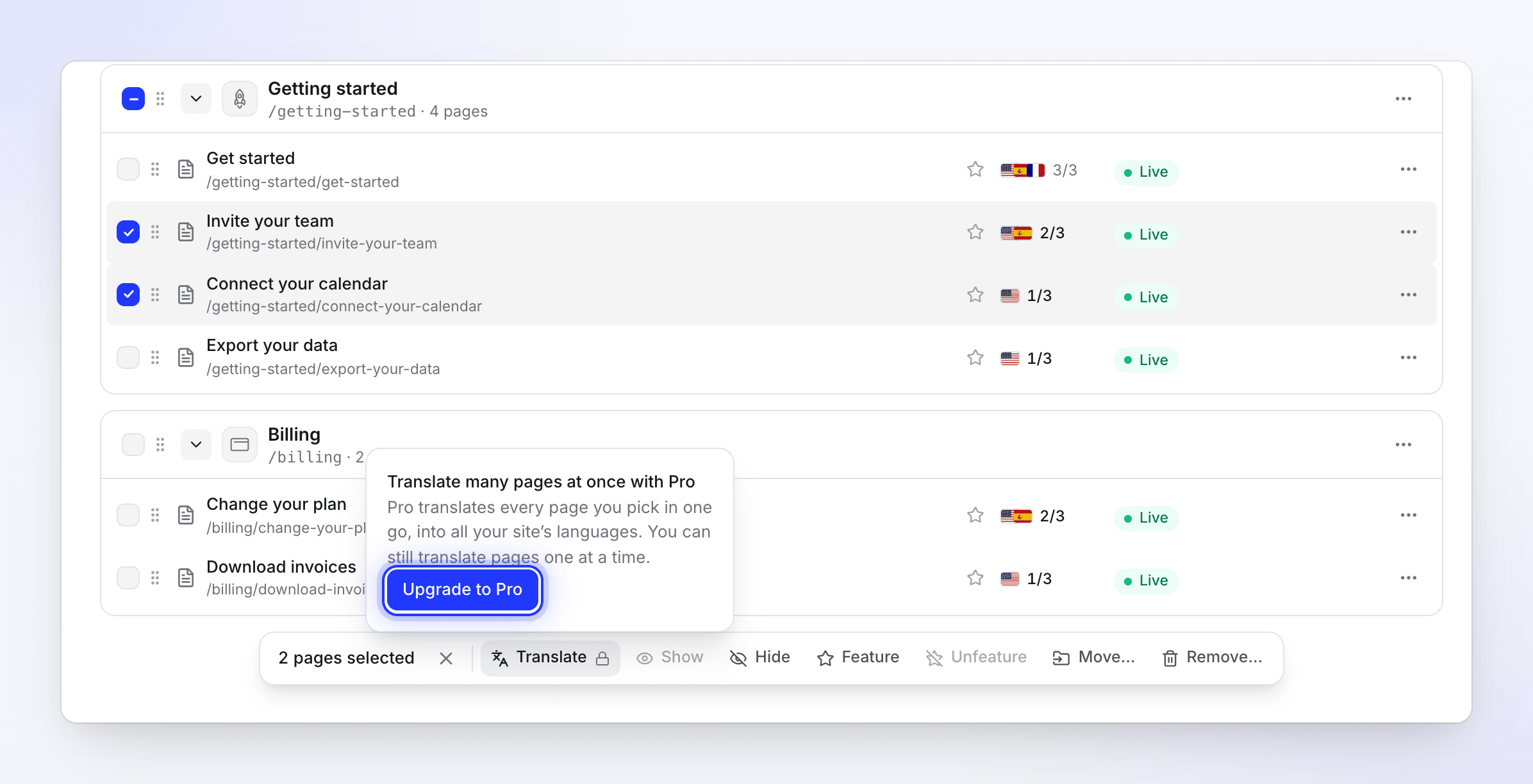
| Two or more pages at once | Locked | Yes, up to 100 pages per run |
Translate one page
Select the page
In your doc site, open Pages and tick the checkbox next to the page. The bulk bar appears.
Click Translate
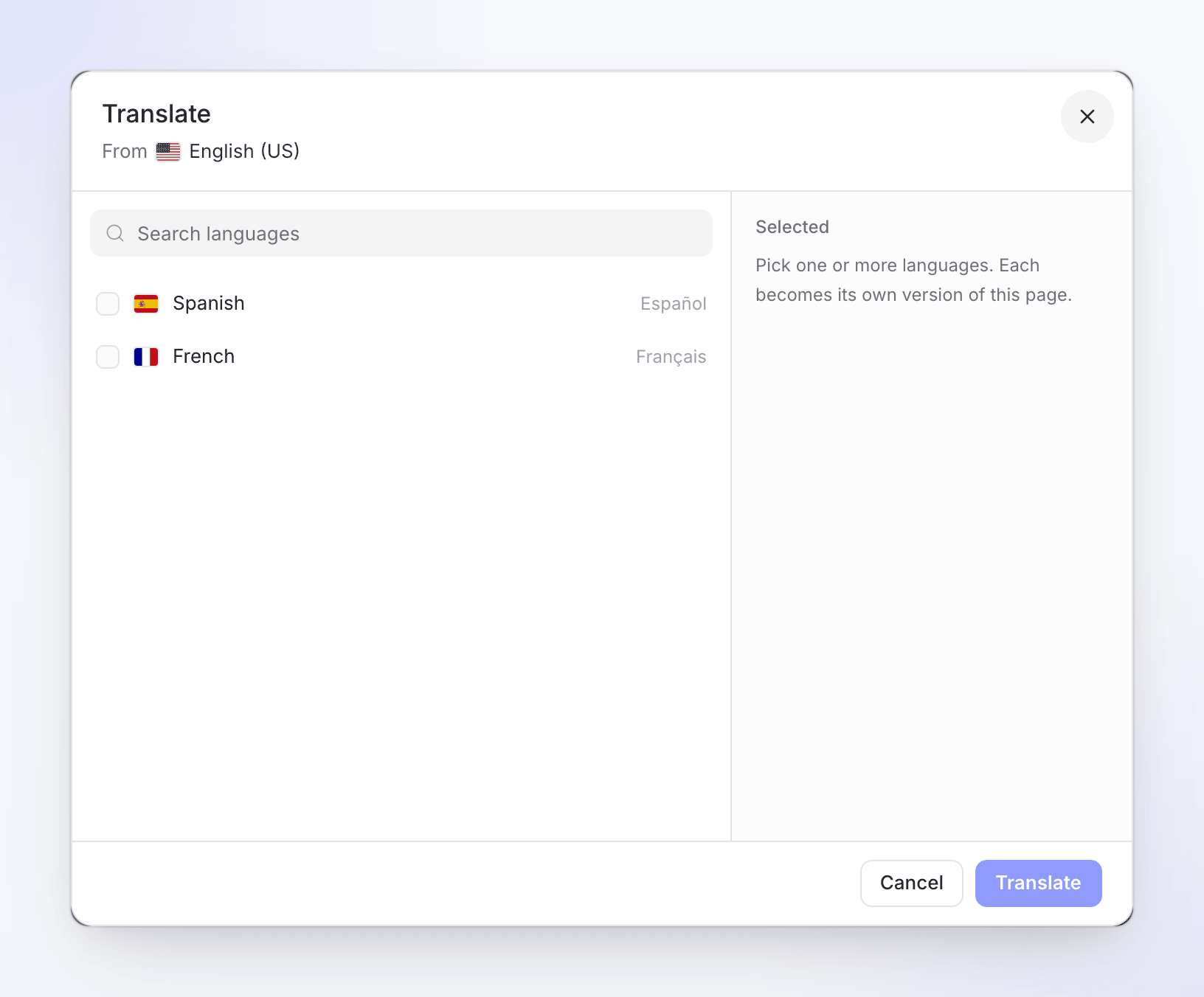
Translate sits next to Show, Hide and Feature. It opens the same dialog the page's own editor uses: the article Translate dialog for an article, Translate all for a custom site page.
Pick the languages
The dialog lists your site's languages. Choose the ones you want and start. When the page already has every language of the site, you see "This page is already in all your site's languages."
Translate many pages at once
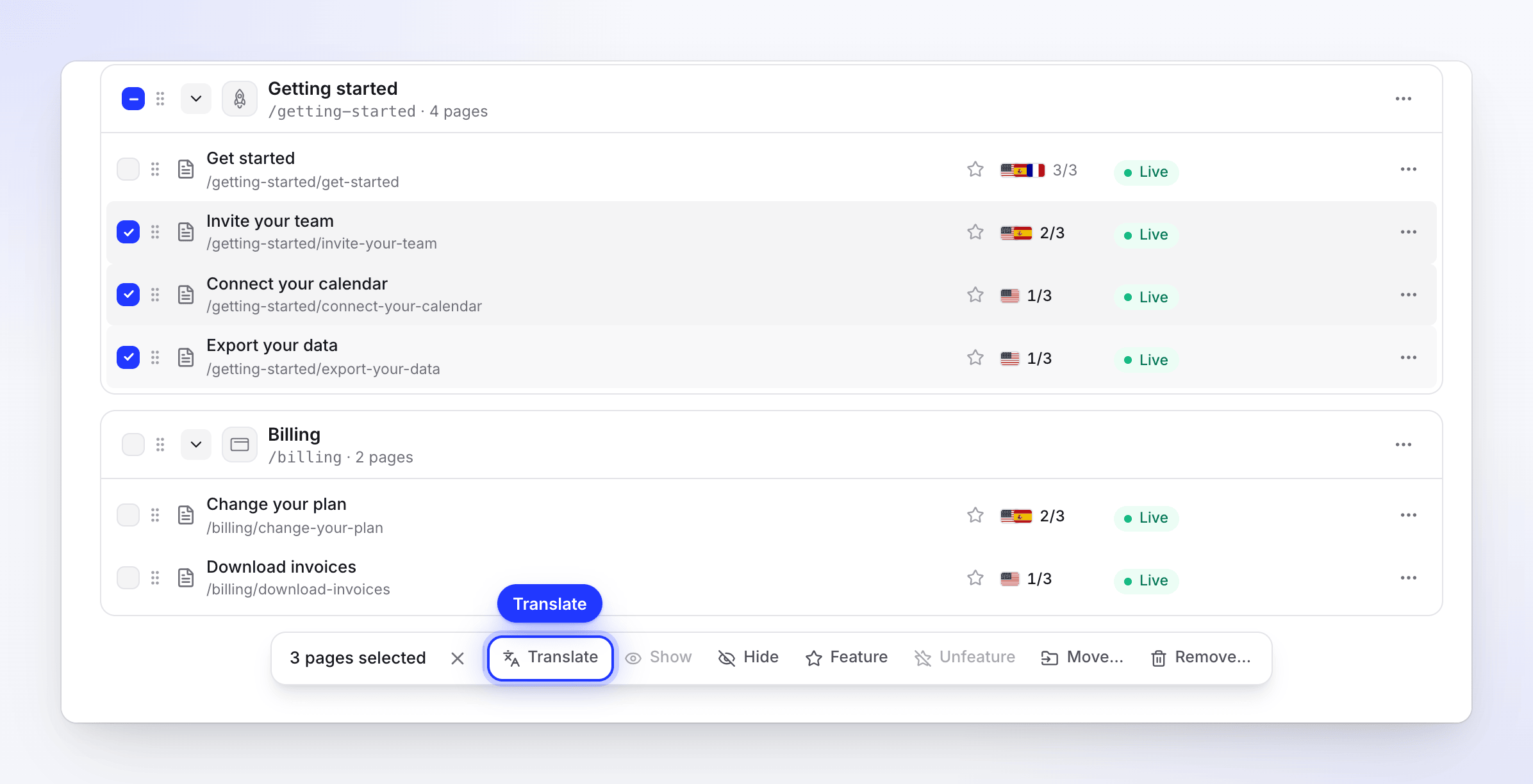
Select two or more pages
Tick the pages in Pages, then click Translate in the bulk bar.
Check the card
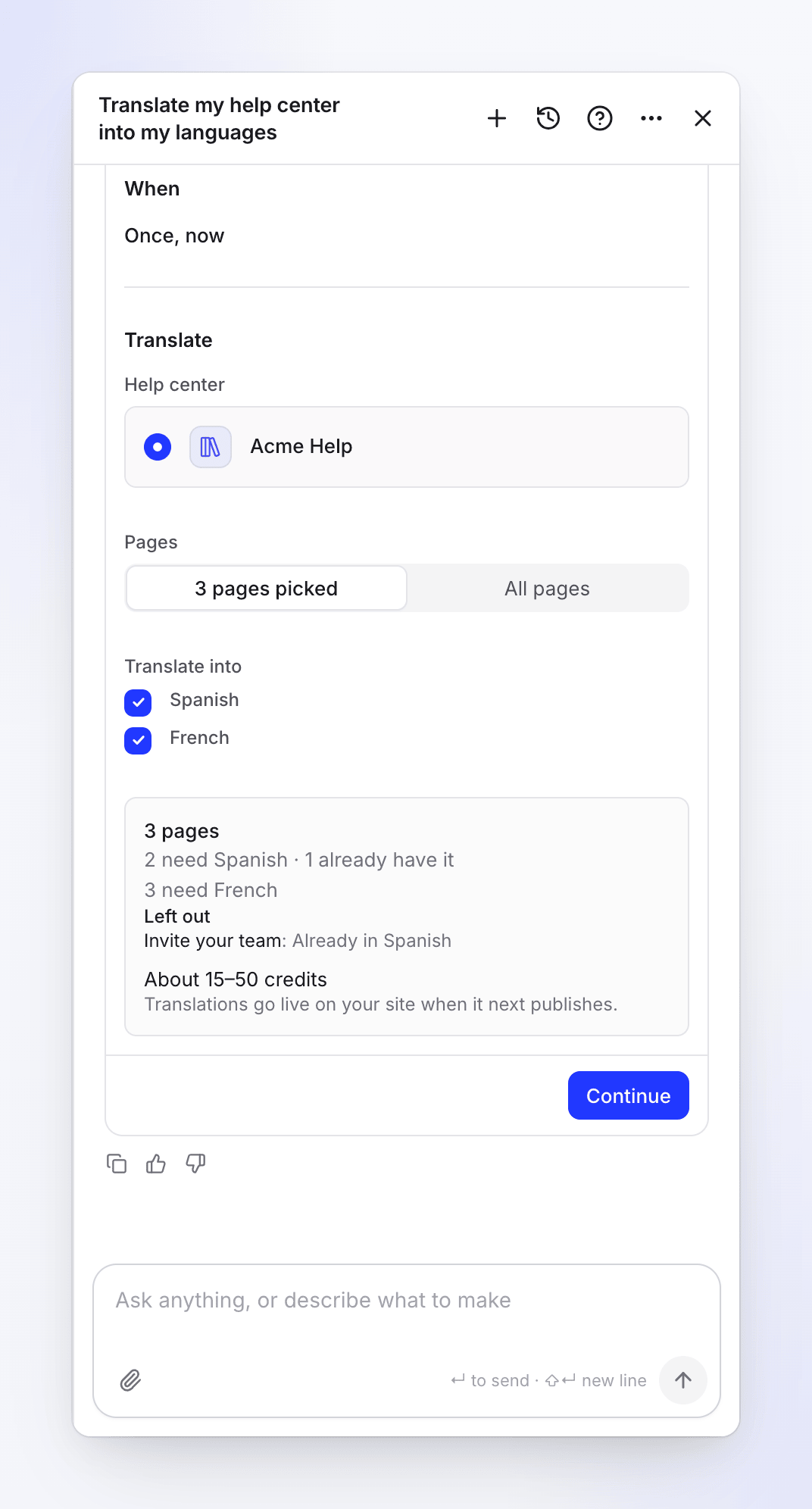
The assistant opens the Translate my help center into my languages card. It's prefilled with the site, your picked pages and every site language except the main one. The preview shows, per language, how many pages need it and how many already have it (those are skipped). It also shows pages that were Left out, with a reason, and the credit estimate.
Continue, review and create
Click Continue, check the summary under Review, then create the task. There is no plan to approve: the task starts straight away and shows in Autopilot. While it works, each page gets a Translating mark in the page tree.
Pages that already have a language are skipped, so you can run it again safely.
More than 100 pages
A run translates up to 100 pages. Only pages that still need a language count, so pages that are already translated don't use up the limit.
- Picked pages: pick up to 100. With more, you see "A task translates up to 100 pages. Pick fewer."
- All pages or One section: the card shows, for example, "100 of 250 pages this run". The rest are listed under Left out as "Over this run's 100-page limit: run it again for the rest". When the task finishes, start it again: what's done is skipped, so the next run picks up the rest.
Other ways to start
- Ask the assistant, for example "translate my help center into Arabic".
- Start Translate my help center into my languages from Autopilot and choose Pages, One section or All pages.
- Through the API or a connected AI app. A task started this way doesn't run straight away: it waits at its plan until it's run, and the run is checked against that app's credit permissions and limits.
When translations go live
Translations go live like single translations. The card says "Translations go live on your site when it next publishes", or, with auto-publish off, that they go live when you click Publish. With auto-publish on, expect a few minutes after they finish. There is no approval step for existing pages. See Publish a doc site.
Section and group titles that are missing in a language are translated too.
Troubleshooting
| You see | What to do |
|---|---|
| "Add a language first" | Add a language in Settings, then translate. |
| "Translate a video page from the video editor." | Open the video and translate it there. |
| "A link can't be translated." | Links have no text to translate. |
| "Nothing to translate", and Continue is greyed out | Every picked page already has every chosen language. Pick other pages or another language. |
| "Over this run's 100-page limit: run it again for the rest" | Let the task finish, then start it again for the remaining pages. |