

Clean up or restyle a recording with Polish
Polish keeps your own voice and content. Clean-up cuts filler, retries and dead time; Styled for sharing wraps the whole recording in your template with a title card. Neither adds an AI voice-over.
Polish tidies up a recording without changing what it says. There's no AI voice-over: your own voice, if you spoke, stays in the video. Choose Clean-up to cut the dead time, or Styled for sharing to keep the recording whole and frame it in your brand.
Clean-up or Styled for sharing?
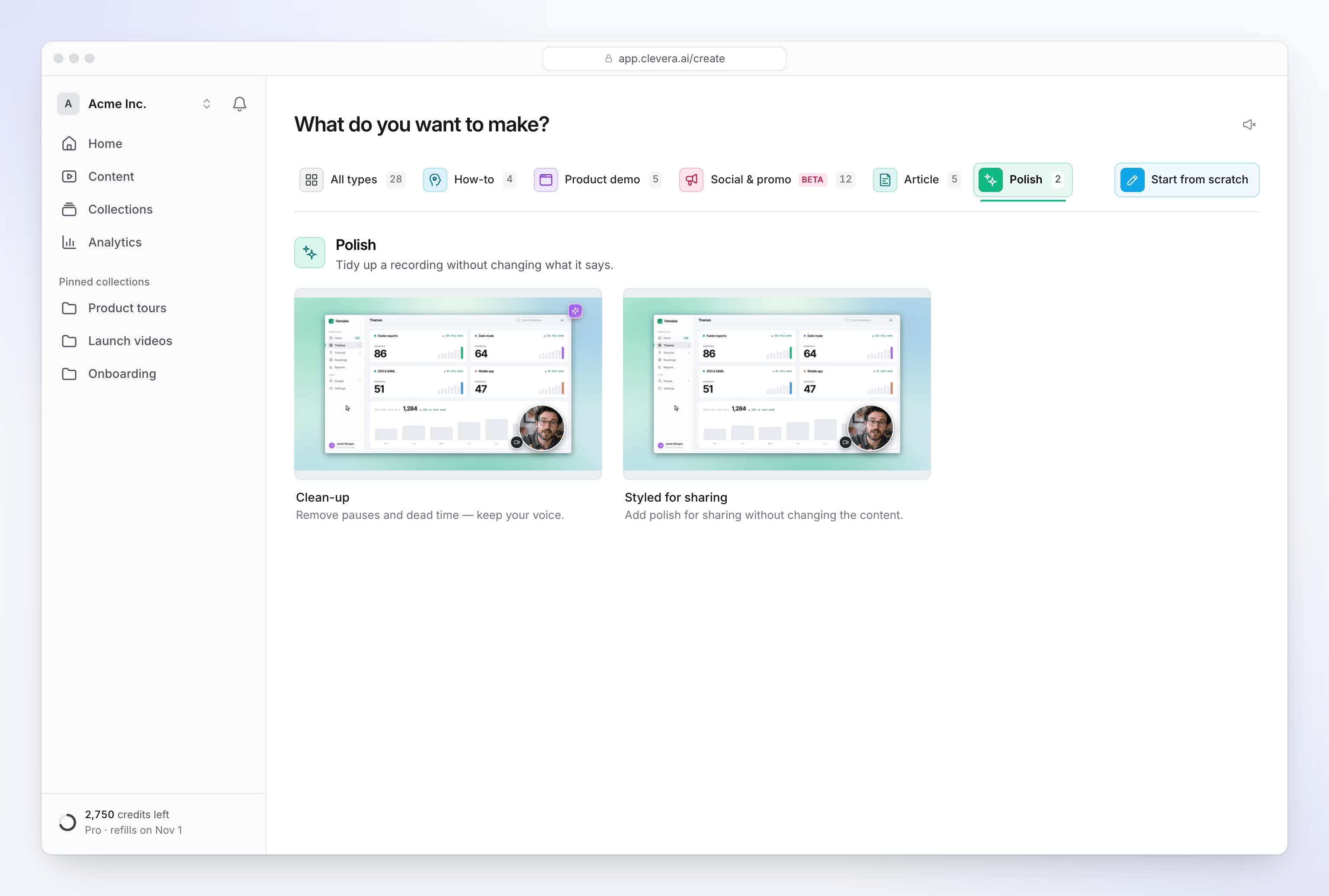
| Clean-up | Styled for sharing | |
|---|---|---|
| On the card | "Remove pauses and dead time — keep your voice." | "Add polish for sharing without changing the content." |
| What changes | The AI cuts filler words, false starts, repeated attempts and long silences, and speeds up silent loading. | Nothing is cut. The whole recording plays from start to finish. |
| Your voice | Kept at normal speed, never sped up. | Kept as recorded. |
| Look | Your template's background and music, plus the title the AI writes. | Your template's background and music, an intro card with your title, transitions and logo reveal. |
| Zooms | Added automatically. | Added automatically to desktop app recordings; not to uploaded videos. |
| You need | A recording. | A recording and a Title. |
| Credits | Usually 5–25 credits for up to 5 minutes of recording. | Usually 1–5 credits for up to 5 minutes of recording, for the automatic zoom pass. |
Both follow the shape of your recording (you can change the aspect ratio in the editor afterwards), and both work on one video only. Pictures, PDFs and links aren't used: if you had added some, Compose removes them with the notice "Pictures, PDFs and links were removed — this video type works on your video alone."
Polish a recording
Pick Polish
Click Create, open the Polish family and pick Clean-up or Styled for sharing.
Add the recording
Click + and choose Record your screen, Upload a video (MP4 up to 250 MB) or Choose from library. A new video replaces the current one.
Give it a title (Styled for sharing)
Styled for sharing shows a Title field above the box, filled with your recording's name. Edit it to what viewers should see on the intro card. It takes up to 255 characters. If it's empty, Generate shows "Give the video a title."
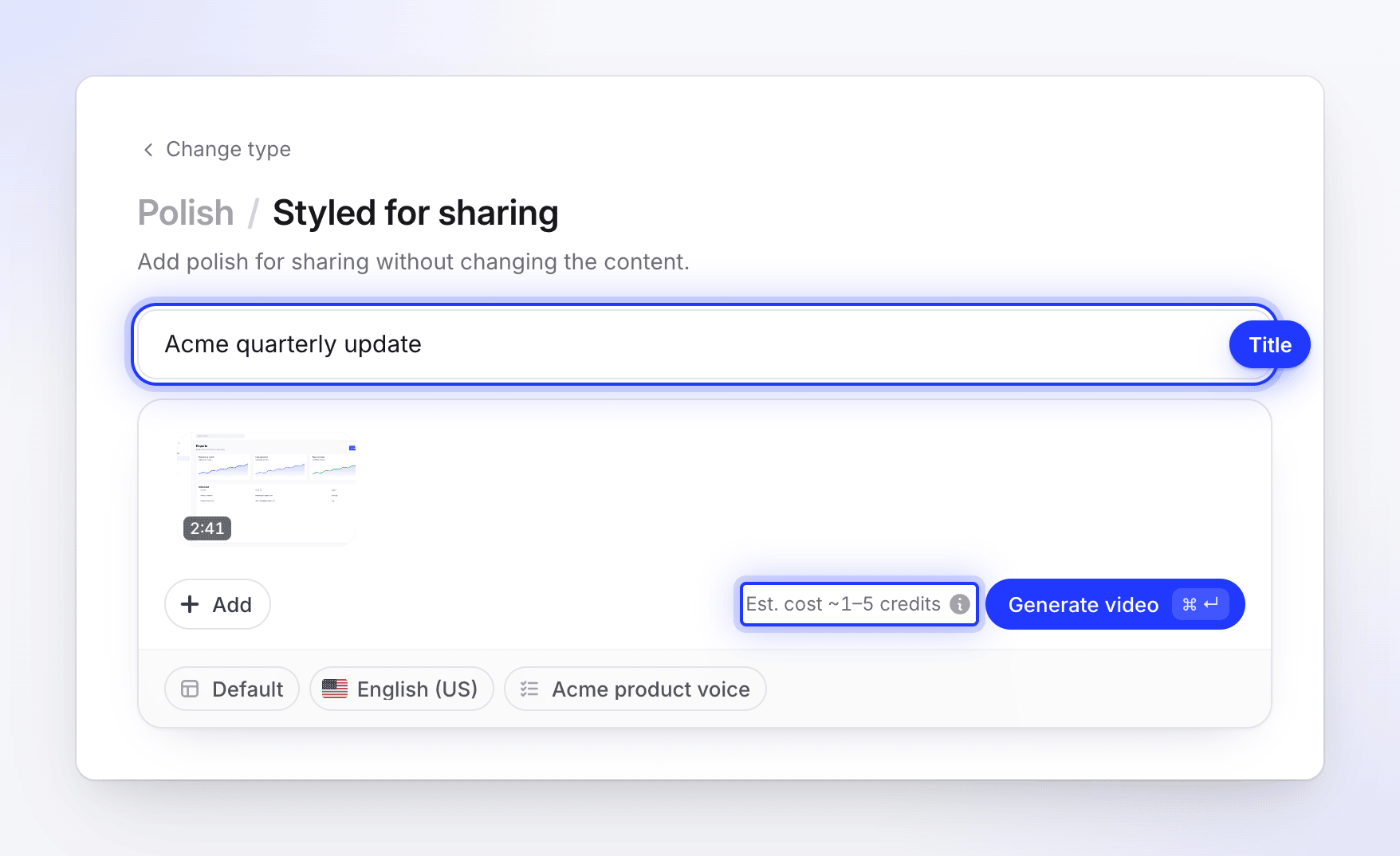
The title appears on the intro card; the estimate covers the automatic zoom pass. Check the options
Polish has three pills: Template (background, music, intro and title cards), Language and AI rules. There's no voice, tone or captions pill because Polish never adds a voice.
Generate
Check the credit estimate beside Generate video, then click it. The generation page shows the progress; you can close the tab.
What Clean-up cuts
The AI watches the recording, reads a transcript of what you said and splits the video into separate kept segments, usually one per thing you say. Between them it removes:
- filler ("um", "uh"), false starts and self-corrections,
- repeated attempts at the same action, keeping the cleanest take,
- dead air where you're silent and nothing changes on screen,
- off-topic asides.
Silent waits it can't cut, such as a page loading or a file uploading, are sped up. Stretches where you speak always play at normal speed, because sped-up speech sounds wrong.
No voice in the recording? Clean-up still works. It keeps each meaningful action at normal speed, plays the pauses between actions at 2×, and drops very long idle stretches and retries.
Title cards are rare: none in videos under 3 minutes, and at most one in a longer video, only at a clear change of topic.
What Styled for sharing adds
Styled for sharing is for a recording that is already right and only needs to look finished:
- your template's background behind the recording, with its padding, corners and shadow,
- an intro card with your title, in the template's intro-card design (or its title-card design if the template has no intro card),
- the template's transitions after the intro and its logo reveal at the end,
- the template's music under your audio,
- zooms on your clicks, for recordings made with the desktop app.
Nothing is cut and no voice is written, so the automatic zoom pass is the only part that uses credits. That's why it has its own, smaller estimate beside Generate video: 1–5 credits for a recording up to 5 minutes. A longer recording scales the range with its length, and the estimate never shows more than 6 credits. Like any generation, it needs your balance to cover the low end of the estimate to start, and you're charged what the zoom pass actually uses. See Know when credits are charged.
After it's made
Open the video in the editor to adjust it. The Script tab doesn't appear, because there's no AI voice-over. You can still change the background and captions in Style, the music and recording volume in Audio, the zooms in Zoom, and add elements. If you recorded your camera with the desktop app, set its bubble in Style → Camera overlay.
Video clips you add to a Polish video come in as voice clips that keep their original audio.
Troubleshooting
| Message | What to do |
|---|---|
| "Your upload is still being prepared. Please wait a moment and try again." | Clevera is still pulling the audio out of your upload. Wait a minute, then press Generate video again. |
| "Give the video a title." | Fill in the Title field (Styled for sharing). |
| "Polish works on your video alone. Remove the pictures, PDFs and links and try again." | Remove the extra files from the box. |
| "This type works on your video alone — pictures and PDFs are not used." | You dropped files other than a video on the box. Only the video is used. |
| "This needs about N credits and you have M left. Buy more credits or upgrade your plan in Billing to continue." | Your balance doesn't cover the low end of the estimate. See I ran out of credits. |