

Publish videos to LinkedIn
Connect your LinkedIn profile or the company pages you administer, and post finished Clevera videos with AI-written text. LinkedIn has no drafts, so posts go live as soon as LinkedIn processes the video.
Post a finished Clevera video to your LinkedIn profile or to a company page you administer, with post text and a title written by the AI. LinkedIn has no drafts for apps, so the post goes live as soon as LinkedIn has processed the video.
For how publishing works across every platform, see Publish videos to your platforms.
What lands where
| Where it goes | A new post in the main feed of your personal profile or of a company page you chose. |
| Drafts | None on LinkedIn. Your draft lives only in Clevera until you click Publish now. |
| Who sees it | Anyone, or Connections only for a personal profile. |
| What Clevera fills | Post text, Title and a Thumbnail, picked by the AI. You choose the visibility and reposts. |
| What it costs | No per-send fee. |
| After you send | LinkedIn processes the video, then Clevera creates the post. The status reads Published with "Live on LinkedIn." |
Profiles and company pages
You can connect two kinds of LinkedIn account, and each appears as its own row under Send to:
| Personal profile | Company page | |
|---|---|---|
| Posts as | You | The page |
| Shown in Clevera as | "LinkedIn · Personal profile" | "LinkedIn · Company page" |
| Visibility | Anyone or Connections only | Anyone |
| Who can connect it | Any LinkedIn member | A Super admin or Content admin of the page |
LinkedIn treats the two as separate apps, so they're connected separately. If you connect both, your profile and your pages show as separate rows; they never merge.
Before you start
- Plan. Publishing is part of the Pro plan and above.
- Role in Clevera. Only workspace owners and admins can connect or disconnect an account. Anyone who can edit a video can post to an account that's already connected.
- Role on the page. To connect a company page, you need the Super admin or Content admin role on that page in LinkedIn. Analysts and sponsored-content posters can't post through apps. Ask a Super admin of the page to change your role in the page's admin tools.
Connect LinkedIn
Open Integrations
Open Integrations from the sidebar. LinkedIn is under Social.
Choose profile or page
Click Connect on the LinkedIn card (Add once something is connected). The menu asks Which LinkedIn account? Pick Personal profile or Company page.
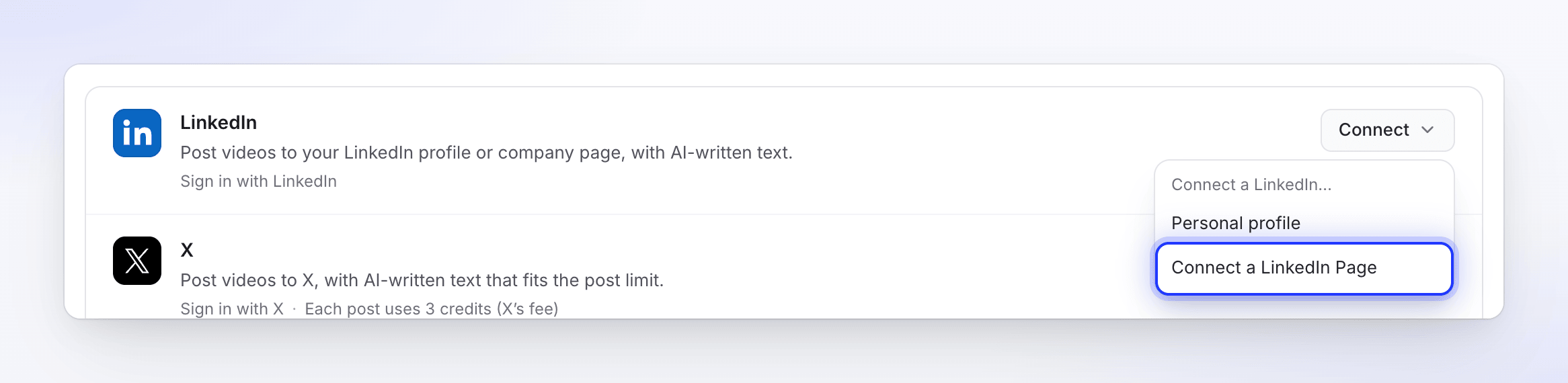
Allow access on LinkedIn
LinkedIn opens its permission page for Clevera. Sign in if asked.
- Personal profile: LinkedIn asks to let Clevera use your name and photo and create posts on your behalf. Clevera uses your name and photo to show the account, and posting permission to upload the video and create the post. It doesn't ask for your email address.
- Company page: LinkedIn asks to let Clevera read your basic profile, see and manage the pages you administer, and create posts on their behalf. Clevera uses these to find the pages where you're a Super admin or Content admin and to post as them.
Click Allow.
Check the card
You land back on Integrations. A profile adds one row. A page sign-in adds one row for every page where you're a Super admin or Content admin, each named after the page.
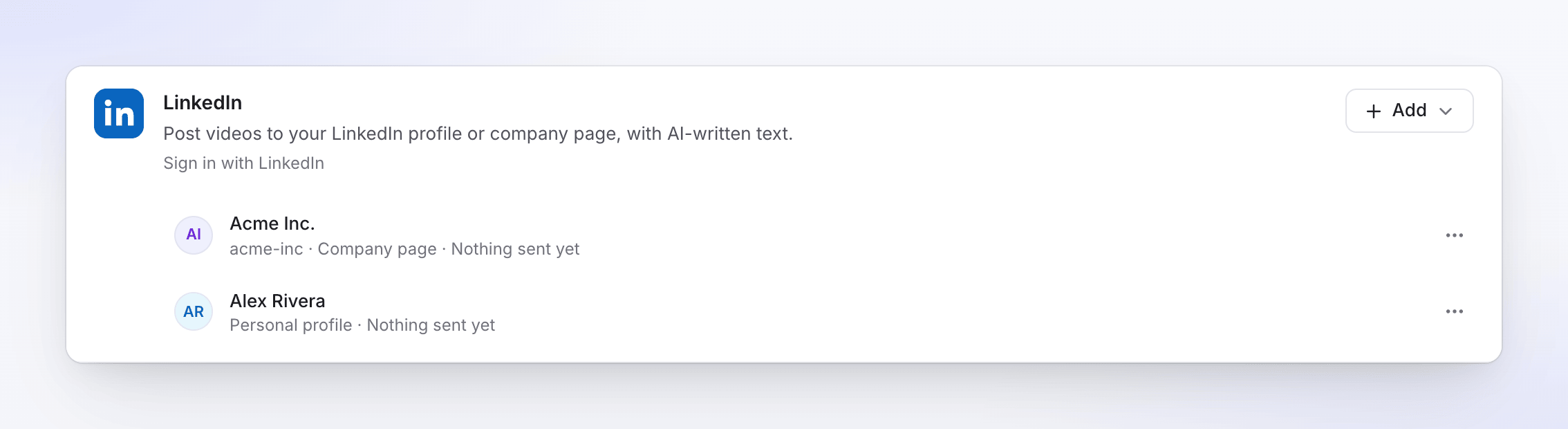
If you cancel on LinkedIn's page, Clevera says "LinkedIn wasn't connected." and nothing is saved. If you have no qualifying page role, you see "You aren't an admin or content admin of any LinkedIn Page. Ask the Page's super admin for that role, then connect again."
Post a video to LinkedIn
Open the Publish tab
Open the video, click Share, then Publish. Click Publish… (or Publish again).
Tick the profile or page
Under Send to → Social, tick the LinkedIn rows you want. Each page and your profile are separate rows, labeled "LinkedIn · Company page" or "LinkedIn · Personal profile", so you can post to several at once.
Check the post
The AI writes the post text and title in the language of the selected render. Edit anything; changes save as you type. Switch the preview between Desktop and Phone to see where LinkedIn folds the text with "…see more".
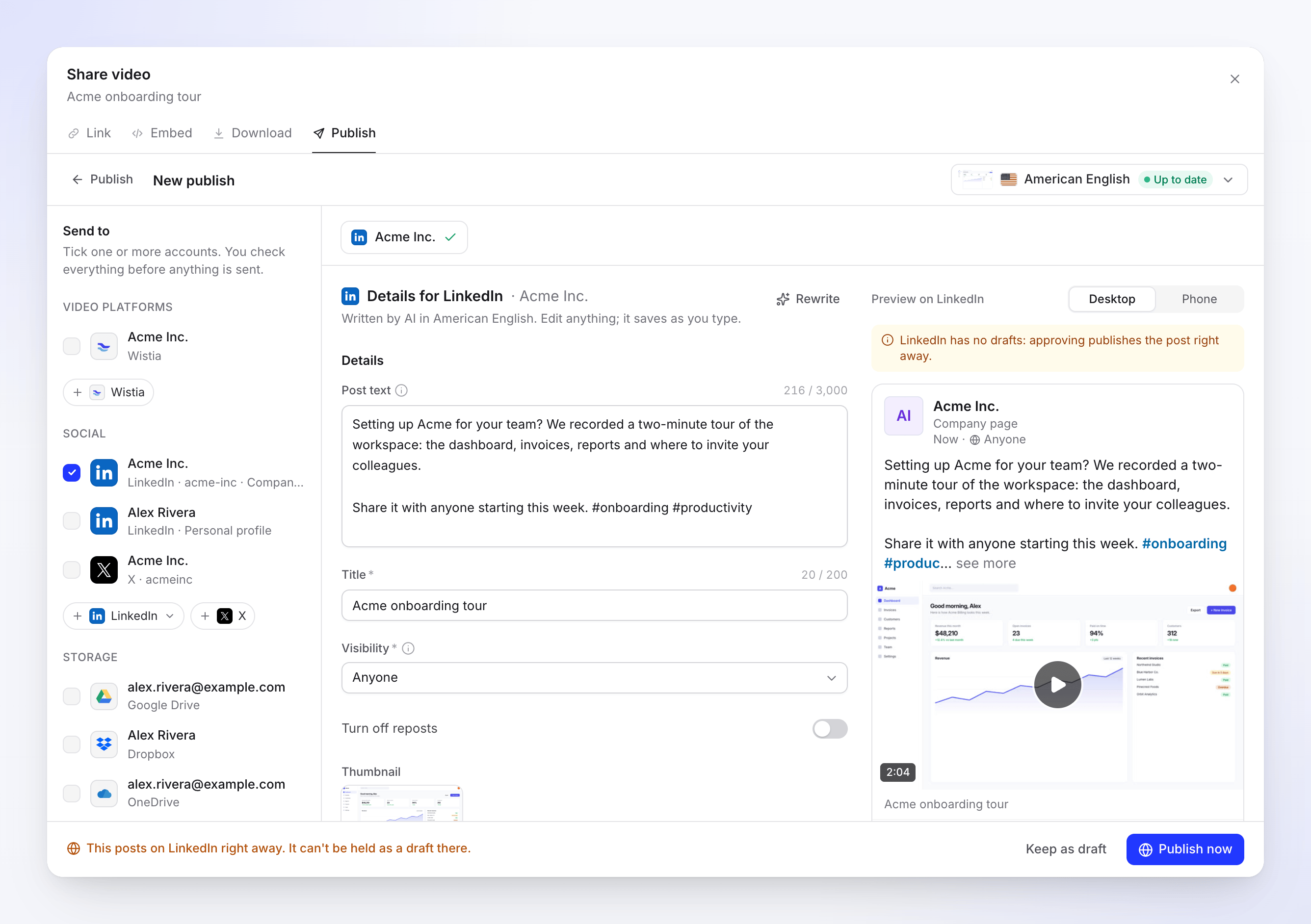
A company page draft. The banner reminds you LinkedIn has no drafts. Publish
Click Publish now. The note says "This posts on LinkedIn right away. It can't be held as a draft there." To finish later, click Keep as draft.
Fields and limits
| Field | Filled by | Limit or choices | Notes |
|---|---|---|---|
| Post text | AI | Up to 3,000 characters, optional | The text above the video in the feed. Hashtags go inline. |
| Title | AI | Up to 200 characters, required | Shown as a small line under the video. |
| Visibility | You | Anyone; Connections only on a personal profile | Default Anyone. |
| Turn off reposts | You | On or off | Off by default. Stops others reposting it. |
| Thumbnail | AI | The cover, the poster or a frame from the video | If the upload of the picture fails, LinkedIn picks its own and the post still goes out. |
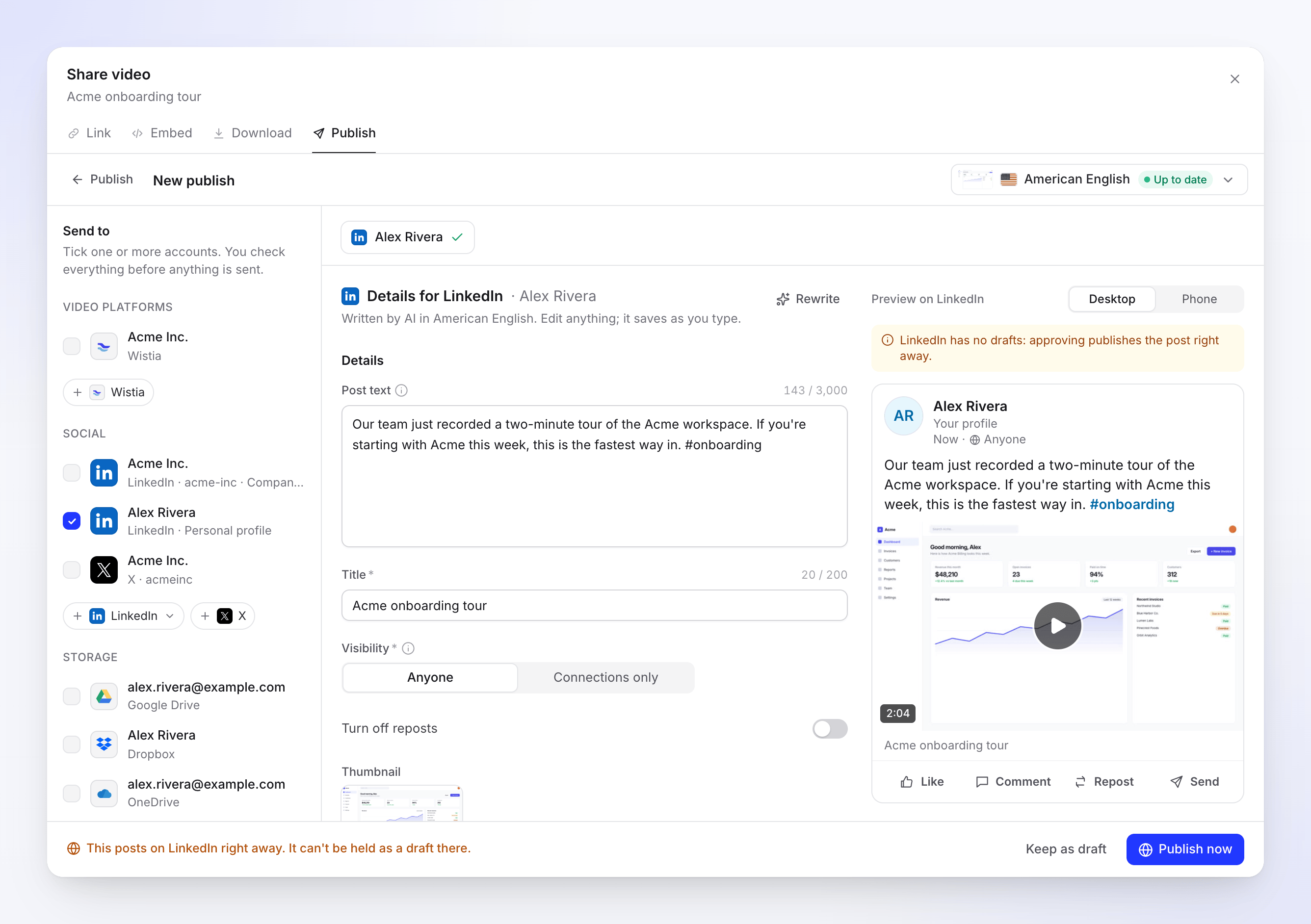
Good to know about the text:
- Hashtags work anywhere in the post text. There's no separate hashtag field.
- Mentions aren't supported. An
@nameshows as plain text, not a link to the person. - Links are allowed and appear as plain text in the post.
- Captions (subtitles) aren't sent to LinkedIn.
Your Visibility and Turn off reposts choices are remembered for the account. Rewrite asks the AI for new text, up to 10 times a day per draft. There's no scheduling for LinkedIn.
Video requirements
| Limit | |
|---|---|
| Format | MP4 |
| File size | 75 KB to 500 MB |
| Length | 3 seconds to 30 minutes |
| Shape | Between 1:2.4 (tall) and 2.4:1 (wide) |
Statuses you'll see
| Status | What it means |
|---|---|
| Waiting for render | Posts as soon as the render finishes. It sits under Sends after the render, above Sent. |
| Queued / Uploading N% | The video is on its way to LinkedIn. Nothing is posted yet. |
| Processing on LinkedIn | "LinkedIn is processing the video. This can take a few minutes." If you cancel now, nothing is posted. |
| Published | "Live on LinkedIn." Open on LinkedIn opens the post. |
| Failed | Nothing was posted. The message says why. |
On LinkedIn afterwards
The post behaves like any post you made yourself. Edit the text, delete it or boost it on LinkedIn. Clevera doesn't check the post again after publishing, so a post you delete on LinkedIn still shows as Published in Clevera.
Reconnect every 60 days
LinkedIn connections last 60 days. From 7 days before the end, the account row says "Reconnect within N days to keep sending." Click Reconnect and approve again; for pages, reconnecting renews every page from that sign-in at once. If the connection lapses, sends fail with "Reconnect your LinkedIn account to send this." until you reconnect, and Retry picks them up again.
Troubleshooting
Retry only shows when the platform says trying again can help.
| Message | What to do |
|---|---|
| "You aren't an admin or content admin of any LinkedIn Page. Ask the Page's super admin for that role, then connect again." | Get the Super admin or Content admin role on the page, then connect again. |
| "LinkedIn wasn't connected." | You cancelled on LinkedIn's page. Click Connect again and choose Allow. |
| "Reconnect your LinkedIn account to send this." | The 60 days ran out, you removed Clevera on LinkedIn, or you lost your page role. Click Reconnect, then Retry. |
| "LinkedIn didn't accept some of the details. Check them and send again." | Usually the title is empty or the text is too long. Fix it and send again. |
| "LinkedIn rejected the video: the file is larger than allowed." | The render is over 500 MB. Render at a lower resolution. |
| "LinkedIn rejected the video: its length is outside what the platform accepts." / "…it's shorter than allowed." | Keep the video between 3 seconds and 30 minutes. |
| "LinkedIn rejected the video: its shape (aspect ratio) is outside what the platform accepts." | Use a format between 1:2.4 and 2.4:1. |
| "LinkedIn rejected the video: it didn't pass the platform's checks." | LinkedIn couldn't process the file. Click Retry. |
| "The upload was interrupted. Retry to carry on from where it stopped." | LinkedIn was busy for too long. Click Retry. |
| "Something went wrong while sending this to LinkedIn. Please try again. Reference: …" | Click Retry. If it keeps failing, contact support with the reference. |
Disconnect LinkedIn
- Open Integrations, find the profile or page on the LinkedIn card and click ⋯ → Disconnect.
- Confirm. Sends still in progress stop, drafts stay in the Publish tab, and posts already on LinkedIn stay there.
Clevera also revokes its access at LinkedIn. When you disconnect one page but keep other pages from the same sign-in, the access stays in place for those pages.
To check from LinkedIn's side, open Settings & Privacy → Data privacy → Permitted services on LinkedIn and remove Clevera there.
FAQ
Can I save a draft on LinkedIn and post it later? No. LinkedIn only lets apps publish posts, not save drafts. Keep the draft in Clevera and publish when you're ready.
Why didn't my page show up? Clevera only adds pages where you're a Super admin or Content admin. Check your role in the page's admin tools, then connect a page again.
Can I post to my profile and a page at once? Yes. Tick both rows and click Send to N. Each gets its own draft and preview.
Why is the title required when it's barely visible? LinkedIn shows it under the video and uses it for the video itself. The AI fills it for you.
Can I tag people or companies? Not yet. Mentions show as plain text.