

Transfer workspace ownership
Hand a Clevera workspace to another member: who can do it, the steps, what changes for you and the new owner (billing, seats, roles), and the error messages you might see.
The owner can hand the workspace to another member. The new owner gets full control, including billing and deleting the workspace; you stay on the team, usually as an Administrator. Content, collections, the plan and credits stay exactly where they are.
Before you start
- Only the owner can transfer. Administrators and other roles don't see the option.
- The new owner must already be a member. If you're the only one, the page says "Invite someone first: ownership can only go to a member of this team." See Invite teammates.
- Check your creator seats if the new owner is an Editor: the owner always takes a creator seat (see Seats).
- Have your password ready. You confirm the transfer with it. If you signed up with Google or single sign-on (SSO) and never chose a password, you type the workspace's name instead.
Transfer ownership
Open the Danger zone
Open the workspace menu at the top of the sidebar, choose Team settings, then Danger zone. Under Transfer ownership: "Make another member the owner. You stay on the team, usually as an Administrator, and lose owner-only rights such as billing changes and deleting the team."
Start the transfer
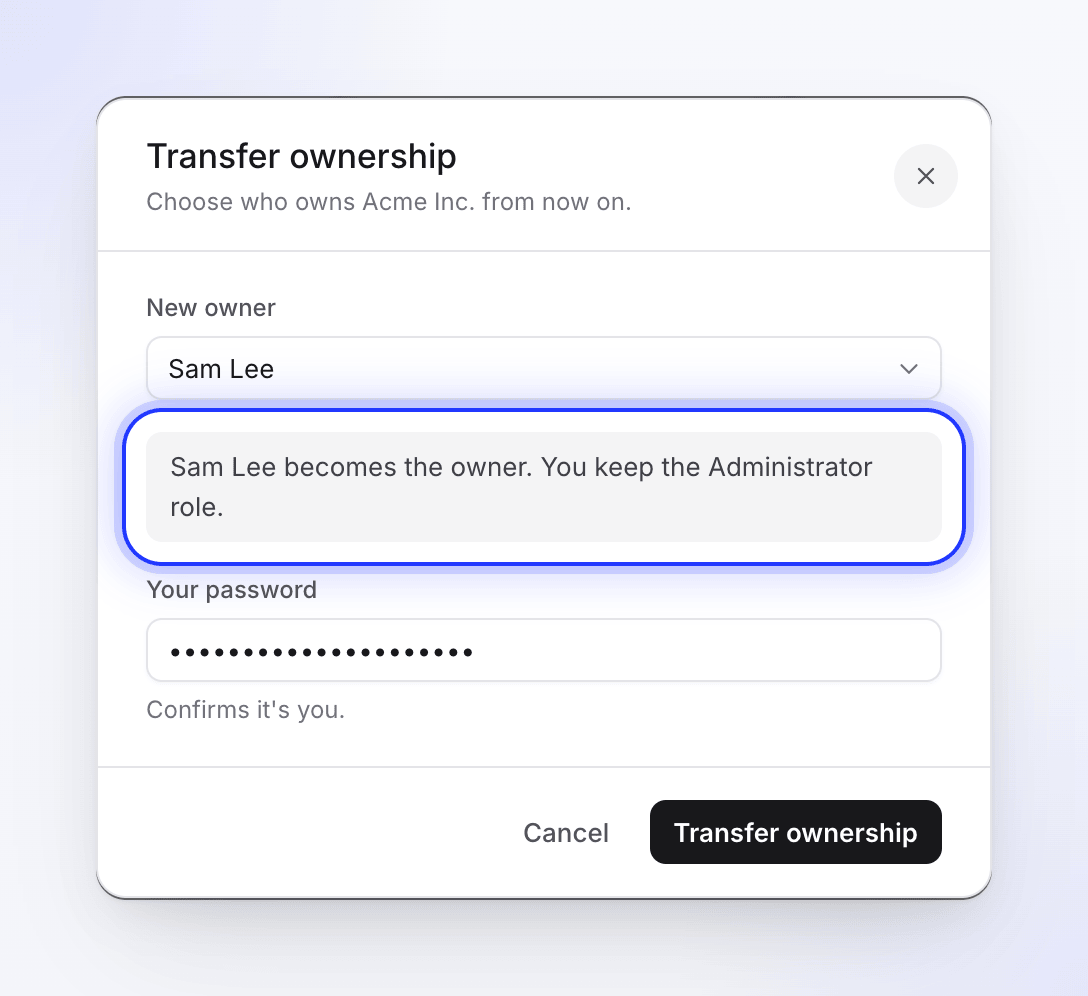
Click Transfer…. The Transfer ownership dialog opens: "Choose who owns Acme Inc. from now on."
Pick the new owner
Choose a member under New owner. The dialog tells you what role you'll have afterwards:
Situation The dialog says A creator seat is free, or the new owner already uses one "Sam Lee becomes the owner. You become an Administrator. The subscription and card stay with the workspace." The new owner is an Editor and no creator seat is free "Sam Lee becomes the owner and takes a creator seat. There's no free creator seat, so you become an Editor (free). The subscription and card stay with the workspace." Confirm it's you
Type Your password ("Confirms it's you.") and click Transfer ownership. If you signed up with Google or SSO, the field is Type Acme Inc. to confirm instead: type the workspace's name exactly as shown. You see "Team ownership transferred successfully." If you became an Editor, the message is "Team ownership transferred. You are now an Editor, so the team stays within its creator seats."
What changes
| Before | After | |
|---|---|---|
| Your role | Owner | Administrator, or Editor when no creator seat is free (see Seats) |
| The new owner's role | Their old role | Owner |
| Change plan, seats, payment method, buy credits | You | The new owner |
| Transfer ownership again, delete the workspace | You | The new owner |
| Content, collections, folders | Unchanged | Unchanged |
| Plan, subscription, credits and bought credit packs | Belong to the workspace | Still belong to the workspace; the new owner now manages them |
The new owner gets a notification, and this workspace becomes the one they see when they next open Clevera.
Seats
The owner always uses a creator seat. If the new owner was an Administrator or Content Creator, they keep the seat they already had and you keep yours as an Administrator.
If the new owner was an Editor, they now need a creator seat:
- A creator seat is free: they take it, and you stay on as an Administrator.
- No creator seat is free: they take the owner's seat, and you become an Editor, which is free. The seat count stays within your plan.
Pending (not yet expired) invitations for a creator role count as used seats here. To stay an Administrator, add a seat or revoke an unused creator invitation before you transfer. The new owner can also change your role afterwards once a seat is free. See creator seats.
Can I undo it?
Not by yourself. Only the new owner can transfer ownership back to you, the same way.
Troubleshooting
| You see | What it means |
|---|---|
| "Invite someone first: ownership can only go to a member of this team." | You're the only member. Invite the future owner first. |
| "The provided password is incorrect." | Retype your password. |
| "Type the team name exactly as shown to confirm." | Google or SSO accounts only: type the workspace's name exactly as it appears in the field's label. |
| "Please select a user to transfer ownership to." | Pick a New owner. |
| "This user is not a member of the team." | They left or were removed. Invite them again. |
| "You cannot transfer ownership to yourself." | Pick someone else. |
| "You don't have permission to transfer team ownership. Only team owners can transfer ownership." | Ask the current owner to do it. |
| I became an Editor after the transfer | The new owner was an Editor and no creator seat was free. Ask the new owner to add a seat and change your role. |