

Add languages to a doc site
Publish a doc site in more than one language: pick the site's languages and default language, translate articles, site pages, titles and menu labels, and see what readers get when a page isn't translated yet.
A doc site can publish in several languages. Each article and site page has its own copy per language, readers switch language in the site's header, and a page that isn't translated yet still shows, in your default language. Free gets 2 languages per site, Starter 5 and Pro and higher as many as you like.
Before you start
- Owners, admins and editors can change a site's languages.
- You can pick from 74 languages, including regional variants such as English (UK) and Spanish (Latin America).
| Plan | Languages per site |
|---|---|
| Free | 2 |
| Starter | 5 |
| Pro, Business, Custom | Unlimited |
Add a language
Open the site's settings
Open your doc site and go to Settings → General.
Add languages
Under Languages, add the languages you want. "Articles exist per language; readers switch in the header." A counter shows how many your plan allows.
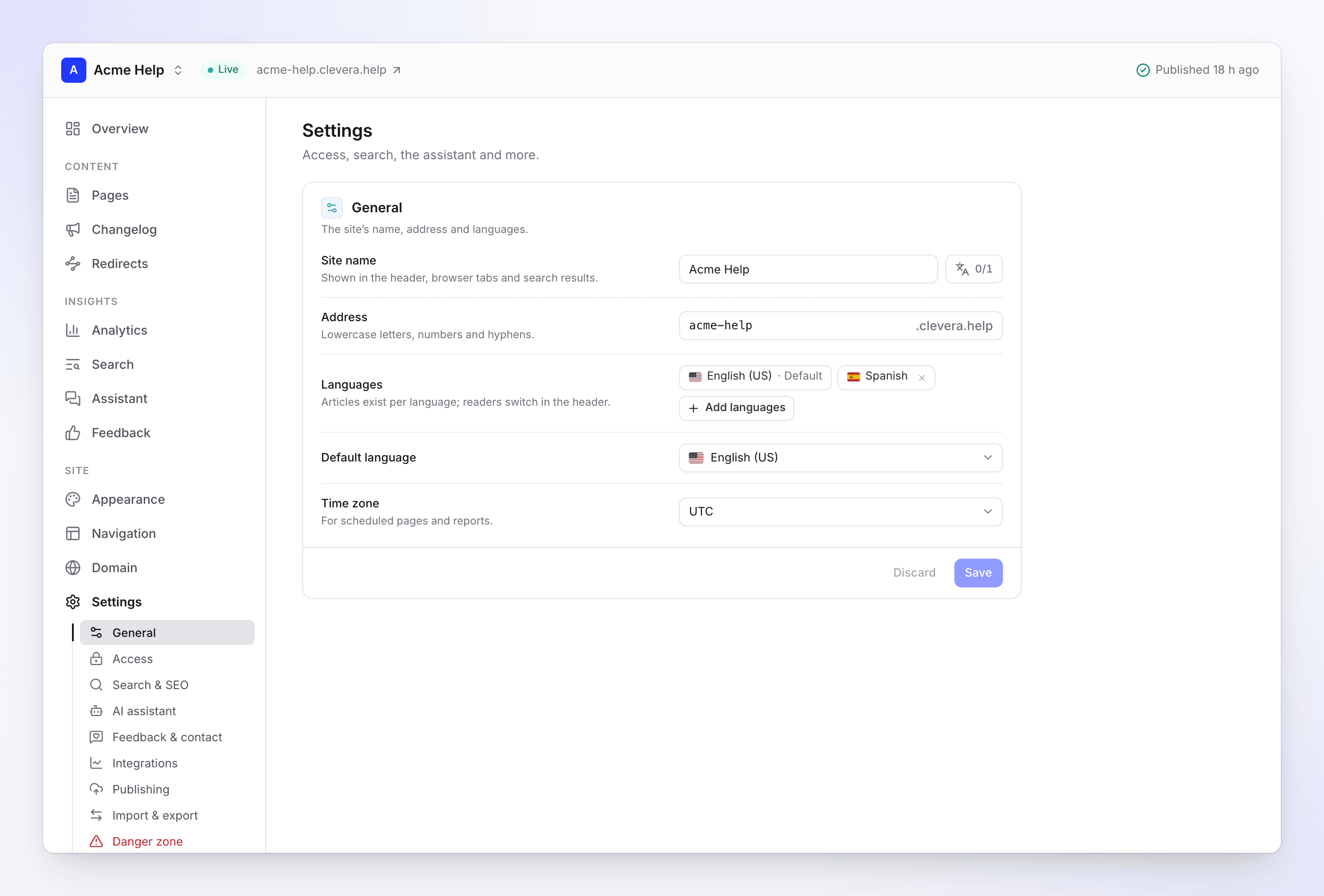
The Languages setting in Settings, General Check the default language
Default language is "The language you write the site's words in. Its address has no language prefix." It's the language readers fall back to and the one translations start from.
Save and publish
Click Save, translate your pages (see below), then publish the site.
How addresses work
The default language lives at the site's root; every other language gets a prefix made from its code.
| Language | Example address |
|---|---|
| English (default) | help.example.com/getting-started |
| German | help.example.com/de-de/getting-started |
| Japanese | help.example.com/ja-jp/getting-started |
Because of this, no page or section may use a language code as its address. If one does, adding that language shows "A page or section already uses the address /de-de. Change its slug before adding this language."
Translate your content
Adding a language doesn't translate anything by itself. Each kind of content has its own way in, and only the AI translation of full pages uses credits.
| What | How to translate it | Cost |
|---|---|---|
| Articles | Open the page in Pages, choose the Language menu in the top bar, then Translate…. Each language is a separate copy you can edit. See Edit an article. | Credits, like any article translation |
| Site pages | ⋯ → Translate to all languages… in the page's top bar. See Create site pages. | Credits, shown as Article AI |
| Page titles, menu titles and summaries | Details → Languages: pick the language to edit, or click Translate from English | Free |
| Section titles | Translate section title or Translate title… in the section's menu in Pages | Free |
| Menu labels | Translate all labels in Navigation. See Set up doc site navigation. | Free |
| Home page title and subtitle | Other languages → Translate to all languages under each field in Appearance | Free |
| Changelog entries | The entry's own translate action. See Publish a doc site changelog. | Credits |
Free translations are limited to 60 requests per workspace per hour. After that: "You've translated a lot in the last hour. Try again in a little while." Text you leave empty in a language shows the default language's text: "Empty ones show the English text."
In page settings, each language shows how far it is, such as "In 2 of 3", with a flag per language; a greyed flag means "not translated, readers see English".
Review AI translations of site pages
AI translations of site pages are saved as drafts until someone marks them ready, so nothing unchecked goes live. To skip that review, turn on Publish AI translations without review in Settings → Publishing. "Off: translated site pages wait as drafts until someone marks them ready." It's off by default.
What readers see
- The header has a Language switch with every published language.
- The same page in another language opens at the matching address, so readers stay on the page they were reading.
- If a page has no copy in the reader's language, they see the default language's version with "This page isn't available in your language yet, so it is shown in English."
- Right-to-left languages, such as Arabic and Hebrew, read right to left.
If your plan changes
If your workspace moves to a plan with fewer languages, nothing is deleted. The languages beyond the limit stay in your settings with their articles but aren't published: "Not published on your plan: Italian, Dutch. They stay here with their articles." You can't add another language until you're under the limit or upgrade.
Troubleshooting
| You see | What to do |
|---|---|
| "Your plan publishes up to 2 languages per site. Starter includes 5 languages." | Remove a language or upgrade. |
| "The default language must be one of the site's languages." | Add the language to Languages before you make it the default. |
| "A page or section already uses the address /fr-fr. Change its slug before adding this language." | Rename that page or section's address first. |
| "No article in this language yet." | The article has no copy in the language you switched to. Use Translate… in the Language menu. |
| "Your plan doesn't publish this language. Upgrade to translate into it." | The language is over your plan's limit. Upgrade, or remove another language. |
| "Write the page in English first, then translate it." | A site page needs text in the default language before it can be translated. |
| "No translations came back. Try again." | The free translation didn't return anything. Try again in a moment. |