

Understand what website research and Record with AI cost
Website research and Record with AI are billed in credits by the work the AI actually does, on top of your video's estimate. See what makes them cost more or less, where the charges show up, what's free and how to keep the cost down.
Website research and Record with AI don't have a fixed price. They use credits for the work the AI actually does: how much of a site it reads, or how long it spends recording your product. That cost comes on top of the estimate shown beside Generate video.
Why there's no upfront price
Your video's estimate is based on its type, length and options. Research and recording depend on things nobody knows in advance: how big the site is, how many pictures it has, how many steps your walkthrough takes and whether the AI has to wait for you. So instead of guessing, Clevera charges for what the work actually used.
How each is billed
| Feature | Billed by | Uses more when |
|---|---|---|
| Website research | The pages and pictures the AI reads and the time it spends on the site | The site is big, heavy with pictures or videos, or slow to open, or it has a security check the AI waits through |
| Record with AI | The time the AI spends working in the browser | Your walkthrough has many steps, pages are slow, or the AI carries on several times after you hand the browser back |
Each time you hand the browser back during Record with AI, the AI's next stretch of work is billed the same way. Keep hand-overs purposeful and the steps clear.
Where you see it
| Where | What it says |
|---|---|
| Research a website dialog | "Reading the site uses credits for how much the AI reads". The ⓘ: "Billed by the pages and pictures the AI reads. Bigger sites use more." |
| Record automatically with AI dialog | "Uses credits for how long the AI works". The ⓘ: "Billed by the time the AI spends in the browser. More steps use more credits." |
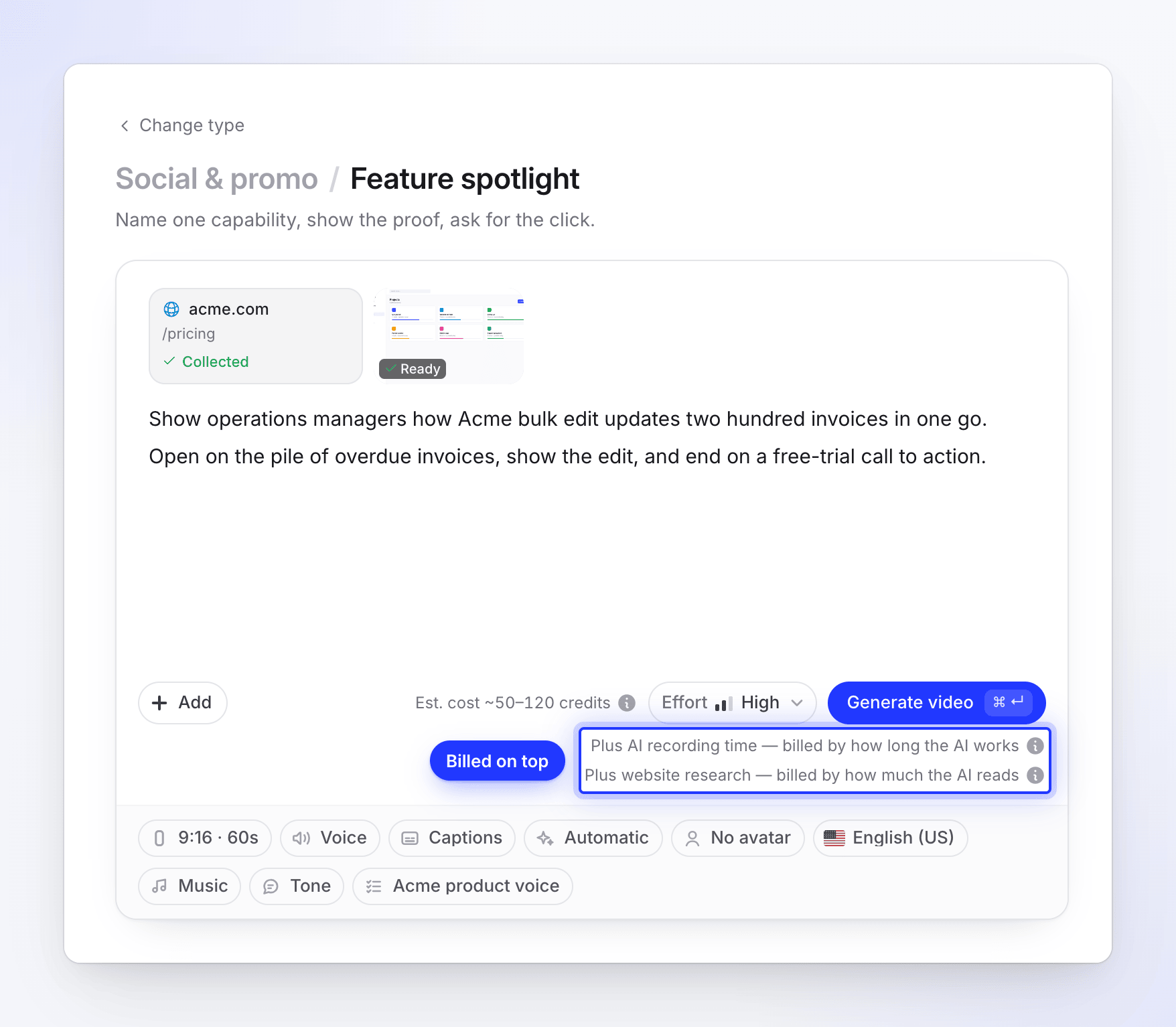
| Beside the estimate on Compose, with a researched link attached | "Plus website research — billed by how much the AI reads". The ⓘ: "Billed by how much of the site the AI reads, on top of the estimate." |
| Beside the estimate on Compose, with an AI recording attached | "Plus AI recording time — billed by how long the AI works". The ⓘ: "Billed by how long the AI records, on top of the estimate." |
| + Add menu | Both rows carry an AI · credits tag: "Runs AI and uses credits". |
When you're charged
You're charged for a research or a recording when it runs, not when you generate the video. Research you start from Compose is charged even if you later remove the link or never generate.
The final number can take a little while to settle after the run ends. Your usage can update for up to about 30 minutes afterwards.
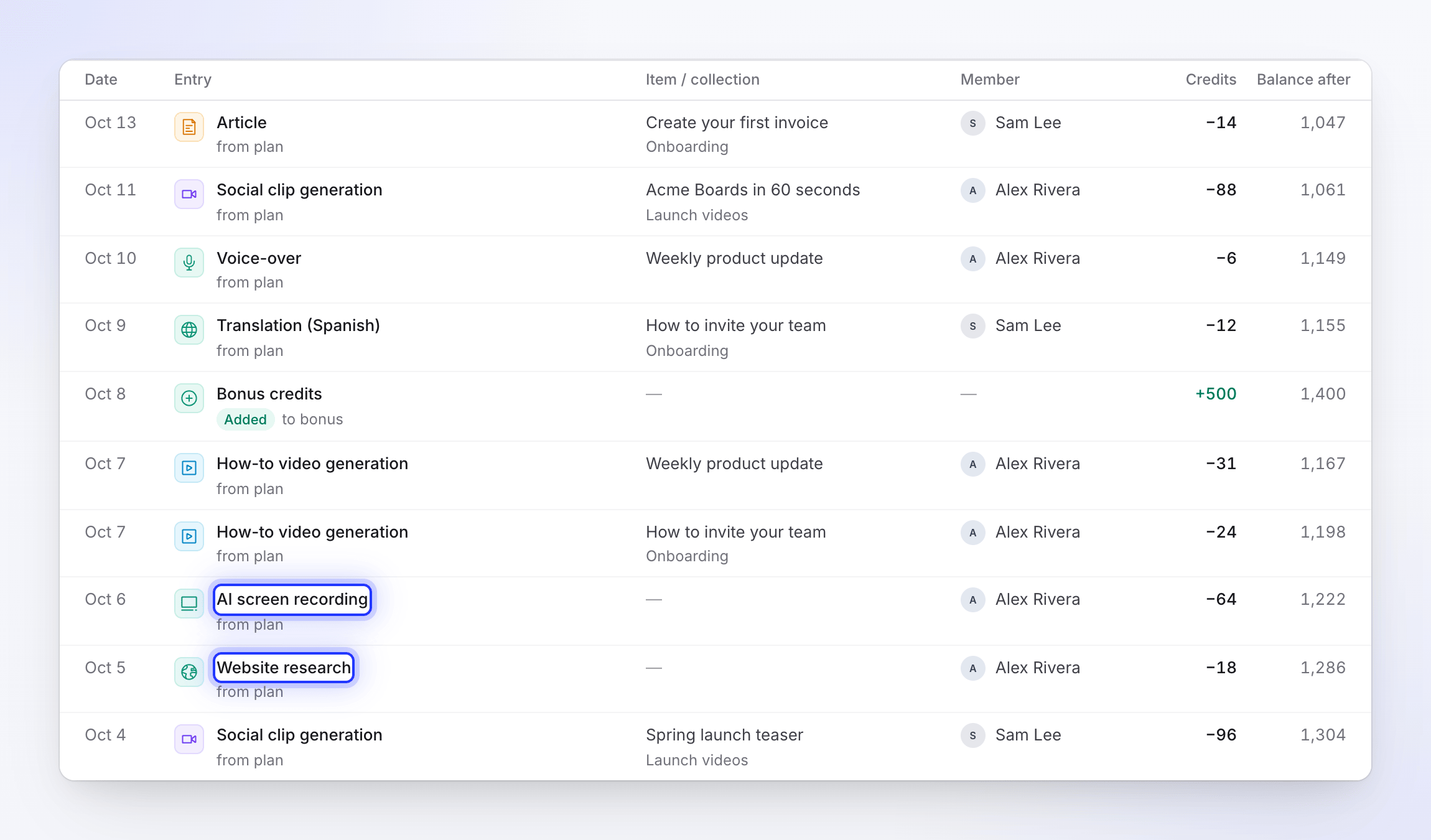
On your workspace's usage page, these charges appear as Website research and AI screen recording, grouped under Research & recordings. See Check where your credits went.
What's free
| Action | Cost |
|---|---|
| Reusing a site under Previous research (Use (no new research)) | Free. No new visit. |
| A link in your brief that matches a reading of the same site and note from the last 7 days | Free. The earlier reading is reused. |
| Using a finished AI recording in your video | Free. You paid for it when it was recorded. |
| Watching the live page, reading the results | Free. |
| Exporting the finished video | Free, as always. |
Making the video itself is charged as usual, within its estimate. See Read the credit estimate before you generate.
Runs that fail or are stopped
| What happened | What you pay |
|---|---|
| The run failed on our side | Nothing. Once the run can't be recovered, every credit it used goes back to the kind of credits it came from (included, bonus or bought). |
| You stopped the run yourself | The work the AI did before you stopped it. |
| A Record with AI run failed, but its recording was recovered and you can use it | The run is billed as usual, because you get the recording. |
A Record with AI run that fails partway is sometimes still recoverable, so its credits only come back once Clevera knows the recording can't be saved. The refund then shows in the credit history as Failed run refunded · AI screen recording or Failed run refunded · Website research. Like the charges themselves, it can take up to about 30 minutes to appear.
Keep the cost down
For website research:
- Start from the exact page you need, such as
acme.com/pricing, not the home page. - Write a focused note in What should we look at?, for example "The Teams plan and the reviews tab". The AI stops sooner when it has what you asked for.
- Reuse earlier research from Previous research when the site hasn't changed.
- Remove links your clip doesn't need before you research them.
For Record with AI:
- Set Start page to where the walkthrough begins, not the home page.
- Write short, ordered steps. "Click New project, type Q3 Launch, press Create" is faster than "show how projects work".
- Use a saved sign-in or Use a login, so the AI doesn't wait for you at the sign-in page.
- Stay close while it runs, so you can answer quickly when it asks for you.