

Publish videos to YouTube
Connect your YouTube channel and send finished Clevera videos as private drafts, with an AI-written title, description, tags and category, plus chapters from your video.
Send a finished Clevera video to your YouTube channel as a private draft, with the title, description, tags and category written by the AI and chapters taken from your video. Nothing is public until you publish it in YouTube Studio.
For how publishing works across every platform, see Publish videos to your platforms.
What lands where
| Where it goes | A new upload on the YouTube channel you connected. |
| Visibility | Private by default. You can choose Unlisted, and Public once Google's review is complete. |
| Subscribers | Not notified by default. |
| What Clevera fills | Title, Description, Tags, Category and Thumbnail by the AI; Chapters from your video. You answer the declarations. |
| What it costs | No per-send fee. |
| After you send | YouTube processes the video. A private upload reads Private on YouTube with "Only you can see it. Publish it from YouTube Studio when you're ready." |
Before you start
- Plan. Publishing is part of the Pro plan and above.
- Role. Only workspace owners and admins can connect or disconnect a channel. Anyone who can edit a video can send it to a channel that's already connected.
- A YouTube channel. The Google account must have a channel. If it doesn't, Clevera shows Create a channel, which opens YouTube's channel setup.
- Videos over 15 minutes need a verified channel. Verify it at
youtube.com/verify.
Connect YouTube
Open Integrations
Open Integrations from the sidebar. YouTube is under Video platforms, and its row says Sign in with Google.

Sign in with Google
Click Connect and choose the Google account. If it manages a Brand Account, Google asks which channel to use: pick the one you want to upload to.
Review the permissions
Google lists what Clevera is asking for:
- Manage your YouTube videos, to upload the video and set its thumbnail.
- View your YouTube account, to read your channel's name and the video categories, and to follow the upload while YouTube processes it.
- See your primary Google Account email address, to show which Google account owns the channel.
Clevera doesn't ask to manage your whole YouTube account, delete videos or post comments. Google shows this screen every time you connect.
Leave every permission ticked. If you untick one, Clevera refuses the connection: "A permission Clevera needs was unticked on the YouTube consent screen. Connect again and leave every permission ticked."
Allow
Click Allow (or Continue). You land back on Integrations with the channel on the YouTube card, shown with its
@handle.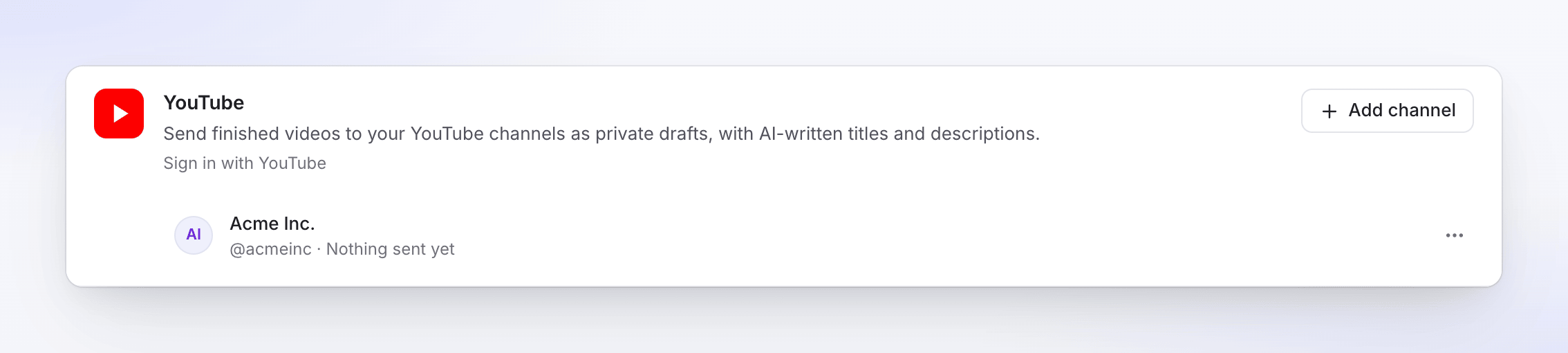
To add another channel, click Add channel and pick the other channel or Brand Account on Google's screen. Each channel is its own row.
Send a video to YouTube
Open the Publish tab
Open the video, click Share, then Publish. Click Publish… (or Publish again).
Tick the channel
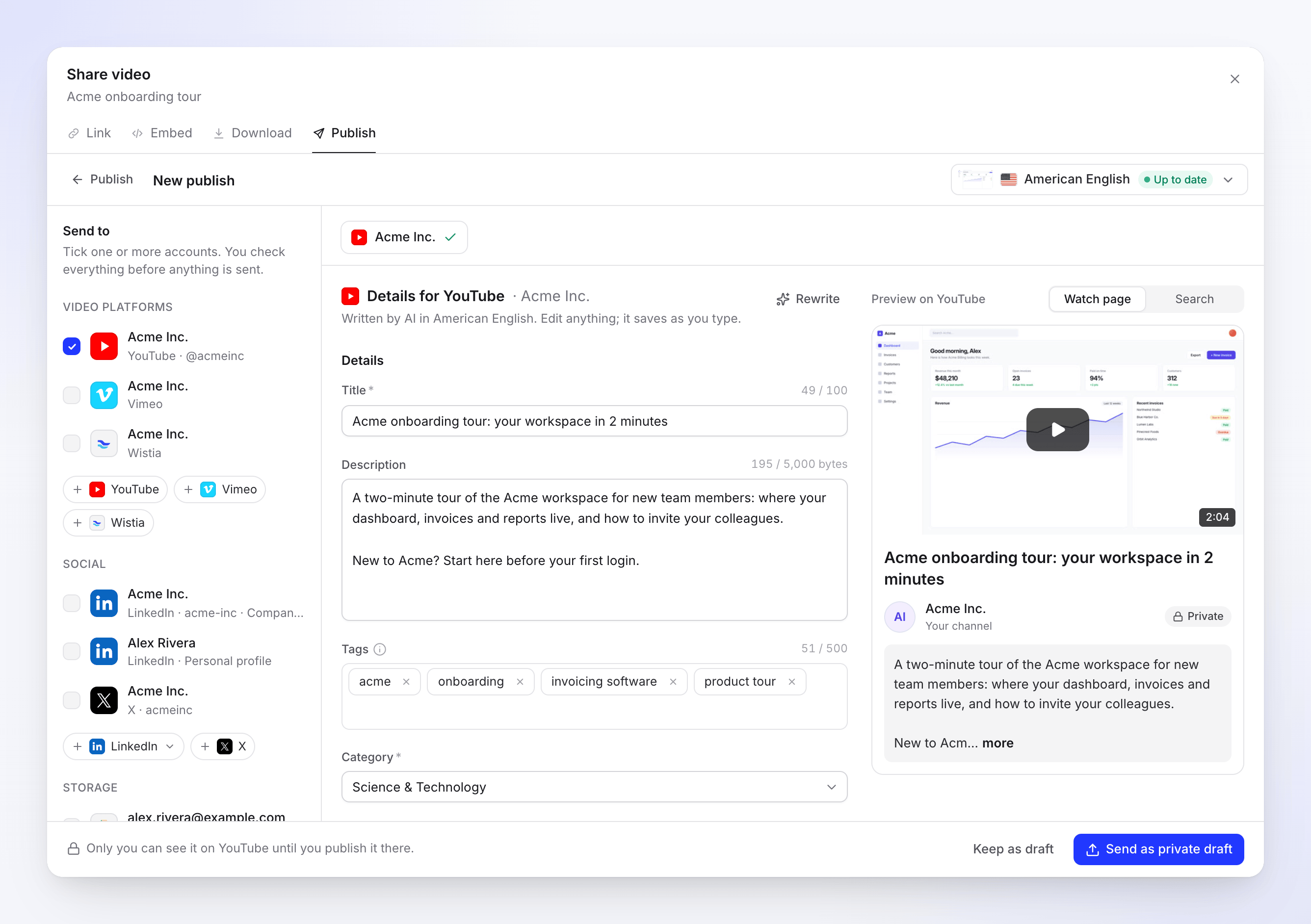
Under Send to → Video platforms, tick the YouTube channel.
Check the details
The AI writes the title, description and tags and picks a category, in the language of the selected render. Edit anything; changes save as you type. Switch the preview between Watch page and Search to see how YouTube cuts the title and description.
Set visibility and answer the declarations
Scroll down to Visibility, Notify subscribers, Chapters and Thumbnail, then answer Made for kids and Altered or synthetic content under Your declarations.
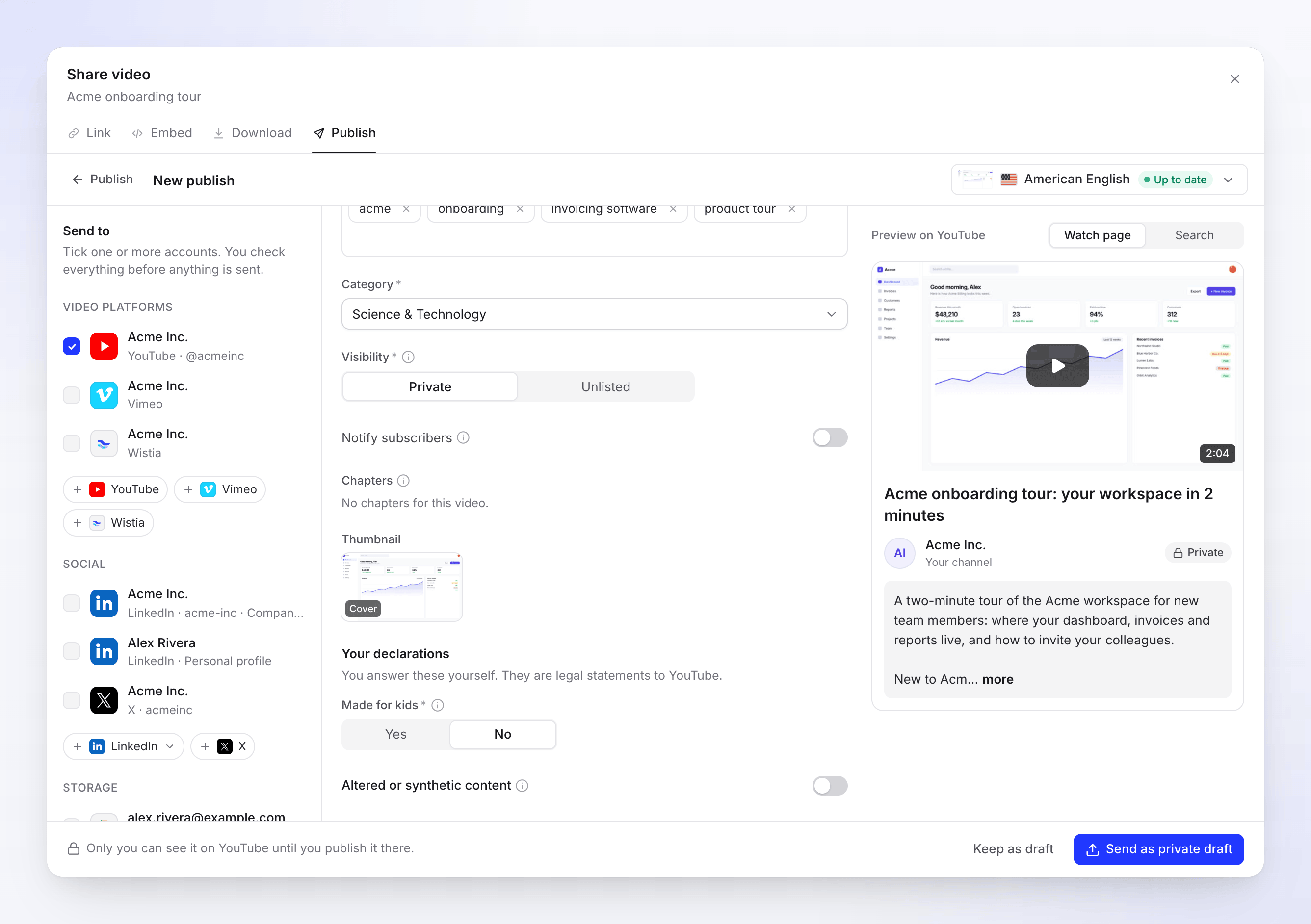
You answer the declarations yourself. The AI never sets them. Send it
Click Send as private draft (or Send as unlisted, or Publish now for Public). To finish later, click Keep as draft.
Fields and limits
| Field | Filled by | Limit or choices | Notes |
|---|---|---|---|
| Title | AI | 100 characters, required | < and > aren't allowed. |
| Description | AI | 5,000 | The counter counts characters, for example "1,203 / 5,000". Accented letters, other scripts and emoji take more room, so fewer of them fit; near the limit, a note says so. Chapters count toward the limit. |
| Tags | AI | 500 characters in total | Press Enter after each one. Commas aren't allowed inside a tag. |
| Category | AI | One of your channel's categories, required | Starts as Science & Technology. |
| Visibility | You | Private, Unlisted; Public after Google's review | Default Private. |
| Notify subscribers | You | On or off | Off keeps the upload quiet while it's a draft. |
| Chapters | Your video | Titles editable, times fixed | See Chapters. |
| Thumbnail | AI | Cover, Poster or Frame 1–3 | Sent as a 1280×720 JPEG. |
| Made for kids | You | Yes or No, required | A legal declaration under COPPA. |
| Altered or synthetic content | You | On or off | Turn on when realistic people, places or events were made or changed with AI. |
How tags are counted: YouTube adds the length of every tag, plus 2 for each tag with a space in it (YouTube wraps it in quotes), plus 1 for each comma between tags. A leading # and duplicate tags are removed when sending.
Language: the render's language is sent as the video's language. There's no separate field.
Shorts: a vertical video of 3 minutes or less previews as a Short. A square one notes "May appear as a Short."
Your Visibility, Notify subscribers and declarations are remembered for the channel and filled in next time. If the video has an AI presenter, Altered or synthetic content starts switched on. Rewrite asks the AI for new text, up to 10 times a day per draft.
Chapters
Chapters come from your video's own structure, never guessed by the AI. You can edit their titles; the times always match the video. When you send, Clevera adds them to the end of the description as lines such as 0:00 Introduction.
YouTube only shows chapters that follow its rules, so Clevera checks them first:
- at least 3 chapters,
- the first one starts at 0:00,
- each chapter is at least 10 seconds long.
If they don't qualify, or the video has none, Chapters reads "No chapters for this video." and nothing is added.
Video requirements
| Limit | |
|---|---|
| Length | 1 second to 12 hours; up to 15 minutes on an unverified channel |
| File size | Up to 256 GB |
| Format | MP4 |
Statuses you'll see
| Status | What it means |
|---|---|
| Waiting for render | Sends as soon as the render finishes. |
| Queued / Uploading N% | The video is on its way to YouTube. |
| Waiting for YouTube | YouTube's daily upload capacity is used up. It sends automatically after the time shown. |
| Processing on YouTube | "YouTube is processing the video. This can take a few minutes." |
| Private on YouTube | "Only you can see it. Publish it from YouTube Studio when you're ready." |
| Unlisted on YouTube | "Unlisted on YouTube. Only people with the link can watch it." |
| Published | Public on YouTube: "Live on YouTube." |
| Failed | YouTube refused the upload. The message says why. |
| Removed | The video was deleted on YouTube. |
Open in YouTube Studio opens the video's edit page in YouTube Studio, or its watch page once it's public.
Warnings on a sent row
When the video arrived but something extra didn't, the row shows an amber note under its status:
- "YouTube keeps uploads from apps under review private for now. Change the visibility in YouTube Studio." comes with an Open in YouTube Studio link.
- "The video is on YouTube, but its custom thumbnail couldn't be set. Set it on YouTube."
On YouTube afterwards
The upload is a normal video in YouTube Studio. Change its visibility, schedule it, add end screens or a playlist there. For about a week after sending, Clevera checks the video every few hours, so publishing it in Studio changes the row to Published, and deleting it changes it to Removed.
Troubleshooting
Retry only shows when trying again can help.
| Message | What to do |
|---|---|
| "This account has no YouTube channel that can receive videos." | Click Create a channel, set one up on YouTube, then connect again. |
| "Verify your channel to upload videos over 15 minutes." | Click Verify channel, finish YouTube's verification, reconnect the channel, then Retry. |
| "YouTube's daily upload capacity is used up. We'll send it automatically after …" | Nothing to do. It sends by itself at that time. |
| "This channel reached YouTube's upload limit. Try again later." | YouTube limits how many videos a channel can upload in a day. Click Retry later. |
| "A permission Clevera needs was unticked on the YouTube consent screen. Connect again and leave every permission ticked." | Connect again and keep every permission ticked on Google's screen. |
| "Reconnect your YouTube account to send this." | The connection ended, for example after you removed Clevera from your Google Account. Click Reconnect YouTube, then Retry. |
| "YouTube didn't accept some of the details. Check them and send again." | YouTube refused the title, description, tags or category. Click Edit details, adjust and send again. |
| "YouTube rejected the video: it's a duplicate of a video already on the account." | YouTube spotted the same video already on the channel. |
| "YouTube rejected the video: it received a copyright claim." | YouTube found content it believes is copyrighted, often the music. Change it and render again. |
| "YouTube rejected the video: …" (format, length or other checks) | The reason reads as a sentence, for example "it couldn't be processed." Render the video again, then send. |
| "The upload was interrupted. Retry to carry on from where it stopped." | Click Retry. |
| "Something went wrong while sending this to YouTube. Please try again. Reference: …" | Click Retry. If it keeps failing, contact support with the reference. |
If YouTube refuses the custom thumbnail, for example because the channel isn't verified, the video still uploads and YouTube uses its own frame. The row says so in an amber note.
Disconnect YouTube
- Open Integrations, find the channel on the YouTube card and click ⋯ → Disconnect.
- Confirm. Clevera revokes its access at Google, sends still in progress stop, and videos already on YouTube stay there. If you connected several channels in one sign-in, access stays in place until the last of them is disconnected.
To check from Google's side, open your Google Account, go to Security → Your connections to third-party apps & services, and remove Clevera if it's still listed.
FAQ
Why is Public missing? Until Google finishes reviewing Clevera's YouTube app, uploads can only be Private or Unlisted. Send as private, then publish in YouTube Studio.
Will my subscribers be notified? Not unless you turn on Notify subscribers.
Can I add the video to a playlist or schedule it? Not from Clevera yet. Do both in YouTube Studio after it arrives.
Can I pick my own thumbnail image? You pick from the cover, the poster or a frame of the video. To use another image, change it in YouTube Studio.
Does YouTube publishing use credits? There's no per-send fee.