

Publish a doc site
Put your doc site's changes live: review and leave out changes before you publish, let it publish automatically, schedule pages, see every version in Publishing, roll back, pin versions, and unpublish or delete a site.
Nothing you change on a doc site reaches readers until it's published. Each publish makes a new version of the whole site, readers switch to it in seconds, and every version is kept in Publishing so you can roll back. You can publish by hand, let the site publish itself, or schedule pages for a date.
Before you start
- Your role: owners, administrators and editors publish. Content Creators see "An admin or editor publishes this site." in the header.
- Free plan: your email address must be verified. Otherwise publishing says "Verify your email to publish."
- Something to publish: a site needs at least one finished page (or a published changelog entry) for its first publish.
Publish your changes
The site header shows where you stand: "3 changes not published", "Publishing… Uploading", "Published 2 hours ago" or Not published yet.
Open the review
Click Publish in the site header. Publish changes lists what will go live, for example "3 changes will go live on help.example.com." Each change is labeled Added, Edited or Removed, or names what changed: Navigation, Appearance, Settings, Changelog or Redirect.
Leave out what isn't ready
Click Leave out of this publish on a change to skip it. The sheet confirms "1 change left out — they stay unpublished." and offers Put back. Left-out changes wait for the next publish.
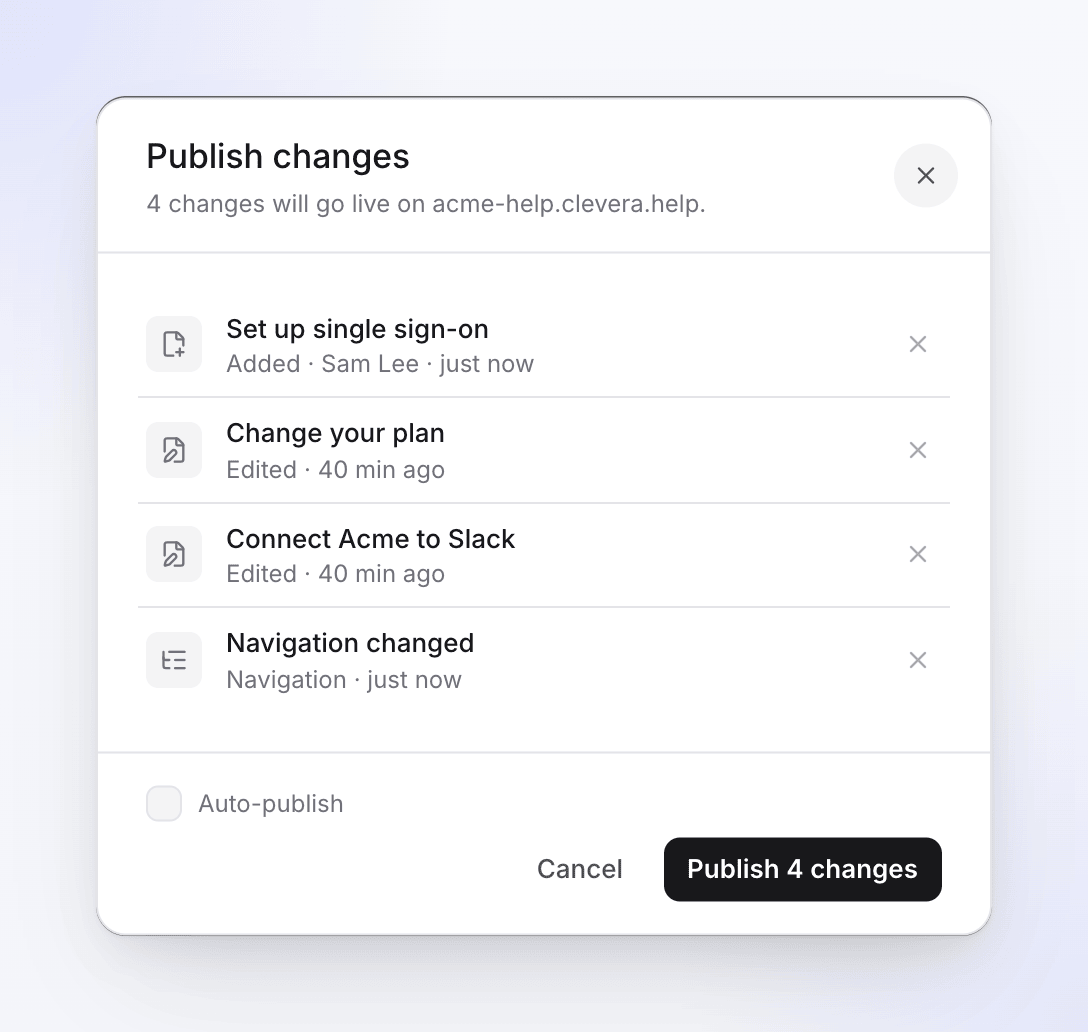
The Publish changes dialog Publish
Click Publish 3 changes. If the site doesn't publish automatically yet, you can tick Auto-publish: "Publish automatically from now on."
Watch it go live
The sheet steps through Preparing pages, Building the search index, Uploading and Going live. It takes a few seconds; "Readers keep the current version until it is done." When it's live you see "Version 13 is live. You can roll back any time from Publishing." with Visit site and Done.
You can close the sheet while it publishes. When nothing has changed, it says "Your site is up to date".
Publish automatically
Settings → Publishing → Publish automatically is on for new sites. Once the site is live, "Saved changes to pages on this site go live after about two minutes without edits." Edits made close together go out as one version you can roll back.
- The site publishes when it has been quiet for about 2 minutes, and at most 10 minutes after the first change, even if people keep editing.
- It only runs on a site that's live. A site that was never published, or that you unpublished, waits for a manual publish.
- Turned off, "Changes collect in “changes not published” until someone presses Publish." People who publish get a notification when changes are waiting.
Publish AI translations without review, on the same tab, decides whether AI-translated site pages publish right away or wait as drafts. It's off by default. See Add languages to a doc site.
Schedule pages and entries
On Starter and up, a page can go live on a date: open Page settings, turn on Publish on a set date and pick Goes live and Time. Times use the site's Time zone (Settings → General). Changelog entries can be scheduled the same way.
Clevera checks every few minutes and publishes the site once a scheduled page's time has passed, so it goes live within about 5 minutes of the time you set. Scheduled pages show the Scheduled status until then. Scheduling needs a site that's already live.
See every version in Publishing
Open Publishing in the site's sidebar: "Every version of your site, and rolling back." The top card shows Live now: build #13, its pages and address, and Publish now when changes are waiting.
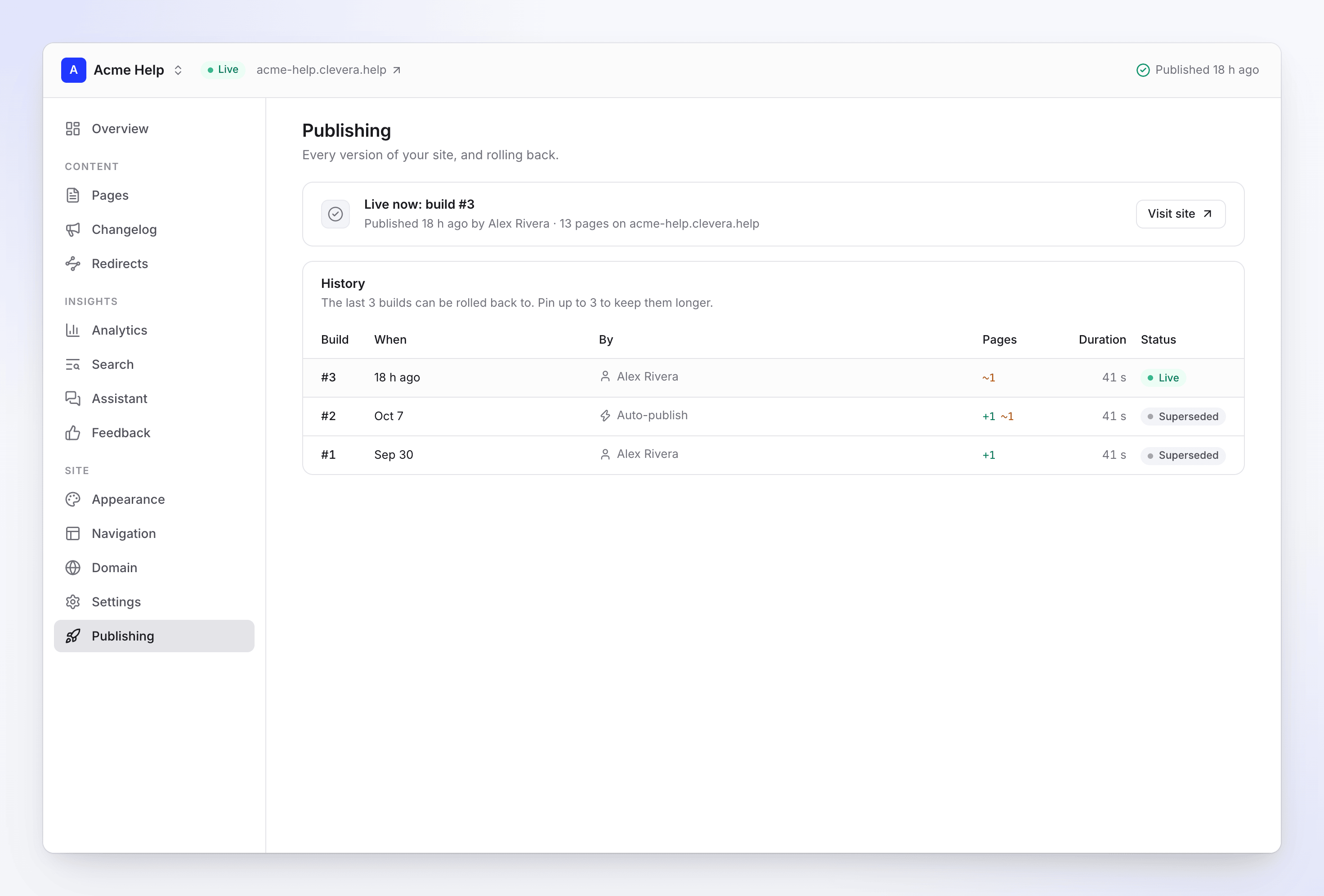
History has one row per build:
| Column | Shows |
|---|---|
| Build | Its number, and Pinned if you pinned it |
| When | When it was published |
| By | The person, Auto-publish, Rollback to #9, Settings change, an automation's name, or Site update (Clevera rebuilt the site after an improvement to how sites are made) |
| Pages | "3 added", "2 changed", "1 removed" |
| Duration | How long it took, in seconds |
| Status | See below |
| Status | Meaning |
|---|---|
| Publishing | This build is on its way. |
| Live | Readers see this build. |
| Superseded | A newer build replaced it. |
| Failed | Nothing went live; the site kept the build before. |
| Rolled back | A rollback skipped over it. |
| Expired | Too old to roll back to. |
| Skipped | Nothing changed since the build before. |
Click a row to open the build: the pages Added, Changed and Removed with links, and Site settings changes. A refresh of the same content says "No page changes: a refresh of the same content."
Retry a failed build
A failed build says "Couldn't publish this build. Fix what it tripped on, then publish again. The site kept the build before." with the reason. Fix it and click Retry. Readers keep seeing the last version that worked; the header says "Version 14 didn't publish: … Readers still see the last version."
Roll back
Open an older build and click Roll back to this build. Confirm Roll back to build #11?: "Readers will see build #11 within seconds. Your library isn't changed — the next publish includes your current content again."
A rollback is itself a new build ("Rollback to #11") and takes seconds; nothing is re-rendered. With Publish automatically on, the next saved edit publishes your current content again, so turn it off first if you need the older version to stay.
How far back you can go
| Plan | Versions you can roll back to |
|---|---|
| Free | The last 3 builds |
| Starter | Builds from the last 30 days |
| Pro, Business, Custom | Every kept build |
On every plan, Clevera keeps the 10 most recent versions, plus the live one and any you pin; older ones show Expired. Builds outside your plan's window are listed but locked; trying one says, for example, "Your plan can restore the last 3 builds. Starter keeps 30 days."
Pin a version
Click Pin on a build to "Keep this build for rollback however old it gets." You can pin up to 3 per site; a fourth says "You can pin up to 3 versions. Unpin one first." Only builds still kept for rollback can be pinned. Unpin releases it.
Unpublish or delete a site
Both are in Settings → Danger zone.
| Action | Who | What happens |
|---|---|---|
| Unpublish | Owners, administrators, editors | "Readers see “This site is offline” within a minute. Publish again any time." Pages, settings and history stay. |
| Delete site | Owners, administrators | "Removes the site, its history and insights. Your articles and videos stay in Content. The address is held for 90 days." |
Deleting asks you to type the site's name to confirm. Then:
- the free address stops working and is held for 90 days, so no one else can take it,
- a custom domain disconnects; remove its DNS record at your provider,
- publishing history, analytics and feedback are deleted.
Troubleshooting
| Message | What to do |
|---|---|
| "Add pages before publishing." | Add at least one finished page. |
| "Verify your email to publish." | Free plan: verify your email address, then publish again. |
| "A publish is already running for this doc site." | Wait for it to finish. |
| "This doc site was published many times in the last hour. Try again in a few minutes." | A site can publish up to 60 times an hour. Wait a few minutes. |
| "Paused sites are read-only." | The site is over your plan's site limit. See Doc site plans and limits. |
| "Your plan doesn't include private doc sites. Make the site public or upgrade to publish it." | Set Settings → Access to public, or upgrade to Pro. |
| "This doc site is suspended. Contact support to restore it." | Contact support. |
| "Publishing is temporarily unavailable. Your live site hasn't changed." | Try again later; readers still see the live version. |
| "This version can no longer be restored." | The build has expired. Pick a newer one. |
For build failures and their reasons, see Fix doc site problems.