

Create and apply AI rules
AI rules are reusable sets of instructions the AI follows on every video: your product context, audience, tone, do's and don'ts, words to use or avoid, pronunciations and custom rules. Create a rule set, apply it, and make it your workspace default.
AI rules are instructions you write once and the AI follows on every video you apply them to: what your company does, who your audience is, the tone to use, words to use or never use, how to pronounce your product's name. You group them into rule sets and tick the ones you want on each video.
They work on every type: social clips, how-to, product demo, polish and articles.
Rule sets: yours and Clevera's
| Kind | Who can change it | How it appears |
|---|---|---|
| Yours | The person who created it. They choose whether everyone in the workspace can use it. | A pencil icon to edit |
| Clevera | Built in by Clevera and available to every workspace. Read-only. | An eye icon to view; Duplicate to make your own copy |
Apply rule sets to a video
Open the AI rules pill
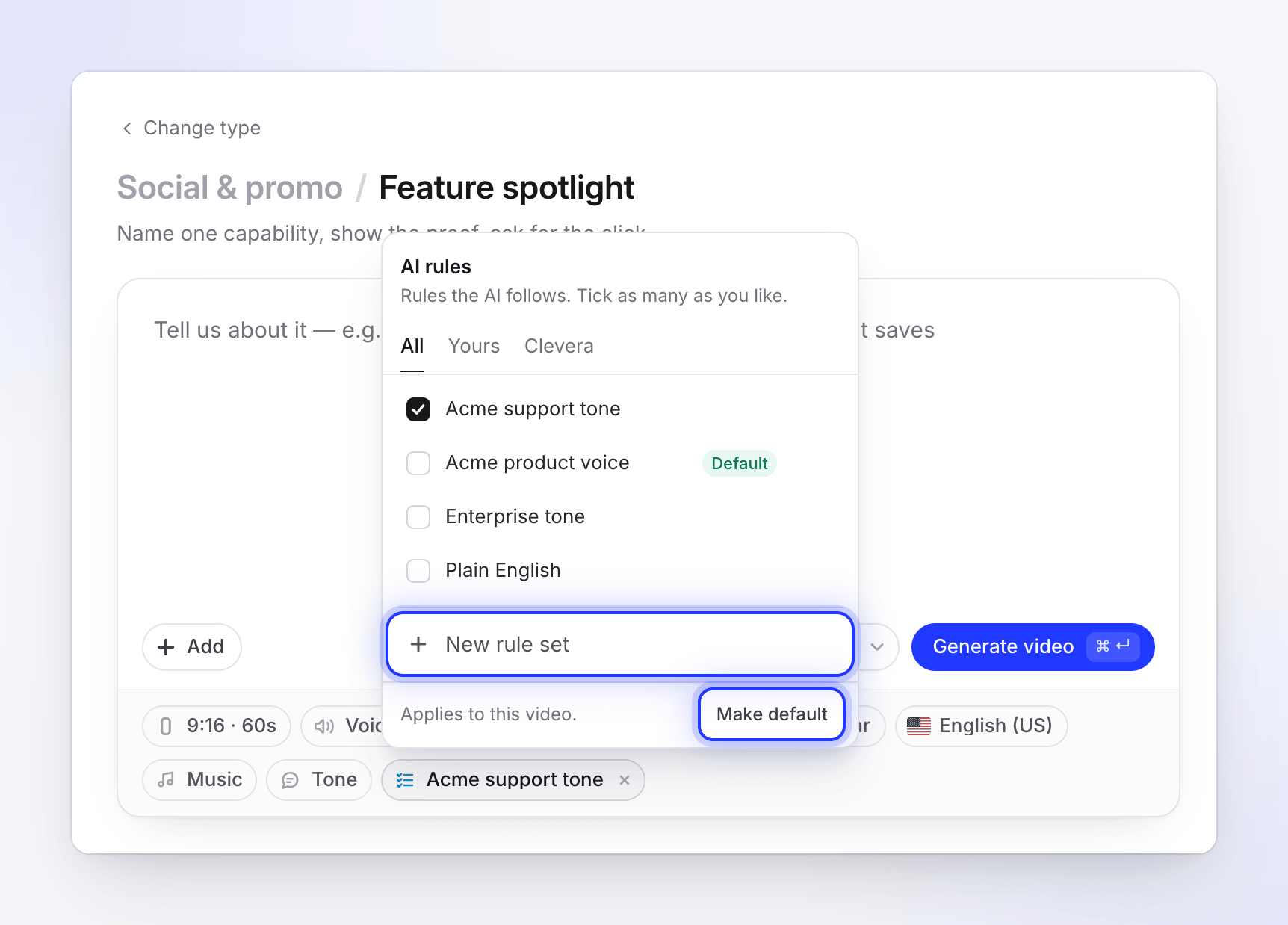
On the Compose page, click the AI rules pill. Its menu says "Rules the AI follows. Tick as many as you like."
Tick the rule sets
Tick every set you want. The menu stays open while you tick. Hover a set to see its first rule. Once your workspace has its own sets, tabs All, Yours and Clevera appear, and a search box appears once there are more than eight sets.
Close the menu
The pill shows the set's name, or "2 rule sets" when you ticked several. The footer says "Applies to this video."
You can apply up to 10 rule sets to one video.
Make them your workspace default
To start every new video with the same sets, tick them and click Make default in the menu's footer. The footer then reads "New videos start with these." and those sets show a Default badge.
The default applies to every new video of any type, for everyone in the workspace. You can still untick a set on a single video.
Create a rule set
Start a new set
In the AI rules menu, click + New rule set at the bottom. To start from one of Clevera's sets, click its eye icon and then Duplicate.
Fill in the sections
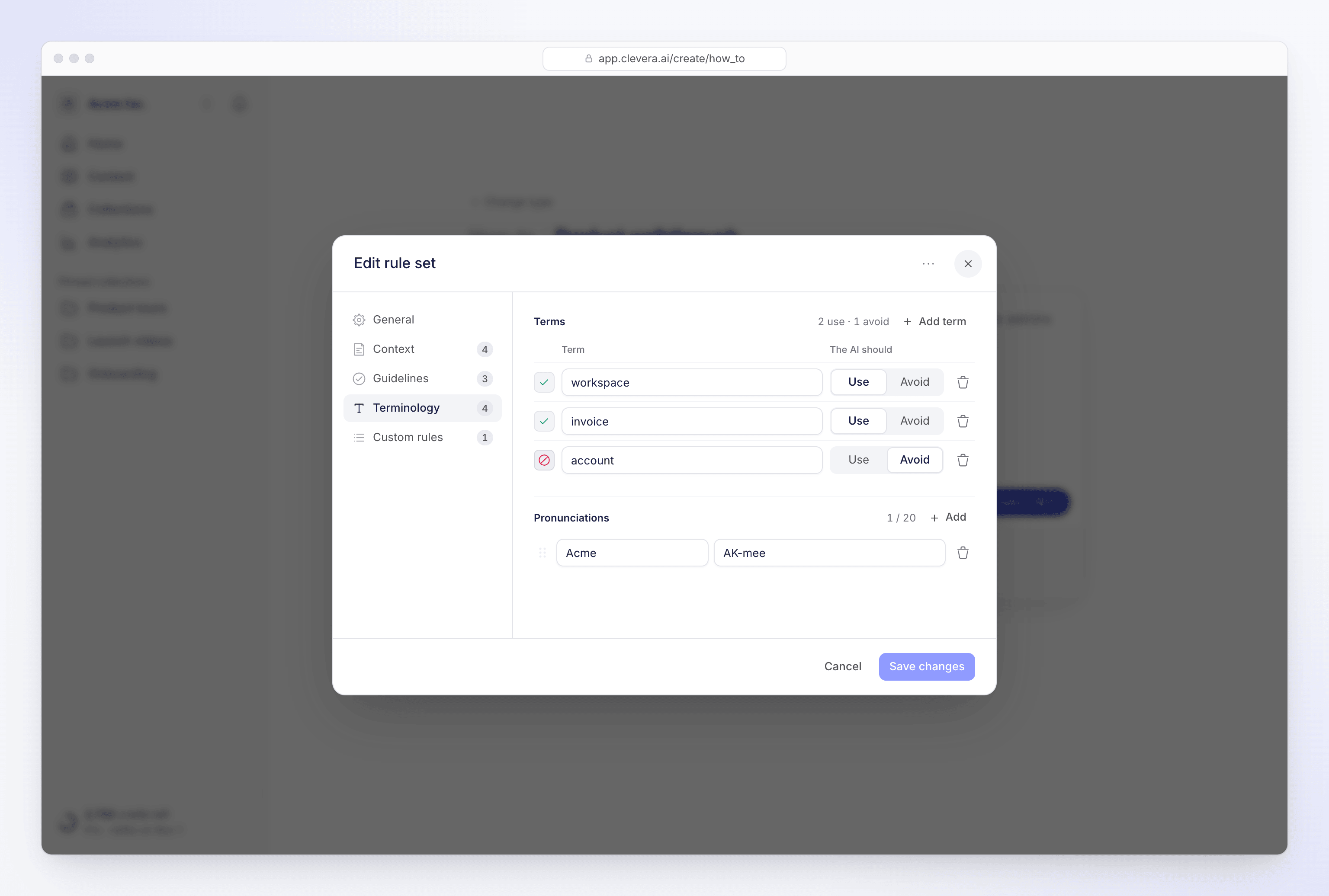
The editor has five sections in its side list. Fill in only what matters to you; every field is optional except the name.
Save it
Click Save rule set. Before saving, the AI checks the rules are clear and appropriate; if something can't be used, the fields are highlighted with what to fix. A new set is ticked on the video you're making.
What goes in each section
| Section | Fields | Limits |
|---|---|---|
| General | Name ("e.g. Product voice, B2B") and Who can use this?: Everyone in workspace or Only the person who created it | Name up to 120 characters |
| Context | Context ("What should the AI always know about your company, product, or use case?"), Audience, Tone, Product focus | Context up to 2,000 characters; Audience and Tone up to 120; Product focus up to 150 |
| Guidelines | Do's ("Behaviours and patterns the AI should follow.") and Don'ts ("Things the AI should avoid."), each with an optional label | Up to 10 of each; label up to 60, text up to 250 characters |
| Terminology | Terms, each marked Use or Avoid, and Pronunciations ("One word or short phrase, with a brief phonetic hint.") | Up to 20 terms of each kind, 50 characters each; up to 20 pronunciations |
| Custom rules | "Focused instructions for scripts, narration, and copy. They are read in this order." Each has a subject and the rule. | Up to 8 rules; subject up to 80, rule up to 300 characters |
Example rule set for Acme Inc.
| Field | Example |
|---|---|
| Name | Acme product voice |
| Context | Acme is invoicing software for small design agencies. Customers are agency owners and their finance leads. |
| Audience | Agency owners |
| Tone | Friendly and direct |
| Do | Show the result before the steps. |
| Don't | Don't promise features that are "coming soon". |
| Terms: Use | workspace, client, invoice |
| Terms: Avoid | account, customer, bill |
| Pronunciation | Acme → "AK-mee" |
| Custom rule | Pricing: never state prices; say "see example.com/pricing". |
Edit, share or delete a rule set
- Edit: click the pencil next to your set, change it and click Save changes. Only the creator can change Who can use this?; others see "Only {name} can change who can use this rule set."
- Delete: open the set, choose Delete rule set from its menu and confirm. "It is removed for everyone in the workspace. Videos already made keep the rules they used."
- If you close the editor with unsaved changes, it asks Discard changes? with Discard or Keep editing.
Changing a rule set only affects videos you make afterwards.
Troubleshooting
| Message | What to do |
|---|---|
| "We found issues in your rule set. Review the highlighted fields and try again." | Fix the highlighted fields. Sections with a problem are marked in the side list. |
| "We could not check and save the rule set. Please try again." | Try again in a moment. |
| "We could not save the default. Try again." | Try Make default again. |
| "We could not delete this rule set. Try again." | Try again. |
| "No rule sets yet" | "Create one to give the AI your terms, tone, and the things it must never say." |