

Turn new videos into articles automatically
The Turn new videos into articles recipe writes an article for each new video when it finishes, as a draft in your help center or as a library article in a collection. Each run waits for your review; no help center is needed.
Turn new videos into articles is the Autopilot recipe that writes an article for every new video. Each time a video finishes, Clevera plans an article written from it, either as a draft in your help center or as a library article in a collection. You review each plan before anything is written. No help center is needed.
Before you start
- Your role must be able to create content (owner, admin or content creator).
- A help center is optional. With one, you choose between the help center and a collection. Without one, articles go to your library: "You have no help center yet, so articles go to your library."
- Articles are written from the video itself, so nothing else is needed: no app address and no sign-in.
Set it up
Open the recipe
In Autopilot, click Turn new videos into articles under Or start from a recipe, or ask for it in What should Autopilot do?, for example "Write a help article for every new video in Product tours". The agent panel opens with the setup card. This form is short, so you fill it in right in the card.
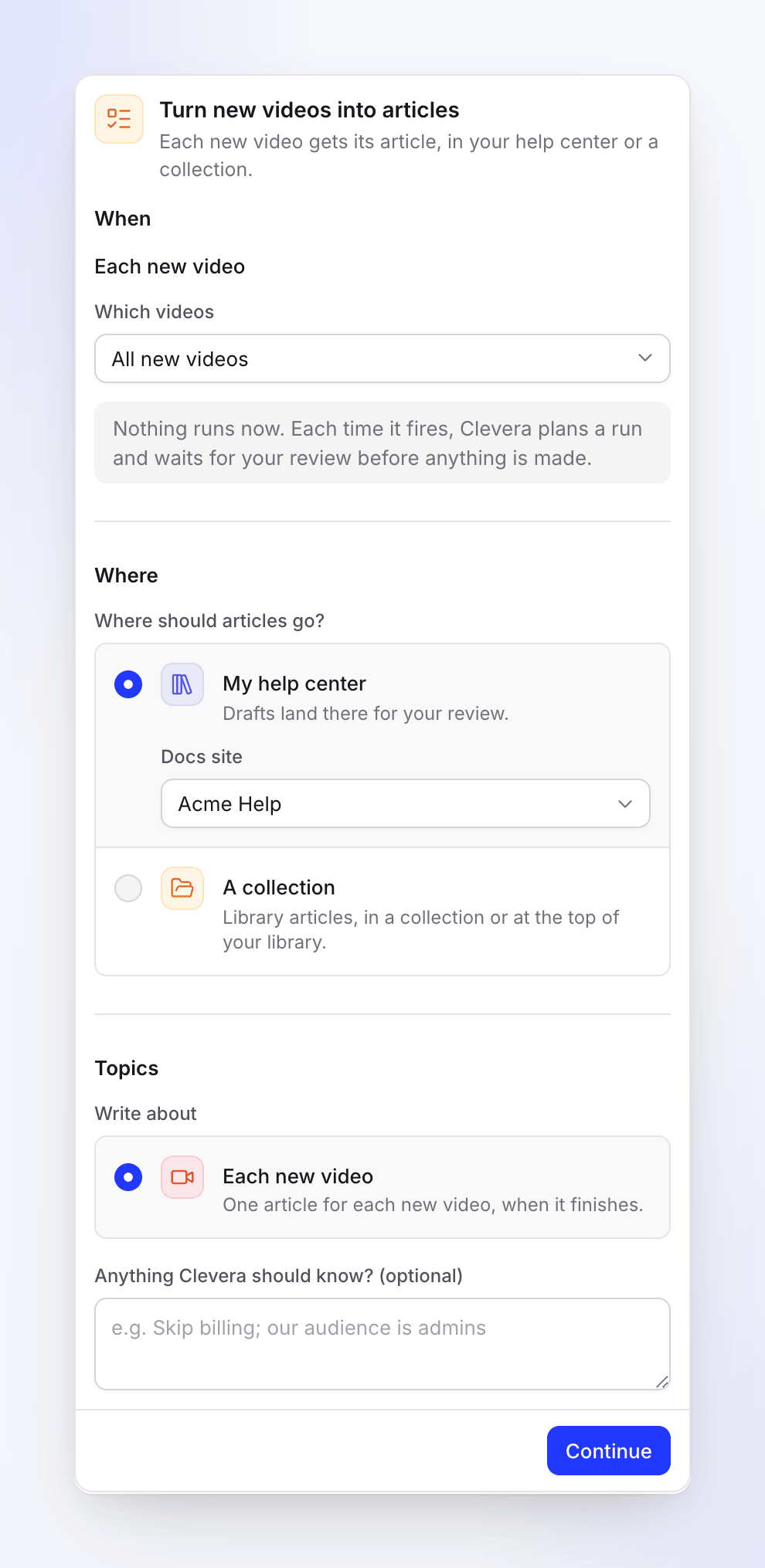
The whole setup fits in the card. Pick the videos and where the articles go
Under Which videos, keep All new videos or pick a collection. Under Where should articles go?, pick My help center and the site, or A collection. Add anything Clevera should know, then click Continue.
Check the review and create the task
The review shows When ("When a new video finishes", or "When a new video finishes in Product tours"), Approval ("Each run waits for your review"), Typical run ("5–60 credits") and Language. Click Create task.
Wait for the next video
Nothing runs now. The task shows Active and No runs yet, and on Autopilot home it's listed under Always on with a Watching badge. Videos you already have don't get articles from this task; only videos that finish from now on.
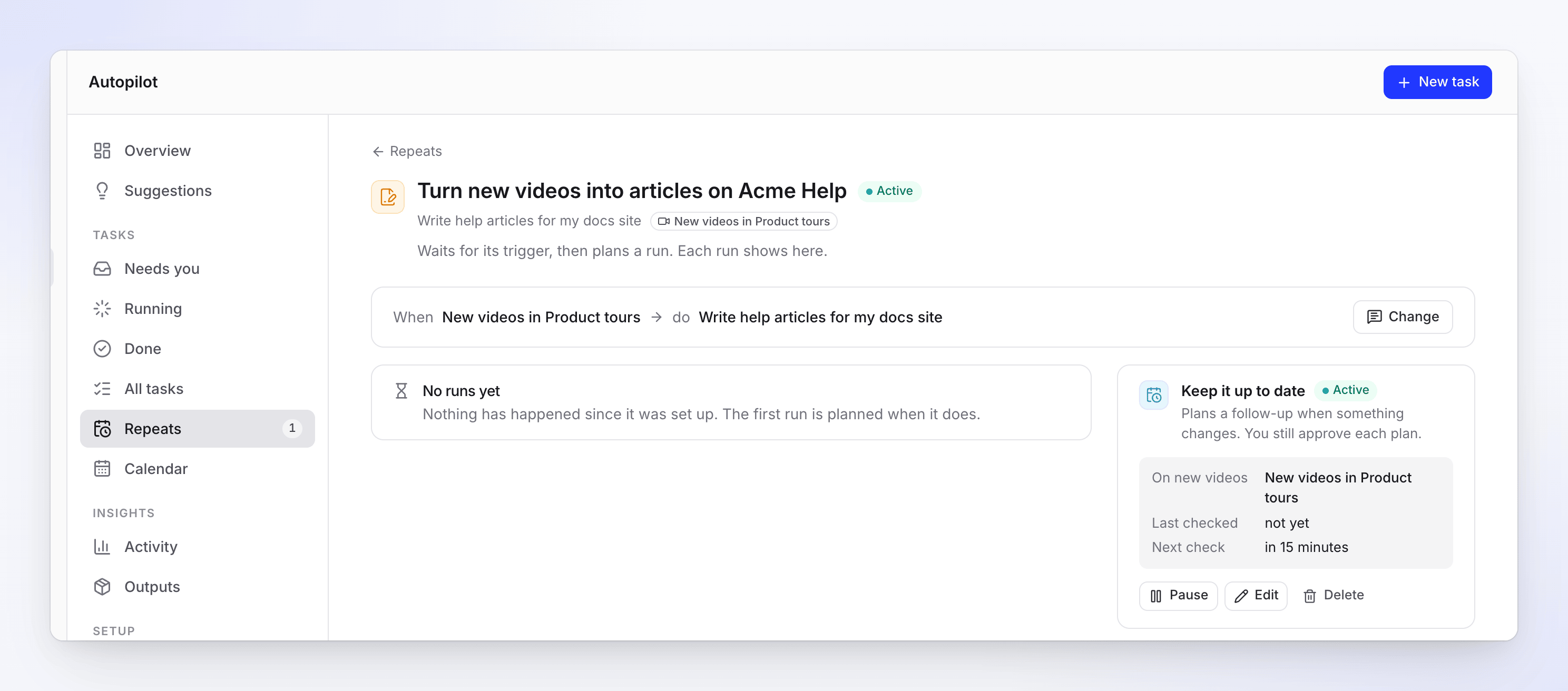
The Keep it up to date card shows which videos it watches and when it checks next.
The setup form
| Section | Field | Options and defaults |
|---|---|---|
| When | — | Each new video. This recipe only runs on new videos. |
| Which videos | All new videos (default) or one of your collections | |
| Where | Where should articles go? | My help center ("Drafts land there for your review.") with a Docs site picker, or A collection ("Library articles, in a collection or at the top of your library.") with a Collection picker that starts on Top of the library. Without a help center, only A collection is offered. |
| Topics | Write about | Each new video: "One article for each new video, when it finishes." |
| Anything Clevera should know? (optional) | Up to 2,000 characters, for example "Skip billing; our audience is admins". |
There is no budget and no approval choice: each run waits for your review.
What each run does
- A video finishes. Clevera checks for new videos about every 15 minutes, so a run is planned roughly 15–25 minutes after a video is done. Social clips and teasers don't count, and neither do videos Autopilot itself made in this task.
- Clevera plans the articles: one per new finished video that isn't on the site yet (or has no article yet, for a collection), up to 30 a run. In a help center, each article is placed in the section that fits it ("It goes in the “Billing” section." or "It goes at the top of the site."). In a collection: "Written from the video into the “Product tours” collection."
- You review the plan under Needs you, untick what you don't want and click Run.
While a plan waits for you, more videos that finish don't start a second run; the next run covers them. If you leave a plan for 5 days you get a reminder, and after 7 days it expires.
Where the articles land
| Destination | What you get |
|---|---|
| My help center | Draft articles on the site, marked Waiting for approval ("Written by Autopilot. Approve it to publish it."). Nothing is published until someone approves them; the owner or an admin approves and publishes. |
| A collection | Library articles in that collection, or at the top of your library. You can edit, share or publish them like any article. |
Cost
Watching and planning are free. Each article shows its credits on its plan line before you run it, and you're charged for what it really uses. A typical run costs 5–60 credits.
Change, pause or stop it
On the task page, the Keep it up to date card has Pause / Resume, Edit and Delete. Change opens the agent to change the instructions or where the articles go. To watch other videos, set up a new task and delete this one. See Change an Autopilot task.
Troubleshooting
| What you see | What to do |
|---|---|
| "Pick a help center." | With My help center, choose the site. |
| "Choose a collection of this workspace." | Pick a collection under Which videos that still exists. |
| "Pick a collection you can add articles to." | Choose another collection, or Top of the library. |
| "You have no help center yet. Put the articles in a collection instead, or build a help center first." | Pick A collection, or build a help center. |
| "These videos are already on Acme Help, or none of them is finished." | Nothing to write for this run. |
| "These videos already have an article, or none of them is finished." | Nothing to write for this run. |
| "This task’s collection is gone or no longer yours to add to. Pick another one on the task." | Use Change on the task to pick another collection. |
| No run after a new video | Wait up to about 25 minutes. Check that the video is finished, is in the collection the task watches, and isn't a social clip. |