

Export a video as MP4
Download any video or social clip as an MP4 (H.264, 60 fps) in 1080p, 2K or 4K. Exports never use credits. Covers resolutions per plan, Free limits, render history, 90-day file retention and every error message.
Export any video or social clip as an MP4 file you can upload anywhere: a website, YouTube, LinkedIn, a slide deck or an LMS. Exports never use credits, on any plan.
You don't need to export to share a video. A share link or an embed always plays the latest version straight from Clevera. Export when you need the file itself. See Share a video with a link.
Before you start
- You need permission to edit the video. If Share is greyed out with "You don't have permission to edit", ask an owner or admin for access to its collection.
- The video needs some length. An empty timeline shows "This video has no length yet. Add something to the timeline, then render."
- On the Free plan, verify your email address first. See Free plan limits.
Export a video
Open Share
In the editor, click Share in the top-right corner, then open the Download tab.
If you exported this video before, the tab opens on your Latest render so you can download it again without rendering. Click Render a new version (or Render again if the video changed since) to make a new file.
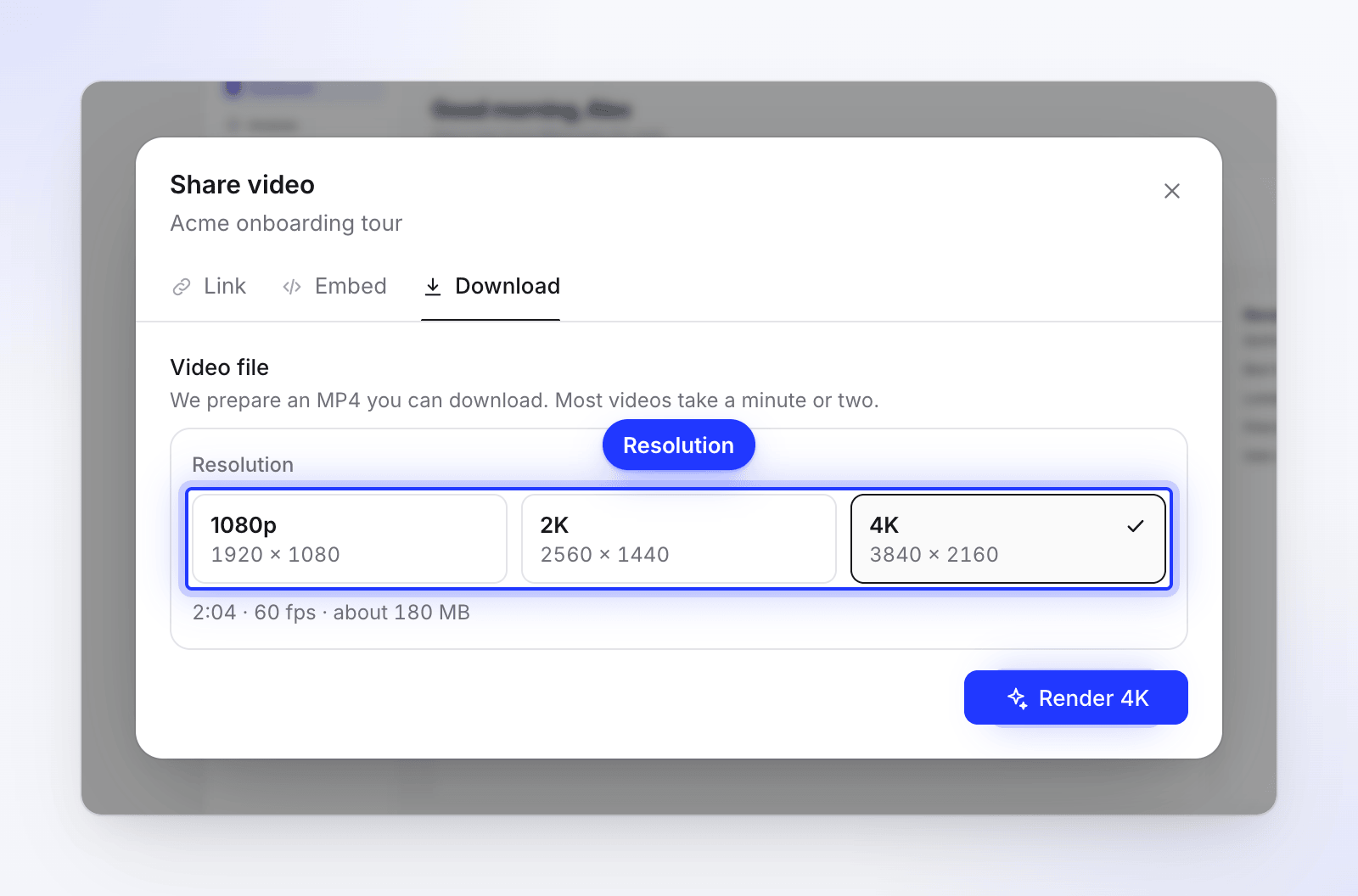
Each option shows the exact size of the file it makes. Pick a resolution
Under Resolution, choose 1080p, 2K or 4K. Each option shows the exact size of the file it makes, such as
1920 × 1080.The line under the options shows the length, the frame rate and an estimated file size, for example "1:47 · 60 fps · about 42 MB". The final file is often smaller.
Click Render
Click the button, which names your choice: Render 1080p, Render 2K or Render 4K. The panel shows three stages: Preparing, Rendering and Saving, with a percentage and the time left.
Most videos take a minute or two. Where the render runs, on your computer or on our servers, is decided for you. See On-device and cloud rendering.
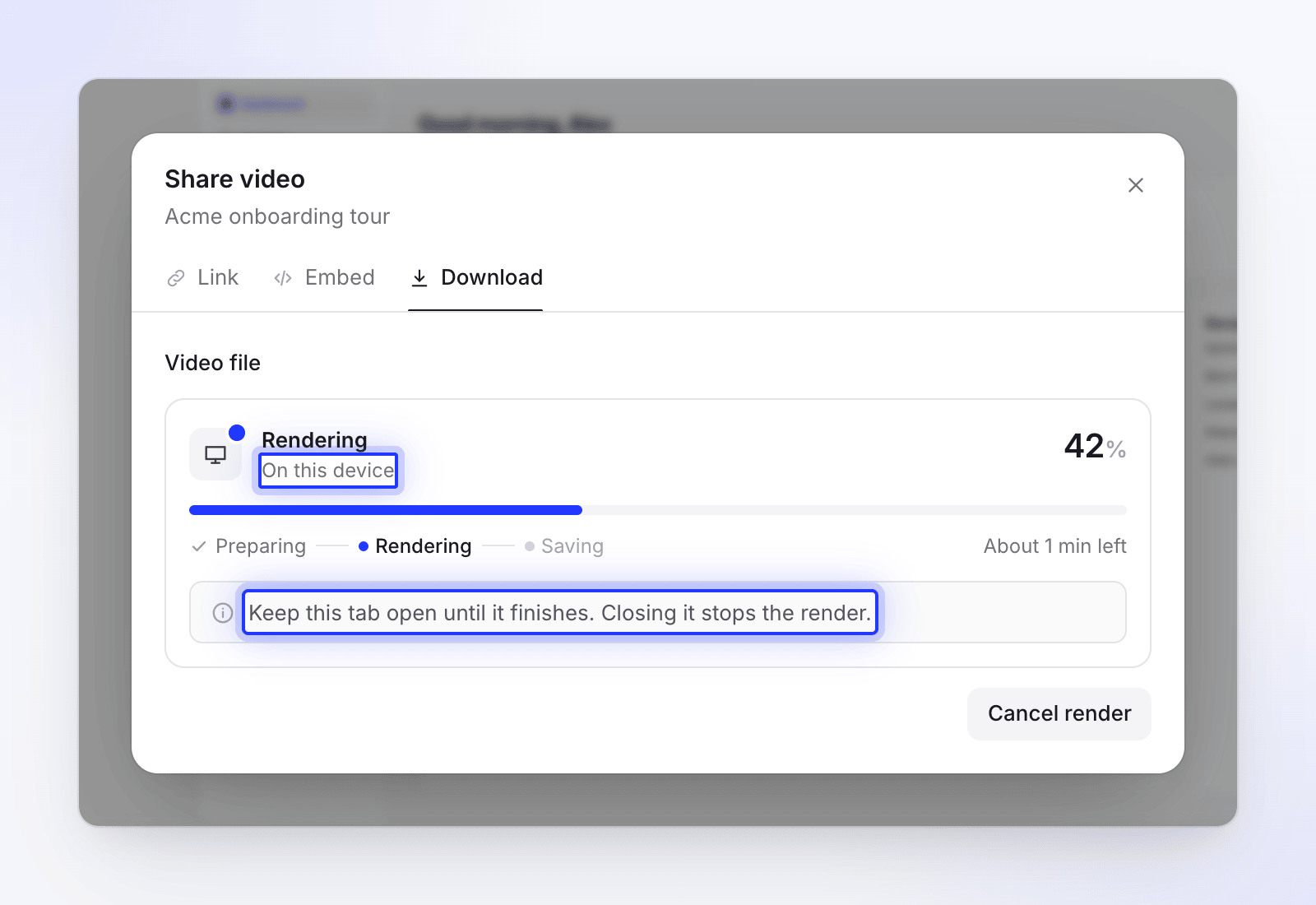
The panel says where the render runs. Download the file
When you see "Your video is ready", the download usually starts on its own ("The download started on its own."). Click Download again for another copy, or Download if it didn't start.
Export settings
| Setting | What you get |
|---|---|
| File format | MP4 (H.264 video, AAC audio). No other formats. |
| Frame rate | Always 60 fps, so cursor moves, zooms and scrolling stay smooth. There's no frame-rate setting. |
| Resolution | 1080p, 2K or 4K, up to your plan's limit |
| Aspect ratio | The video's own shape. Portrait and square videos are never cropped or padded. |
| Language | The language you're editing. Switch the language in the top bar to export a translation. |
| File name | The video title plus the date and time, for example product_tour_2026_10_12_14_05_33.mp4 |
| Cost | Free. Exports never use credits. |
Resolutions and sizes
Each resolution is a box the video fits inside. A landscape video fills the width; a portrait video turns the box on its side.
| Option | Box | 16:9 video | 9:16 video | 1:1 video |
|---|---|---|---|---|
| 1080p | 1920 × 1080 | 1920 × 1080 | 1080 × 1920 | 1080 × 1080 |
| 2K | 2560 × 1440 | 2560 × 1440 | 1440 × 2560 | 1440 × 1440 |
| 4K | 3840 × 2160 | 3840 × 2160 | 2160 × 3840 | 2160 × 2160 |
Other shapes keep their proportions inside the same box. A 4:3 video at 1080p comes out at 1440 × 1080.
Clevera remembers the last resolution you picked in this browser. The first time, it starts on 1080p.
Resolution by plan
| Plan | Highest resolution | Watermark | Exports |
|---|---|---|---|
| Free | 1080p | "Made with Clevera" | 15 a month, up to 3 a day |
| Starter | 2K | None | Unlimited |
| Pro | 4K | None | Unlimited |
| Custom | 4K | None | Unlimited |
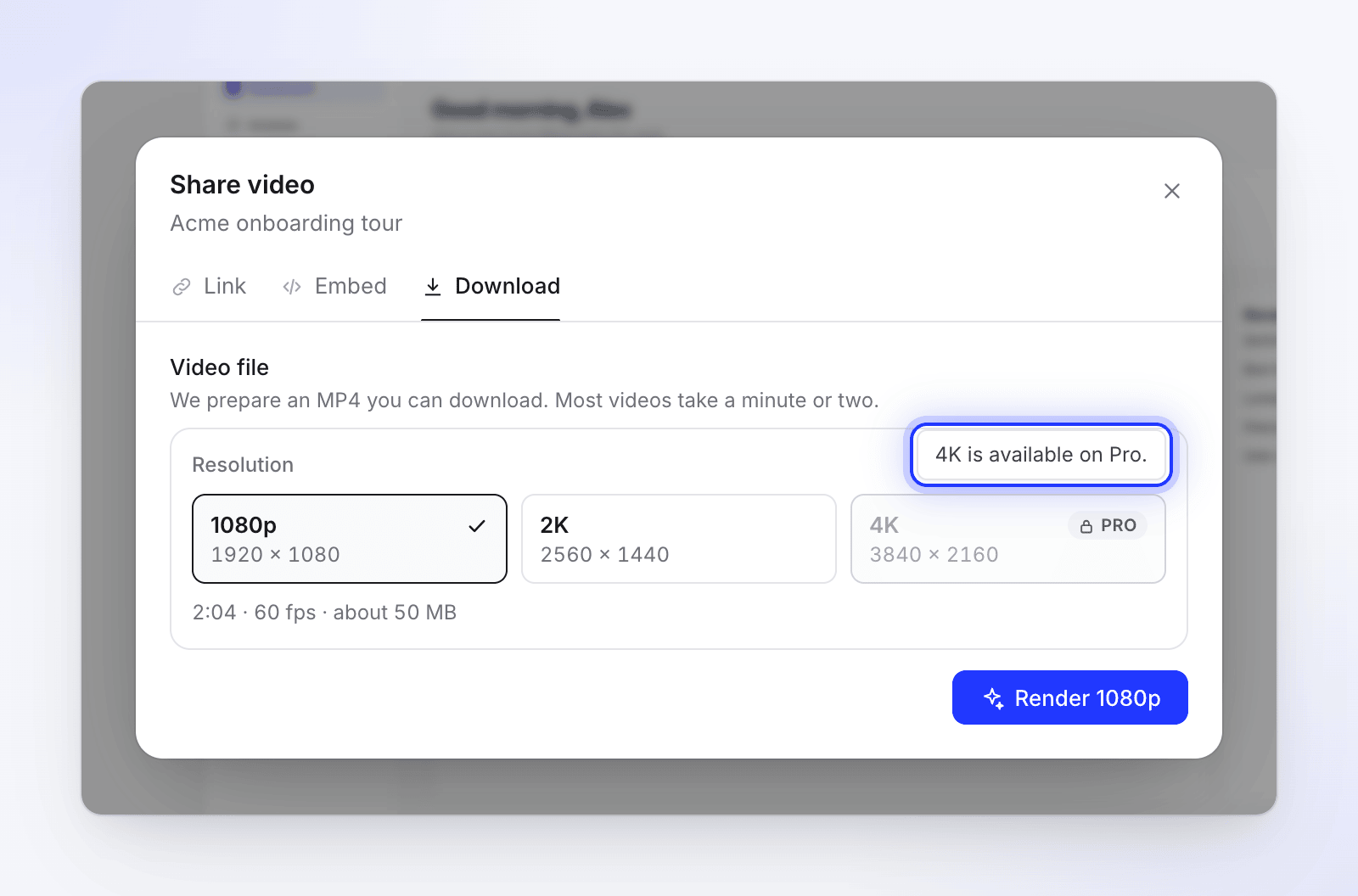
A resolution your plan doesn't include shows a lock with Upgrade (2K) or Pro (4K). Hover it to see "2K is available on paid plans." or "4K is available on Pro." Clicking it opens the upgrade page.
Free plan limits
On the Free plan, exports also have these limits. They count per workspace.
| Limit | Free plan |
|---|---|
| Renders | 3 a day and 15 a calendar month (days and months in UTC) |
| Video length | Up to 3 minutes |
| Watermark | "Made with Clevera" in the bottom-right corner. See Remove the Clevera watermark. |
| Where it renders | On your device. Our servers finish a render up to 2 times a month, for videos up to 3 minutes. |
| Must be verified before your first render |
Every render you start counts, even one you cancel.
The latest render and all renders
The Download tab keeps every file you made:
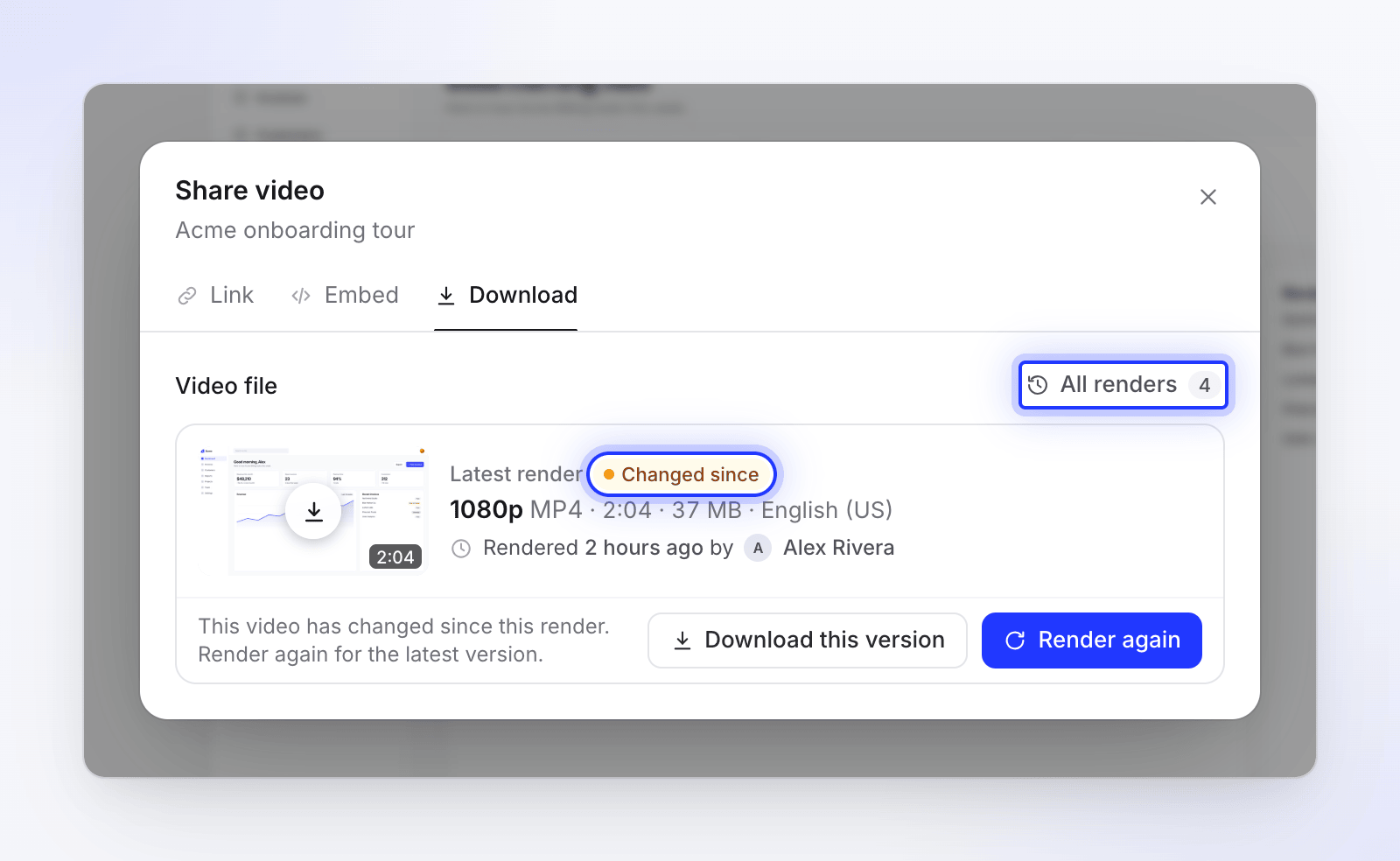
- Latest render shows the newest finished file in the language you're editing, who rendered it and when. A badge tells you whether it's Up to date or Changed since: "This video has changed since this render. Render again for the latest version."
- All renders (top right of the tab, with a count) lists "Every render of this video, newest first.", with where each one ran, its size and a Download button.
- If you choose the same resolution as an up-to-date render, Clevera says "Nothing has changed since your 1080p render…" and offers Download it, so you don't wait for an identical file.
For social clips, clicking Render on an unchanged clip hands back the last file at once: "No changes since your export of Today, 14:05 — here it is."
How long files are kept
Rendered MP4s are deleted 90 days after they finish. The render stays in All renders but shows Deleted after 3 months. In the last two weeks, the latest render warns you, for example "This file is deleted in 5 days. Download it to keep it." Render again at any time to get a new file; it's free.
Cancel a render
While it runs, click Cancel render, then Stop render to confirm ("Stop this render? Progress so far is lost."). Click Keep rendering to carry on. You can close the Share window during a render; reopen it to see the progress. The Share button in the top bar also shows the progress, such as "Exporting 42%".
Notifications
You get an inbox notification, and an email if you haven't seen it, when:
| Notification | When |
|---|---|
| "Your export of title is ready" | The file finished |
| "Export of title moved to our servers" | Your device handed the render to our servers |
| "Export of title stopped" | The tab closed or the connection dropped |
| "Export of title failed" | The render couldn't finish. The notification gives the reason. |
Troubleshooting
| What you see | What to do |
|---|---|
| "Your current plan allows exports up to 1080p. Please select a lower resolution or upgrade your plan." | Pick a resolution your plan includes, or upgrade. |
| "You have reached the rendering limit of the Free plan." | You've used today's 3 renders or this month's 15, or the video is longer than 3 minutes. Wait for the next day or month, or upgrade. |
| "Please verify your email address before rendering." | Click the link in the verification email, then try again. |
| "This device couldn't finish the render" | Free plan only: your device couldn't render it and this month's server renders are used up. Try a computer with Chrome, or upgrade. |
| "Your last render stopped" | The tab was closed or the browser stopped. Click Render again. After a browser crash, the next render runs on our servers. |
| "We couldn't render this video" | Click Try again in a few minutes. We're notified automatically. |
| "Rendering is locked" | Your last payment failed. Click Go to Billing and update your payment method. |
| "Reload to render" | Rendering was updated since you opened the page. Click Reload page. |
| "Rendering is paused" | We're doing maintenance. Try again in a few minutes. |
| "You have renders in progress" | Wait for one of your renders to finish, then start the next. |
| "Let's slow down for a moment" or "Too many render requests" | You started many renders in a short time. The message says when you can start the next one. |
More causes and fixes: My export stopped or failed.