

Write an article together with your team
Edit an article with teammates at the same time: who can join, what you see, what "Edit anyway" does when live editing is down, and how Reload latest and Keep mine protect everyone's work.
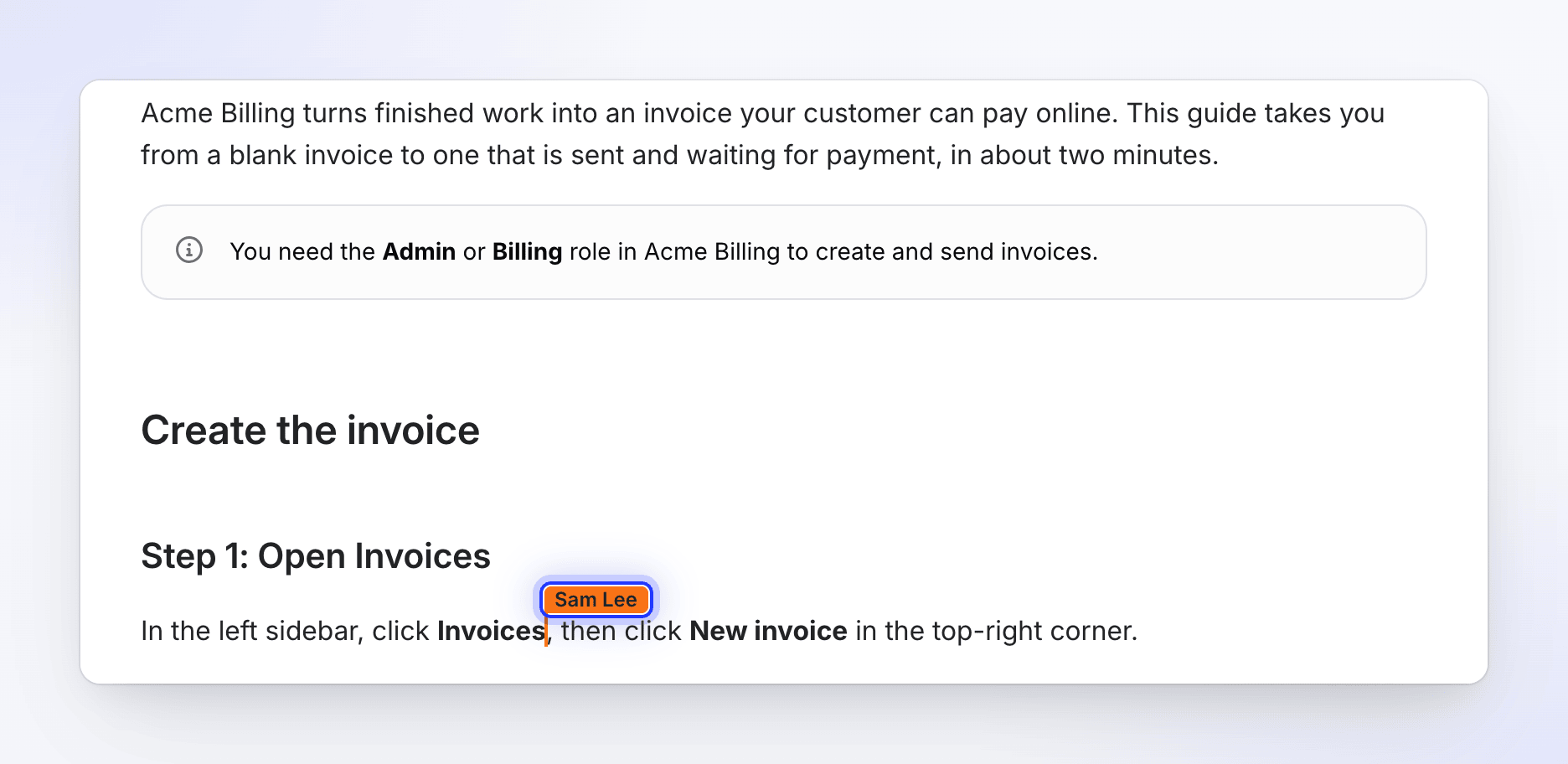
Several people can edit the same article at once. Everyone's changes appear as they type, each person's cursor shows their name, and nothing anyone writes is overwritten without asking. This article covers who can join, what you see, and what to do when live editing isn't available.
Before you start
- Everyone needs edit access to the article. The person who made it and the workspace owner can always edit. Anyone else gets edit access through a collection: a Team-wide collection lets everyone whose workspace role can edit, and a Specific people collection lets the people you add as Editor or Manager.
- Articles outside a collection can be opened by teammates but edited only by their creator and the workspace owner. Move the article into a collection to work on it together.
- See roles and creator seats for what each workspace role can do.
Edit together
Share the article with your team
Put the article in a collection your teammates can edit: ⋯ → Add to collection in the editor's top bar.
Open the same article
Each person opens the article from Home, the collection or a link. While the editor joins you see "Connecting to the live article… You can read it meanwhile."
Write at the same time
Everyone types in the same article. You see other people's cursors and selections in their color, with their name. Changes save on their own; the save status shows Saved when yours are stored.
Check who changed what
Open revision history. A stretch of editing becomes one entry that lists everyone who worked on it, for example "Alex Rivera and Sam Lee".
When live editing is paused
Live editing pauses on its own while:
- the article is being generated or regenerated,
- the assistant is improving it, or
- changes the AI made are still highlighted for review.
It resumes when that work is finished. Changes from the assistant appear for everyone at once.
When live editing is unavailable
If the editor can't reach live editing for about 15 seconds, a note appears at the top:
Live editing is unavailable right now. Retrying…
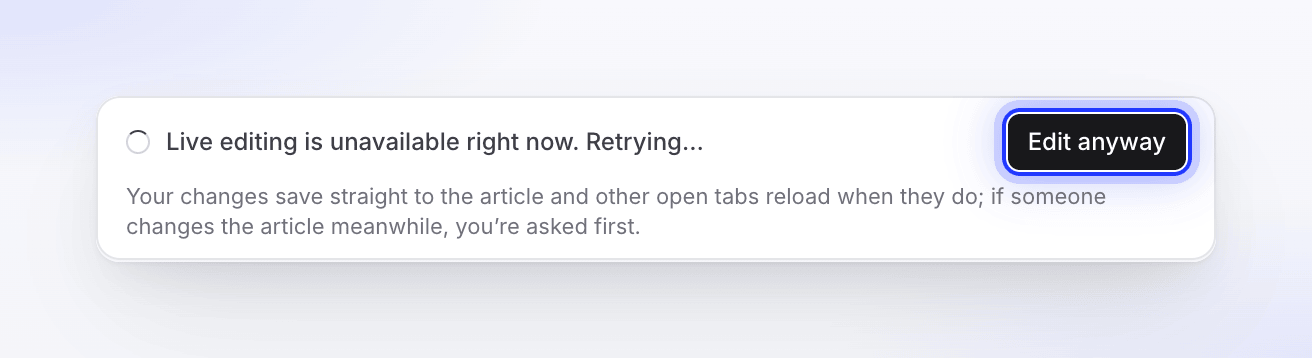
Clevera keeps retrying in the background. You can wait, or click Edit anyway: "Your changes save straight to the article and other open tabs reload when they do; if someone changes the article meanwhile, you're asked first."
While you edit this way the editor shows:
Editing without live collaboration. Your changes save straight to the article and other open tabs reload when they do; if someone else changes it meanwhile, you're asked before anything is overwritten. Live editing comes back by itself.
When the connection returns you see "Going back to live editing…" and then "Live editing is back. You're editing the live article again." Your edits are kept.
When the article changes under you
Sometimes the whole article is replaced while you have unsaved edits: someone restored an older version, the assistant changed it, it was regenerated or translated again, or someone saved with Edit anyway. Clevera doesn't overwrite anything. A yellow banner explains what happened, for example:
| Cause | Banner title |
|---|---|
| A teammate restored a version | "Sam Lee restored an earlier version while you were editing." |
| The assistant | "The assistant changed this article while you were editing." |
| Regenerated | "The article was regenerated while you were editing." |
| Translation updated | "This translation was updated while you were editing." |
| A teammate's own version | "Sam Lee replaced the article with their version while you were editing." |
| An Edit anyway save | "This article changed while you were editing without live collaboration." |
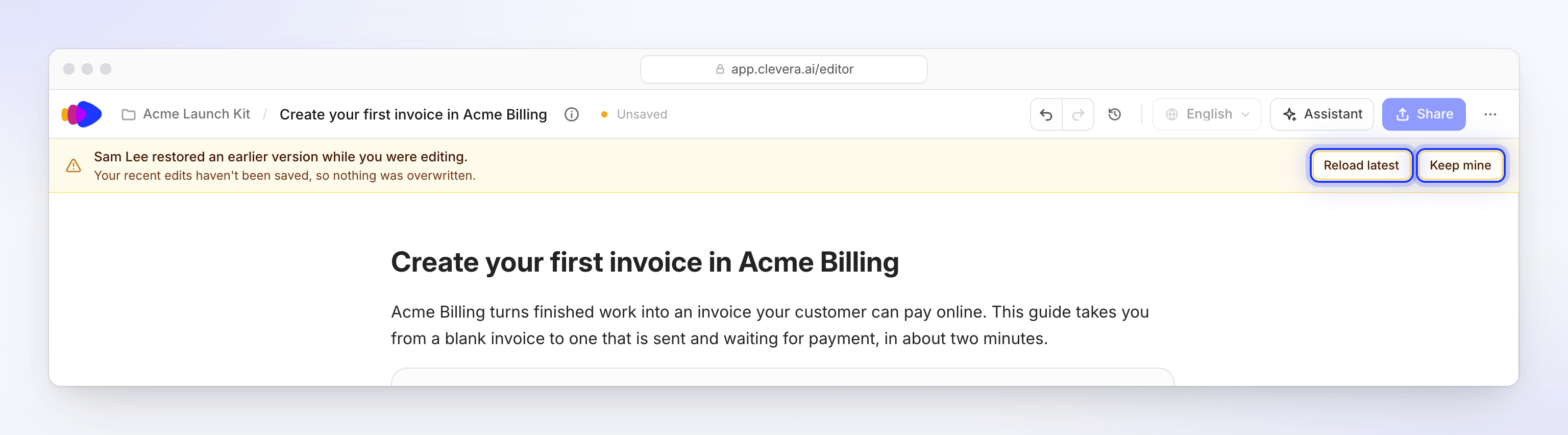
Under it: "Your recent edits haven't been saved, so nothing was overwritten." Choose:
| Button | What happens |
|---|---|
| Reload latest | Loads the new version. Your unsaved edits are dropped. |
| Keep mine | "Save your version over it. The other version stays in History." |
If you had no unsaved edits, the editor loads the new version by itself and shows a short note such as "The assistant changed this article. You're seeing the new version." with View in History.
Troubleshooting
| You see | What to do |
|---|---|
| "You don't have permission to edit" | Ask the article's creator or the collection's Manager for edit access, or ask for the article to be moved into a collection you can edit. |
| "Connecting to the live article… You can read it meanwhile." stays on | Wait a few seconds. After about 15 seconds you're offered Edit anyway. |
| "Not saved yet. Retrying when you edit again." | Your connection dropped. Keep editing; the next save sends everything. |
| "Your version looks empty, so it wasn't saved. Reload the latest version instead." | Click Reload latest. |
| "Couldn't save your version. Try again." | Click Keep mine again, or Reload latest. |