

Understand language versions of a video
Each language of a video is its own version. What every language shares (the recording, crop, aspect ratio), what each keeps for itself, why edits after translating stay in one language, and how to update translations.
A translated video isn't one video with subtitles: each language is its own language version, with its own voice-over, steps, zooms, elements, music and history. This article explains what each version shares, what it keeps for itself, and how to edit several languages without surprises.
Before you start
- Language versions exist for how-to videos, product demos and social clips. Polish videos have no language menu.
- To make one, see Translate a finished video.
The mental model
                    Your recording (shared)
                   crop · aspect ratio (shared)
                 ┌────────────┼────────────┐
           English (Original)  German       Japanese
           steps & narration   steps & …    steps & …
           zooms, elements     zooms, …     zooms, …
           music, style        music, …     music, …
           history, chat       history, …   history, …
When you translate, Clevera copies the original language's version at that moment, including its zooms and elements, translates its words, records a new voice-over and re-times everything to the new narration. From then on, the two versions are separate. An edit lands only in the language you have open.
What's shared and what isn't
| Part | Shared by every language | Separate per language |
|---|---|---|
| The recording itself | ● | |
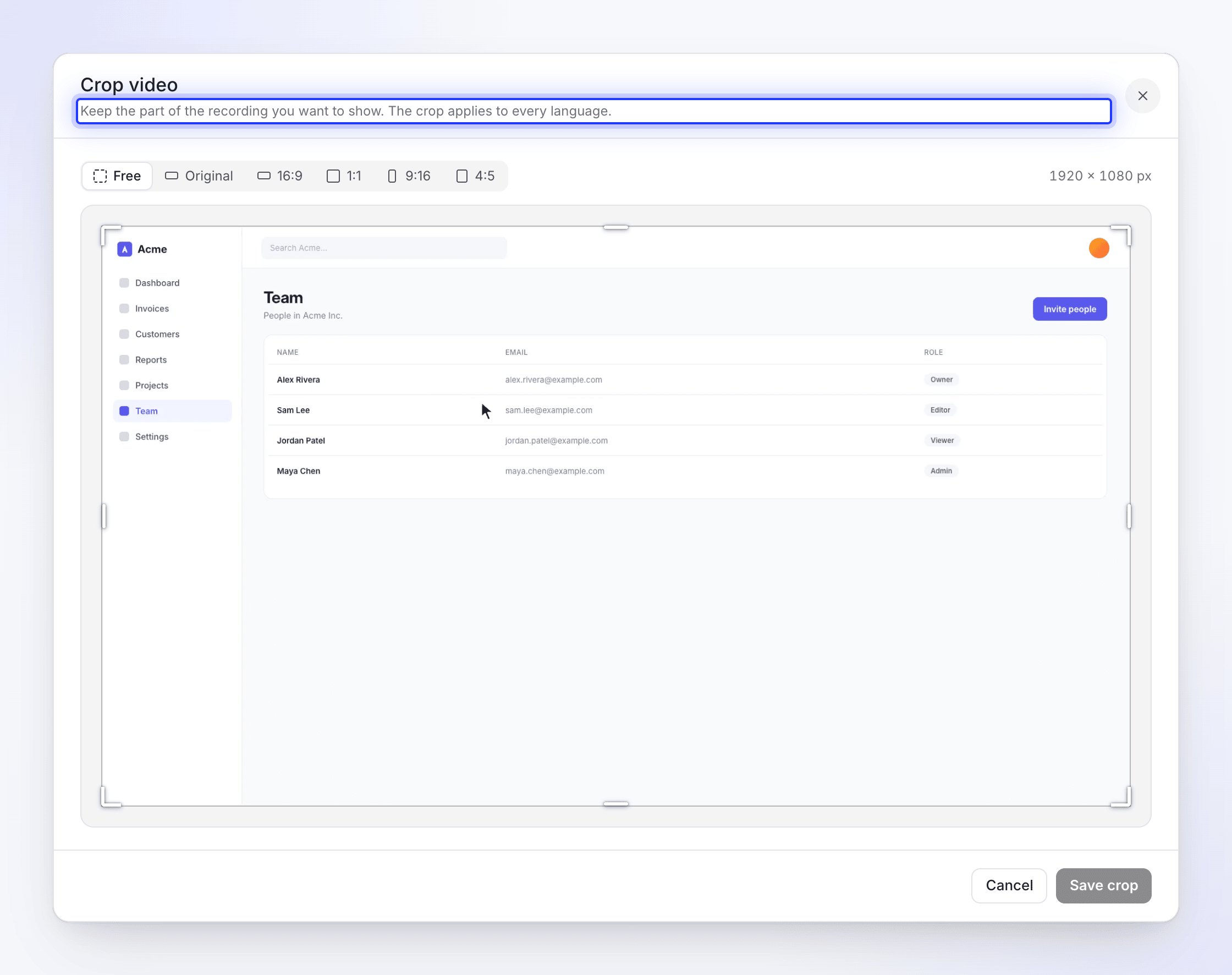
| Crop video ("The crop applies to every language.") | ● | |
| Aspect ratio | ● | |
| Hidden events (older recordings, Event settings) | ● | |
| Title and chapter names | ● | |
| Narration, voice-over and voice | ● | |
| Steps and their sync and pacing (clips, speeds, freeze frames) | ● | |
| Scenes: intro and title cards, logo reveal, list, text beats, video | ● | |
| Zooms and camera paths | ● | |
| Elements: text boxes, images, blur, shapes, sounds | ● | |
| Music, its trims, fades and dips | ● | |
| Background, cursor settings, recording audio | ● | |
| Captions and their style | ● | |
| Revision history | ● | |
| Assistant chat | ● | |
| The companion article | ● |
Switch language
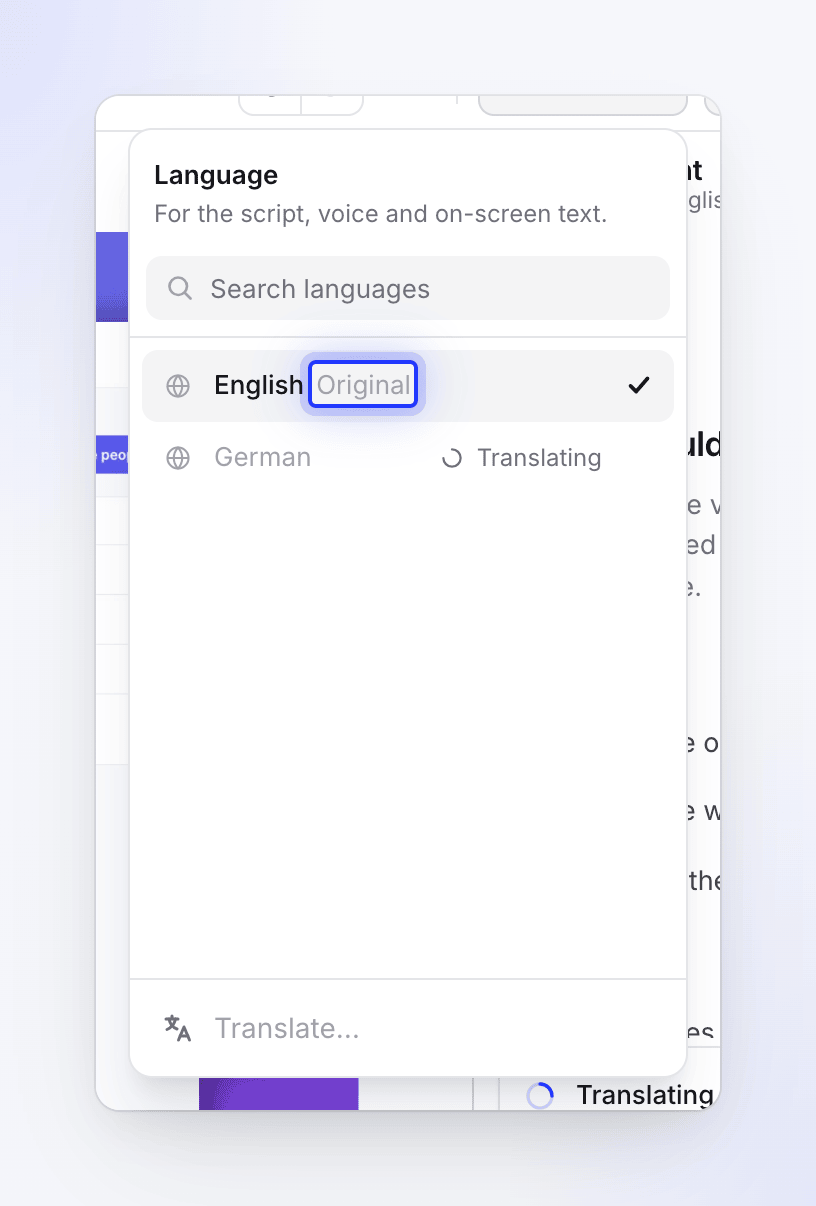
Click the language button in the top bar (a globe and the language's name). The Language menu ("For the script, voice and on-screen text.") lists the languages the video has, with Search languages at the top and Translate… at the bottom. The one it was made in is marked Original, and one being translated shows Translating. Click a language to open it. Everything in the editor, from the Script tab to Revision history, now shows that version.
The editor saves your changes before switching. While it saves, the menu waits: "Saving your changes. You can switch in a moment."
Edit before or after translating
Order matters, because a translation copies the original at the moment it's made.
| You change the original… | …before translating | …after translating |
|---|---|---|
| Fix a narration line | The translation is made from the fixed line | Only the original changes. Update the translations (below). |
| Zooms, a camera path, sync and pacing | Copied into the translation, re-timed to its narration | Only the original changes. Repeat the edit in each language. |
| Add a text box, image or blur | Copied as is: text you typed isn't translated | Only the original changes. Add it in each language. |
| Music, background, cursor, caption style | Copied | Only the original changes. Repeat it in each language. |
| Crop or aspect ratio | Shared | Shared: changes every language at once |
Update a translation after changing the original
Translations don't follow the original on their own. In a how-to video or product demo, ask the assistant in the original language, for example "Update the German translation". It shows a Translation card with the cost, and runs only when you click Translate.
An update translates the language again from the original. Edits you made only in that language may be replaced by the original's version, so check the language afterwards.
To redo a language from scratch, there's no re-translate button: delete that translation (below) and translate into the same language again with Translate…. Zooms and elements are copied from the original again.
For social clips, use Translate… in the language menu; the assistant doesn't translate clips.
Timing in other languages
The same sentence takes a different time to say in each language. German is often longer than English; Japanese can be shorter. Each language's steps are re-timed to its own narration, so:
- A step can be longer in German, and the steps after it start later.
- Zooms and elements move with their steps, so they stay on the same moment of the recording.
- Clips set to Normal speed are sped up a little where the narration is shorter, and the last frame holds where it's longer. See Use sync and pacing.
In social clips, scenes never move: each translated line is fitted into its existing place, and the Translation ready dialog lists Scenes to check where text no longer fits the way it did.
Captions, voice and history per language
- Captions: each language has its own captions and caption style. A new translation may have none yet, or captions that need regenerating: open the language and click Generate captions in the Style tab.
- Voice: each language keeps its own voice. Changing the voice in one language records only that language again. See Change voice, music and sound.
- History: each language has its own Revision history, starting from a copy of the original's history at the time of translating. Restoring a version in German doesn't touch English. See Restore an earlier version of a video.
Viewers and exports
The share page lets viewers pick a language when the video has several. Each MP4 export is made in one language, the one you have open, and shows that language in the export list. See Share a video with a link and Export a video as MP4.
Delete a language
Open the language, then ⋯ → Delete language translation. It "removes its scenes, layers and the article made for it. This can't be undone." The original language can't be deleted this way.