

Edit many articles at once
Make one change, like a new product name, a term or a friendlier tone, in every help article you pick. Each article shows its words before and after, nothing changes until you click Run, and the run is usually free.
Edit many articles at once makes one text change in every help article you pick: a new product name, a renamed menu, a term, a friendlier tone. You write the change once, Clevera plans it article by article, and you see each article's words before and after before anything is edited. The articles stay where they are, with the same title, address and links.
Which recipe?
| You want | Use |
|---|---|
| The same change in the words of many help articles | Edit many articles at once (this article) |
| New screenshots from your app today, with the words matched to it | Refresh articles. It can carry a rename on top. |
| One change in the narration, titles or chapter headings of many videos | Edit a batch of videos at once |
| Fixes after each release, found from the release itself | Keep my help center up to date when we ship |
Nothing is recorded and screenshots stay as they are.
Before you start
- Pro or Custom. Editing many items at once is a Pro feature; on another plan the recipe says "Translating or editing many items at once is a Pro feature. Upgrade to Pro to use it." See Get access to Autopilot.
- A role that can create content and add pages to the help center: owners, Administrators and Content Creators.
- A help center with articles. One task covers one help center.
Ways to start
| Where | What you do |
|---|---|
| Autopilot | Click the Edit many articles at once recipe card, or describe the change in What should Autopilot do?, for example "Call it Workspace instead of Account in all my help articles". |
| A help center's Pages | Tick the articles, then click Edit with a task in the selection bar ("One change across these articles: a new name, a term, a tone"). |
| Content | Select the articles, then click Edit with a task in the bar at the bottom. |
| The Clevera agent (Ask AI) | Ask in your own words, for example "Make the tone friendlier in my Getting started section". |
Edit with a task in Content opens this recipe when you selected only articles and Edit a batch of videos at once when you selected only videos. With both in the selection you see "Pick videos or articles, not both: one task edits one or the other."
Make the change
Pick the articles
On Articles, pick the Help center and Which articles: the ones you picked, Some sections (each with its article count), or the whole help center.
Describe the change
On The change, write it in What should change, or click one of the examples: "Call it “Workspace” instead of “Account”", "Rename “Pro plan” to “Plus plan”" or "Make the tone friendlier and more direct". Leave alone sections or articles you don't want touched. Click Continue.
Check the estimate and create the task
The card shows how many Articles the task covers and the Estimate, for example "Usually free, at most 45 credits". Click Create task. Planning starts right away and is free.
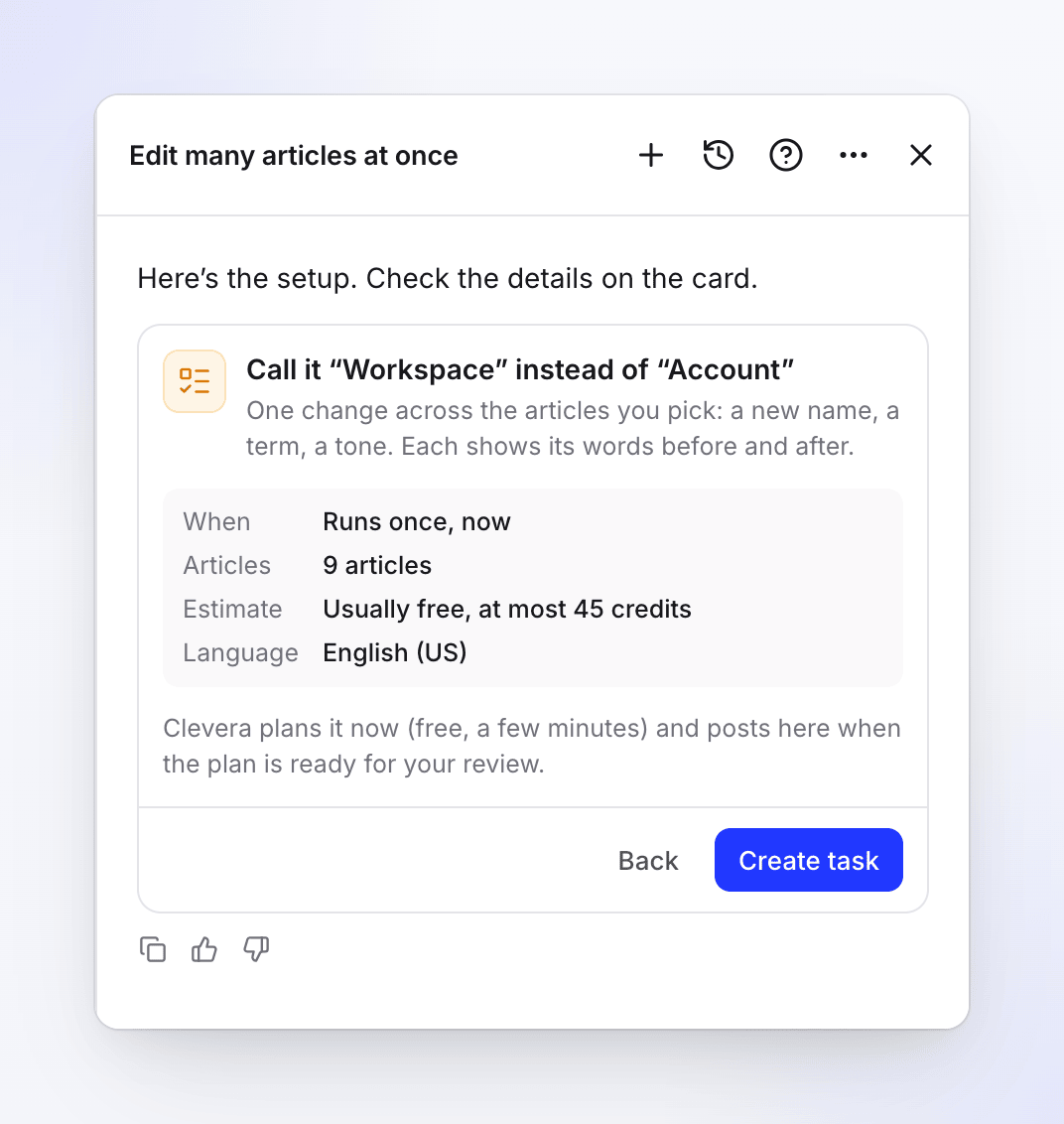
The task is named after your change. Review each article's change
The AI works out the change in each article. The plan has one line per article that changes, with the parts it changes, before → after. Articles that are already right get no line: the summary counts them ("6 articles are already right: nothing to change."). Untick any article you want to leave alone, or click Ask for changes to plan again with a note.
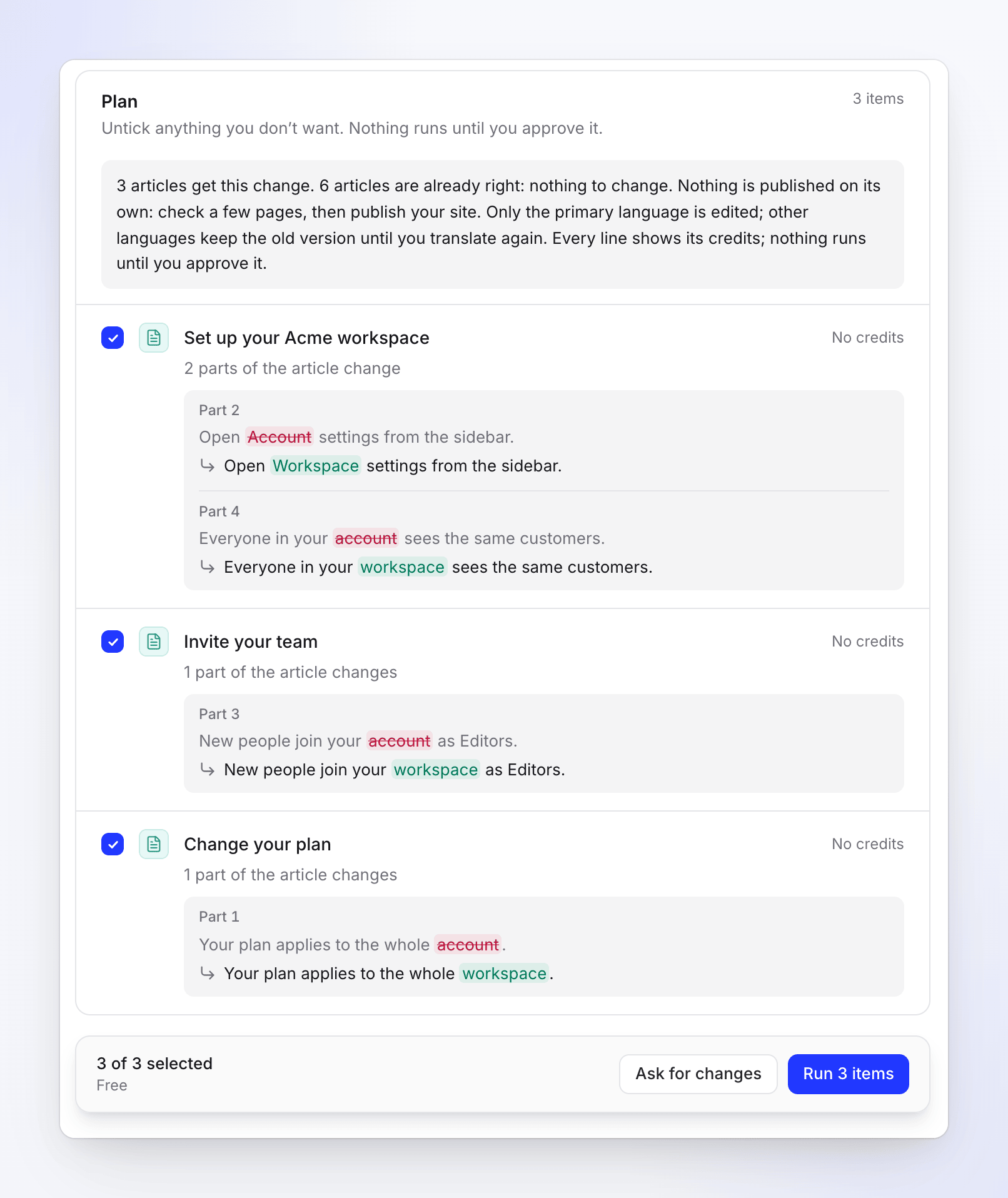
Each line shows the parts that change. Run it
Click Run. Each article is edited as planned. Then check a few pages and publish your help center.
The setup form
| Step | Field | What it does |
|---|---|---|
| Articles | Help center | "One task edits one help center." |
| Which articles | The 12 articles you picked (from Pages or Content), Some sections, or The whole help center (182 articles). "Large help centers are done in rounds of up to 40 articles, one after the other." | |
| The change | What should change | Required, 3–2,000 characters. "One change for every article: a new name, a term, a tone. Titles, addresses and links stay; screenshots stay as they are." |
| Leave these sections alone (optional) | Only with the whole help center: tick sections to skip. | |
| Leave articles alone whose title contains (optional) | One phrase per line, for example "Release notes". |
What changes and what stays
- Only the words the change touches. Titles, addresses, links and screenshots stay.
- Each edited article is saved as a new version. Undo on a finished line puts that article back.
- An article someone edited after the plan was made is left as it is. Click Ask for changes to plan it again.
- Publishing: on a live help center with auto-publish on, the first line that runs pauses auto-publish, so the edits don't go live one by one: "Auto-publish is paused on Acme Help while your articles are edited. Publish the site once you have checked them; switch auto-publish back on in Publishing." See Publish a doc site.
- Languages: only the help center's primary language is edited. Other languages keep the old version until you translate them again.
Large help centers
One task plans up to 40 articles. With more, the plan says how many go in the next part, "planned once you run this one". When you run this part, Clevera plans the next one, named after your change with "(part 2)", for your review.
Cost
The change in each article is worked out while planning, which is free, and the run replays that plan. So a run is usually free. An article whose plan has expired or that changed since needs the change worked out again, which costs up to 5 credits. The card's estimate says this as "Usually free, at most N credits", and each line shows its own credits ("No credits" when it is free). An edit that finds nothing to change isn't charged.
Troubleshooting
| You see | What it means | What to do |
|---|---|---|
| "Describe the change in 3 to 2000 characters." / "Describe the change to go on." | What should change is empty or too long | Write the change in a sentence or two |
| "Pick videos or articles, not both: one task edits one or the other." | Your Content selection has both | Select only articles (or only videos) |
| "These articles are on more than one help center. A task covers one help center: pick articles of one, or start one task per help center." | Your pick spans two help centers | Pick articles of one help center, or start one task each |
| "There are no articles here you can edit. Check what you left alone, or pick other articles." | What you left alone covers everything, or you can't edit those articles | Leave fewer sections or titles alone, or pick other articles |
| "Translating or editing many items at once is a Pro feature. Upgrade to Pro to use it." | Your plan doesn't include it | Upgrade to Pro |
| "One article could not be planned; its line says why." | The AI couldn't plan one article, for example "There was not enough time to plan this change. Ask for changes to plan it again." | Click Ask for changes |
| "One article can’t be edited by the assistant yet and was left out." | That article isn't ready to edit (for example, still being written) | Finish it in the editor, then run again |
| "Every article here is already right. Nothing to change." | Your change doesn't apply to these articles | Nothing to do |
| "The next part could not be planned yet. Start Edit many articles at once again for the rest." | The next part didn't start | Start the recipe again for the articles that are left |