

Publish videos to YouTube, LinkedIn, X and more
Send a finished video to YouTube, Wistia, LinkedIn, X, Google Drive, Dropbox and OneDrive from the Share window: connect accounts, check the AI-written text and previews, keep drafts, send many at once, follow each status, and what it costs.
Send a finished video from Clevera straight to your video platforms, social accounts and cloud storage. You connect each account once on the Integrations page, then publish from the video's Share window: tick the accounts, check the text the AI wrote for each one, and send them all in one go.
What publishing does
Publishing uploads the video's MP4 to the accounts you pick. For each account, the AI writes the text that platform needs (a post, a title, a description), in the language of the video you send, and shows you a preview of how it will look there. Nothing leaves Clevera until you click Send.
What happens on the other side depends on the platform:
- Video platforms keep the upload private or in a folder until you publish it there.
- Social networks have no drafts, so the post goes live as soon as the platform has processed the video.
- Storage saves the MP4 file to a folder. Nothing is posted.
Every send is listed on the video's Publish tab with its status and a link to the video on the platform.
Before you start
- Plan: publishing is part of the Pro and Custom plans. On Free and Starter, the Publish tab shows "Publishing is part of the Pro plan" with Upgrade.
- Connecting accounts: only workspace owners and admins can connect or disconnect an account.
- Sending: anyone who can edit the video can send it to any account connected to the workspace. People who can only view the video see where it went, but can't send it.
- A video: publishing works for videos. To send an article to a wiki or help center, see Publish articles to your other tools.
Supported platforms
| Platform | Where it's listed | You connect with | What a send does | The AI writes |
|---|---|---|---|---|
| YouTube | Video platforms | Sign in with Google | Uploads the video to your channel as a private draft. Nothing is public until you publish it in YouTube Studio. | A title, a description, tags and a category. Chapters come from the video |
| Wistia | Video platforms | An API token | Uploads the video to a folder in your Wistia library. It isn't embedded anywhere until you place it. | A title and a description |
| Social | Sign in with LinkedIn: your personal profile or a company page you manage | Posts the video right away. LinkedIn has no drafts. | The post text and a title | |
| X | Social | Sign in with X | Posts the video publicly right away. X has no drafts. Each post uses 3 credits. | The post |
| Google Drive | Storage | Sign in with Google | Saves the MP4 to a folder in your Drive | Nothing: the file is named after the video |
| Dropbox | Storage | Sign in with Dropbox | Saves the MP4 to a folder in your Dropbox | Nothing: the file is named after the video |
| OneDrive | Storage | Sign in with Microsoft | Saves the MP4 to a folder in your OneDrive | Nothing: the file is named after the video |
Coming soon
Vimeo and Instagram are built and waiting for each platform's review. They're listed on the Integrations page as Coming soon, and you can't connect them yet. When they open:
- Vimeo uploads it as a private video.
- Instagram posts it as a Reel.
Each platform's article covers its own fields, limits and troubleshooting.
Connect your accounts
Open Integrations
Click your workspace name at the top of the sidebar and choose Integrations. Under Send videos in the page's menu, pick Video platforms, Social or Storage, or stay on All integrations. Each platform has one row with what it does and how it connects.
Click Connect
- Sign in platforms take you to the platform's own permission screen. Approve Clevera and you come back to Integrations with the account listed under the platform. Leave every permission ticked: if you untick one, Clevera refuses the connection and asks you to connect again (Google Drive and YouTube do this).
- LinkedIn has two ways in. Click Connect (or Add once one account is connected). The menu asks Which LinkedIn account? Choose Personal profile or Company page.
- Wistia opens Connect Wistia, where you paste an API token you create in Wistia under Account Settings → API.
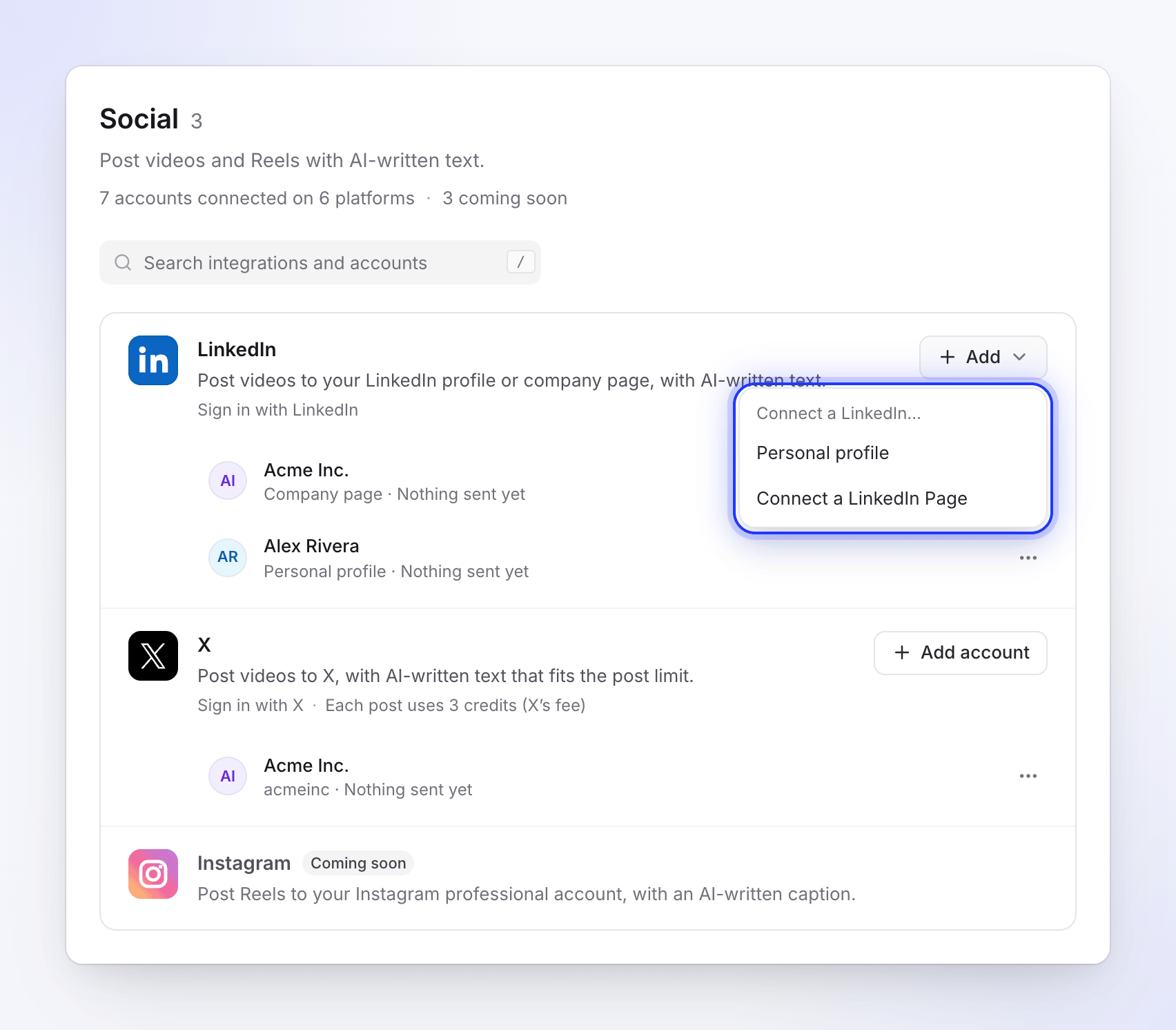
One platform, several accounts: each one gets its own row. Add more accounts
A platform can hold several accounts: two X accounts, your LinkedIn profile and two company pages, a Dropbox per teammate. Click the add button on the platform's row (Add account, Add Drive, or Add for LinkedIn) to connect another. Each account row shows what it has received, for example "Nothing sent yet" or "3 videos sent · latest 2 hours ago".
The platform articles list each sign-in screen and what Clevera asks permission for.
Publish a video
Open the Publish tab
In the editor, click Share and open the Publish tab. Video platforms shows how many accounts are connected. Click Publish… (Publish again once the video was sent somewhere).
You can also click Publish on the latest render card of the Download tab. With no account connected yet, that card and the render-ready toast say Connect an account to publish instead.
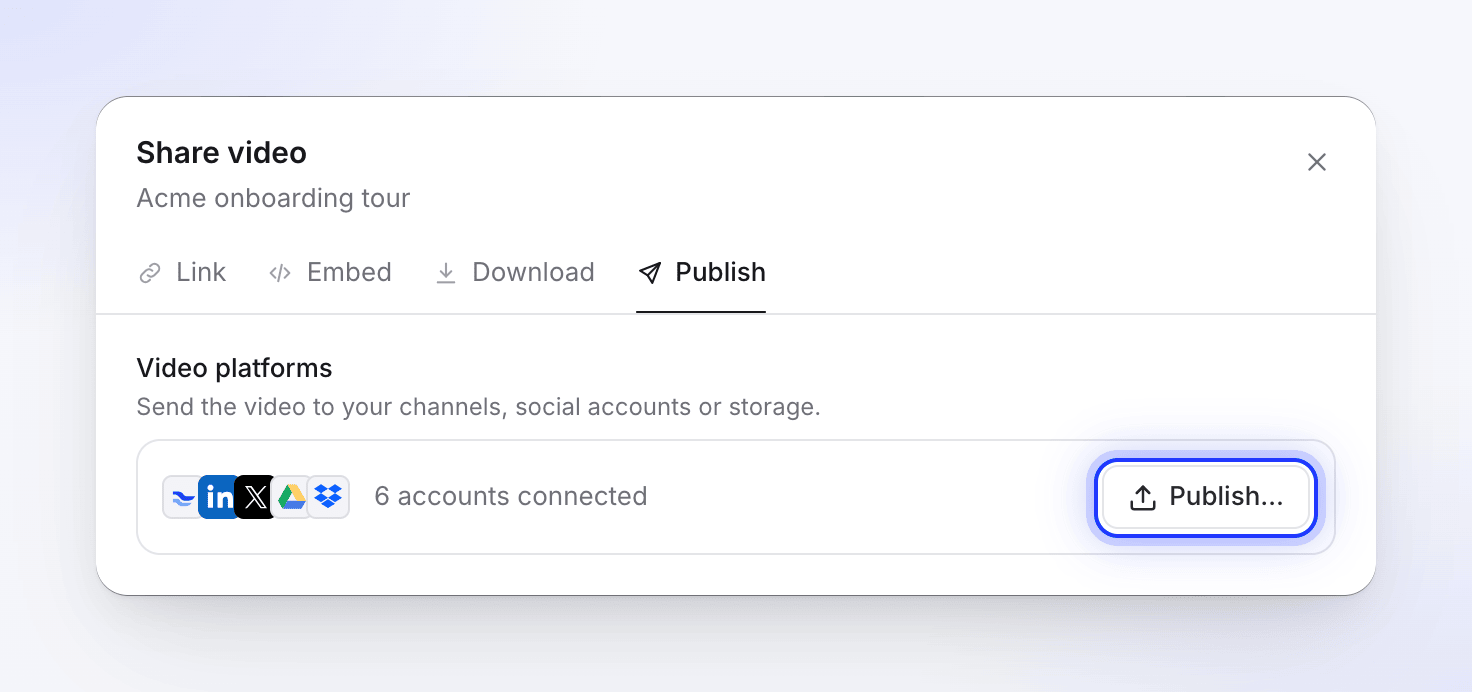
Tick the accounts
The window widens into one screen. On the left, Send to lists every connected account by group (Video platforms, Social, Storage). Each row shows the platform's icon, the account name, and the platform under it, so two accounts with the same name are easy to tell apart. A LinkedIn row also says which kind it is: "LinkedIn · Company page" or "LinkedIn · Personal profile". X, YouTube, TikTok and Instagram accounts show their handle as "@name".
Tick one or more accounts. Each ticked account gets a tab on the right. To connect another account without leaving, click the platform's chip under its group (for example + LinkedIn). Owners and admins see the chips; everyone else sees "Ask a workspace owner or admin to connect one."
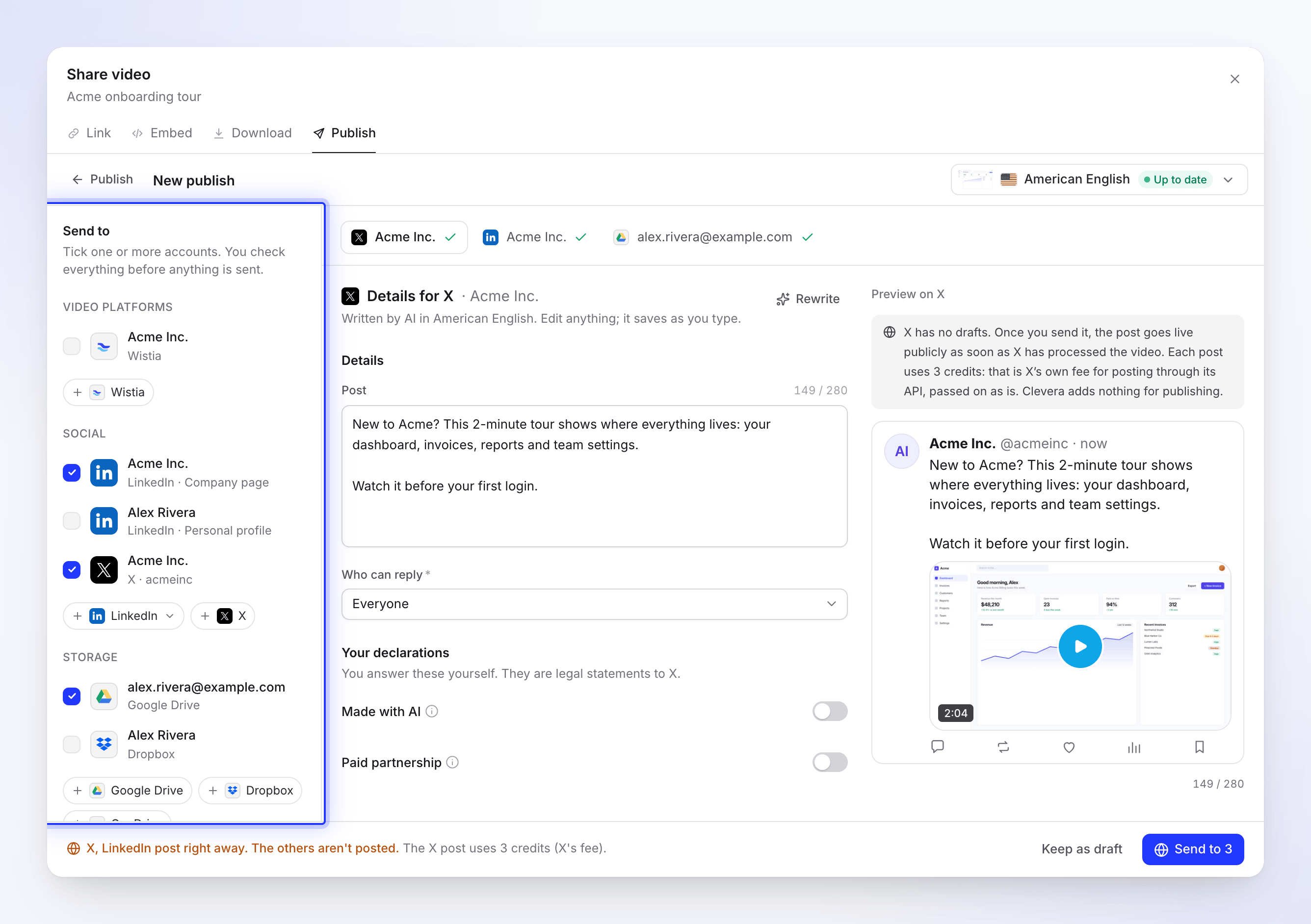
Your drafts are saved as soon as you tick an account. Check what the AI wrote
Each tab opens Details for the platform. For social and video platforms, the AI writes the text while the tab shows "Writing titles and descriptions…", then fills in the fields: "Written by AI in American English. Edit anything; it saves as you type."
- Edit any field. Changes save as you type ("Saving…", then "Saved").
- Click Rewrite for a fresh version of that account's text.
- The preview on the right shows the post or page as it will look on that platform. Some previews switch between Desktop and Phone.
- Counters show each platform's limits (for example "149 / 280" on X). The counter sits on the field, once. A field that breaks a rule is marked, and its tab shows the number of things to fix instead of a check mark.
- When a field holds characters the platform doesn't allow, the message names them: "Remove < >: the platform doesn't allow them."
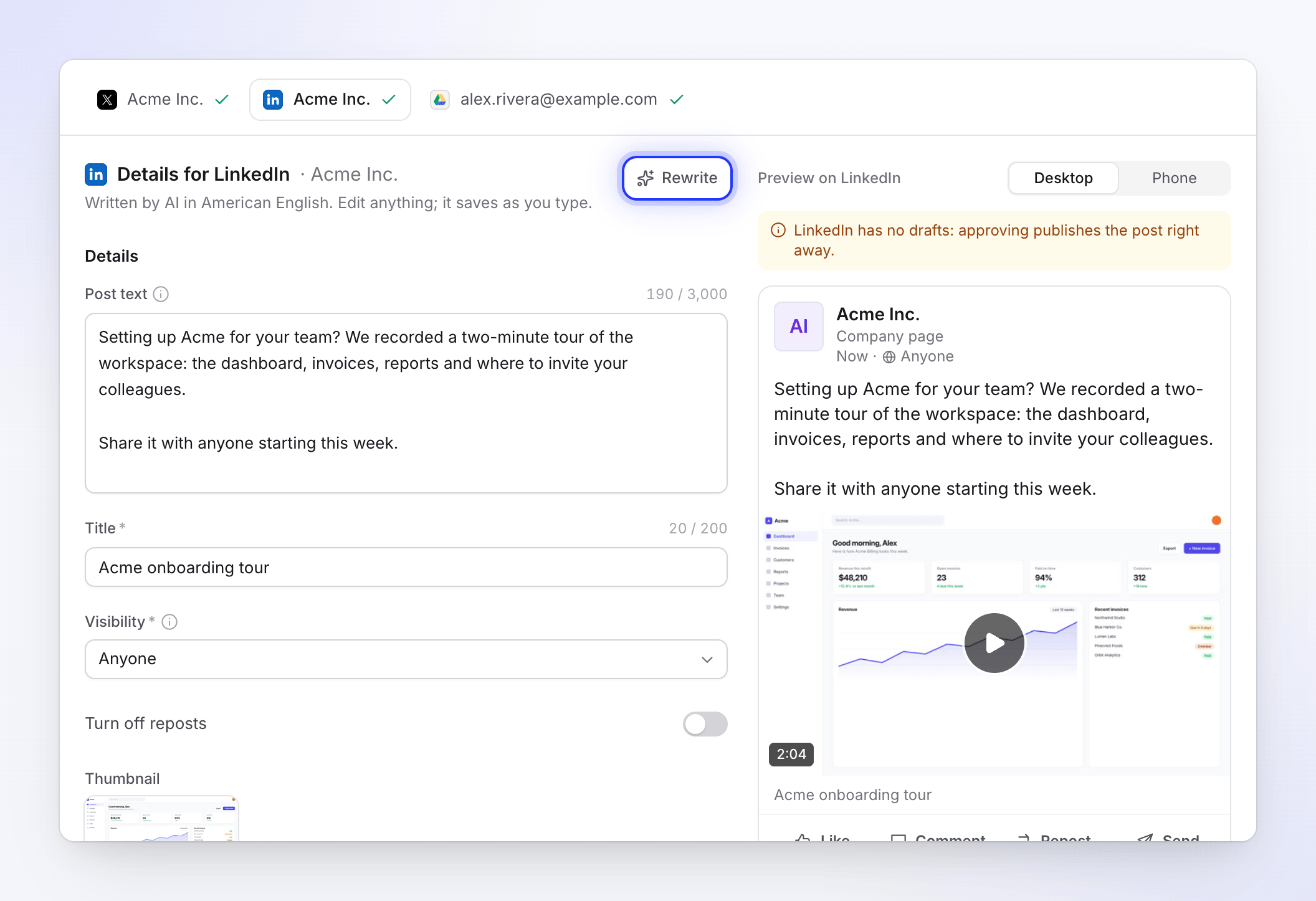
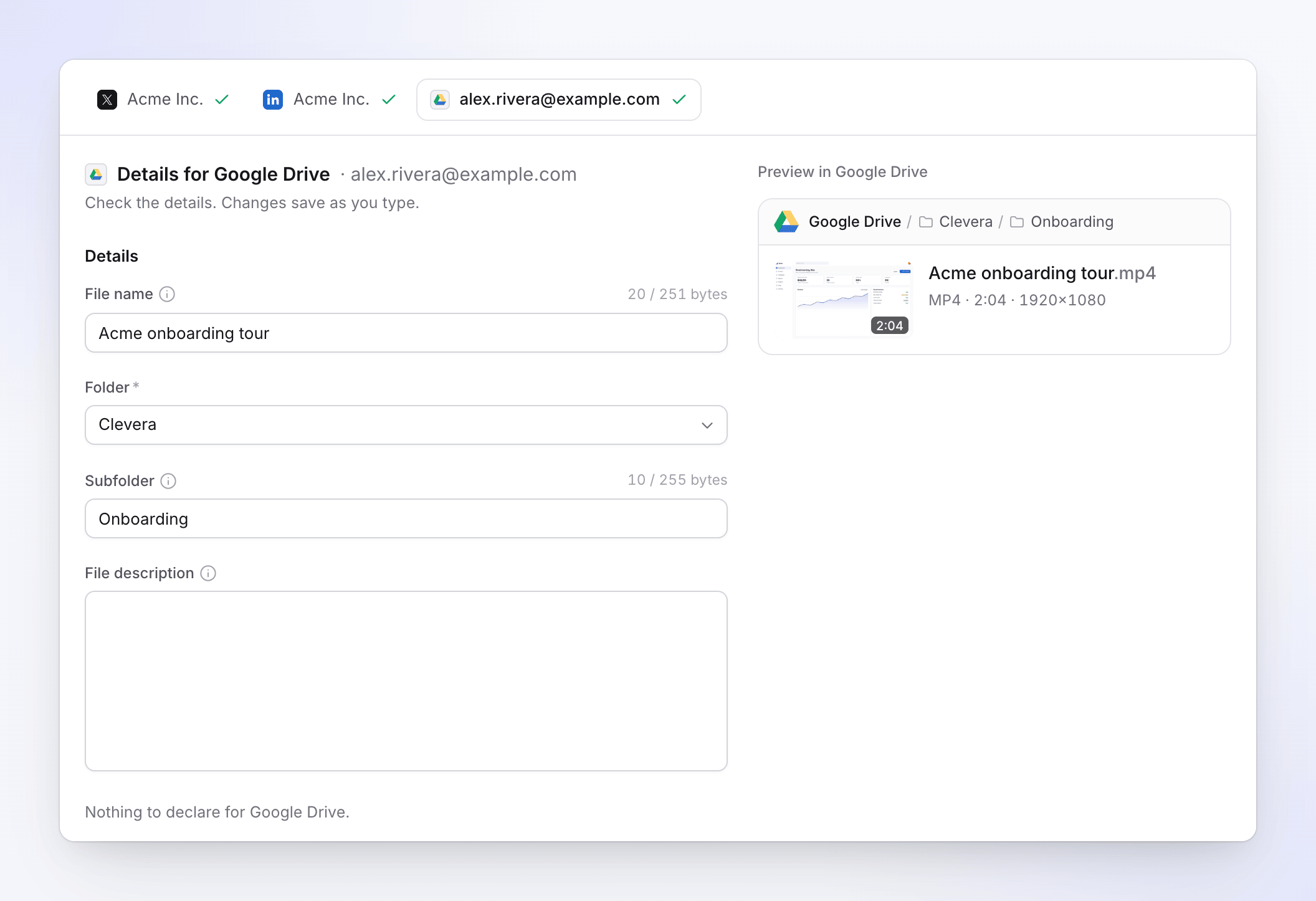
Each account gets text written for its platform. Storage accounts get no AI text. The File name starts as the video's title, and the Subfolder starts as the video's collection name, so videos from one collection land together. Both are editable. Their counters count characters, for example "20 / 251", not bytes. Close to the limit, a short note explains that accented letters, emoji and some scripts take more room, so fewer of them fit.
Pick the language
The top bar shows The video file: the language you're sending and whether its render is Up to date, Changed since, Rendering or No render yet. Open it to switch language. Each language has its own render, and the AI rewrites the text of every draft in this publish in the language you pick.
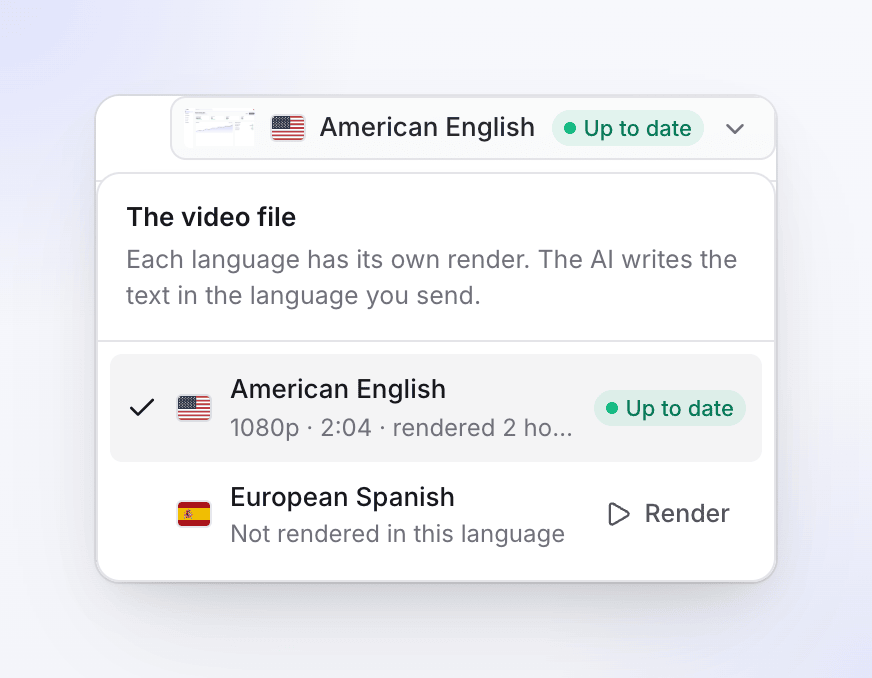
Once one of the drafts was sent, the language is locked: "The language can’t change once a post was sent. Start a new publish for another language."
Answer the declarations
Some platforms ask you to state facts about the video under Your declarations, such as Made with AI or Paid partnership on X. "You answer these yourself. They are legal statements to X." The AI never fills them in.
Send
The bar at the bottom says what will happen, one short sentence per kind of account, for example "X and LinkedIn post right away. Nothing goes public on YouTube. The file is saved to Google Drive." When it's all ready, click Send to 3 (or Send as private draft, Save to Google Drive, Publish now… for a single account). One click sends every ticked account, up to 20 at a time.
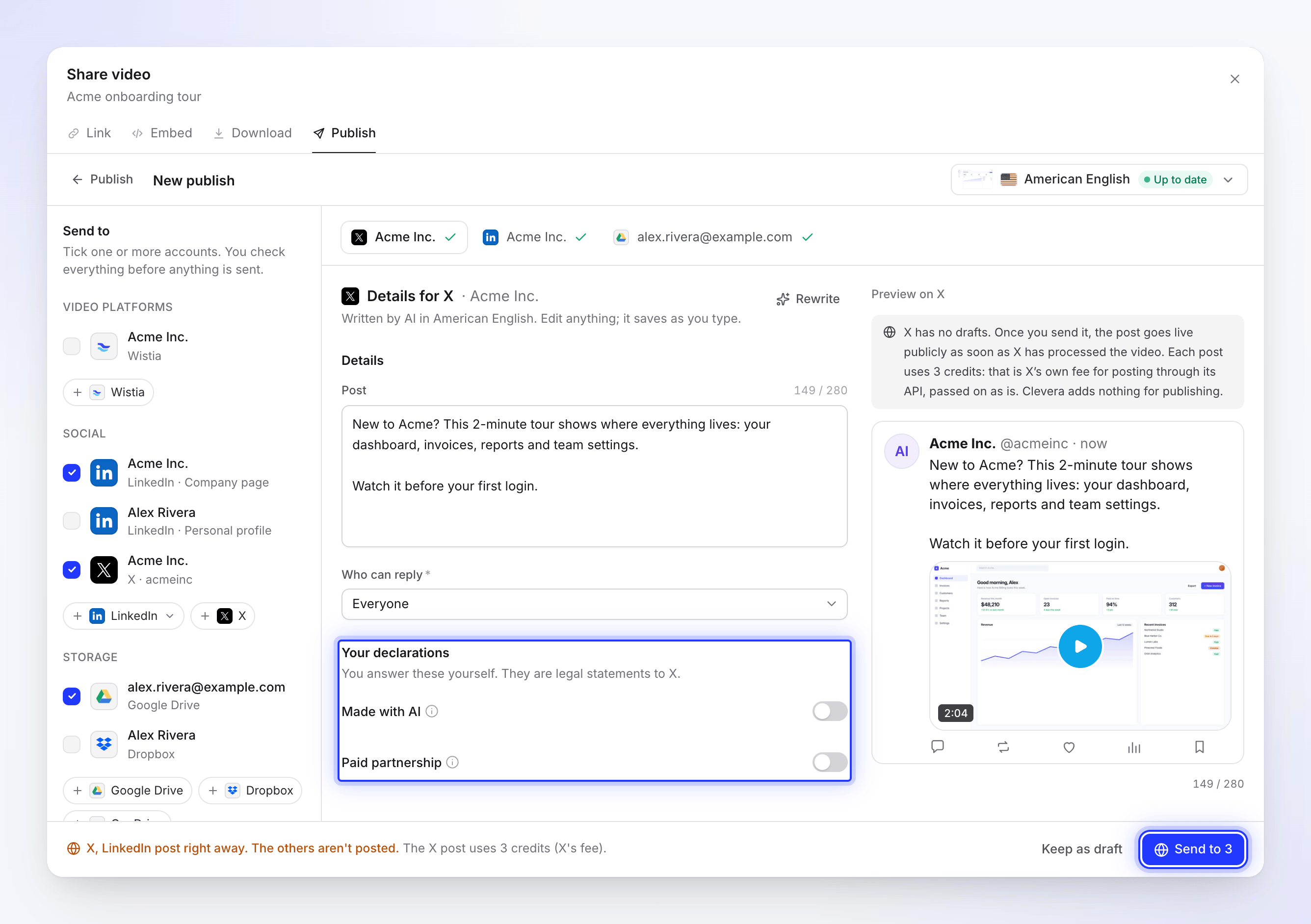
Send is the only blue button: nothing goes out before you click it. Send stays off while the AI is writing ("The AI is writing. You can send when it's done.") or while something needs fixing. The bar then lists what's left, such as "2 things to fix" with a link to each field.
Sending runs on our servers. You can close the window while it works: "You can close this window. It keeps going, and you get a notification when it's done."
Keep drafts for later
Click Keep as draft (or ← Publish) to leave the composer without sending. Your drafts stay on the Publish tab under Not sent yet, one row per publish you started, for example "3 drafts · X, LinkedIn, Google Drive".
- Click Continue to reopen them with everything you edited.
- Open the row's ⋯ menu and choose Discard drafts to delete them. A toast offers Undo.
- Unsent drafts are deleted after 30 days.
Unticking an account in the composer discards its draft.
Follow each send
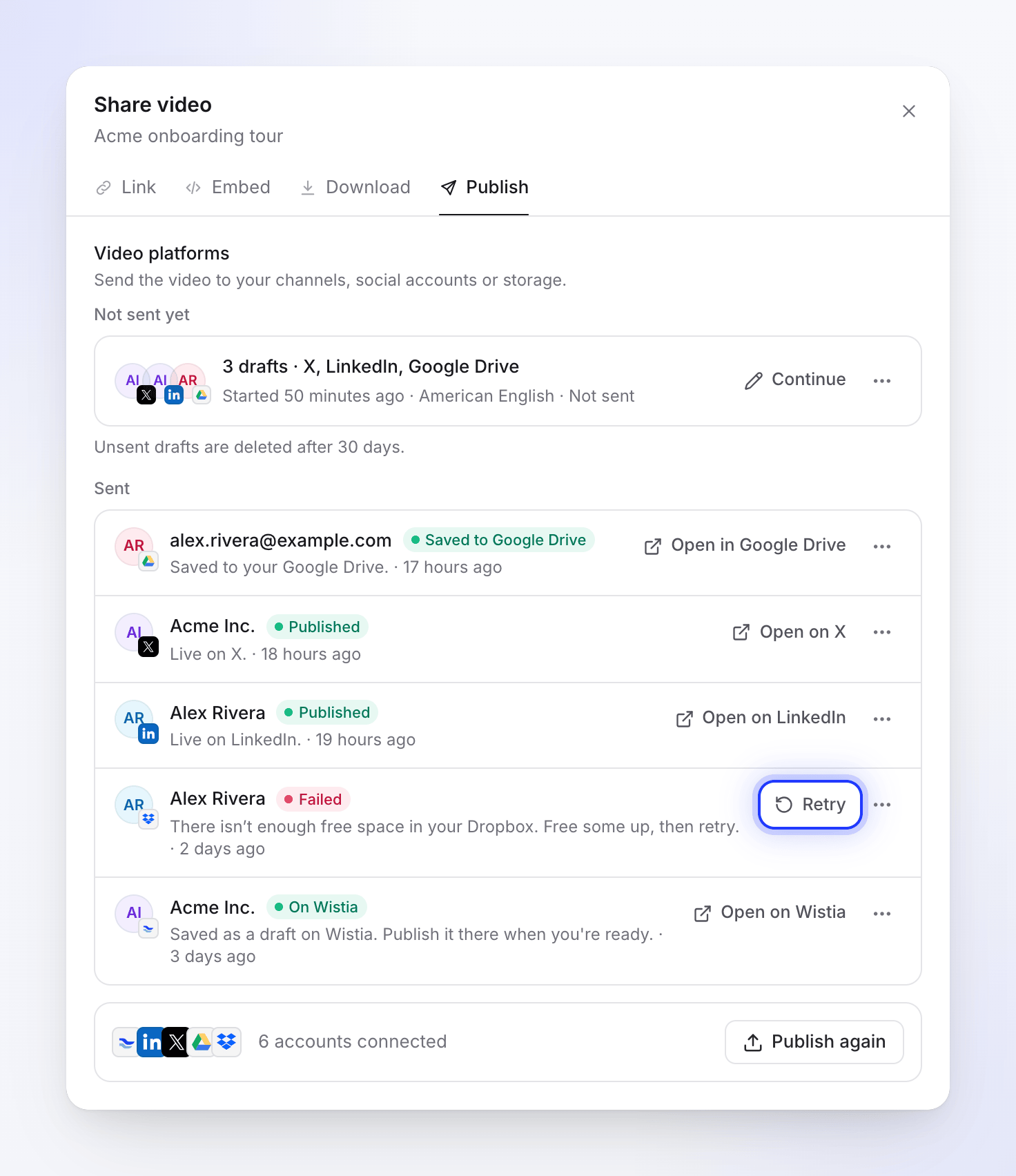
After you send, the Publish tab lists the latest send to each account under Sent, newest first, with a status, a one-line detail and the main action. Sends that are still waiting for a render sit in their own group, Sends after the render, above Sent.
| Status | What it means |
|---|---|
| Waiting for render | The render is running. It sends as soon as the render finishes. |
| Waiting for a render | No render is running. Click Render now (see When the video has no render yet). |
| Queued | Starting the upload. |
| Uploading 42% | The file is on its way, with a progress bar. |
| Waiting for X | The platform's upload capacity is used up for now. It sends automatically later. |
| Processing on LinkedIn | The platform has the file and is processing it. This can take a few minutes. |
| Saving to Google Drive | A storage send, just arrived and being filed. It may show for a moment. Storage has no separate processing step: the row goes straight to Saved to …. |
| Published | Live on the platform. Open on X opens the post. |
| In a folder on Wistia, Private on …, Saved to Google Drive | Delivered. It sits where the platform keeps drafts or files until you publish or share it there. |
| Failed | It stopped. The detail says why, and the row offers the fix. |
| Cancelled | You cancelled it before it finished. |
| Removed | The video is no longer on the platform. |
The row's ⋯ menu has Copy link, Send to this account again (for a finished send) and Cancel sending (while it's still waiting or uploading).
A sent row can also carry an amber note when the video arrived but something extra didn't. On YouTube, for example: "YouTube keeps uploads from apps under review private for now. Change the visibility in YouTube Studio." (with an Open in YouTube Studio link), or "The video is on YouTube, but its custom thumbnail couldn't be set. Set it on YouTube."
When a send fails
A failed row shows the platform's reason and one button for the fix. Retry appears only when the platform says trying again can help. When it doesn't, the message says what to do instead.
| You see | What to do |
|---|---|
| "Reconnect your X account to send this." | Click Reconnect X, sign in again, then retry. |
| "A permission Clevera needs was unticked on the Google Drive consent screen. Connect again and leave every permission ticked." | Connect the account again and keep every permission ticked. |
| "The upload was interrupted. Retry to carry on from where it stopped." | Click Retry. |
| "There isn’t enough free space in your Dropbox. Free some up, then retry." | Free up space in that service, then click Retry. |
| "LinkedIn didn’t accept some of the details. Check them and send again." | Click Edit details, fix the fields, and send again. |
| "Wistia rejected the video: it didn't pass the platform's checks." (or the same from LinkedIn) | Click Retry: a fresh upload of the same render often goes through. |
| "YouTube rejected the video: it received a copyright claim." | Change the content (often the music) and render again. Rejection reasons read as full sentences like this one. |
| "This account has no Vimeo upload quota left, and it doesn't reset on its own. Free up space or upgrade the plan on Vimeo, then send the video again." | Free up space or upgrade on Vimeo, then send the video again. There's no Retry, because waiting won't help. |
| "This render is no longer available. Render the video again to send it." | Click Render again. It sends when the render finishes. |
| "Something went wrong while sending this to X. Please try again. Reference: …" | Click Retry. If it fails again, contact support with the reference. |
The ⋯ menu of a failed row also has Edit details and Don't send. Nothing is published when a send fails.
When the video has no render yet
You can publish before the video is rendered. The composer then says "No American English render yet" with Render now: "Fill in the details now. It sends when the render finishes."
When you click Send with no render in that language, Clevera switches to the Download tab and starts the render. A notice there reads "Sends as soon as the render finishes" with the accounts waiting for it, and Back to Publish takes you back. The waiting sends are listed under Sends after the render. When the render is done, the waiting drafts go out on their own.
If the render stops before it finishes (for example, the tab rendering it on this device was closed), the row shows Waiting for a render: "No render is running. Render it and it sends when it finishes." Click Render now.
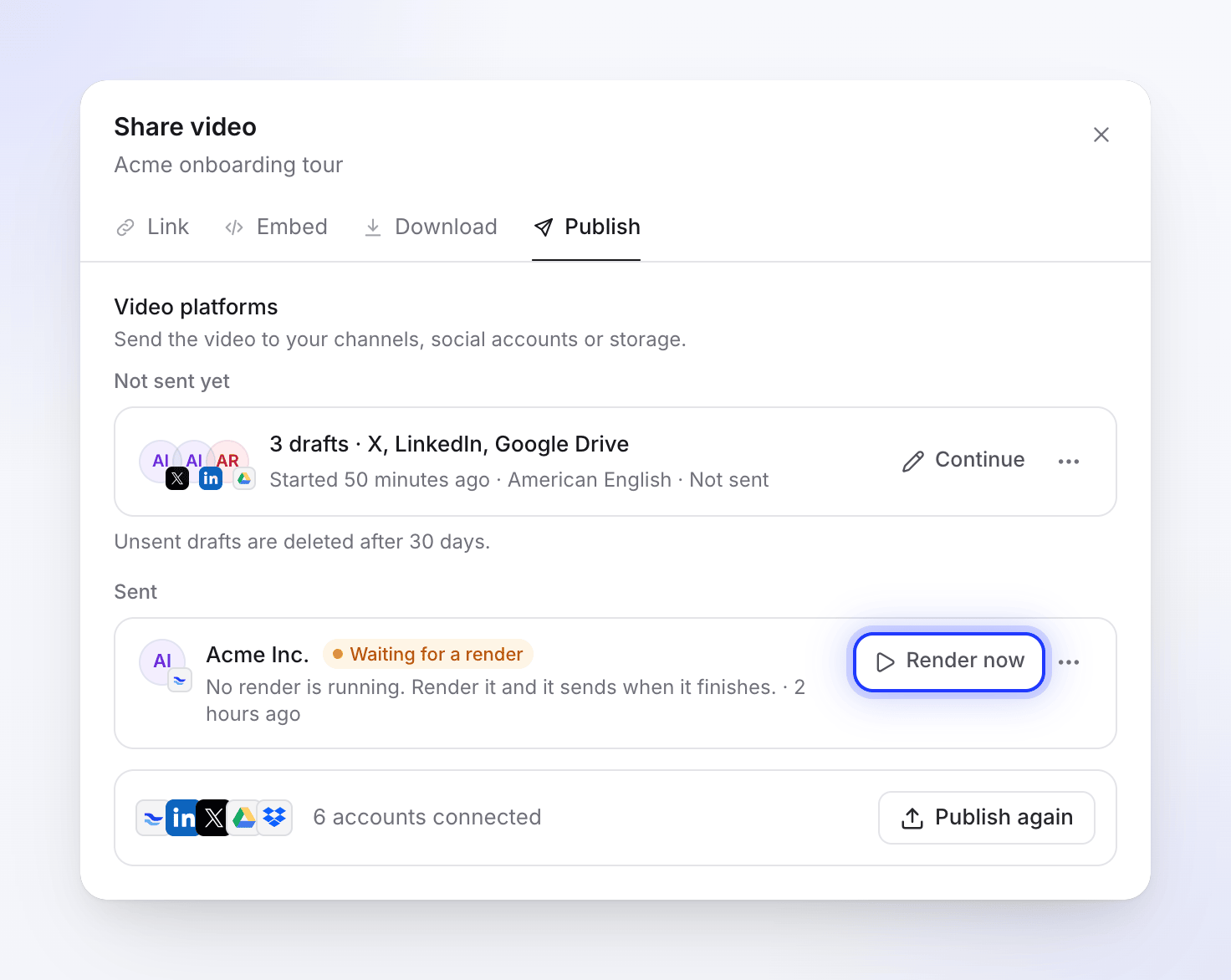
When the video changed after its last render, the file shows Changed since: "The video changed after this render. Send it as it is, or render again first." See Export a video as MP4 for how renders work.
Credits
Publishing doesn't use credits. The AI-written text, Rewrite, uploads and saves to storage are all free.
The one exception is X. Each X post uses 3 credits: that is X's own fee for posting through its API, passed on as it is. The fee is taken once the post exists on X, so a failed post costs nothing. It appears on the Usage page under Publishing as X post fee, and the composer reminds you before you send: "The X post uses 3 credits (X's fee)."
Reconnect or disconnect an account
On Integrations, every account has a ⋯ menu with Details, Reconnect and Disconnect.
- Reconnect signs in again. An account that needs it shows Reconnect within 5 days, Needs attention or Disconnected on its row, and in the composer it reads "Needs reconnecting before it can receive videos." Reconnecting keeps everything else as it is.
- Disconnect asks first: "You can no longer send videos to it, and sends still in progress stop. Videos already sent stay on X."
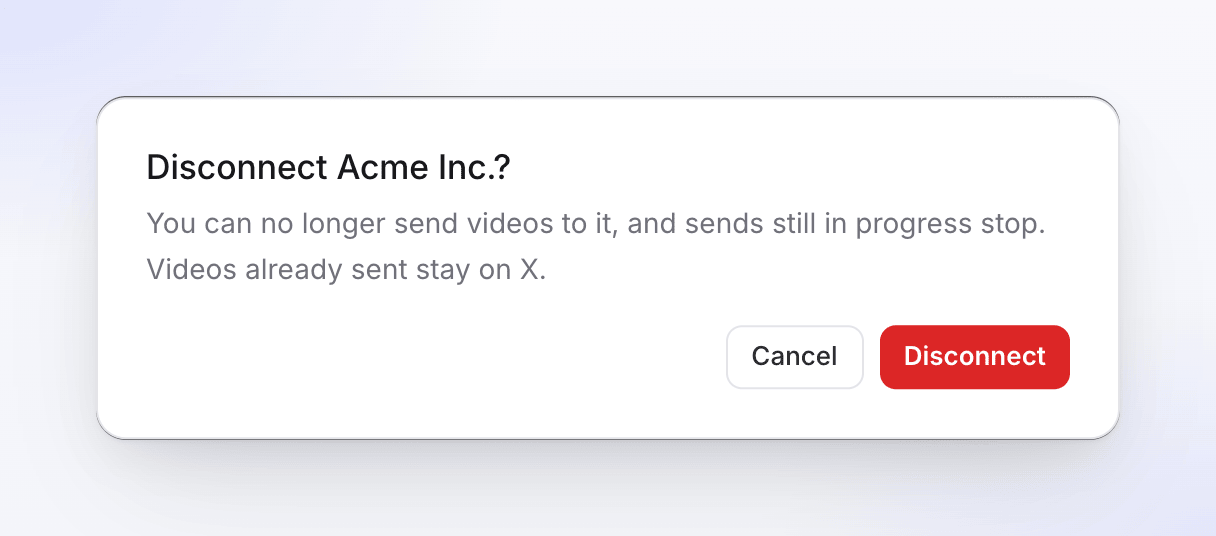
Disconnecting deletes Clevera's access and, where the platform allows it, revokes it there too. For Wistia, also delete the API token you gave Clevera in your Wistia settings. For OneDrive, also remove Clevera from the connected apps in your OneDrive settings.
Only owners and admins can disconnect. A workspace that moves off Pro keeps what is connected and can still disconnect it.
Troubleshooting
| You see | What to do |
|---|---|
| "Publishing is part of the Pro plan" | Upgrade the workspace. See Choose a plan. |
| "Only people who can edit this video can publish it." | Ask someone with edit access to send it, or to give you edit access. |
| "Ask a workspace owner or admin to connect one." | No account is connected yet, and you can't connect one. Ask an owner or admin. |
| "Your accounts didn't load." | Click Try again. |
| "Sending is paused for now. Drafts are kept." | Sending to this platform is paused on our side. Your drafts wait; send them later. |
| The account is greyed out in Send to | It needs reconnecting. Click the reconnect button next to it, or ask an admin. |