

Get help and make things with the Clevera agent
The Clevera agent answers questions, makes and changes videos, clips, articles, doc sites and Autopilot tasks, and connects you to support. Where to open it, what it can do, what you confirm, memory, history, limits and costs.
The Clevera agent is the AI you chat with inside Clevera. Ask it how something works, ask about your own videos and articles, or tell it what to make or change. It asks what it needs with clickable cards and shows you a card with the price before anything is made. Nothing is made and no credits are used until you click Start.
The agent replaced the round support bubble and the editors' Assistant. It's one chat for everything: making new videos, clips, articles, doc sites and Autopilot tasks, changing what you already have, and reaching our support team.
Before you start
- Everyone in the workspace can chat with the agent, on every plan. Chatting is free.
- It works within your role. It can only do what you could do yourself in Clevera. An Editor, for example, can ask questions and change existing videos and articles, but can't start new ones; the agent says so in its first reply and offers what you can do. See Understand workspaces, roles and creator seats.
- Your plan's limits still apply to the work you start, the same as when you start it yourself.
Open the agent
| Where | How |
|---|---|
| Any page after you sign in | Click the animated Clevera character in the bottom-right corner ("Ask me anything"), or press ⌘ J on a Mac or Ctrl J on Windows. |
| Home | Type in the box ("Ask me anything, or describe what to make") and press Enter. The agent opens with your text as the first message of a new chat and gets to work. Press / to jump to the box. |
| The video, clip and article editors | Click Ask AI in the top bar (or press ⌘ J / Ctrl J). The agent opens in the editor's right-hand column. See Ask the agent to change your video or clip. |
| Autopilot | Type in What should Autopilot do?, click New task, a recipe card, Plan it on a suggestion, or Change on a task. The agent opens on that task's setup. See Set up and run Autopilot tasks. |
The corner button isn't on the live page of a Record with AI session, and the editors use Ask AI instead. A dot on the corner button means our support team replied; hovering it says "A plan is waiting for your Start" when a Start card is waiting for you.
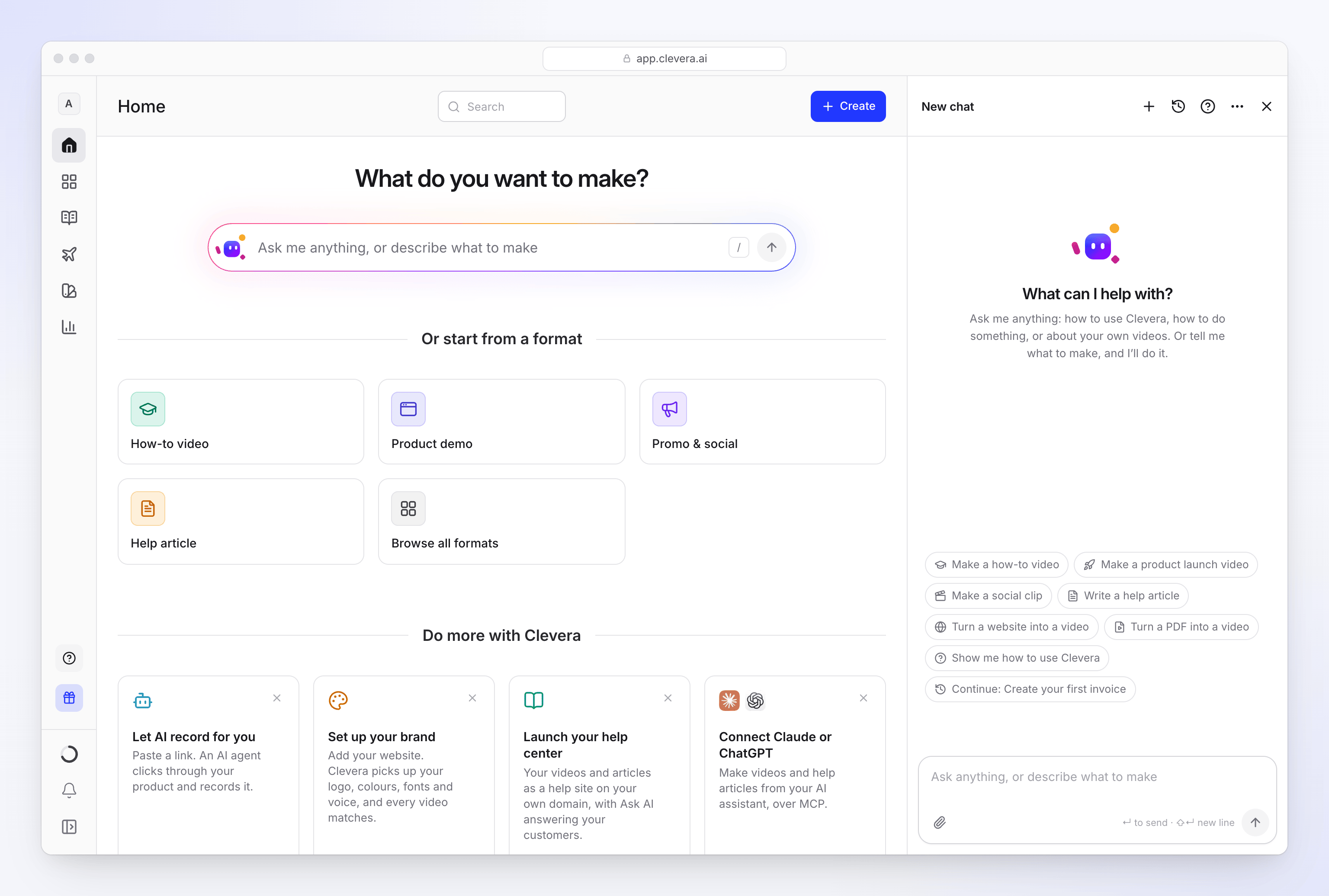
An empty chat says "What can I help with?" and shows suggestions for the page you're on, such as Make a how-to video, Make a social clip, Turn a website into a video or Show me how to use Clevera. Click one to send it. Continue: title reopens a chat whose Start card is still waiting.
The agent knows which page you're on. On a video, "this video" means that video; on a recording, it offers a how-to, a demo, a clip or an article from it.
Ask a question
Ask about Clevera ("How do credits work?", "Can I use my own domain for a doc site?") or about your own content ("What did my last video say?", "How many views did the onboarding video get this month?").
- Product questions are answered from this help center. The articles it used are listed under Sources.
- Questions about your content are answered from what you can see in the workspace: recordings, videos, articles, transcripts, Autopilot tasks, doc sites, brands, analytics and your plan's credits. The agent never makes up titles, numbers or links.
Make something new
Say what you want
Describe it in a sentence, in any language: "A how-to for new customers on creating their first invoice" or "A 20-second ad for our new pricing page". The agent picks the type from what you want the video to feel like (calm and narrated, or fast and music-led), not from words like "demo" or "tour". When a request fits two types, it asks you once which feel you want.
Answer the cards
The agent asks one question at a time as a card: which recording, the premise of an offer, the language. Click an option or press its number key (1–9). Some cards let you pick several, then click Continue. Something else… lets you type your own answer. For large choices (templates, styles, recordings, brands, voices, languages), Browse all opens the same picker the Create page uses. To change an answer later, click Change next to it.
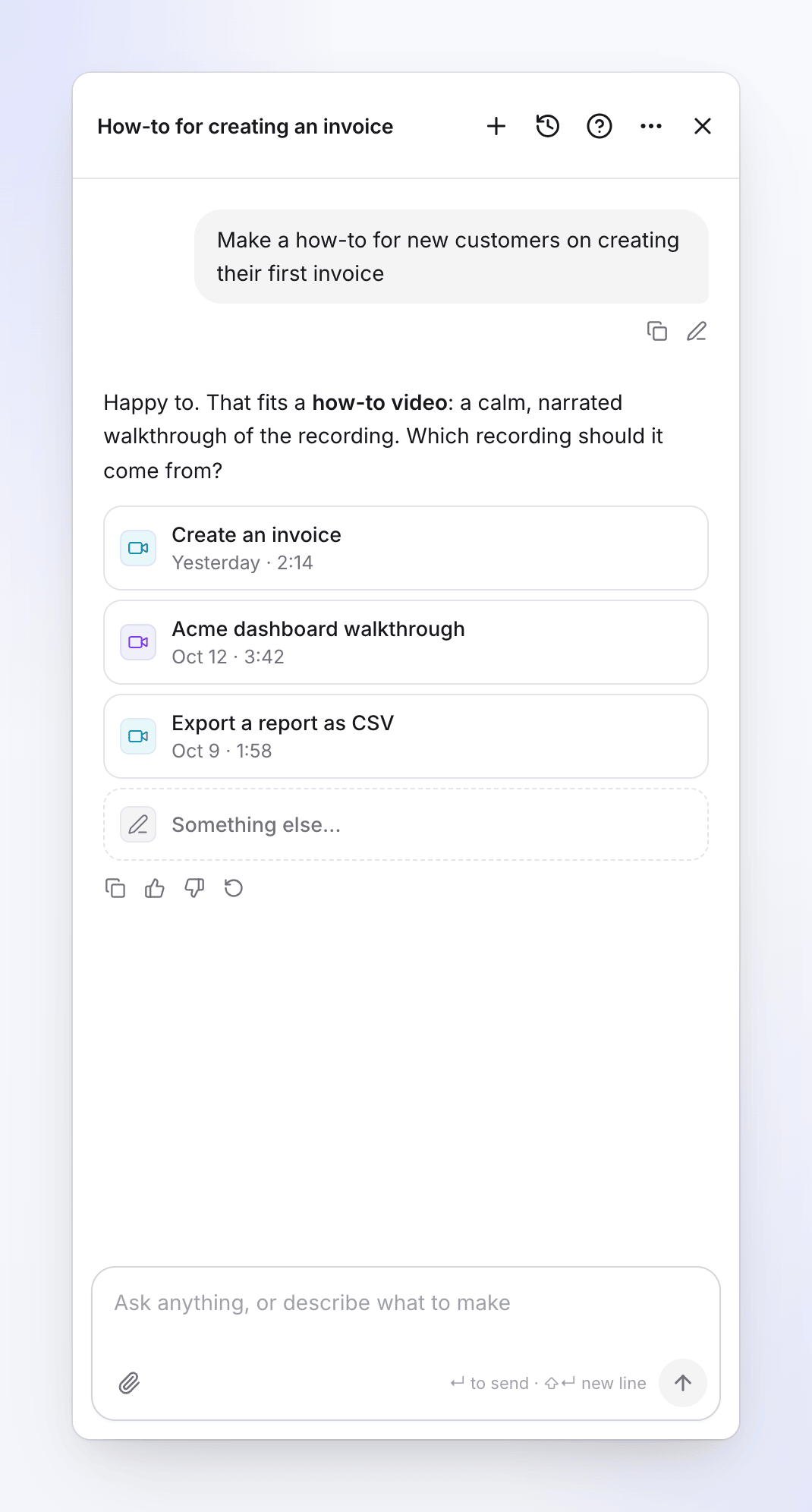
Click an option or press its number. It skips what it already knows from your message, the page, your library and what it remembers about you. It doesn't ask about style when there's a default: it uses your usual choice, then the workspace's default template, style and brand. It asks you to type only things only you know, such as the terms of an offer.
Check the Start card
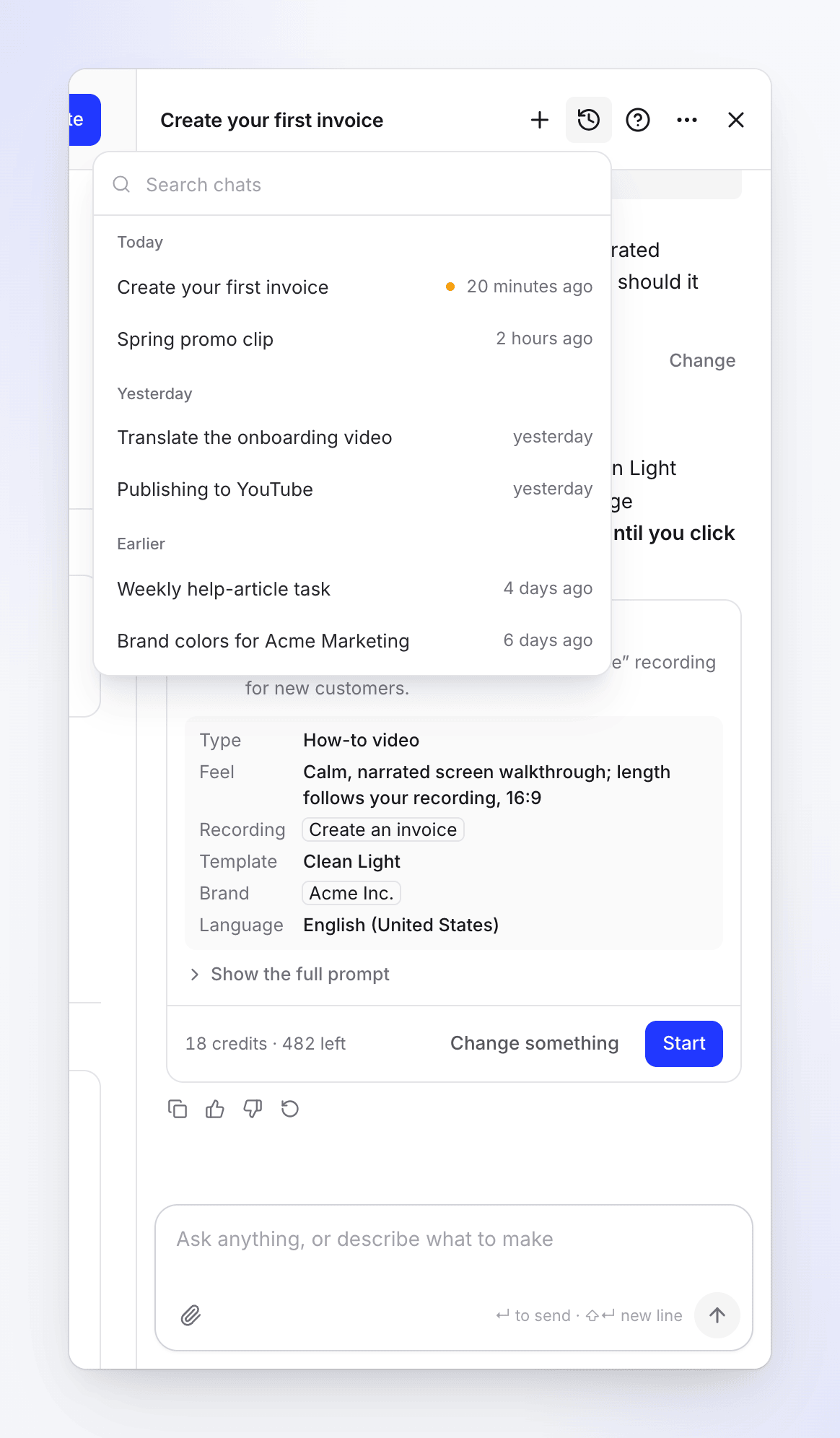
The agent writes a detailed brief and shows a card with:
- the title and a one-line summary
- the facts that shape it, whichever apply: type and its feel, recording, website, template or style, brand, language, format, length, quality, voice-over
- Show the full prompt: the brief the AI will work from
- the cost, for example "18 credits · 482 left"
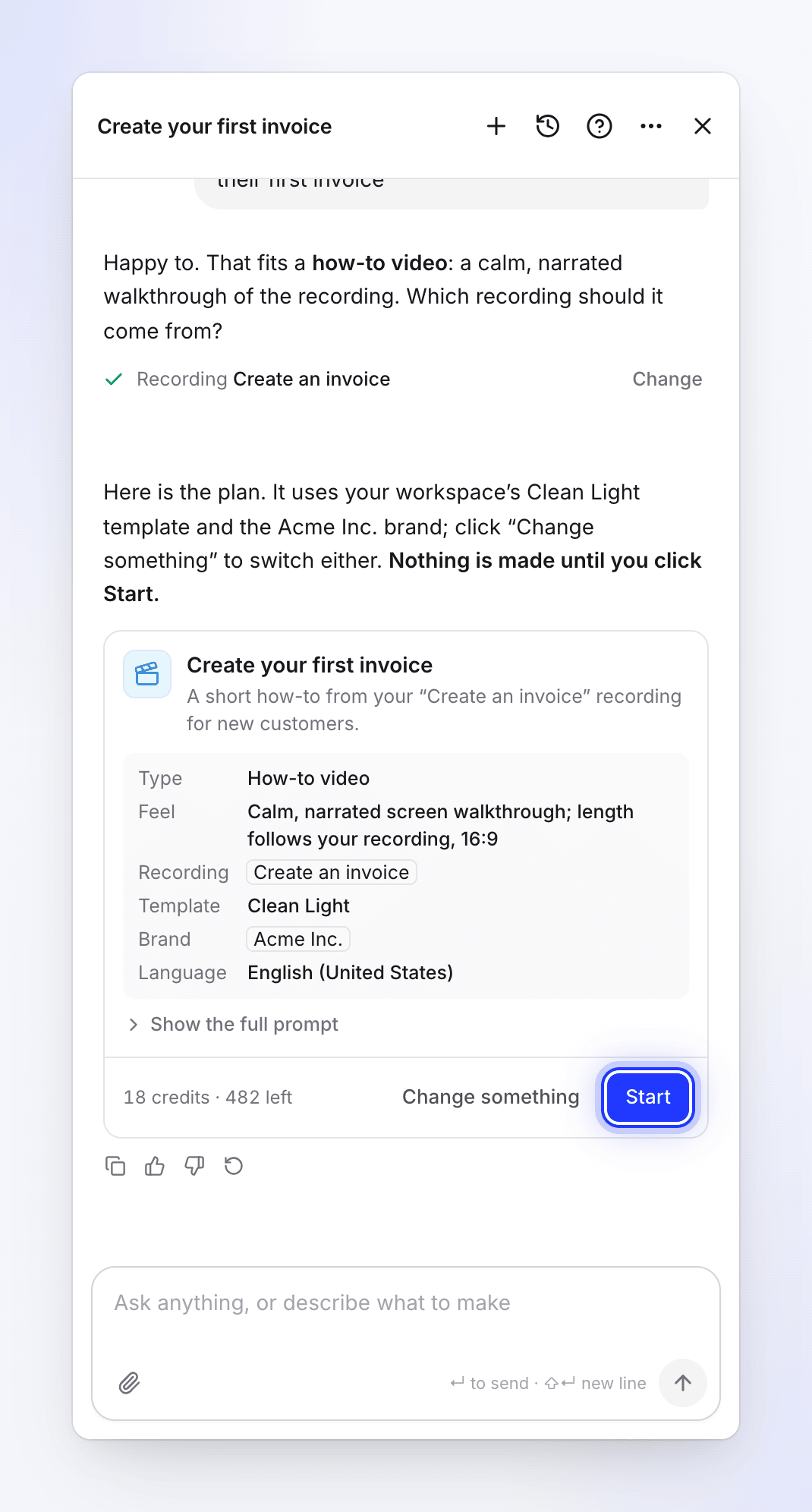
Nothing is made until you click Start. To change anything, click Change something and say what, or type it. The agent shows a new card.
Click Start
Click Start. The card shows Started and a progress card follows the job. You can keep chatting, close the panel or leave the page; the work carries on. When it's done, click Open. When you open the new video from that card, the editor opens on the same chat, ending with "Anything you'd like to change?".
What the agent can set up
| You want | What it needs | What Start does |
|---|---|---|
| How-to video, product demo, cleaned-up or polished recording | A recording in your library (it offers your recent ones) | Makes the video, as Generate does on Compose |
| Social clip | A website link, a recording, pictures, videos or PDFs, or just a written brief, plus the fact the type rests on (an offer, a launch) | Makes the clip |
| Article | A recording | Writes the article |
| Doc site | A name, an address and the collection to build it from | Creates the site (no credits) |
| Autopilot task | What it should do and when, in your words, or a recipe | No Start card: a setup card you check, then Create task. Planning is free; you review and run each plan on the task's page. See Set up and run Autopilot tasks. |
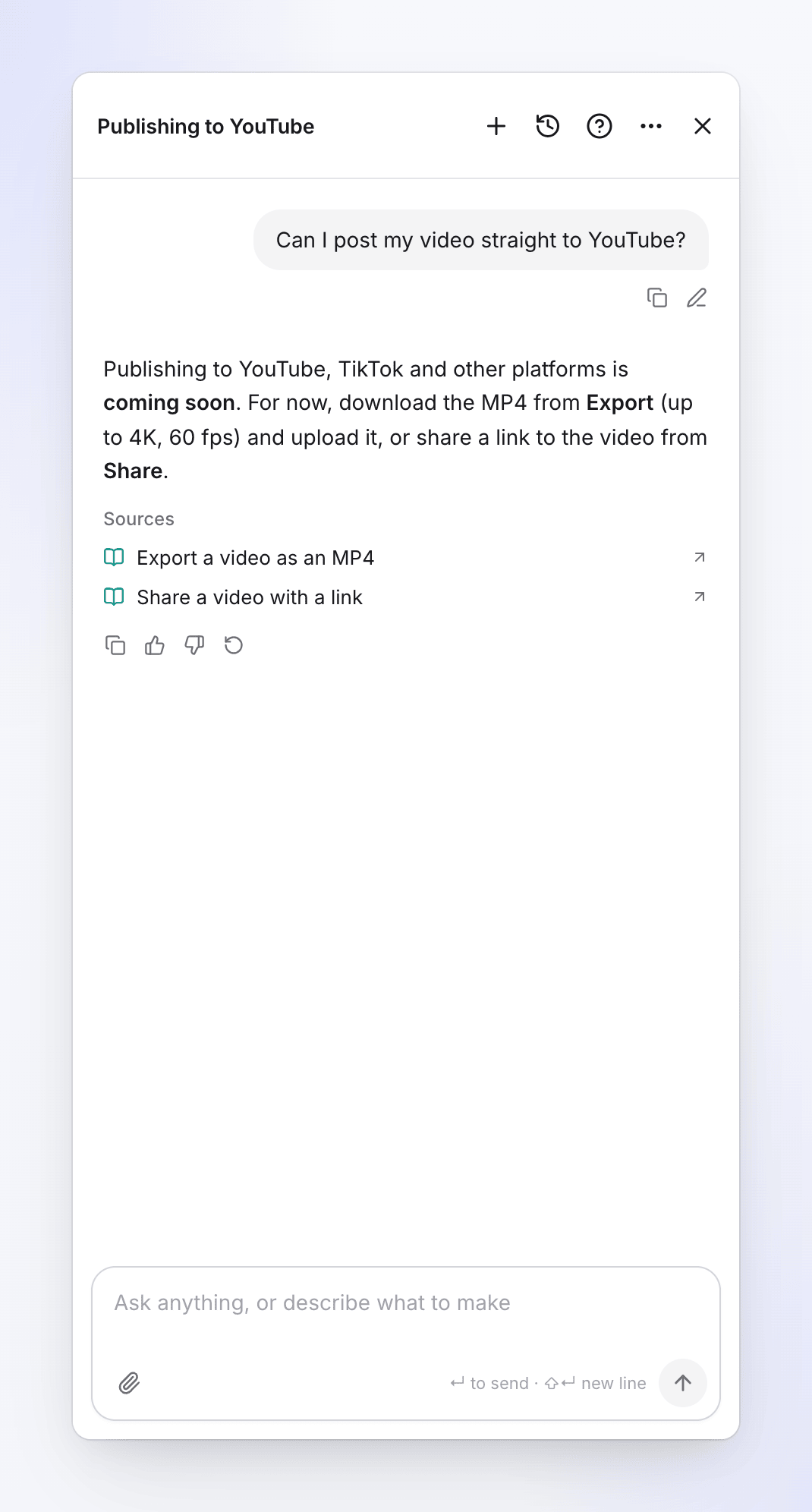
If you need to upload or record something first, the agent links to the right page (your files, or Create for Record with AI) and you come back to the chat. Publishing to YouTube, TikTok and other platforms is coming soon; until then, export the video or share a link.
Change something that exists
Ask for a change to a video, clip or article ("make the intro shorter", "make the music quieter", "proofread this article"). The agent hands it to that item's own editing AI, which knows the item in detail, and shows you its answer. Small changes land at once with an Undo this change card; big changes show a plan with the credits first. Full details: Ask the agent to change your video or clip and Ask the agent to change your article.
When what you ask for is a different kind of video (a fast vertical promo from a calm how-to, say), the agent says so and offers a new video of the right type from the same recording instead.
Set up and run Autopilot tasks
Autopilot tasks are jobs Clevera does for you, once or each time something happens: build a help center, update your videos after a release, write an article for every new video. The agent is the only place to set one up. Autopilot must be on for your workspace, and your role must be able to start tasks (owners, admins and Content Creators). See Understand Autopilot.
Set a task up
Say what should happen and when ("every time we ship, update the videos that show what changed"), or pick a recipe. The agent decides whether you want something now (it makes it the usual way), a task (something that recurs, follows an event, or is big, like documenting the whole app), or both (it makes the one now, then sets up the task).
For a task, it shows a setup card: "Here’s the setup. Check it and click Continue." The card lists the recipe and the facts it took from your words, such as When. A short setup is filled in right on the card; a longer one shows a summary with Fill in the details, which opens the full form. Click Continue: Clevera checks the setup and shows a review (when it runs, the approval, the typical cost of a run). Then click Create task. The card says Task created with Open the task. Full walkthrough: Start an Autopilot task.
A few things are always your click, never the agent's: whether your product needs a sign-in, letting the AI save changes in your app, import rights, and what a Repeat does when a plan is ready. It never asks for a password in the chat: the card's Add a sign-in… opens a secure form.
- A recipe always wins. When a recipe covers what you ask, even with an extra wish ("…and mention the version number"), the agent uses that recipe and puts the wish in its instructions. Your own task is only for what no recipe covers.
- Already set up? If a task already does what you ask, the agent shows no card. It names that task and offers to change it instead of making a second one.
- Needs a help center? The recipes that work on a help center say "This one needs a help center first." and offer Build my help center in the same chat.
- Every time? After it made something once that could recur, the agent may ask once whether to do it every time.
Change, pause or run a task
Click Change on a task's page, or just ask ("send the weekly article task on Fridays instead", "always use British English"). On a Repeat, the agent offers to change when it runs, what it does each time, its budget or whether runs wait for your review. On a triggered task (each release, a changelog page, each new video), it offers to change what it does each time or its budget: "What starts it can’t change; for that I can set up a new task." Either way it can also pause the task or run it now. The agent changes:
| What | How |
|---|---|
| Instructions, inputs and budget of a repeating or triggered task; on a Repeat also its schedule, how many items a run makes and its approval | A card Change the task shows each change as before → after. It applies when you click Apply. |
| Pause a repeating or triggered task | At once, no card. Runs already planned or running carry on. |
| Resume it | A card with Resume. The next check counts from now. |
| Run it now | A card with Run now. A schedule plans a run now; a release or new-video task checks now and plans only if something new came in. Refused while a run is still open or when a Repeat's budget for the month is used up. |
| Plan again, with a change or after it stopped | A card with Plan again. |
| Cancel it | A card with Cancel task. |
The plan itself is reviewed and run on the task's page, not in the chat: the agent links you there. When a task explored your app without a sign-in and stopped at a sign-in page, tell the agent "public pages are fine" or name a saved sign-in, and it plans again.
When you don't say which task you mean and more than one fits, the agent asks which first. See Change or pause an Autopilot task.
Ask about your tasks
Ask "what's automated here?", "why did this article change?" or "which tasks are waiting for review?". The agent answers from your workspace's tasks and links them.
What isn't possible yet
The agent says so in one sentence and offers the nearest thing that works:
- Posting to Slack, Notion, YouTube or social media, or sending e-mail. Everyone on your team already sees what lands in a team-wide collection.
- Social clip and blog tasks.
- Making new videos on a schedule ("every week, record…"). Recording and exploring run once, or on each release with Record a video for every new feature.
- Your own task editing or cutting existing videos. For that it offers Update my videos when the product changes or Edit a batch of videos at once.
- Changing what starts a task (its schedule, repository or new videos) after it's created: set up a new task and delete the old one.
Actions you confirm
Some actions never run from the chat alone. The agent shows a card naming exactly what will change, and it runs only when you click its button:
| Action | Button |
|---|---|
| Publish a doc site or a changelog entry, mark a page ready | Publish, Mark ready |
| Roll a doc site back, remove a page, delete a changelog entry | Roll back, Remove, Delete |
| Change a site's settings, appearance or navigation, add a redirect | Apply, Add redirect |
| Change a live article or a published changelog entry | Apply |
| Create a brand from a website, or change a brand's details or default | Create brand, Apply |
| Add a file from a web address | Add file |
| Cancel a job or an Autopilot task | Cancel job, Cancel task |
| Change an Autopilot task's setup | Apply |
| Resume an Autopilot task, run it now, or plan it again | Resume, Run now, Plan again |
| Turn an Autopilot task's Repeat on, change it or turn it off | Confirm, Turn off |
| Undo a change, or go ahead with a plan or a translation | Undo, Go ahead |
The card for a Repeat says whether it Runs on its own: "No: each run waits for review", or "Yes: it spends from the budget without asking, except runs that write from reader searches, which wait for your review".
Free, reversible actions run directly: renaming an item, creating a collection, moving an item into a collection or folder, drafting a doc site article, starting an MP4 export, and pausing an Autopilot task. The agent can't delete videos, articles or recordings.
Files in the chat
Drop files on the panel, paste them, or click the paperclip (Add files: "Add images, an MP4 or a PDF"). They're saved to your workspace's files, so a new video or clip can use them.
| Limit | |
|---|---|
| Types | PNG, JPEG or WebP images, MP4 videos, PDFs |
| Size | Images up to 8 MB, MP4s up to 100 MB, PDFs up to 40 MB |
| Per message | Up to 6 files ("Up to 6 files go with one message.") |
The agent looks at images and short PDFs you attach and can answer about them. It doesn't watch videos.
Chats and history
- New chat (+ in the header, also in ⋯) starts a fresh chat: "Start a new chat?" / "This one stays in your chat history."
- History (the clock icon) lists your chats under Today, Yesterday and Earlier, with Search chats. A chat waiting for Start shows a dot. Rename or delete a chat from its row. Deleting asks "Delete this chat?": the chat goes for good, but work it started stays in your library.
- A chat is named after its first plan; you can rename it.
- In an editor, the chat is tied to that item, so reopening the editor brings it back. A normal visit opens on an empty "What should we work on?"; earlier chats are in History.
- A chat where you created an Autopilot task is tied to that task: when its plan is ready or it needs you, Clevera posts there.
- Chats are private to you, per workspace.
Under each reply: Copy, Good, Not good (with an optional "What went wrong?") and Retry. Under your last message: Edit, to change it and get a new answer. While the agent works, the steps it's taking show under "Thinking", and Send becomes Stop.
Docked or floating
The agent opens docked: a full-height panel on the right that pushes the page over. Drag its left edge to resize it. When the window is too narrow, it lies over the page instead. In ⋯:
| Option | What it does |
|---|---|
| Float the chat / Dock to the side | Switches between the docked panel and a floating box. Clevera remembers your choice in this browser. |
| Make taller / Make smaller | Floating box only: grows it to the window's height and back. |
Close (×) hides the panel; the chat is kept. On a phone, the agent opens full screen.
What the agent remembers
The agent remembers what helps next time, so you're asked less: your usual style, brand, language or length, and facts about the workspace such as your audience. When it saves something you said, a line in the chat says "Remembered: …" with Undo and Manage. "Clevera learned N things" appears when it concluded something from earlier chats, with Review.
- Your memory: Account settings → Memory ("What Clevera remembers"). Add, edit, pin or delete items, Download them, Forget everything, or turn Memory off.
- Workspace memory: the workspace settings' Memory tab ("What Clevera knows about this workspace"), used by everyone's agent. Owners and admins can add, edit and turn it off; other members can read it.
You can also say "remember that our audience is finance teams" or "forget my usual length". Memories never change what the agent is allowed to do.
Contact support
Click Contact support (the ? in the agent's header) to open the support chat in the same panel. Our AI support assistant answers first and hands over to our team when needed. The ← button takes you back to the agent. A dot on the ? means our team replied. See Contact support.
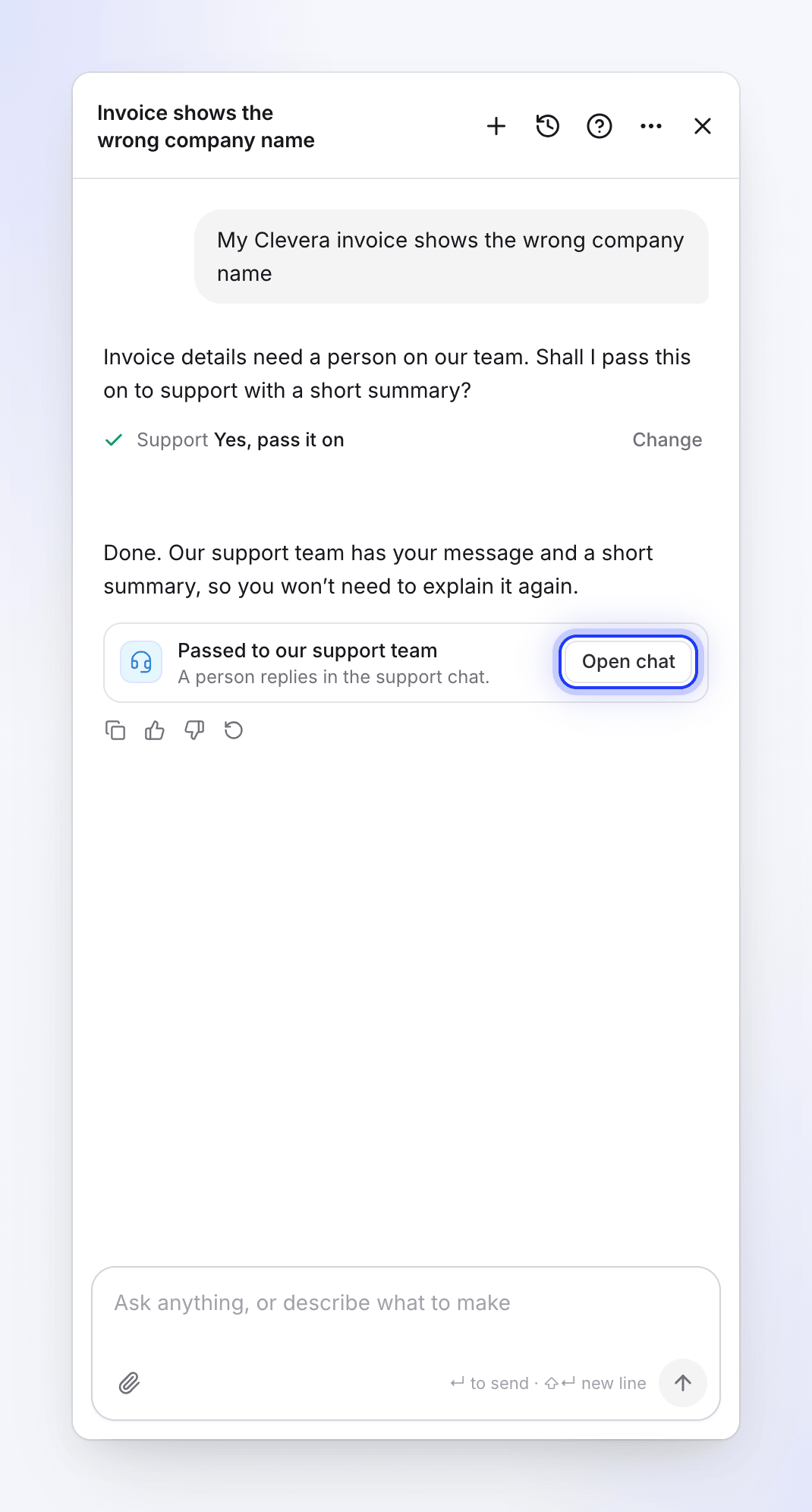
When the agent can't solve something itself, such as a billing problem or a bug, it asks first with a yes/no card. If you say yes, it passes your message to our team with a short summary, so you don't have to repeat yourself. A card says Passed to our support team: "A person replies in the support chat." Click Open chat to follow it.
Languages
Write in any language. The agent replies in the language you write in, including its cards and the summary on the Start card. A new video or article is made in the language you write in unless you choose another. Buttons keep the labels of your Clevera display language.
Limits and costs
| Chatting, questions, cards and quotes | Free, on every plan |
| Setting up an Autopilot task and planning it | Free. Credits are used when you run a plan, or by a Repeat within its monthly budget. |
| Work you start | Credits shown on the card, charged as the job uses them, the same as when you start it yourself. See Read the credit estimate before you generate. |
| Changes to existing items | Small edits are free up to a daily allowance; see Review and confirm a change plan. |
| Daily use | A daily limit per person and per workspace. At the limit: "You've reached today's limit for the Clevera agent. It resets at midnight UTC — or talk to a person on our team in the meantime." |
| Messages | 20 a minute; up to 8,000 characters each; one reply at a time per person |
| Start card | Usable for 24 hours. Started more than 15 minutes after it appeared, the work is priced again; if it now costs more, nothing starts. |
| Long chats | The newest 120 messages show ("Earlier messages aren't shown"). |
Troubleshooting
| On screen | What to do |
|---|---|
| Not sent with Retry under your message | Your message didn't reach Clevera. Click Retry. |
| "Still working…" with Stop and Try again | The reply is taking long. Wait, or click Try again. |
| "You're offline. Send when you're back." | Check your connection. |
| "It could not start." or another line on the card, with Try again | Read the line (for example, not enough credits), fix it, then click Try again. |
| "This plan has expired." | The card is more than 24 hours old. Click Make a fresh plan. |
| "The price changed since this was proposed (now up to N credits). Ask the agent again to see the new price." | Ask again for a new card. |
| "This task can’t be started that way. Pick one of the choices under When." | On an Autopilot setup card, pick one of the options under When and click Continue again. |
| "This task was already created." | The setup card was used. Open the task from Open the task. |
| "You've reached today's limit for the Clevera agent…" | Wait until midnight UTC, or use Contact support. |
| "The Clevera agent is very busy right now. Please try again later…" | Try again in a while. |
| The agent says your role can't do something | Ask a workspace owner or admin, or to change your role. |