

Find your way around Clevera
A map of Clevera's web app: the sidebar and workspace menu, what's on Home, first-run tips and the New in Clevera banner, where Create, Recordings, Usage and Trash live, who sees which items, and what works on a phone.
Clevera's web app has a sidebar on the left and a page on the right. This article is a map: what each place is for, where the less obvious pages live, who sees what, and what works on a phone. Follow the links for the details.
The sidebar
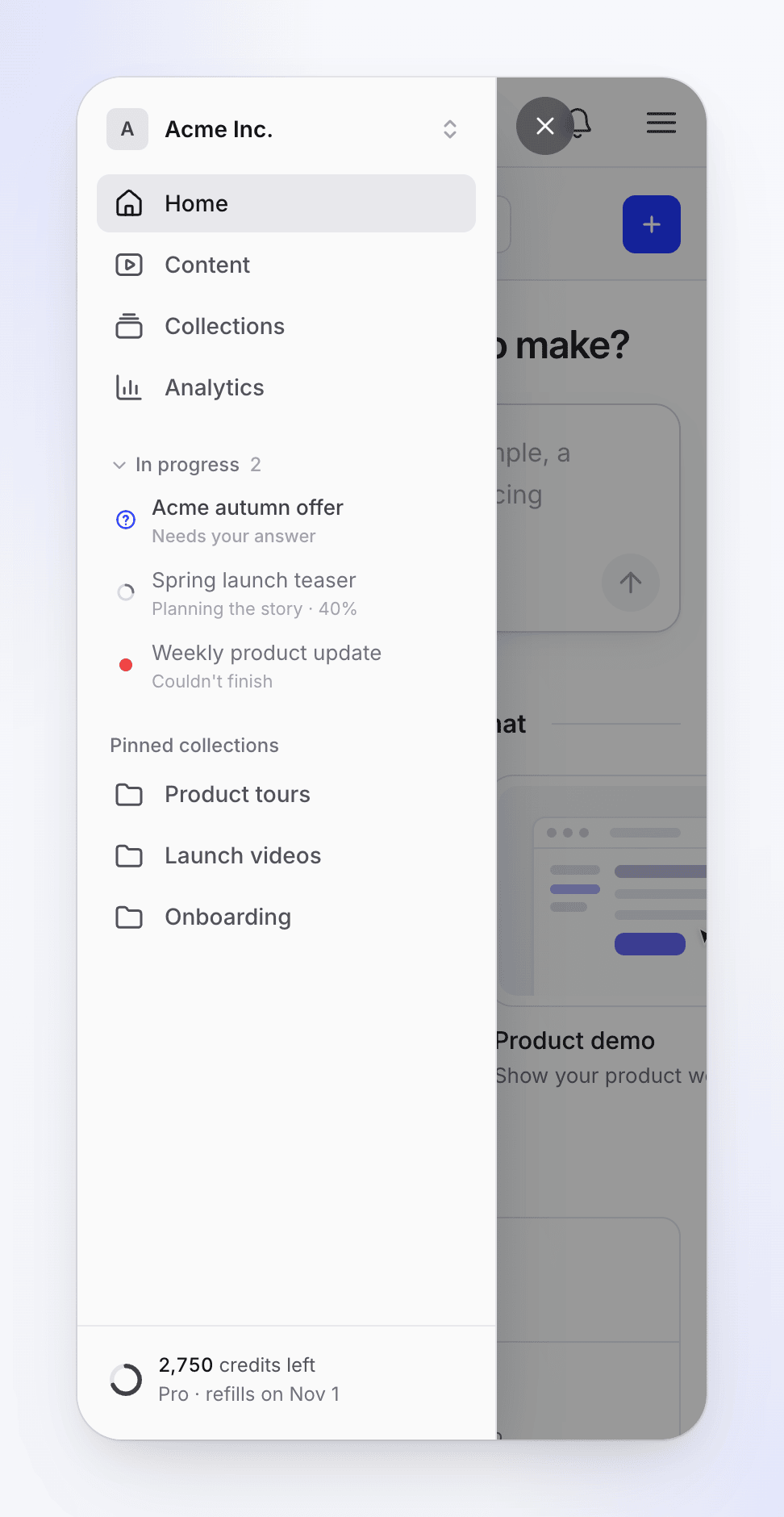
The sidebar holds four pages, the videos being made right now and your pinned collections. Everything personal or workspace-wide (settings, billing, help) lives in the workspace menu at the top.
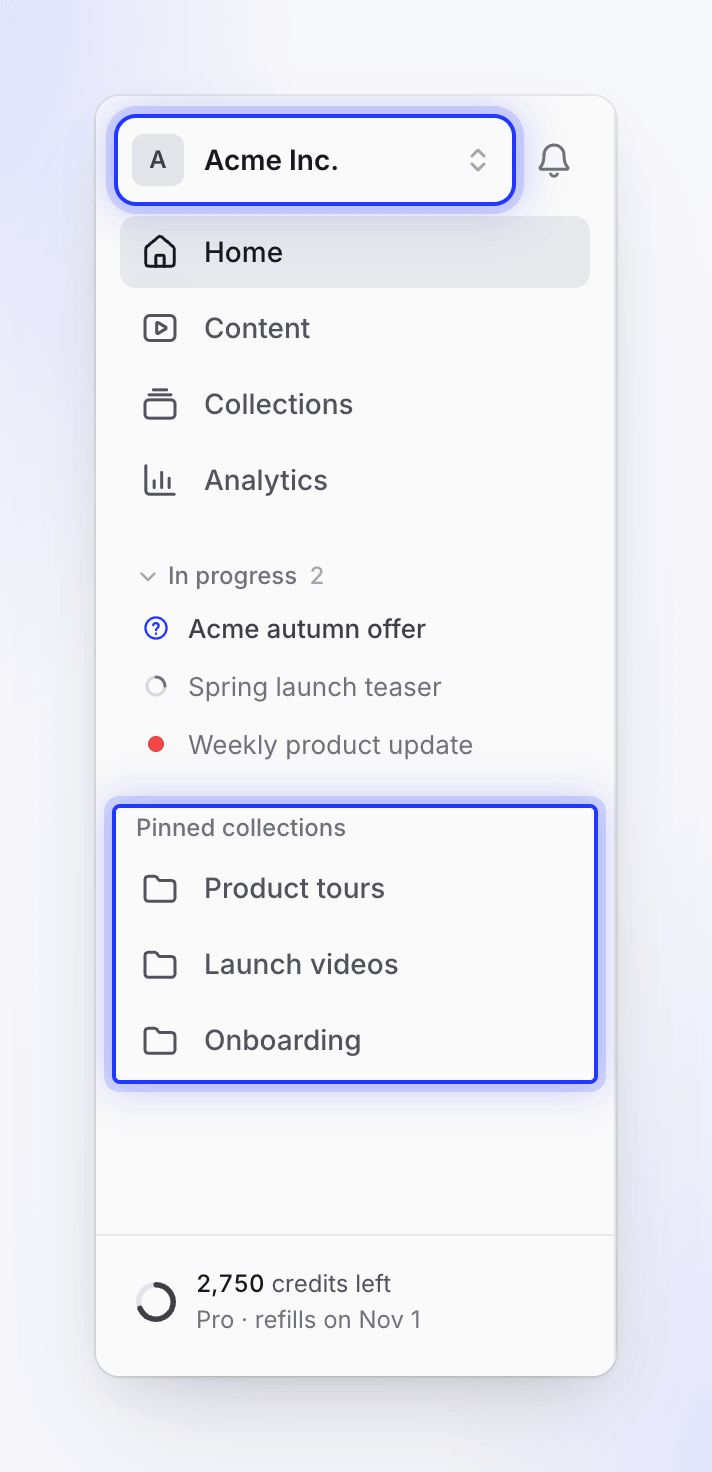
| Item | What it's for |
|---|---|
| Home | Start a video, follow what's being made and see what you made recently. See Home. |
| Content | Every video, social clip and article you can open, with search, filters and the trash. See Find your content. |
| Collections | Folders for your content, shared with the whole workspace or with invited people. See Organize videos in collections and folders. |
| Analytics | What your workspace made and how people watch it. Every member sees it. See Read video analytics. |
| In progress | Appears under the four pages while one of your videos is being made. Click a row to follow it; Ready · View opens a finished one. Click the heading to fold the list away. |
| Pinned collections | The collections you pinned, in your order. Pins are personal: teammates see their own. More opens the Collections page. |
| Credit meter | At the foot of the sidebar, for the workspace owner only. It shows the credits left and opens a menu with Upgrade or Buy credits, Billing and See usage. A notice appears here too when a payment failed or a subscription ended. |
The workspace menu
Click the workspace name at the top of the sidebar to open the menu.
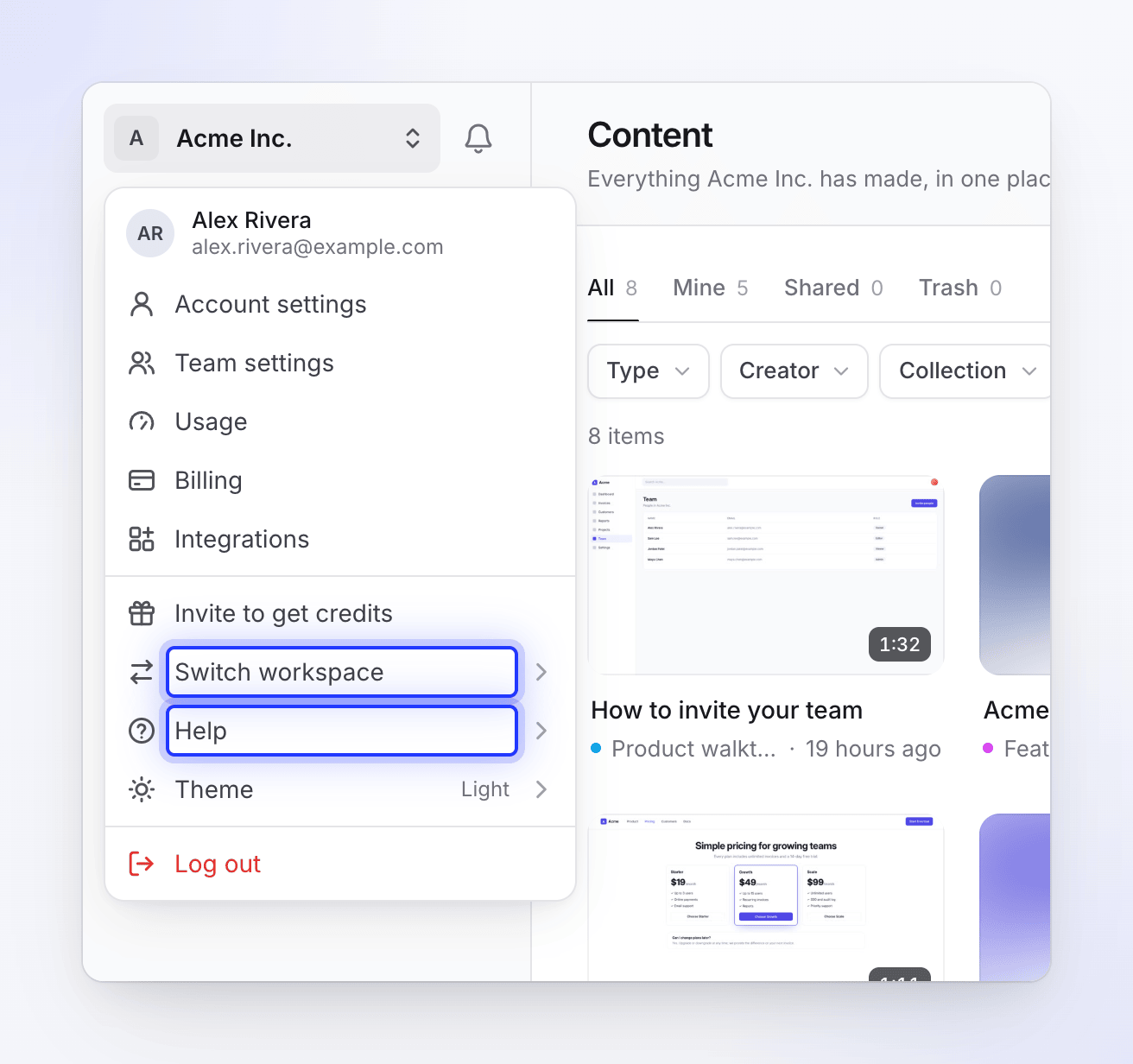
| Item | Who sees it | What it opens |
|---|---|---|
| Account settings | Everyone | Your profile, password, two-factor sign-in, appearance, notifications and connected accounts (including your ElevenLabs key). |
| Team settings | Owner and admins | The workspace's name and logo, members, invitations, creator seats, roles and single sign-on. |
| Usage | Everyone, while credits are on | Owners and billing managers see the whole workspace's credit use; other members see their own. See Check where your credits went. |
| Billing | Owner and admins | Plan, seats, credits and invoices. |
| Integrations | Everyone | Connect publishing destinations such as Notion, Confluence or WordPress. |
| Invite to get credits | Everyone, when referrals are on | Your invite link. See Earn credits by inviting friends. |
| Switch workspace | Everyone | Every workspace you belong to, and Create workspace. Pages that belong to a workspace move to the new workspace's copy. |
| Help | Everyone | Contact support, Docs, What's new and Download desktop app. |
| Theme | Everyone | Light, Dark or System. |
| Log out | Everyone | Signs you out of this browser. |
Which items you see depends on your role. See Understand workspaces, roles and creator seats.
Notifications and help
- The bell next to the workspace name opens Notifications: All or Unread, for This workspace or All workspaces. Its gear opens your notification settings, and another button opens the full notifications page. See Choose which notifications you get.
- The chat bubble in the bottom-right corner opens support chat on most pages. It steps aside on the page that shows a video being made, where that corner holds the AI's questions. You can always reach support from Help → Contact support. See Contact support.
Home
Home is where you start. From top to bottom:
- The New in Clevera banner when there's something new to show. See The New in Clevera banner.
- What do you want to make? Describe your video in a sentence and press Enter. A short setup chat asks what's missing and opens Compose ready to go. See Make your first video from the Home prompt.
- Or start from a format: How-to video, Product demo, Promo & social and Help article, plus Browse all formats, which opens the Create gallery.
- In progress: every video being made in the workspace right now, not only yours. Click one to follow it. See Follow your video while it generates.
- Your work or Your workspace: your numbers for the last 30 days. Owners and admins with billing access see Your workspace with five figures (Made, Views, Credits used, Exports, Active creators); everyone else sees Your work with the first four. Hover a figure for what it counts; Details opens Analytics.
- Recent: the five newest pieces you can open, with Name, Type, Status (Ready, In progress or Failed), Edited and Length. Hover a row for a preview. Its ⋯ menu has Open, Copy link, Rename, Add to collection (or Change collection) and Delete. View all opens Content.
- Get free credits: a small, dismissible invite reminder for workspaces that have already made something.
A brand-new workspace sees only the prompt, the formats and anything in progress. The numbers and the Recent table appear once you've made something.
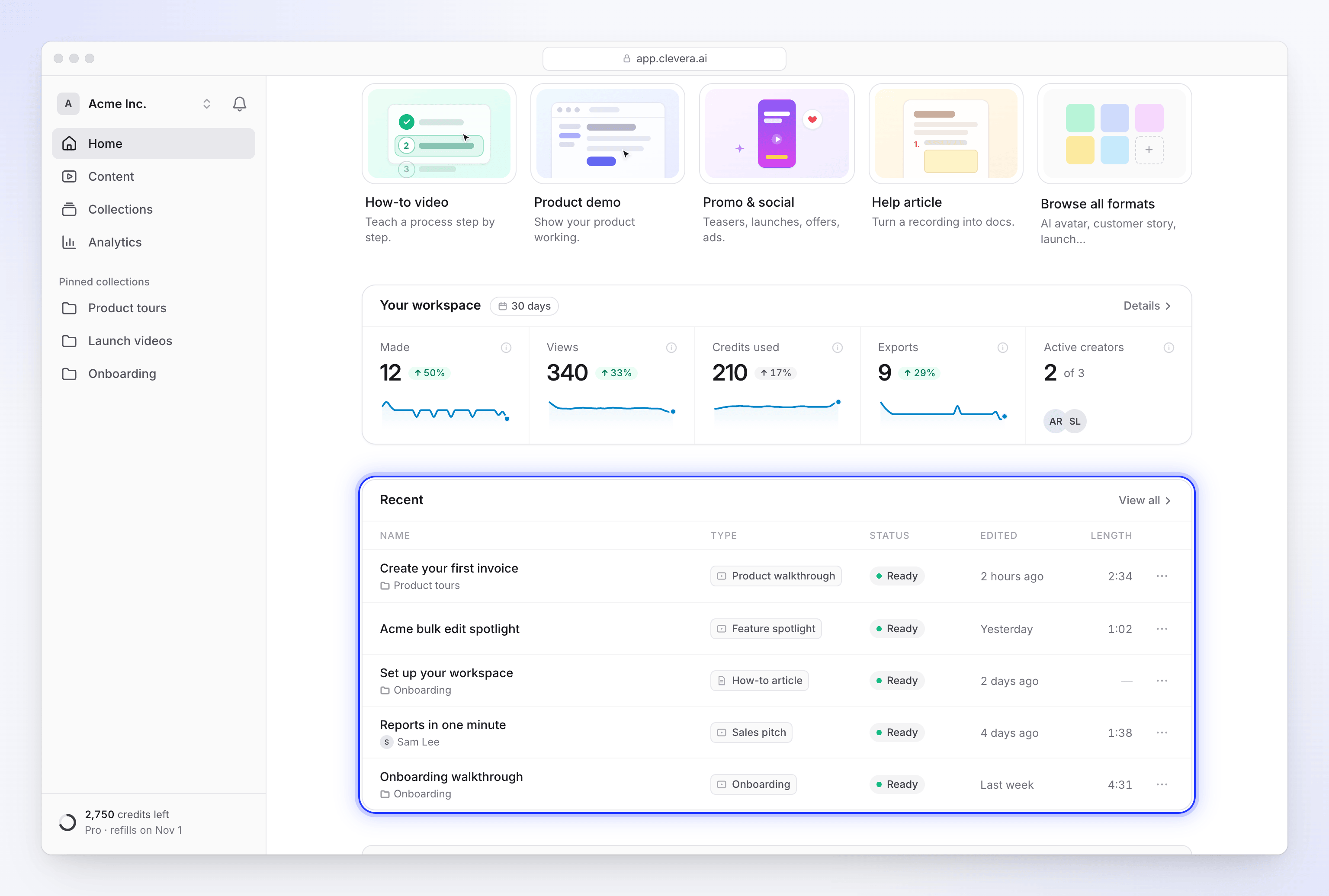
The Create button at the top right of Home opens the Create gallery directly. See Pick a video type in the Create gallery.
Tips, banners and update notices
First-run tips
The first time a control is useful, a small card can point at it. Only one tip shows at a time, and none while a dialog or menu is open.
| Tip | Where it appears | It stops showing when |
|---|---|---|
| Start here | Home, under the prompt box, in a workspace that hasn't made anything yet (and only while the New in Clevera banner isn't showing) | You send a prompt or open a format |
| Start with your footage | Compose, for formats built from a recording (How-to, Product demo, Polish my footage and articles), pointing at + | You add a recording or video |
| You don't have to wait here | The page that shows a video being made, after about 20 seconds, unless the AI is asking you something | You close it |
| Ask for changes | The social clip editor, pointing at the assistant, if you can edit the clip | You open the assistant |
To close a tip for good, click Got it or ×. It won't come back on any device. Pressing Escape or clicking elsewhere only hides it for now; it can appear again the next time you open that page. A closed tip can't be brought back.
The New in Clevera banner
When there's something new, Home opens with a banner above the prompt box. It plays short samples of the video types Clevera makes. Types marked New were added recently.
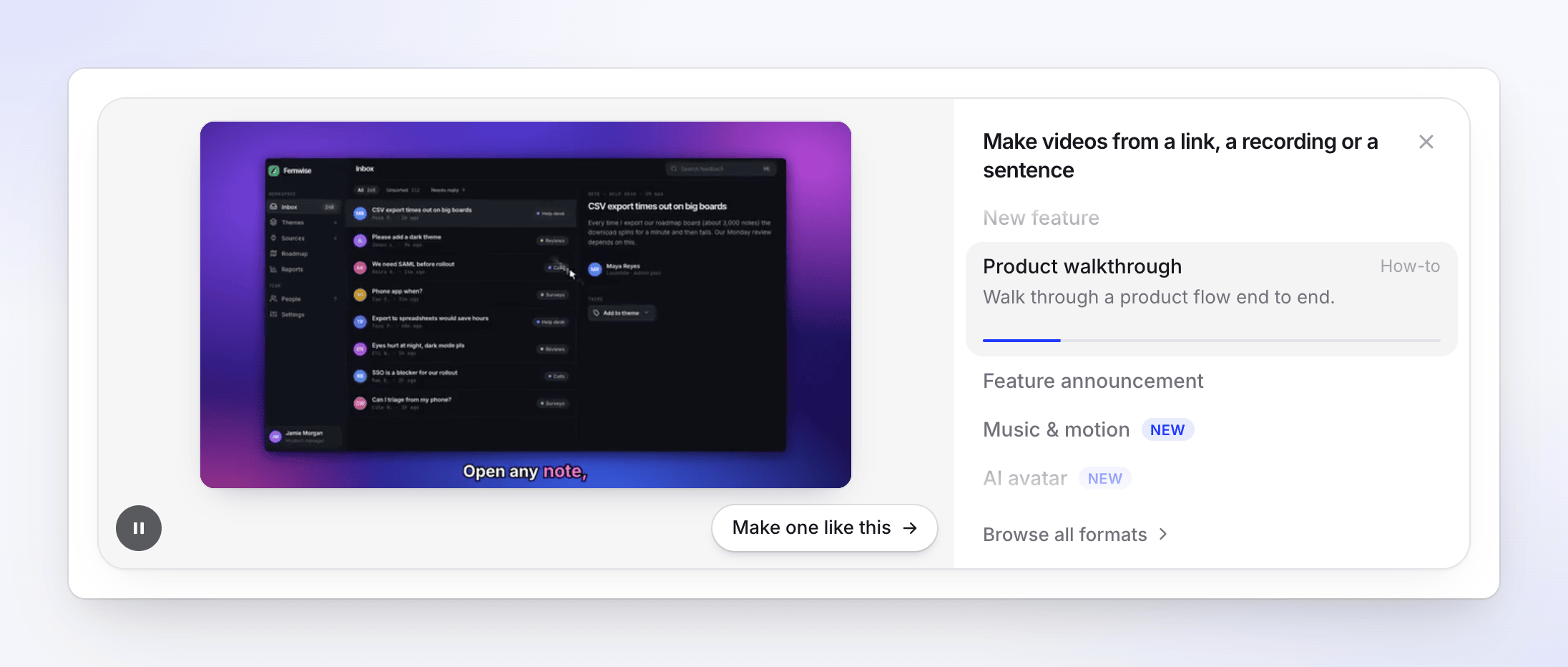
- Click a type in the list to play its sample. The button at the bottom left pauses or plays the samples.
- Make one like this opens Compose for the type that's playing.
- Browse all formats opens the Create gallery.
- × closes the banner. It stays closed on every device and in every workspace. A later banner with different news shows once again.
Now and then a short announcement may also open on Home, or as a small card in a corner of the page. Close it and it doesn't return in that workspace.
When Clevera updates
After an update, a bar at the top of the page asks you to refresh, with Refresh and, when there are release notes, What's new. For some updates a window ("Clevera has been updated") asks you to Refresh now before you carry on. If you're saving, exporting or uploading at that moment, it says so and refreshes by itself once that's done, so you don't lose work. The changelog lists every update.
Other pages
| Page | How to get there | What it's for |
|---|---|---|
| Create | Create on Home or Content | The gallery of every format, then Compose, where you add materials and set the options. |
| Recordings | ⌘K → "Recordings" | The screen recordings and uploaded videos you added to this workspace. Recordings no video uses are deleted automatically after 15 days. See Find and reuse your recordings. |
| Trash | ⌘K → "Trash", or the trash view on Content | Deleted videos, clips and articles you can restore for 7 days. Recordings don't go to the trash. See Delete and restore videos and articles. |
| Usage | Workspace menu → Usage | Where your credits went. |
| Notifications | The bell → open all notifications | Every notification in one list. |
On a phone
Below tablet width the sidebar folds away. A bar at the top shows the workspace name, the bell (it opens notifications as a full-screen sheet) and a menu button that slides the same sidebar in from the left, with the same items.
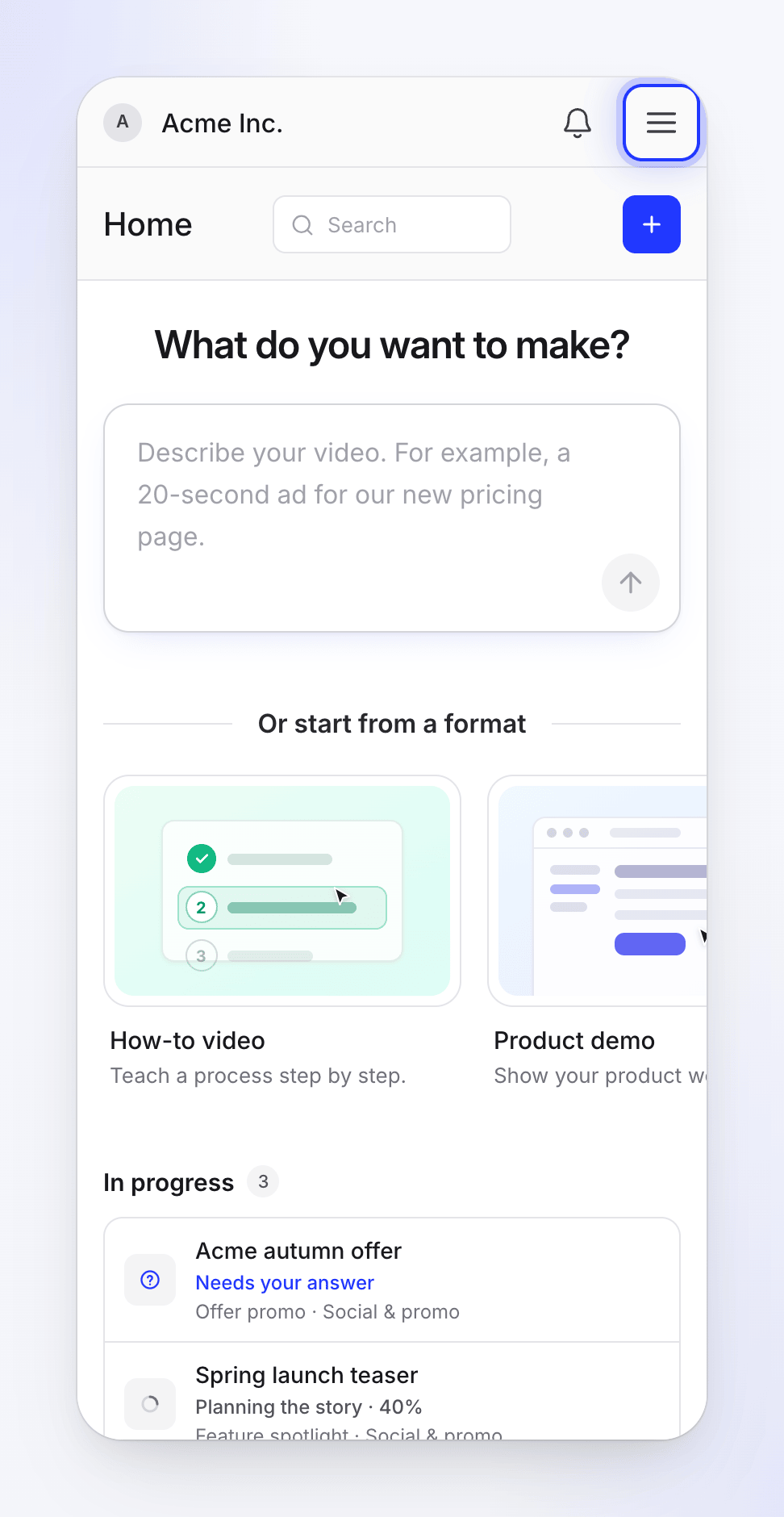
- Works on a phone: Home, the prompt and the setup chat, Content, Collections, Analytics, notifications, following a video while it's made and answering the AI's questions.
- Needs a computer: recording your screen. The desktop app runs on Mac and Windows. See Install the Clevera desktop app.
- Better on a computer: the video and article editors. They open on a phone, but their timelines and panels are built for a larger screen.
Language
Clevera's interface is in English. The videos it makes can be in 74 languages and variants. See Make a video in another language.