

Use your own ElevenLabs voices
Connect your ElevenLabs account to narrate Clevera videos with your own ElevenLabs voices, including voices you cloned. Learn what the key needs, where to add it, and how the speech is billed.
If you have an ElevenLabs account, you can narrate Clevera videos with your own ElevenLabs voices, including voices you cloned or designed there. You connect your account once with an API key, and your voices appear in the ElevenLabs tab of the Voice menu.
Before you start
- An ElevenLabs account with a paid or free subscription and at least 3,000 character credits left.
- An ElevenLabs API key with these permissions: User (read), Models (read), Voices (read) and Text to Speech (access).
- The key belongs to you, not the workspace. It's encrypted, only used for videos you generate, and teammates never see it. Each teammate who wants ElevenLabs voices adds their own key.
Connect your ElevenLabs account
Create a key in ElevenLabs
In ElevenLabs, open Profile → API keys and create a key. Give it the four permissions listed above, then copy it.
Open Account settings in Clevera
Open your account settings and go to the Connections tab. Find the ElevenLabs voices section: "Use your own ElevenLabs account for voiceovers. The key is encrypted and only used for your generations; teammates never see it."
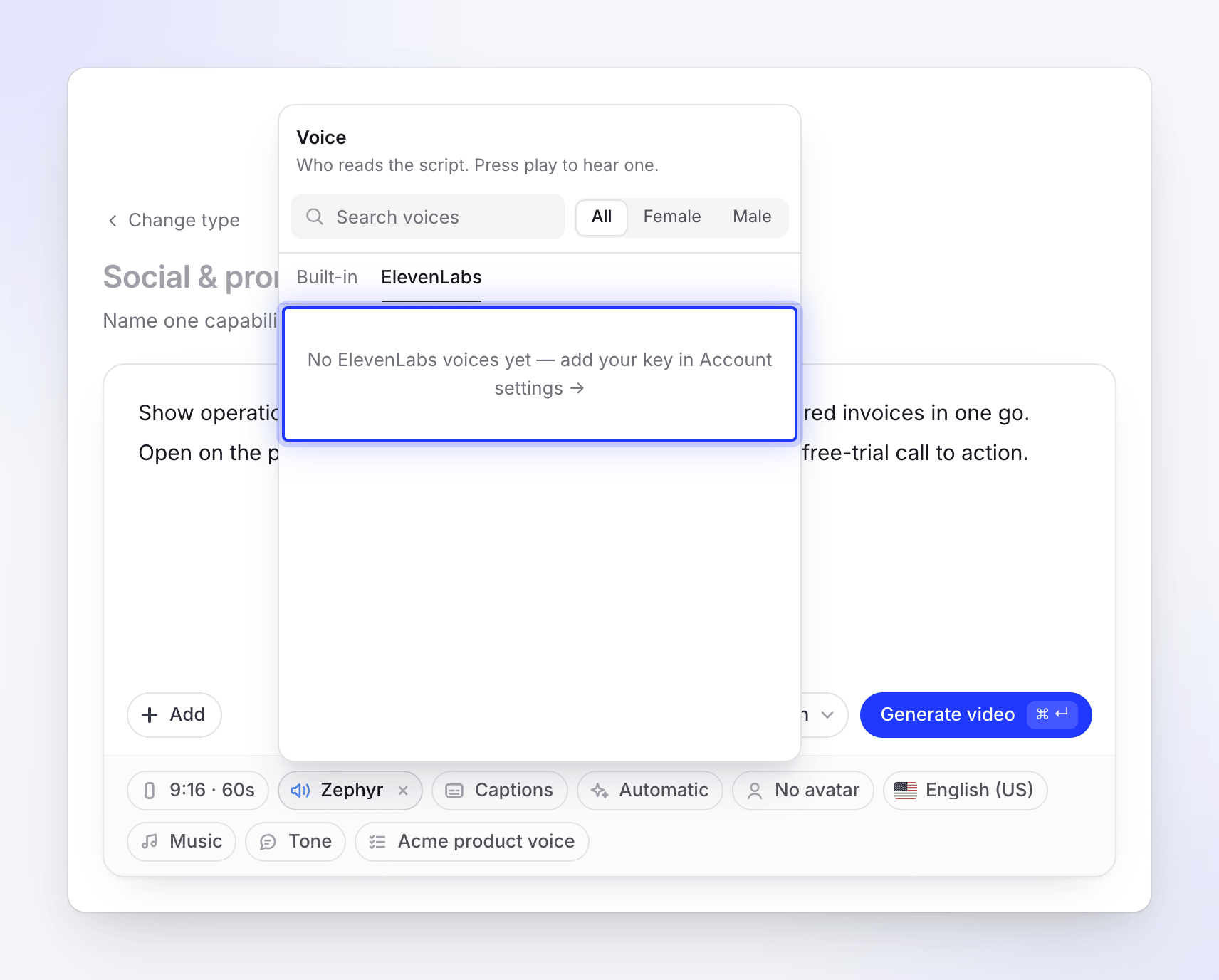
You can also get there from the Voice menu on Compose: open the ElevenLabs tab and click "No ElevenLabs voices yet — add your key in Account settings →".
Paste the key
Paste it into API key (it starts with
sk_) and click Save and verify. The button reads Checking… while Clevera tests the key against your ElevenLabs account.Check the status
When the key works, you see "ElevenLabs key saved and verified." and the section shows Connected.
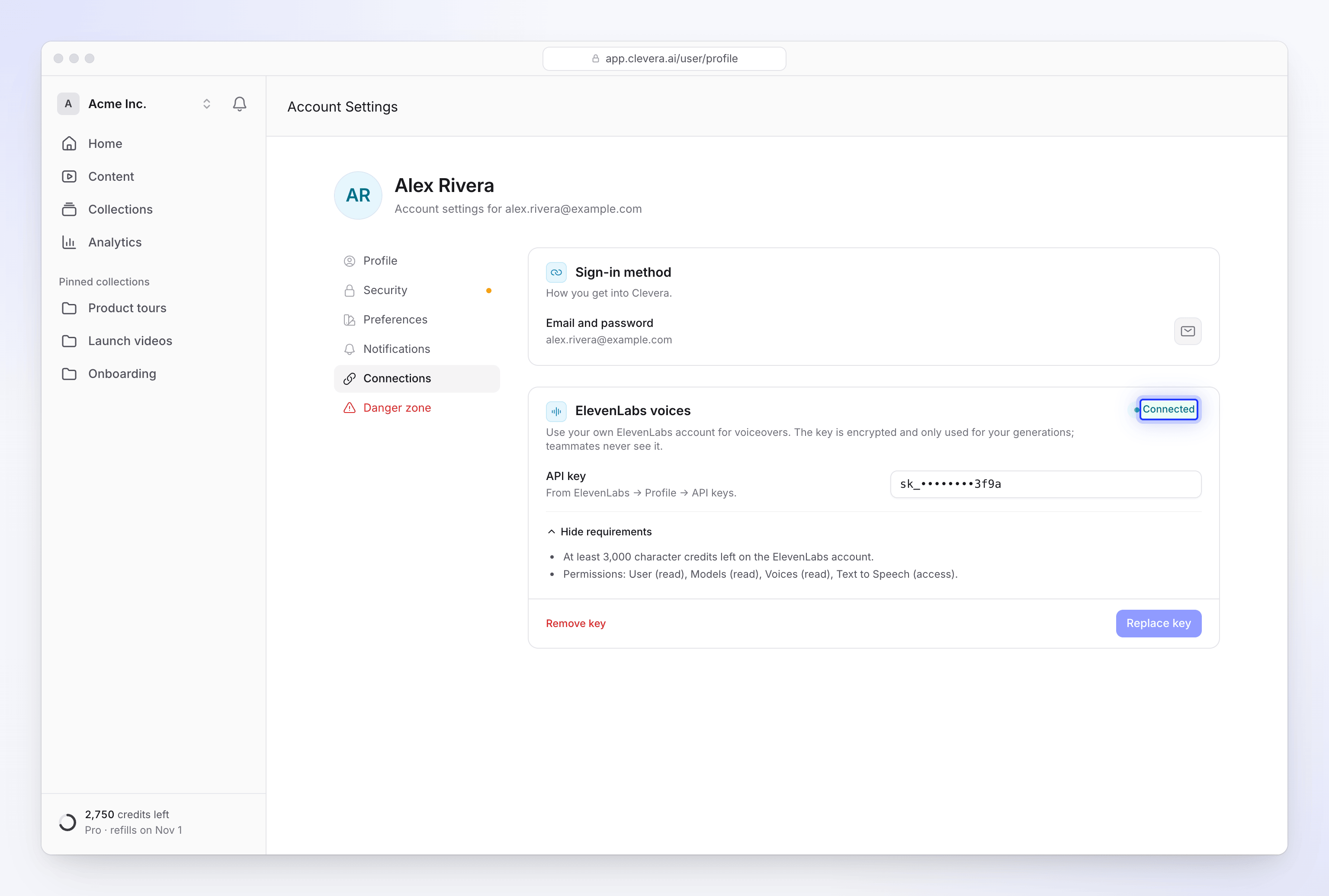
Your key is encrypted and only used for your own generations.
| Status | Meaning |
|---|---|
| Connected | The key works and has everything it needs. |
| Saved, not verified yet | The key is saved, but ElevenLabs couldn't be reached to check it. It's checked again when you come back to the page. |
| Needs attention | The key is saved but something is wrong, such as a missing permission or too few character credits. The message under the field says what. |
| Not connected | No key saved. |
Use an ElevenLabs voice
Open the Voice pill
On the Compose page, click the Voice pill.
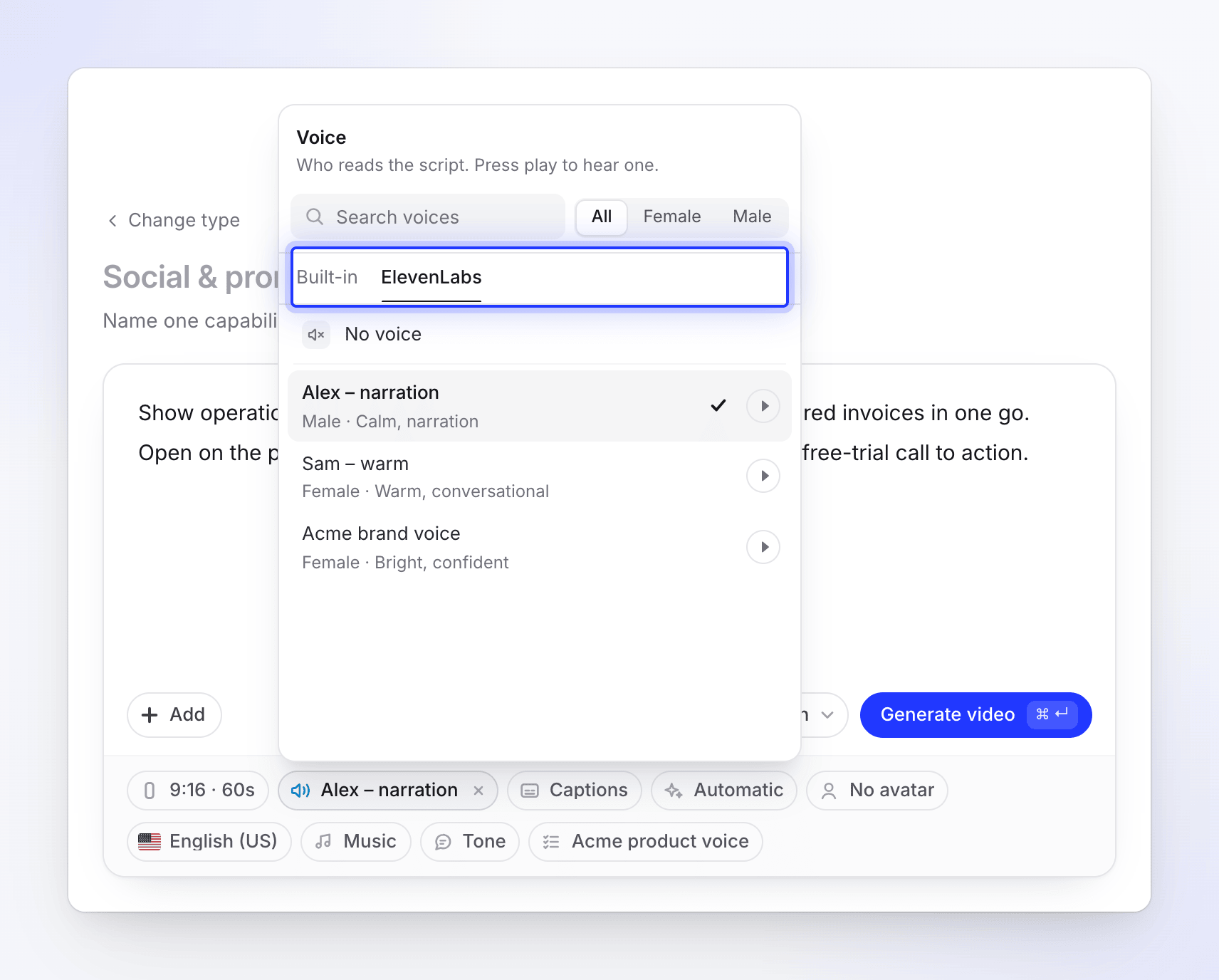
Switch to the ElevenLabs tab
Your ElevenLabs voices are listed, filtered to the video's language. If none are tagged for that language, the full list is shown.
Preview and pick
Click play to hear a voice (the sample comes from ElevenLabs), then click it to use it.
ElevenLabs voices work for social clips, how-to videos and product demos. With an AI avatar, the avatar's own voices are used instead.
If you haven't connected a key yet, the tab shows a link to Account settings instead of voices.
How it's billed
| Who pays | |
|---|---|
| The voice-over speech made with your ElevenLabs voice | Your ElevenLabs account, in ElevenLabs character credits |
| Everything else in the video (writing, design, checks) | Your Clevera credits, as usual |
The speech made with your key doesn't use Clevera credits, so a video voiced with ElevenLabs can cost a little less than the same video with a built-in voice. Keep an eye on your ElevenLabs balance: Clevera needs at least 3,000 character credits left when you connect.
Replace or remove the key
- To use a different key, click into the field (it clears the masked key), paste the new one and click Replace key.
- To disconnect, click Remove key and confirm in Remove your ElevenLabs key?: "New voiceovers use Clevera's voices again. You can add a key back any time."
Videos already made keep the voice-over they have.
Troubleshooting
| Message | What to do |
|---|---|
| "Invalid API key. Please check your ElevenLabs API key." | Copy the key again from ElevenLabs. Make sure nothing is cut off. |
| "Unable to access user information. Please check that your API key has "User: Read" permission." | Edit the key in ElevenLabs and turn on User read access. |
| "Unable to access voices. Please check that your API key has "Voices: Read" permission." | Turn on Voices read access. |
| "Unable to access models. Please check that your API key has "Models: Read" permission." | Turn on Models read access. |
| "Unable to use Text-to-Speech. Please check that your API key has "Text to Speech" permission enabled." | Turn on Text to Speech access. |
| "Insufficient character credits. Your account has N characters remaining, but at least 3,000 characters are required…" | Add credits or upgrade your ElevenLabs plan, then save again. |
| "Multiple issues found:" followed by a list | Fix each one in ElevenLabs, then click Save and verify again. |
| The ElevenLabs tab is empty after connecting | Reload the Compose page. If your ElevenLabs library is empty, add voices there first. |