

Change the display language
Show Clevera's menus, buttons and emails in another language from Account settings → Preferences → Language. Your videos, clips and articles keep their own language.
Clevera's menus, buttons and emails can be shown in other languages. You choose the language for yourself in your account settings; it follows you on every device, and it never changes the language of your videos or documents.
Change your language
Open your account settings
Click your workspace name at the top of the sidebar, then Account settings, and open the Preferences tab.
Find the Language card
The Language card reads "The language Clevera uses for you, on every device." Its Display language row covers "Menus, buttons and emails. Your videos and documents keep their own language."
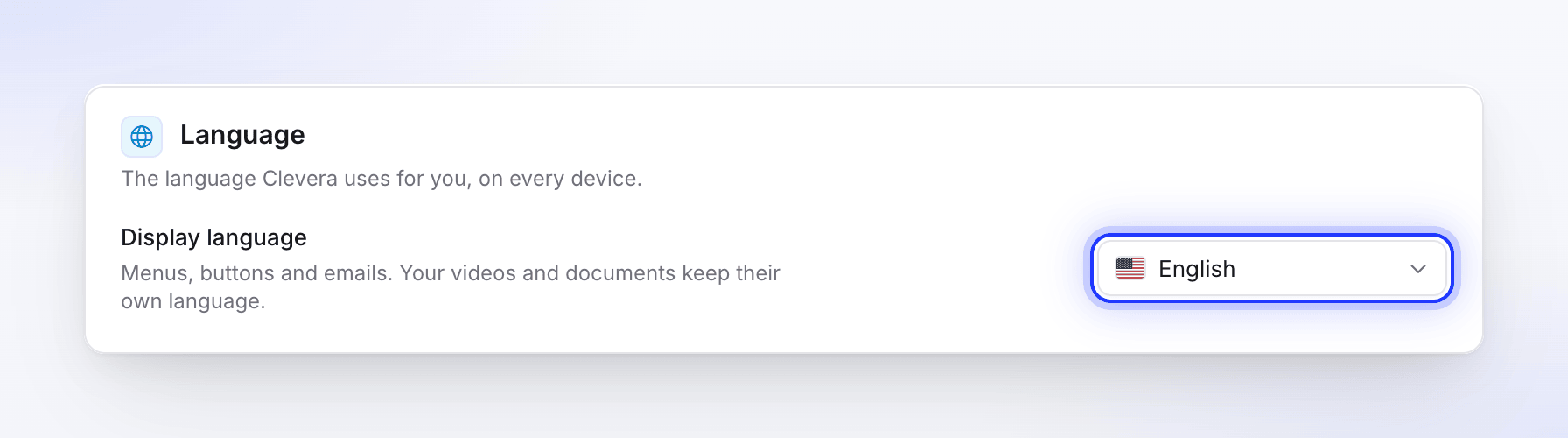
Pick a language
Open the menu and choose a language. You can type to search the list (Search languages); the language your browser asks for is marked Suggested. Clevera saves the choice and reloads in the new language.
The languages you can pick are the languages in the menu. If saving fails, you see "Couldn’t save your language. Please try again."
Other places to choose it
| Where | What you see |
|---|---|
| A one-time suggestion | If your browser asks for a language Clevera offers and you never chose one, a dialog asks once, written in that language: "Use Clevera in …?", with a Switch to … button and a No thanks, keep … button naming your current language. Either answer is remembered, and it doesn't ask again on any device. |
| Sign-in and sign-up pages | A language switcher in the page footer (the current language's flag and name). It changes the page right away and is kept for your account when you sign in. |
| Sign-up form | A Language field, which starts on the language the page is shown in. |
If you never chose a language, Clevera stays in English once you're signed in, until you pick one.
What the display language changes
| Follows your display language | Keeps its own language |
|---|---|
| Menus, buttons, messages and tooltips | Your videos and social clips: voice-over, captions and words on screen follow each video's Language setting |
| Emails Clevera sends you | Your articles and other documents |
| Replies from the setup chat and the assistants in the editors | Briefs and text you write yourself |
| How dates and numbers are written |
Languages written right to left are laid out right to left.