

Collect reader feedback and messages
Ask readers whether a page helped, customize the question and reasons, and (on Starter and up) let them email you through a contact form sent to one confirmed address.
Your doc site can ask readers whether a page helped and, on Starter and up, let them write to you through a contact form. Votes and comments show up under Insights → Feedback; contact messages are emailed to one address you confirm.
Before you start
- Both are set up under Settings → Feedback & contact. You need to be the workspace owner, an admin or an editor.
- The "Was this page helpful?" widget is on every plan and on by default.
- The contact form is on Starter and up, and off by default.
- Changes reach readers when you publish.
"Was this page helpful?"
At the end of every page readers see "Was this page helpful?" with Yes and No.
- Yes thanks them.
- No asks "What went wrong?" with a list of reasons to pick from (optional) and a comment box, "Tell us more (optional)". Readers click Send feedback or Skip.
- A reader can vote once per page per day. Voting again that day changes their vote.
- Comments can be up to 2,000 characters.
Change the question and the reasons
In the Feedback card:
| Setting | What it does | Default |
|---|---|---|
| “Was this page helpful?” | Shows the widget at the end of every page. | On |
| Question | Your own wording, per site language. Up to 120 characters. | Empty: "Was this page helpful?" in the reader's language |
| After “No” | The question above the reasons. Up to 80 characters. | Empty: "What went wrong?" in the reader's language |
| Reasons | The reasons readers can pick from, in order. Up to 8. | Out of date, Missing steps, Hard to follow, Not what I needed, Something is wrong |
- Add reason adds your own. Give it a name in the site's default language; you can add the other languages too.
- Built-in reasons you leave unnamed are translated for every reader.
- Remove all reasons and readers see only the comment box.
- Use the built-in reasons puts the original list back.
Renaming or reordering a reason keeps its earlier votes.
Turn it off for one page
Open the page in Pages and, in its settings, turn off Feedback widget. The rest of the site keeps the widget.
Read the feedback
Votes, the helpful rate, the reasons and every comment are on Insights → Feedback. See Read doc site insights.
When a page gets 5 or more votes in 30 days and fewer than half say it helped, the owner, admins, editors and the page's author get a notification: "Readers say page on site isn't helping".
Contact form
The contact form lets readers send you a message from the site. It's a simple form: name, email and message, sent to one email address of your choice. There's no inbox in Clevera; you answer by email.
Turn on the contact form
Open the contact settings
Go to Settings → Feedback & contact and find the Contact card.
Switch it on and add your address
Turn on Contact form and enter the address under Send messages to, for example your support inbox. Readers never see this address.
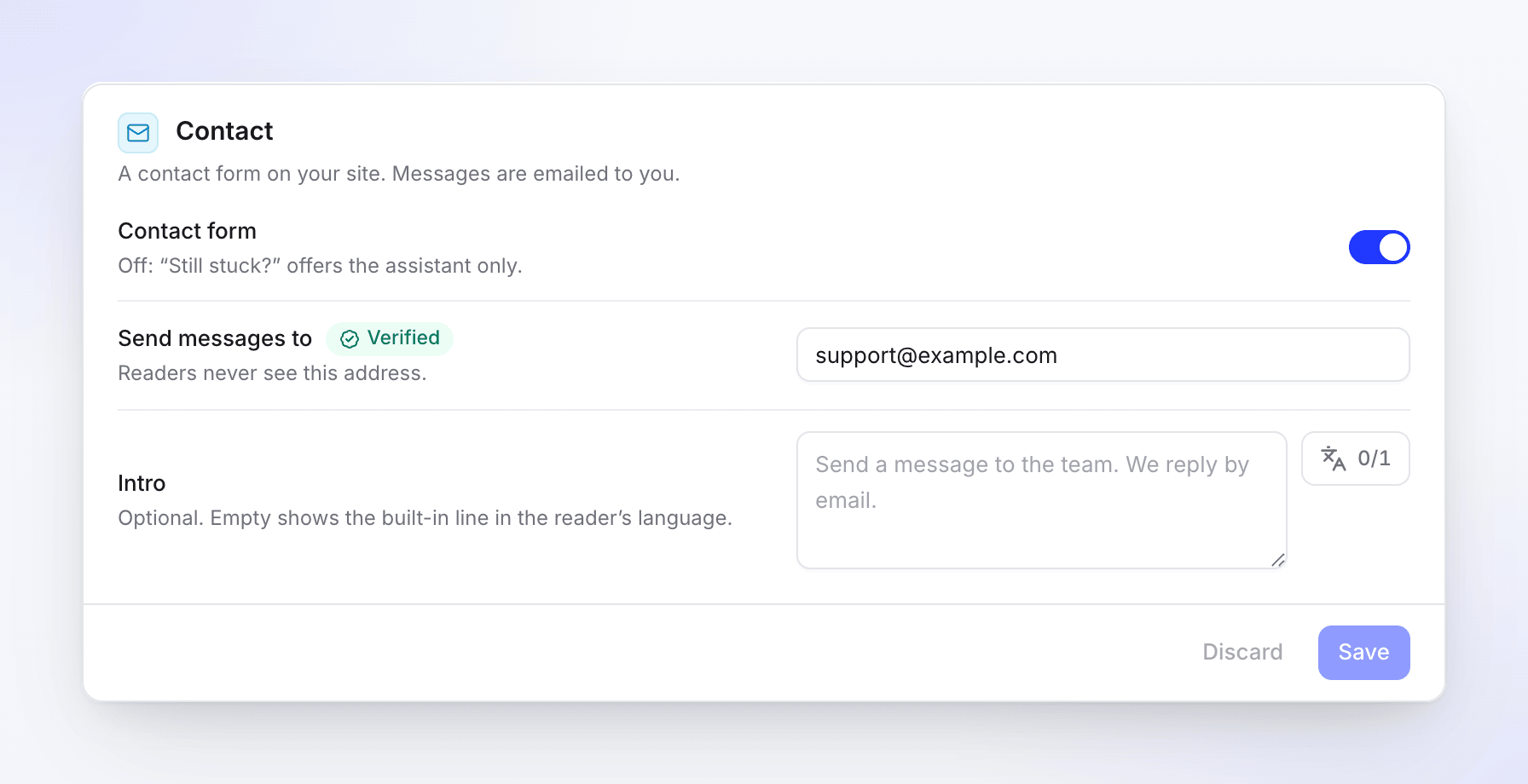
The Contact card Save and confirm the address
Click Save. Clevera emails a confirmation link to that address: "Confirm your email for the site contact form". Open it and click the link. The card then shows Verified.
Publish
Publish the site. The form appears on your contact page.
Optional: write an Intro for the top of the form, up to 300 characters per language. Leave it empty for "Send a message to the team. We reply by email." in the reader's language.
The confirmation link
- It works for 7 days.
- Changing the address needs a new confirmation. The old link stops working.
- You can ask for a new link once a minute, and up to 10 a day per site.
What readers see
- A contact page at
/contactwith the title "Contact support", your intro and the form: Your name, Email, How can we help? and Send message. - At the end of each page, a "Still stuck?" box with Contact support. When the assistant is on, the box offers both.
- If you chose Contact page under When it can't answer in the assistant settings, the assistant points readers there when your pages don't cover their question.
- While the reader types, the form suggests up to three of your pages under "These articles may answer your question", so they may find the answer without writing.
- After sending: "Message sent. We'll reply by email."
You can also put the form on a site page of your own with the contact form block. See Create site pages.
The email you get
Each message arrives as an email: "New message from name via site". It includes:
- The reader's name and email, the message, and the page they wrote from.
- Their language and when they sent it.
- The pages the form suggested to them before they sent it.
Click reply in your email app: the reply goes straight to the reader. The owner and admins also get a notification in Clevera that a message came in, saying where it was emailed.
Spam protection
The form runs an invisible check in the reader's browser; readers don't solve a puzzle. On top of that, a message is treated as spam when:
- It's sent within 3 seconds of opening the form, or more than a day later.
- The same email address sends more than 3 messages in an hour.
- The site gets more than 50 messages in a day.
- It contains more than 3 links.
- The same message was already sent that day.
Spam is never emailed to you. The reader is still told the message was sent. A reader who sends several messages quickly sees "You've sent several messages. Please try again later."
Messages are kept for 180 days, then deleted.
Plans
| Free | Starter and up | |
|---|---|---|
| "Was this page helpful?" | Yes | Yes |
| Contact form | No | Yes |
If your workspace moves to Free, the form is turned off on the live site at the next publish. Your settings are kept and come back when you upgrade. The card says "Off on the live site on your plan. Your settings are kept."
Troubleshooting
| You see | What to do |
|---|---|
| No messages arrive | Check that the card shows Verified and that the site was published after you turned the form on. Look in your spam folder for mail from Clevera. |
| "This link has expired" | Confirmation links work for 7 days. Click Resend in Feedback & contact. |
| "This link is no longer valid" | A newer link was sent, or the address changed. Use the newest link or click Resend. |
| "We sent a link less than a minute ago. Check the inbox, then try again." | Wait a minute before asking again. |
| "We've sent the most confirmation links allowed today. Try again tomorrow." | You asked for 10 links today. Try tomorrow. |
| "The contact form is on Starter and up." | Upgrade to turn the form on. |
| Readers see "The message could not be sent. Please try again later." | A temporary problem. Readers can try again a little later. |
| Readers see "Messages are sent from your published site." | They're in the app's preview. The form only sends from the live site. |