

Answer the AI's questions during generation
Sometimes the AI needs one fact or decision from you while it makes your video. Learn which questions it asks, how to answer each kind of card, the 10-minute deadline and what happens if you don't answer.
Most videos are made without a single question. When the AI can't go on without something only you know, such as the offer in an offer promo, it pauses and asks. The question appears on the generation page, in your inbox, and as an alert in the tab.
When the AI asks
There are two kinds of question.
| Question | When it's asked | If you don't answer in time |
|---|---|---|
| The missing fact. Customer story: "This video is built on your customer's own words or results. What did they say, or what did they achieve, and who are they?" Offer promo: "What is the offer?" Event promo: "When and where is the event, and why should people come?" | Social clips of these three types, when the brief and materials don't contain the fact. Asked once, while Planning the story. | The run stops. The AI won't invent a quote, an offer or an event. |
| Which pictures to show. "Should this appear in the video?" or "Which of these should appear in the video?", with thumbnails. | How-to and Product demo, when a picture or PDF still wasn't settled on the Compose page. | The video goes on with every file as you set it on Compose. |
Answer a question
Open the generation page
Click the alert, the inbox notification (":title needs your answer" with Answer), or the video under In progress marked Needs your answer. The page says "We need one quick answer from you." and the question card sits under the stages.
Read the question
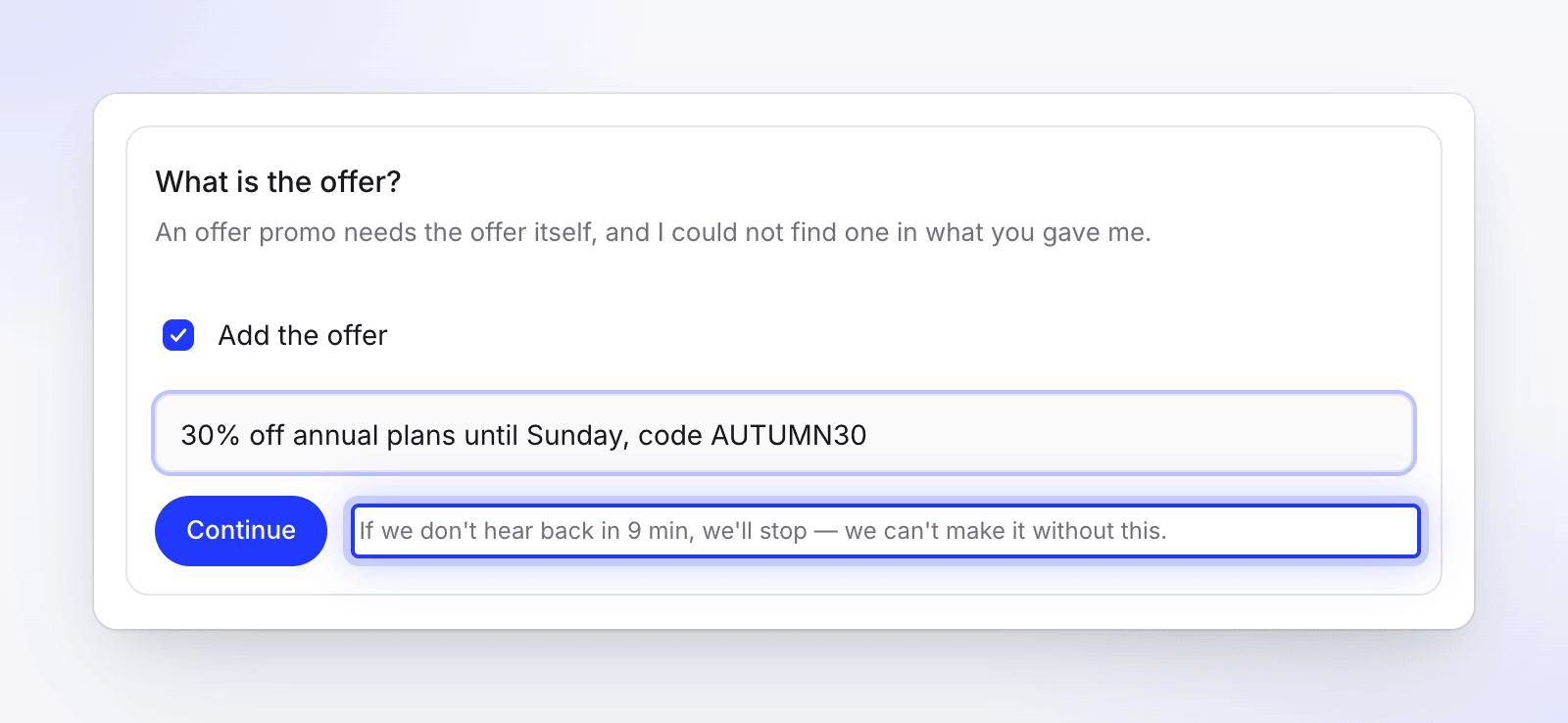
The card shows the question, a line of context (for example "An offer promo needs the offer itself, and I could not find one in what you gave me."), and any thumbnails it's about.
Give your answer
How you answer depends on the card. See the table below.
Send it
Click Continue. Your answer appears in the stage's notes in darker text, and the video carries on.
Kinds of question card
| Card | How to answer |
|---|---|
| The missing fact | The card has one option, such as Add the offer, with a field under it. Type the fact there (the deal, the price and the deadline, for example) and click Continue. |
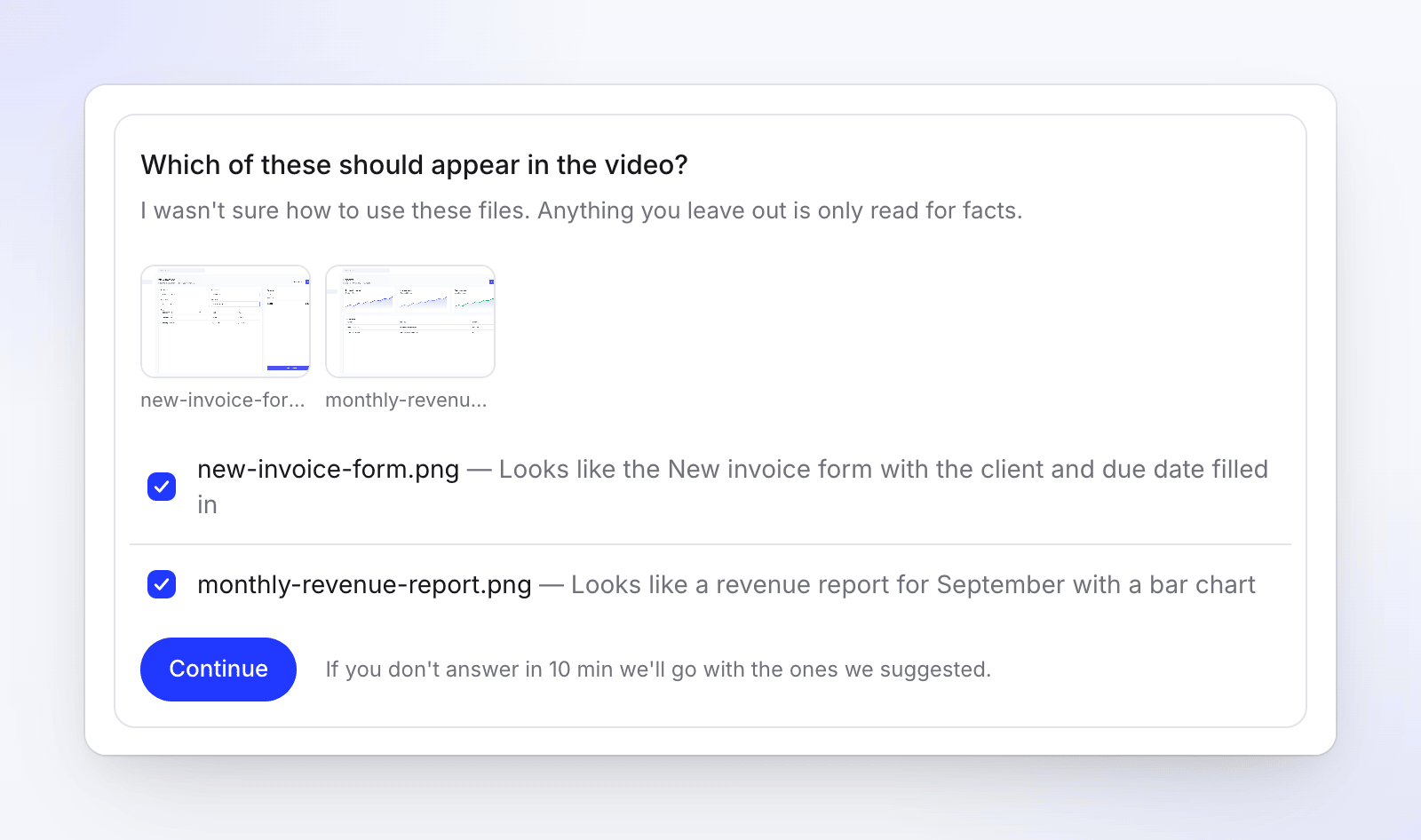
| Which pictures to show | Each file is listed with its thumbnail and the AI's guess. Tick every one that should appear in the video (the suggested ones start ticked), then click Continue. Anything you leave unticked is only read for facts. |
The deadline
Both kinds of question wait 10 minutes. The card says how long is left and what happens when time runs out:
| What the card says | What happens |
|---|---|
| "If we don't hear back in 10 min, we'll stop — we can't make it without this." | Missing facts. The run stops and says, for example, "I asked for the offer but didn't hear back in time, so I stopped. Start again with the deal, the price and the deadline in the brief." |
| "If you don't answer in 10 min we'll go with the ones we suggested." | Which pictures to show. The suggested pictures are used. |
When the time is up, the card says "Time's up on this one — we've carried on without it." A run stopped for a missing fact can't be picked back up with Try again: add the fact to the brief and make the video again with Make another.
Answering from somewhere else
- If you answered in another tab, the card says "Already answered — thanks, we picked that up."
- If you answer after the deadline: "This one expired — we carried on with “…”."
- If your answer didn't send: "That didn't go through. Give it another go."
Questions don't use credits, and a video waiting for your answer isn't using any either.