

Publish articles to ClickUp
Connect ClickUp and publish Clevera articles as ClickUp Docs in the Workspace you pick. Which Workspaces Clevera can use, how screenshots and callouts appear, how Replace updates the same Doc, and every error.
Publish a Clevera article as a ClickUp Doc in one of your ClickUp Workspaces. The Doc holds the full article as one page, with links to its screenshots and the video.
Before you start
- In Clevera: the workspace is on the Pro or Custom plan, and you are an owner or admin to connect ClickUp. Anyone in the workspace can publish once it's connected. See Publish articles to your other tools.
- In ClickUp: any plan with Docs. Your ClickUp account must be able to create Docs in the Workspace you publish to. Docs are created as the person who connected ClickUp.
- An article: generate it first. Publishing sends the article; a video is only carried as a link inside it.
Connect ClickUp
Start from Integrations
In Clevera, click your workspace name in the sidebar, choose Integrations, find ClickUp and click Connect.
Choose the Workspaces
ClickUp asks which of your Workspaces Clevera may use. Choose each one you want to publish to and approve.
Back in Clevera
You return to Integrations with "ClickUp connected successfully to Acme Inc.!" (the first Workspace you allowed). Every Workspace you chose is available when you publish.
The connection doesn't expire. To add a Workspace later, open the ⋯ menu on the ClickUp connection, choose Reconnect and choose it on ClickUp's screen.
Publish an article to ClickUp
Open the Publish tab
In the editor, click Share → Publish and click Publish next to ClickUp.
Choose a Workspace
The list shows the Workspaces you allowed. The Doc is created in that Workspace's Docs, not inside a particular Space, Folder or List. Move it in ClickUp afterwards if you like.
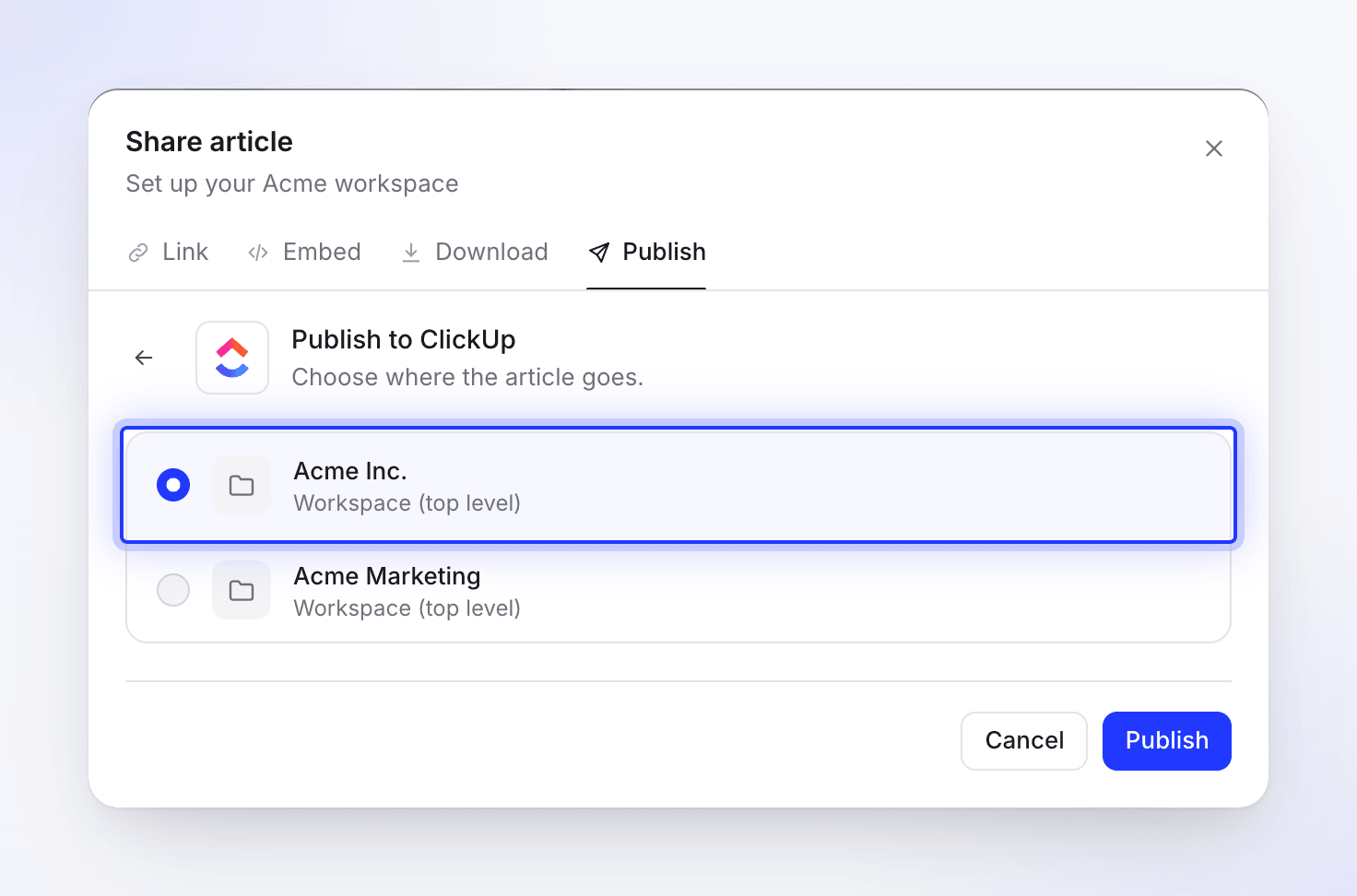
Publish
Click Publish. If a Doc with the same name already exists in the Workspace, choose what to do (see Update a Doc you published). The Doc opens in a new tab and you see "Published to ClickUp."
What the Doc looks like
The Doc and its page are named after the article. If the video's link is shared (Share → Link → General access set to Anyone with the link), the page starts with a "📺 Watch the video" link.
| In Clevera | In ClickUp |
|---|---|
| Headings, paragraphs | Headings and text |
| Bold, italic, strikethrough, inline code, links | Kept |
| Bulleted and numbered lists, checklists | Lists and checklists |
| Quotes | Quotes |
| Code blocks | Code blocks |
| Dividers | Dividers |
| Tables | Tables with the text of each cell |
| Callouts | A quote that starts with an icon: info ℹ️, tip 💡, warning ⚠️, note 📝, success ✅, danger 🚨 |
| Numbered steps | A line that starts with bold "Step 1:" |
| Collapsible sections | A bold title followed by the content, always open |
| Screenshots | A bold "🖼️ View Image: …" link per screenshot, with the caption underneath |
| A YouTube or Clevera video inside the article | A "📺 Watch on YouTube" or "📺 Watch Video" link |
Update a Doc you published
Publishing only goes one way. The Doc doesn't update when you edit the article in Clevera, and edits made in ClickUp never come back to Clevera. After you edit the article, publish it again to the same Workspace. Clevera finds the Doc with the same name (capitalization doesn't matter) and asks "An article with this title already exists in ClickUp."
- Replace the existing article rewrites the Doc's first page with the new version. The Doc keeps its address. Changes made in ClickUp on that page are overwritten; other pages in the Doc are left alone.
- Publish as a new article creates a second Doc under the title you enter (Clevera suggests one such as "Set up billing (2)").
Disconnect
In Clevera, open Integrations, click ClickUp, then Disconnect and confirm. Clevera deletes its stored access, and Docs you already published stay in ClickUp.
Troubleshooting
| You see | What to do |
|---|---|
| "No ClickUp workspaces found. Please ensure you have access to at least one workspace." | You didn't choose a Workspace on ClickUp's screen. Connect again and choose one. |
| "Connection failed: …" or "Failed to connect to ClickUp: …" | You cancelled on ClickUp's screen or it refused. Connect again. |
| "No access token received from ClickUp." or "Failed to connect to ClickUp. Please try again." | Connect again. |
| A Workspace is missing from the list | It wasn't allowed when connecting. Choose Reconnect and choose it. |
| "Please select a workspace to publish to." | Pick a Workspace first. |
| "Article content is empty or invalid." | The article has no content yet. Open it, check it, then publish. |
| A message from ClickUp about permissions | Your ClickUp account can't create Docs in that Workspace. Ask a ClickUp admin. |
| A message from ClickUp saying the token or authorization is invalid | Clevera's access was removed in ClickUp. Choose Reconnect on Integrations. |
| A Doc with a title but an empty page | ClickUp accepted the Doc but not its content. Delete the Doc and publish again. |
| "Failed to retrieve existing document." | The Doc you tried to replace was deleted. Publish as a new article. |
| "Failed to publish to ClickUp. Please try again." or "Failed to update document in ClickUp. Please try again." | Try again. If it keeps failing, reconnect. |