

Install the Clevera Chrome extension
Add the Clevera Chrome extension, pin it to the toolbar and sign in. Covers what you need (Chrome 116 or later), the welcome guide that opens on install and how to reopen it, which workspace you record to, and removing the extension.
Clevera for Chrome records a tab, a window or your whole screen right from Chrome and uploads it to your Clevera workspace, with no desktop app to install. Add it to Chrome from the Chrome Web Store. This article covers what you need, how to add the extension, pin it and sign in, and the welcome guide that opens the first time.
Before you start
- Google Chrome 116 or later, on a Mac, a Windows or Linux PC or a Chromebook. To check, open
chrome://settings/help. - A Clevera account with a workspace. You sign in through Clevera in your browser. If your account isn't part of a workspace yet, the extension says "Create or join a workspace on Clevera to continue."
- A role that can record. Workspace owners, Administrators and Content Creators can record. See Understand workspaces, roles and creator seats.
Not sure whether you want the extension or the desktop app? See Choose between the desktop app and the Chrome extension.
Add the extension to Chrome
Open the store page
In Chrome, open Clevera — Screen Recorder on the Chrome Web Store.
Add it
Click Add to Chrome, then Add extension in the box Chrome shows. Chrome lists what the extension can do: it reads and changes data only on
app.clevera.ai, the Clevera app it uploads to. Nothing else is asked for at install. See Understand what the Chrome extension collects.Follow the welcome guide
A Welcome to Clevera tab opens by itself. Keep it open and follow the four steps below.
The welcome guide
The welcome guide opens once, right after you add the extension. Each step turns into a green check by itself when it's done; there's nothing to click to finish a step.
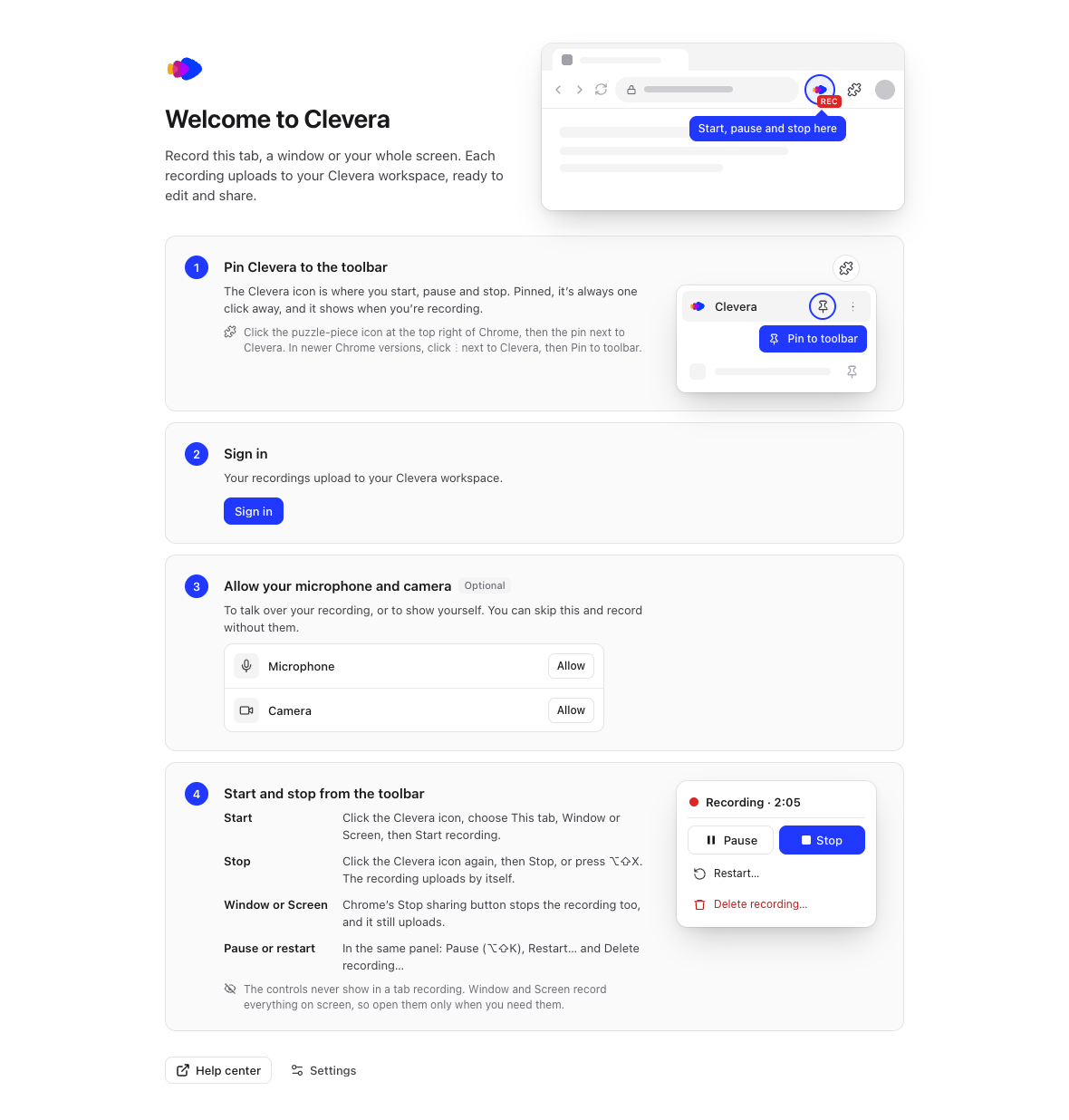
| Step | What you do |
|---|---|
| Pin Clevera to the toolbar | Pin the Clevera icon next to the address bar. See Pin Clevera to the toolbar. |
| Sign in | Click Sign in and finish in the Clevera tab that opens. See Sign in. |
| Allow your microphone and camera (Optional) | Click Allow next to Microphone and Camera if you want to talk over your recording or show yourself. You can skip this and record without them. |
| Start and stop from the toolbar | Read how to start, stop, pause and restart. This step ticks after your first recording. |
To open the guide again later, click the Clevera icon, click Settings, then Help → Show the welcome guide → Open.
Pin Clevera to the toolbar
The Clevera icon is where you start, pause and stop a recording, and it shows REC while you record. Pinned, it's always one click away.
- Click the puzzle-piece icon (Extensions) at the top right of Chrome.
- Click the pin next to Clevera. In newer Chrome versions there is no pin on that row: click ⋮ next to Clevera, then Pin to toolbar.
The Clevera icon now sits next to the address bar.
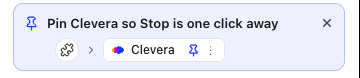
Until you pin it, the Clevera popup shows the card Pin Clevera so Stop is one click away, with a small picture of where to click. Point to it to see the steps. It goes away by itself once Clevera is pinned. Click × to hide it; it also stops showing after your third recording.
Sign in
Click Sign in
Click Sign in in the welcome guide, or click the Clevera icon and then Sign in under Sign in to record.
Finish in the Clevera tab
A new tab opens Clevera. Sign in there if you aren't already. The tab hands your sign-in to the extension and closes by itself. Meanwhile the popup says Finish signing in in your browser; if you closed that tab by mistake, click Open the sign-in tab again.
Check the workspace
Click the Clevera icon. The top of the popup shows Record to and the name of the workspace your recordings go to.
The extension records to the workspace you're using in Clevera when you sign in. To record to another workspace, switch to it in Clevera in your browser, then sign out of the extension (Settings → Account → Sign out) and sign in again.
Open Clevera later
- Click the Clevera icon in Chrome's toolbar.
- Press ⌥⇧C (Option-Shift-C) on a Mac, or Alt+Shift+C on Windows, Linux and ChromeOS.
The popup is where you choose what to record. See Record a tab, a window or your screen in Chrome.
Updates and removing the extension
Chrome keeps the extension up to date by itself. The version is shown in Settings → About.
To remove it, open chrome://extensions, find Clevera — Screen Recorder and click Remove.
Troubleshooting
| What you see | What to do |
|---|---|
| The Chrome Web Store won't add the extension | Check your Chrome version at chrome://settings/help and update to 116 or later, then try again. |
| You can't find the Clevera icon | Click the puzzle-piece icon at the top right of Chrome and pin Clevera. |
| The sign-in tab doesn't close, or the popup keeps saying Finish signing in in your browser | Go back to the Clevera tab and finish signing in. See Fix problems with the Chrome extension. |
| "Create or join a workspace on Clevera to continue." | Your account has no workspace yet. Create one in Clevera, or ask a teammate to invite you, then sign in again. |