

Choose which notifications you get
The bell in the sidebar collects your notifications. Choose which kinds reach you, as a pop-up, quietly in your inbox or by email, for all workspaces or just one, and which ones are always on.
Clevera tells you when your videos and exports finish, when the AI needs an answer, and when something changes in your workspace or billing. This article covers the notification inbox and how to choose what reaches you in the app and by email.
The notification inbox
Click the bell in the sidebar to open your notifications. A number on the bell counts what's new since you last looked; opening the panel clears the number, but the notifications themselves stay unread until you open or mark them.
At the top of the panel:
- All and Unread filter the list.
- If you're in more than one workspace, a menu switches between This workspace and All workspaces. When other workspaces have unread notifications, a line at the bottom says Unread elsewhere with their names and counts. Click it to see everything.
- The double check mark is Mark all as read.
- The gear opens Notification settings.
- The expand icon opens the full /notifications page.
Notifications are sorted into Today, Yesterday, Earlier this week and Earlier. When three or more of the same kind arrive in a row from the same workspace, they fold into one line, for example "3 exports are ready". Click it to expand.
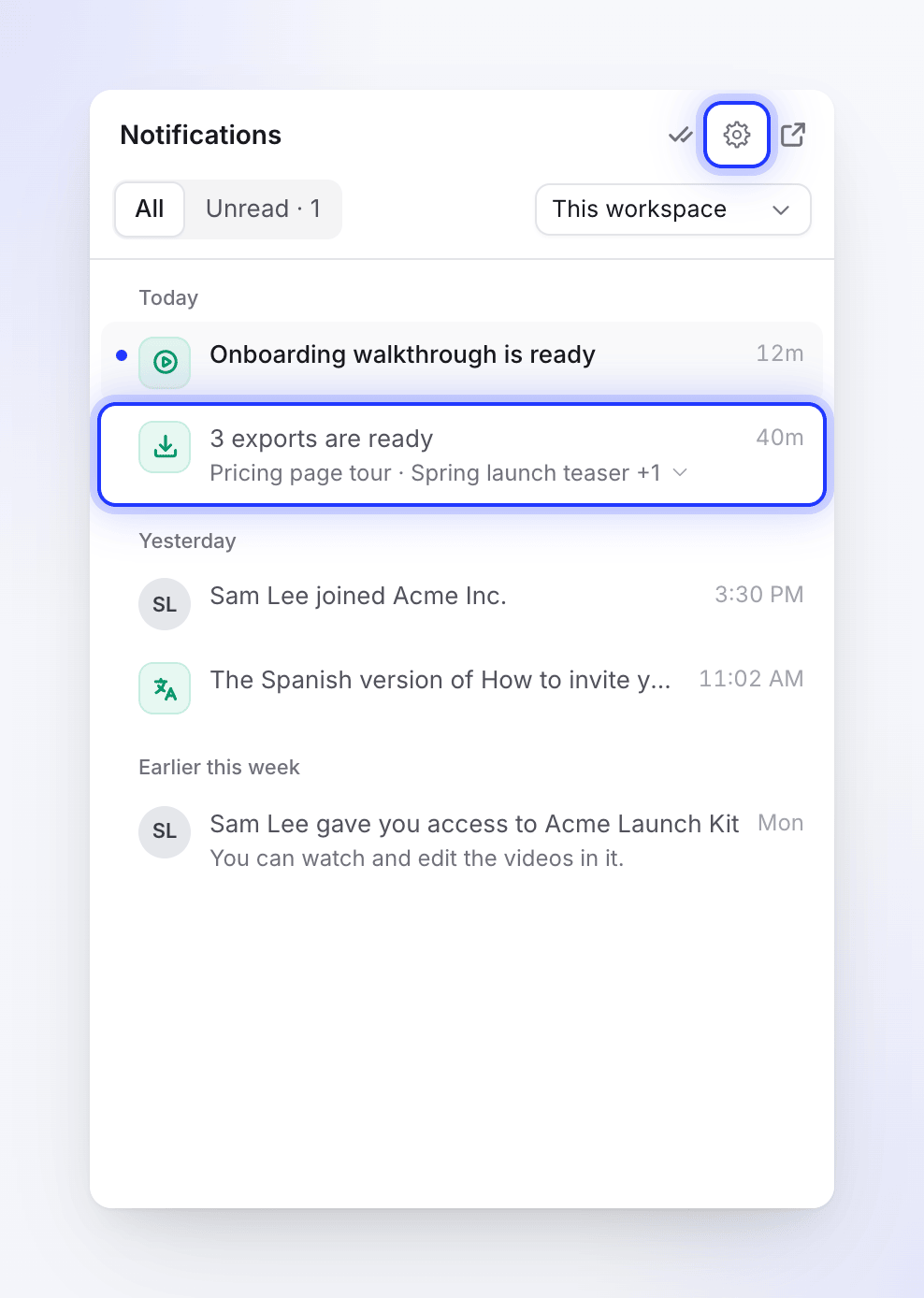
Click a notification to open what it's about; that also marks it as read. Some notifications carry their own button, such as Download on a finished export or Try again on a social clip that couldn't be made.
New notifications also appear as a pop-up for a few seconds. Questions from the AI, Out of credits and Payment failed pop-ups stay until you close them.
Row actions
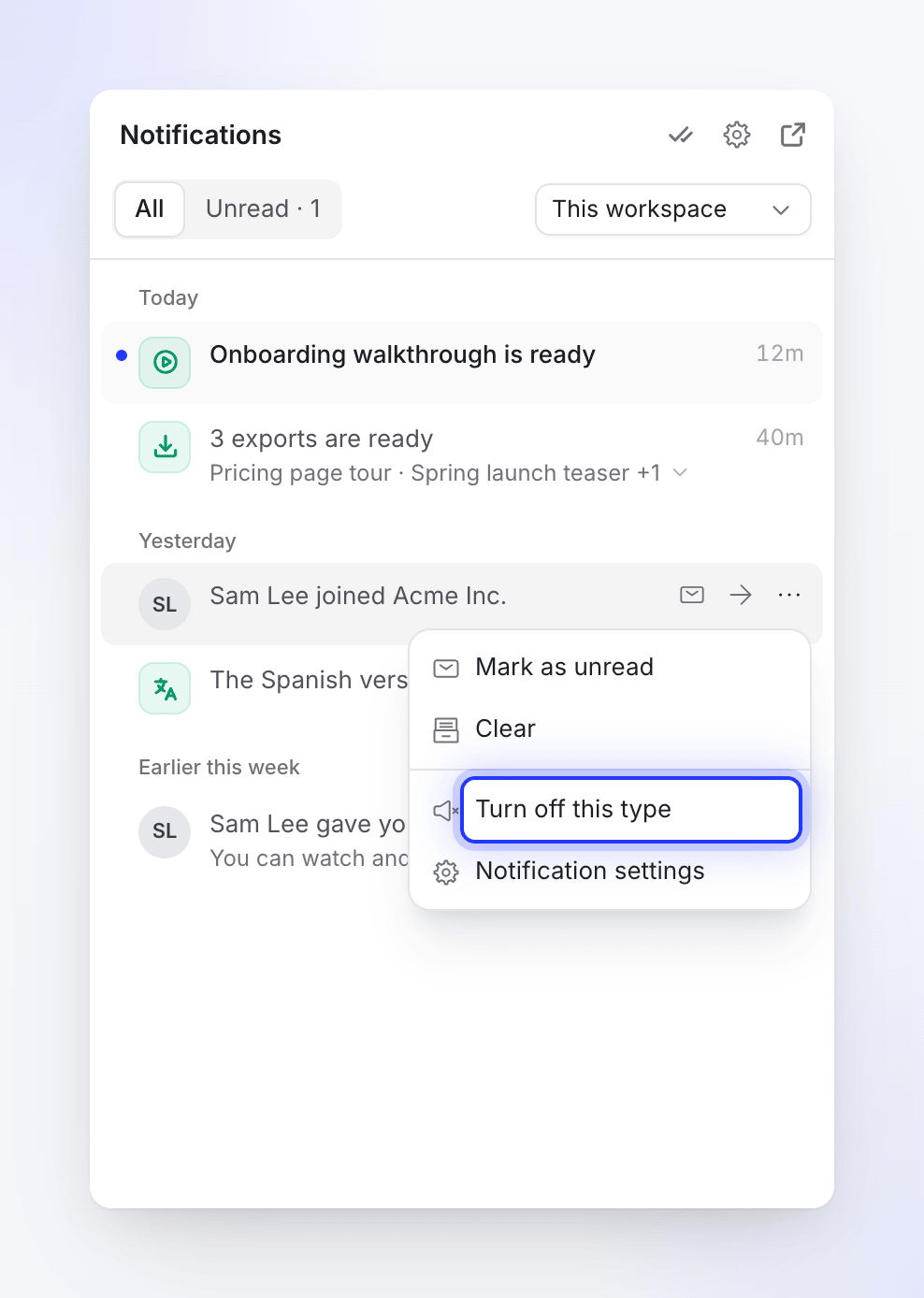
Hover over a notification for a quick Mark as read / Mark as unread check, or open its ⋯ menu:
| Action | What it does |
|---|---|
| Mark as read / Mark as unread | Toggles the unread dot. On a folded group: Mark all as read. |
| Clear | Moves it out of your inbox into Cleared. On a folded group: Clear all. |
| Move back to inbox | Restores a cleared notification. |
| Turn off this type | Stops this kind of notification in all your workspaces. See below. |
| Notification settings | Opens your settings. |
Turn off this type sets that kind to Off for all workspaces. A message says "You won't get notifications like this any more." with an Undo button for 8 seconds. Notifications you already have stay in the list. Some kinds, such as questions from the AI and payment problems, can't be turned off, so the menu doesn't offer it.
The full notifications page
The /notifications page shows the same feed with more room and more filters: All, Unread and Cleared, a category filter (Your work, Needs you, Team, Access, Billing, Rewards, Account) and a workspace filter.
How long notifications are kept
| Notification | Removed after |
|---|---|
| Cleared | 30 days |
| Read | 90 days |
| Any notification | 180 days |
If your connection drops, the panel shows "Live updates paused. Reconnecting…" and catches up when it's back.
Open your notification settings
Go to your account settings
Click your workspace name at the top of the sidebar and choose Account settings, then open the Notifications tab. The gear in the notification panel takes you straight there.
Pick the scope
If you're in more than one workspace, Settings for picks where your changes apply. All workspaces sets your defaults. Pick one workspace (under Only in one workspace) to override them there only; the page then says "Changes here apply only to this workspace. Everything else follows your all-workspaces settings."
Choose In app and Email for each kind
Each section lists the notifications you can receive, with an In app choice and an Email switch. Hover the info icon next to a name for a short description. Changes save as you make them ("Notification settings saved.").
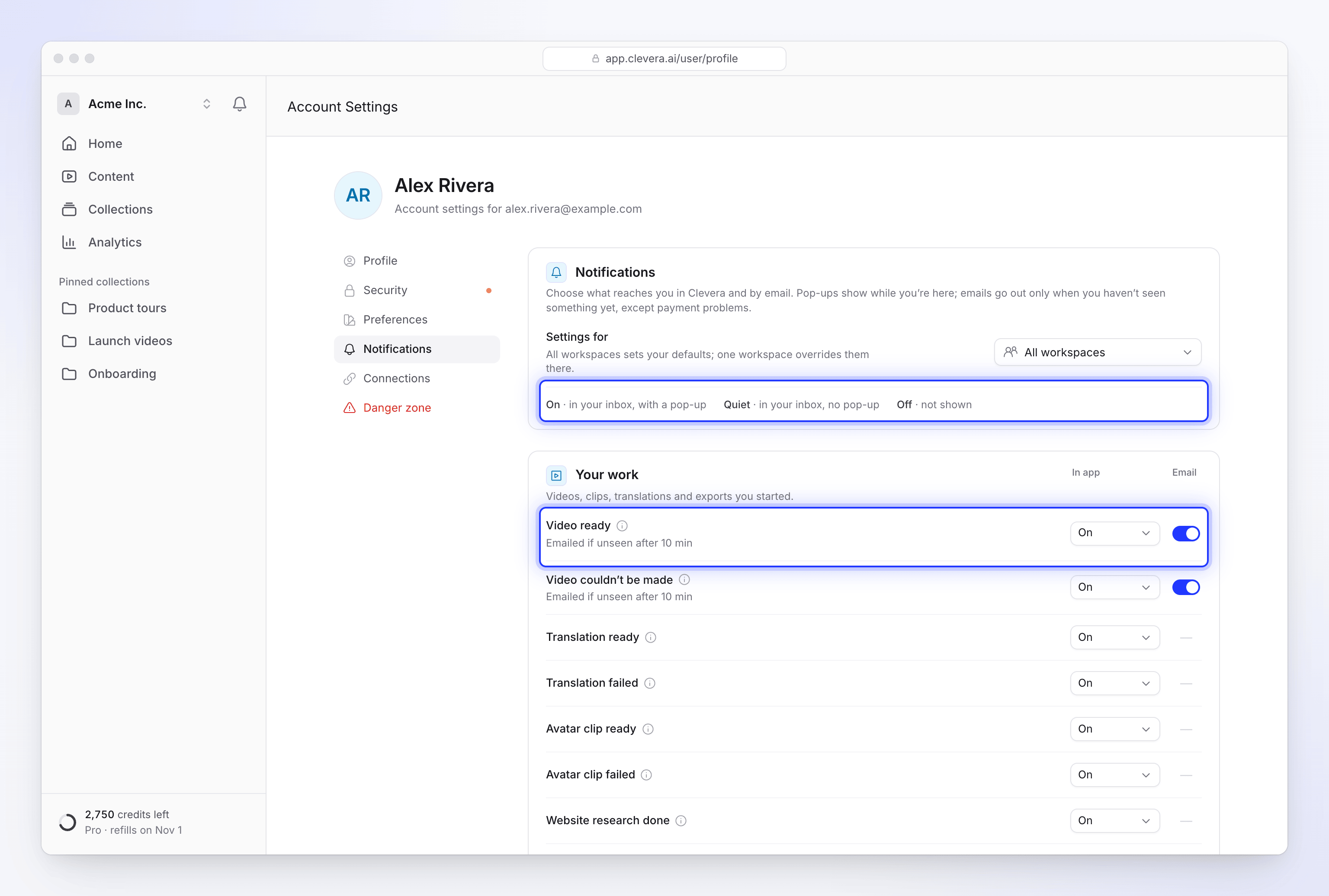
The In app choices are:
| Choice | Meaning |
|---|---|
| On | In your inbox, with a pop-up |
| Quiet | In your inbox, no pop-up |
| Off | Not shown at all |
Kinds that never pop up only offer On and Off.
Emails go out only when you haven't seen something in the app yet, except payment problems. Under the name, a row says when it emails, for example "Emailed if unseen after 10 min". A dash in the Email column means that kind has no email.
If you set In app to Off, the email switch turns off too, with the tooltip "Turn it on in the app to get the email." That's because the email is sent from the inbox notification: no notification, no email.
Reset
A row you changed shows an undo button: Reset to default under All workspaces, or Use the all-workspaces setting in a single workspace. In a workspace, rows say Same as all workspaces or Set for this workspace. At the bottom of the first card, Reset to defaults (or Clear workspace overrides) undoes every change in that scope.
What you can be notified about
You only see the kinds you can receive. Owners see billing; owners and admins see the team kinds about other people. See Understand workspaces, roles and creator seats for roles.
Your work
Videos, clips, translations and exports you started.
| Notification | In app | Email by default |
|---|---|---|
| Video ready | On | If unseen after 10 min |
| Video couldn't be made | On | If unseen after 10 min |
| Translation ready | On | No email |
| Translation failed | On | No email |
| Avatar clip ready | On | No email |
| Avatar clip failed | On | No email |
| Website research done | On | No email |
| Website research failed | On | No email |
| Export ready | On | If unseen after 5 min |
| Export failed | On | If unseen after 5 min |
| Export moved to our servers | On | No email |
| Export stopped | On | No email |
Export moved to our servers means your browser stopped, so we finish the export on our servers. Export stopped means an export stopped when its tab closed; you can resume it. See My export stopped or failed.
Needs you
Questions for you: a run is waiting for your answer. It's On by default, its pop-up stays until you deal with it, and it can't go below Quiet, because a run waits on you. It has no email of its own. See Answer the AI's questions during generation.
Team
| Notification | Who gets it | In app |
|---|---|---|
| Team activity | Owners and admins | Off |
| Someone joined | Owners and admins | Quiet |
| Someone left | Owners and admins | Quiet |
| A member's role changed | Owners and admins | Quiet |
| You were removed | Everyone | On |
| Your role changed | Everyone | On |
| Ownership changed | Everyone | On |
| Workspace closing | Everyone | On |
Team activity covers other people's videos and exports finishing or failing, in workspaces you own or manage. It's off by default so a busy workspace doesn't flood your inbox, and it's never emailed. Team notifications have no email.
Access
| Notification | In app |
|---|---|
| Collection shared with you | On |
| Your access changed | Quiet |
| Access removed | Quiet |
Billing
Most billing notifications go to the workspace owner.
| Notification | Who gets it | In app | Email by default |
|---|---|---|---|
| Credits running low | Owner | On | Yes |
| Out of credits | Owners and admins | On | Owner only, if unseen after 10 min |
| Credits added | Owner | On | No email |
| Monthly credits renewed | Owner | On | No email |
| Credits expired | Owner | On | No email |
| Payment failed | Owner | On | Always, right away |
| Payment received | Owner | On | No email |
| Plan changes | Owner | On | No email |
| Refunds | Owner | On | No email |
| Connection expired | Everyone | On | No email |
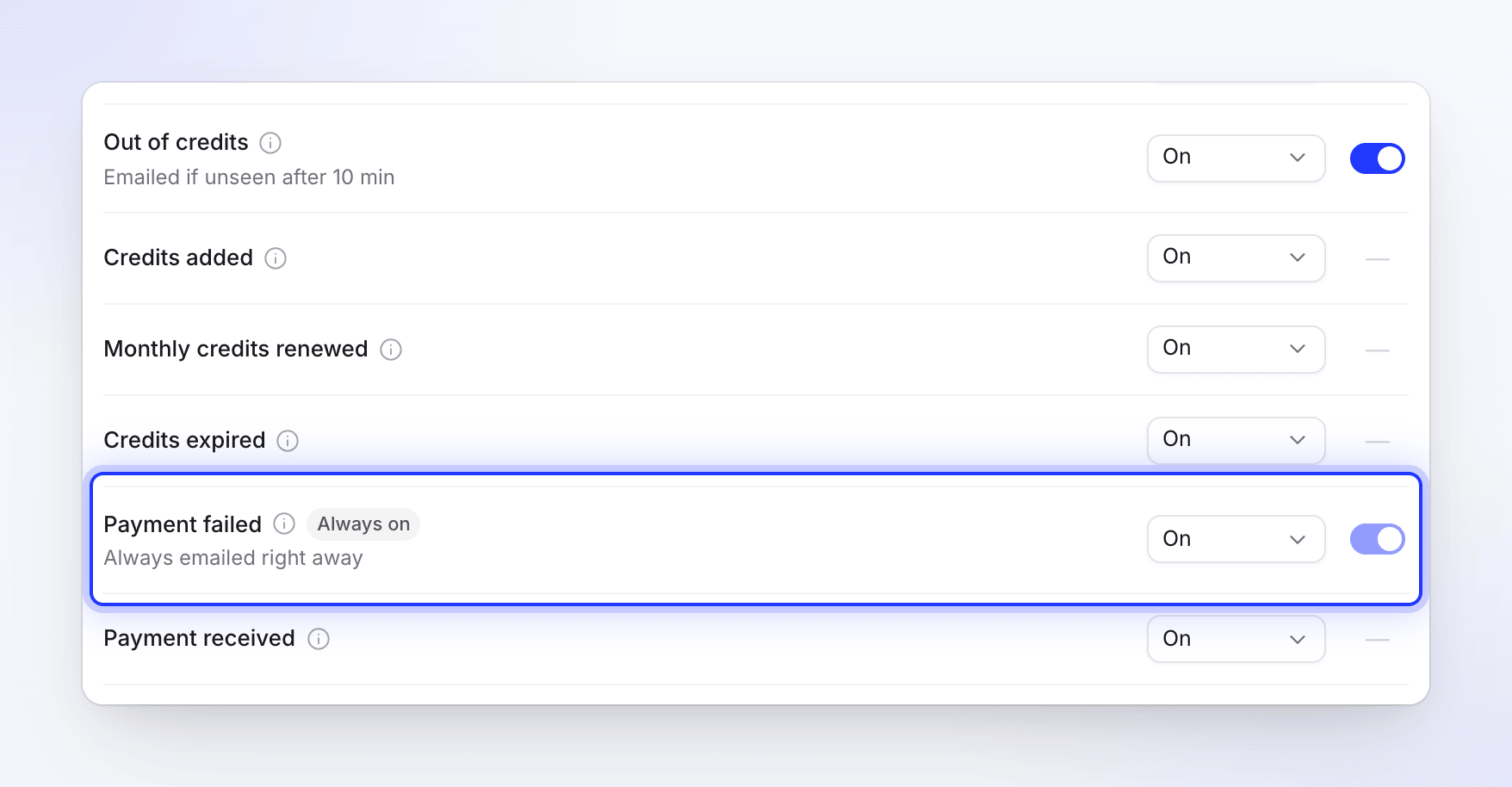
Payment failed is marked Always on: you can make it Quiet, but you can't turn it or its email off. Connection expired means a connected app (YouTube, Shopify…) needs to be reconnected. See Fix a failed payment and I ran out of credits.
Rewards
A friend subscribed, Referral credits added and Welcome credits are On in the app and emailed by default. See Earn credits by inviting friends.
Account
Your account and workspace status: Account reactivated, and for owners Workspace suspended, Workspace reactivated and Workspace approved. These are Always on: you can make them Quiet, not Off.
Other emails on this tab
Below the notification sections are two more cards:
- Digests & reports: weekly reports about your workspace and reminders about unfinished work. See Get workspace reports by email.
- Email: the Product news and tips switch ("New features, tips and the occasional offer. Unsubscribe any time."). Account emails such as invitations, receipts and security alerts always arrive.
Alerts on the generation page
While a video generates, its page also plays a short chime and marks the browser tab when the AI has a question or the video is ready. A browser notification appears only if you've already allowed notifications for Clevera in your browser; Clevera never asks for that permission. The details are in Follow your video while it generates.
Troubleshooting
| What you see | What to do |
|---|---|
| The email switch is grayed out | In app is Off for that row. Set it to On or Quiet first. Payment problems are always emailed. |
| You don't see billing rows | Billing notifications go to the workspace owner. |
| A notification you turned off still appears | It was already in your inbox. New ones of that kind stop. |
| "Couldn't load your notification settings" | Check your connection and click Try again. |
| "Couldn't save that. Please try again." | Your change was undone. Try again in a moment. |