

Read the AI agent activity log
See what agents did in your workspace: what they created and changed, jobs and credits, refused calls and daily reads. Columns, results, action names, filters and retention.
The Activity tab is the log of what agents did in your workspace: what they created and changed, the work they started, the credits it used, the calls that were refused and a daily count of reads. Use it to check an agent's work or find out why something failed.
Open the activity log
Open the workspace menu, choose AI agents & API, then open Activity. From a doc site's Settings menu, AI agents & API opens the same log filtered to that site.
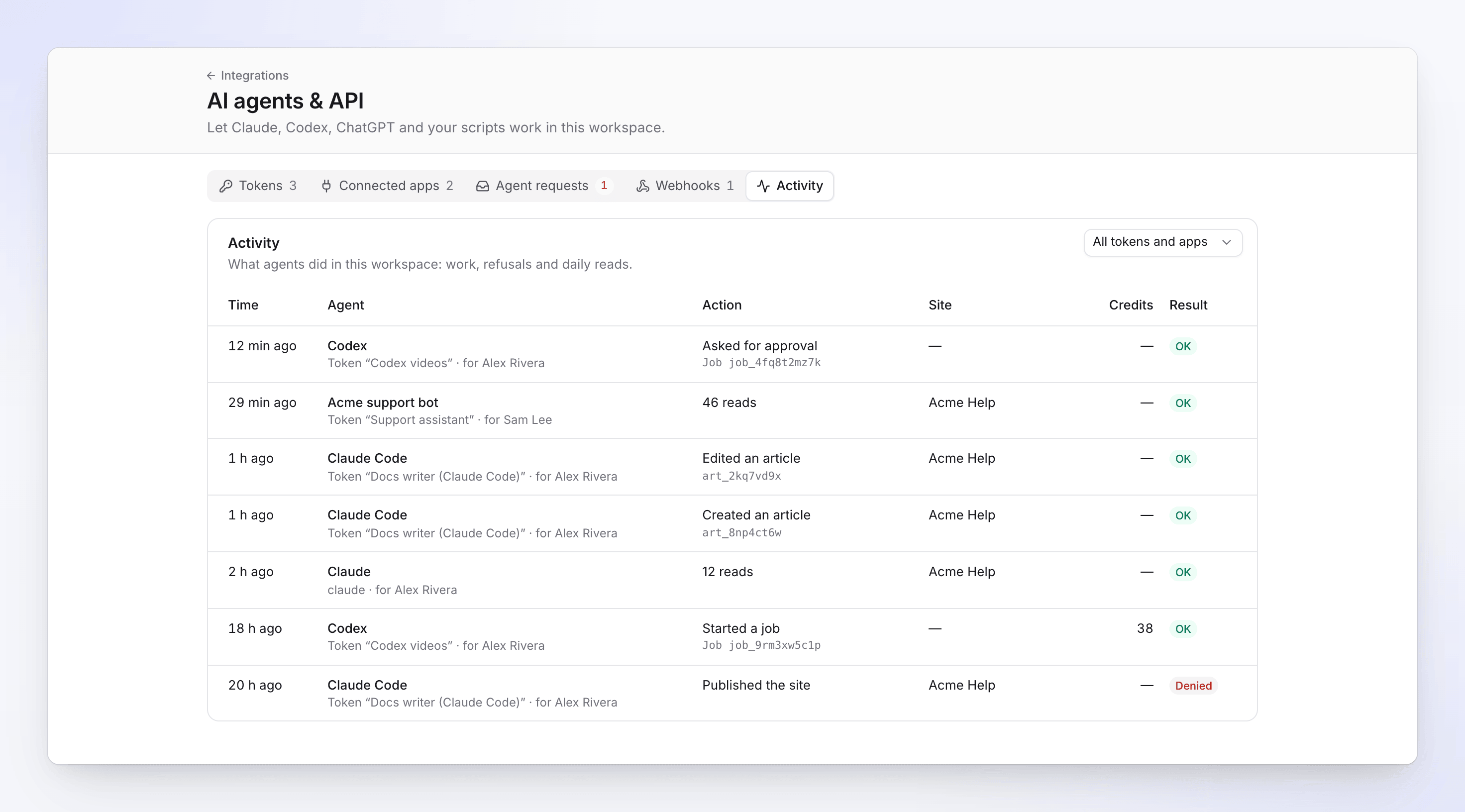
| Your role | You see |
|---|---|
| Owner or admin | "What agents did in this workspace: work, refusals and daily reads." Every token and connected app. |
| Editor or Content Creator | "What your tokens and apps did." Only your own. |
Read a row
| Column | What it shows |
|---|---|
| Time | When it happened. Point at it for the exact time and the IP address the call came from. |
| Agent | The agent's name, then the token (Token “name”) or connected app it used, and for person: whose access it acted with. |
| Action | What it did, with the item's id and, for paid work, Job id. |
| Site | The doc site it touched, if any. |
| Credits | Credits the action used. Empty for free actions. |
| Result | OK, Denied (refused, for example a missing permission or a limit), Conflict (the content changed since the agent read it) or Error. |
Reads aren't logged one by one. Each token gets one row per day with the count, like "46 reads".
Actions you may see
| Action | Meaning |
|---|---|
| Started a job / Canceled a job | Paid or long-running work, such as a video, export or translation. |
| Asked for approval | The agent asked a person to approve paid work. See Control agent spending and approvals. |
| Request approved / Request denied / Request expired | What happened to that request. |
| Created an article / Edited an article / Submitted for review | Doc site articles. |
| Changed a page / Marked a page ready / Removed a page / Created a section / Changed a section | Doc site structure. |
| Created a site page / Edited a site page | Home, contact, legal and other site pages. |
| Created a changelog entry / Edited a changelog entry / Published a changelog entry / Deleted a changelog entry | The doc site changelog. |
| Uploaded an image / Published the site | Media and publishing. |
| Sign-in refused | A call with a wrong, expired or revoked token, or from an address outside its IP allowlist. |
| Token created / Token revoked / Secret regenerated | Token changes, with the reason for a revoke (for example "Revoked by an admin"). |
| App connected / App disconnected | Connected app changes. |
| Sign-in code reused: access revoked | A connected app's sign-in was used twice, so Clevera revoked it to be safe. Connect the app again. |
Filter the log
Use the menus at the top right: All tokens and apps (or one token; Other token for a token that's no longer listed) and All sites (or one site). Clear filters shows everything again.
The tab shows the latest 100 events for the current filter. Clevera keeps activity for 13 months.
Use it to troubleshoot
- A Denied row names the refusal. Most are a missing permission, a limit or a role change; see Fix agent and API errors.
- Many Denied rows in a short time can get a token revoked automatically ("Revoked: unusual activity"). See Why a token stopped working.
- Credits on a row show what a job used. Your workspace's Usage page has the full picture of credit use.