

Use a video template for your brand
A video template sets the background, music, text style, transitions, intro and title cards and logo reveal of your how-to, demo and Polish videos. Pick one per video, make your own, and set a default for your workspace.
A video template is your brand kit for videos made from a recording. It sets everything around the footage: the background, the music, the text style, the transitions, and the intro card, title cards and logo reveal. Every how-to, product demo and Polish video uses one, so your videos look the same however many people on your team make them.
Templates are used by How-to, Product demo, Clean-up and Styled for sharing videos. Articles and social clips don't use them: social clips take a look instead.
Pick a template for a video
Open the Template pill
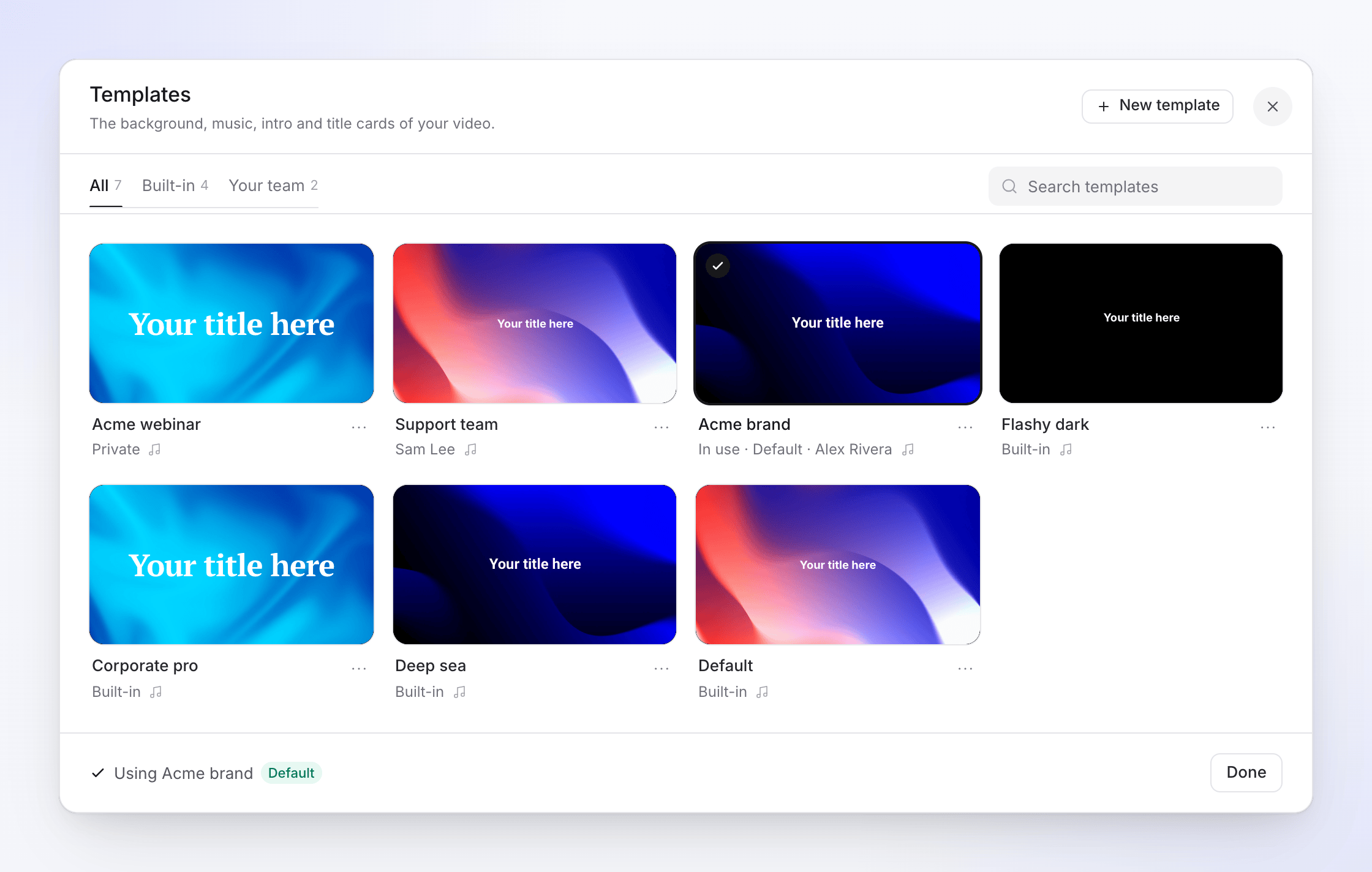
On the Create page for a how-to, demo or Polish video, click the Template pill under the box. It shows the name of the template the video will use. The Templates window opens: "The background, music, intro and title cards of your video."
Find a template
The tabs All, Built-in and Your team filter the list; a tab only appears when it has templates. With more than 6 templates, use Search templates.
Look before you choose
Open a template's ⋯ menu and choose View details to see its settings.
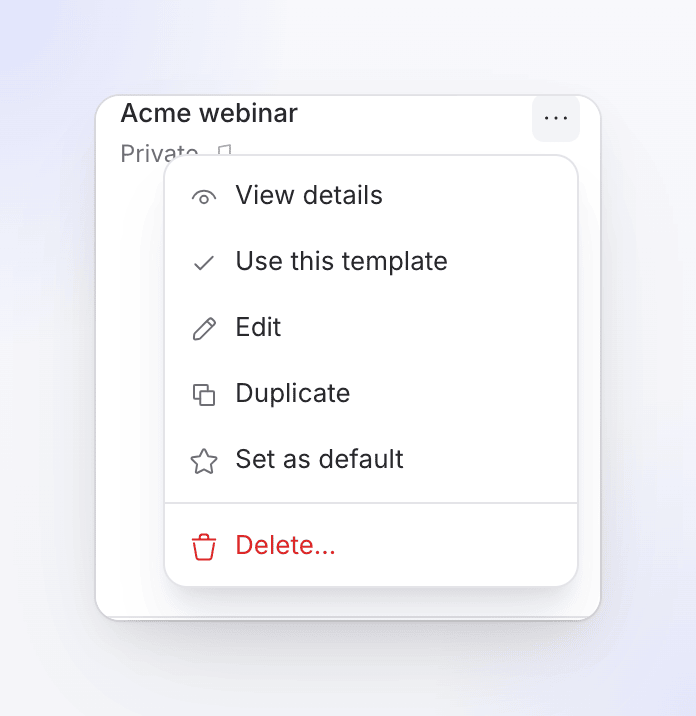
Edit and Delete appear on your team's own templates. Use it
Click Use this template. The footer shows "Using {name}"; click Done.
A new video starts with your workspace's default template for that kind of video, or the first template in the list if there's no default.
Make your own template
Start a template
In the Templates window, click New template. To start from a built-in, open it and click Duplicate to edit: built-in templates can't be changed, but a copy can.
Name it and choose who can use it
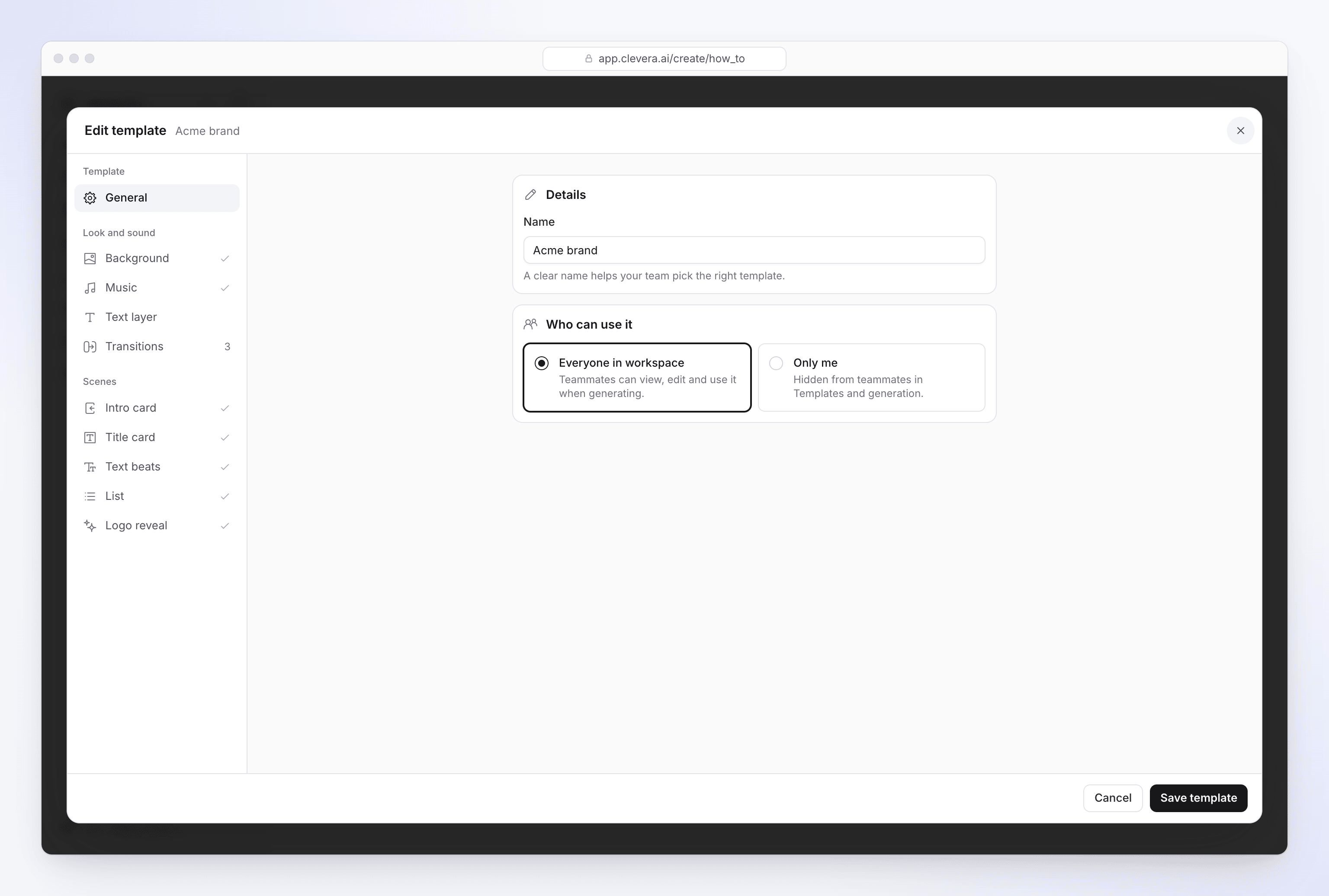
In General, give it a Name, for example "Product demo — dark theme" (up to 120 characters). Under Who can use it, choose Everyone in workspace (teammates can view, edit and use it) or Only me (hidden from teammates).
Set the look and sound
Work through Background, Music, Text layer and Transitions. See What a template controls.
Design the scenes
Under Scenes, click Design on each scene you want: Intro card, Title card, Text beats, List and Logo reveal. A scene you leave unset says "Not set in this template." and isn't added to videos.
Save it
Click Save template. A new or duplicated template is picked for the video you're making.
Leaving with changes asks "Discard your changes?"; choose Keep editing to go back.
What a template controls
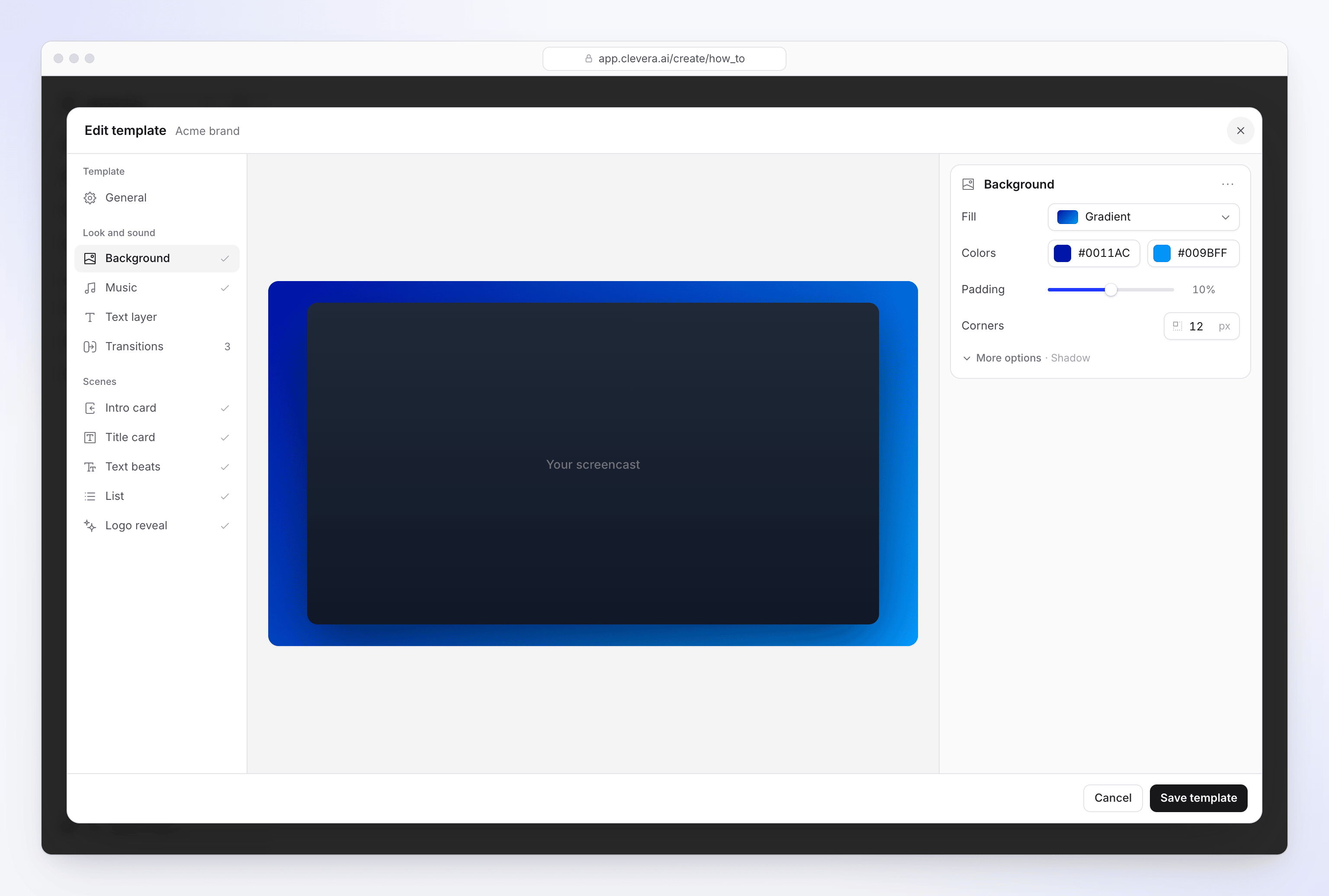
The editor groups its sections under Template, Look and sound and Scenes. A tick beside a section means it's set in this template.
| Section | What it sets | Defaults and limits |
|---|---|---|
| General | Name and Who can use it. | Everyone in workspace |
| Background | The Fill behind the recording: Wallpapers by category, Colors (solid or gradient), or Use your own image. Plus Padding, Corners, Shadow and Blur (softens a wallpaper or image). | Padding 10% (0–20%), corners 12 px, shadow 70%, blur 0 |
| Music | A track from Clevera's music library, chosen with Choose music (search and filter by mood), and its Volume. Turn it off for no music. | Volume 50% |
| Text layer | The default style of text layers added to videos: font, box, outline, shadow, border and how text appears. | — |
| Transitions | One or more transitions. The AI alternates between them across scene cuts. | None until you add one |
| Intro card | Opens the video, before the first step, with the video's title. | — |
| Title card | A full-frame card between steps, used for chapter titles. | — |
| Text beats | Words that land one beat at a time. | — |
| List | Items revealed one by one. | — |
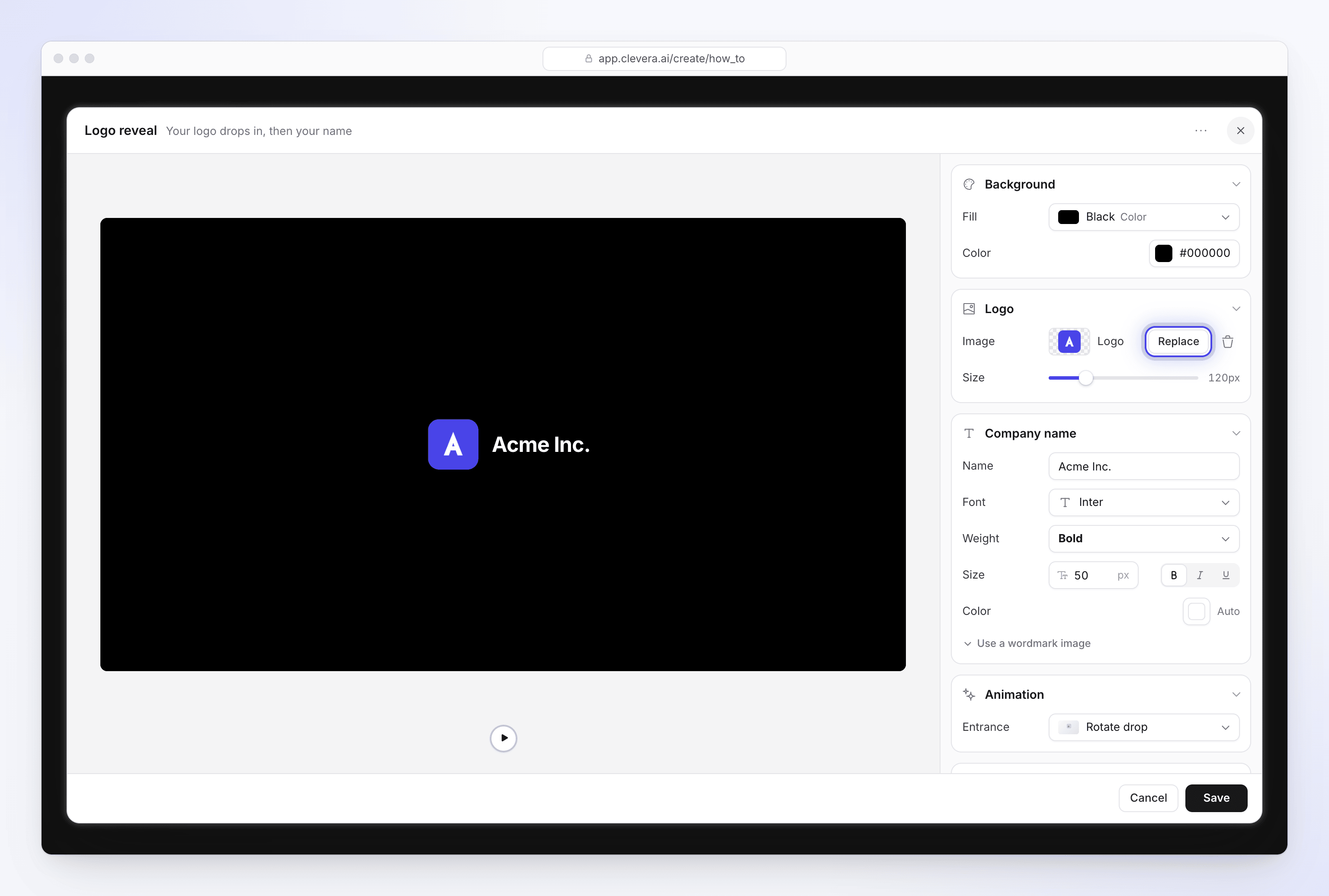
| Logo reveal | Your logo drops in, then your company name. | Entrance Rotate drop or Straight drop; logo size 120 px |
There's no separate brand color or font setting: you set fonts and colors on each element (background, text layer, cards and the logo reveal's name).
Clevera's music and wallpapers are royalty-free or AI-generated, and licensed for commercial use in your videos.
Add your logo
The logo lives in the Logo reveal scene. Click Design on Logo reveal, then under Logo choose Choose a logo. A transparent logo icon works best. Type your Company name and set its font, weight, size and color, or switch on Use a wordmark image to upload your wordmark instead, so a custom logo font stays exactly as designed. The scene can't be saved without a logo image: "Choose a logo image to save".
Set a default for your workspace
Open a template's ⋯ menu and choose Set as default. The default is for the whole workspace and for that kind of video: a default set while making a how-to applies to how-tos, not to demos or Polish videos. Choose Remove as default to clear it. Any member can set a default, using a built-in template or your own.
Who can do what
| Action | Who |
|---|---|
| Use a template | Anyone in the workspace, for built-ins and templates shared with Everyone in workspace |
| Create a template | Any workspace member |
| Edit, duplicate or delete a team template | Any member who can see it |
| Change Who can use it | Only the person who created the template |
| Edit a built-in template | No one; duplicate it instead |
Templates are free to make and use on every plan.
Delete a template
Open its ⋯ menu and choose Delete…, then Delete template. Videos already made with it keep their look; new videos can no longer use it. This can't be undone. If it was the default, the default is cleared, and a video that was using it switches to the first remaining template.
Troubleshooting
| Message | What to do |
|---|---|
| "Choose a template." | Click the Template pill and pick one. |
| "Create a template to continue." | Your workspace has no template this kind of video can use. Click New template. |
| "No video template is available for this type yet." | Contact support. |
| "Only the person who created this can change who can use it." | Ask the template's creator to change it, or duplicate it. |
| "Please give your template a name." | Fill in Name in General. |