

Publish articles to Confluence
Connect Confluence Cloud and publish Clevera articles as pages in a space, with screenshots attached to the page. Permissions to grant, how panels and steps convert, how Replace keeps the page history, and every error.
Publish a Clevera article as a Confluence page in the space you choose. Screenshots are attached to the page, and publishing again can update the same page so its history and comments stay.
Before you start
- In Clevera: the workspace is on the Pro or Custom plan, and you are an owner or admin to connect Confluence. Anyone in the workspace can publish once it's connected. See Publish articles to your other tools.
- In Confluence: Confluence Cloud (an
example.atlassian.netsite), any plan. Confluence Server and Data Center aren't supported. - Permissions: the Atlassian account you connect with needs to be allowed to add pages and add attachments in the spaces you publish to. Pages are created as that person.
- An article: generate it first. Publishing sends the article; a video is only carried as a player inside it.
Connect Confluence
Start from Integrations
In Clevera, click your workspace name in the sidebar, choose Integrations, find Confluence and click Connect.
Review the permissions
Atlassian shows the request from Clevera. Clevera asks to:
Permission Why View your profile To show which account is connected Read spaces To list the spaces you can publish to Read pages and page details To find a page with the same title before publishing Create and update pages To publish and replace pages Add attachments To upload the article's screenshots to the page Keep access when you're not using the app So publishing keeps working without signing in each time Choose the site and accept
If your account has several Atlassian sites, pick the right one in the site menu on the same screen, then click Accept. You come back to Integrations with "Confluence connected successfully to Acme Inc.!" (your site's name).
Atlassian sign-ins expire after a while; Clevera renews them in the background, so you don't need to reconnect unless someone removes Clevera's access.
Publish an article to Confluence
Open the Publish tab
In the editor, click Share → Publish and click Publish next to Confluence.
Choose a space
The list shows the spaces your account can see (archived spaces are hidden). The page is created at the top level of the space; move it under another page in Confluence afterwards if you like.
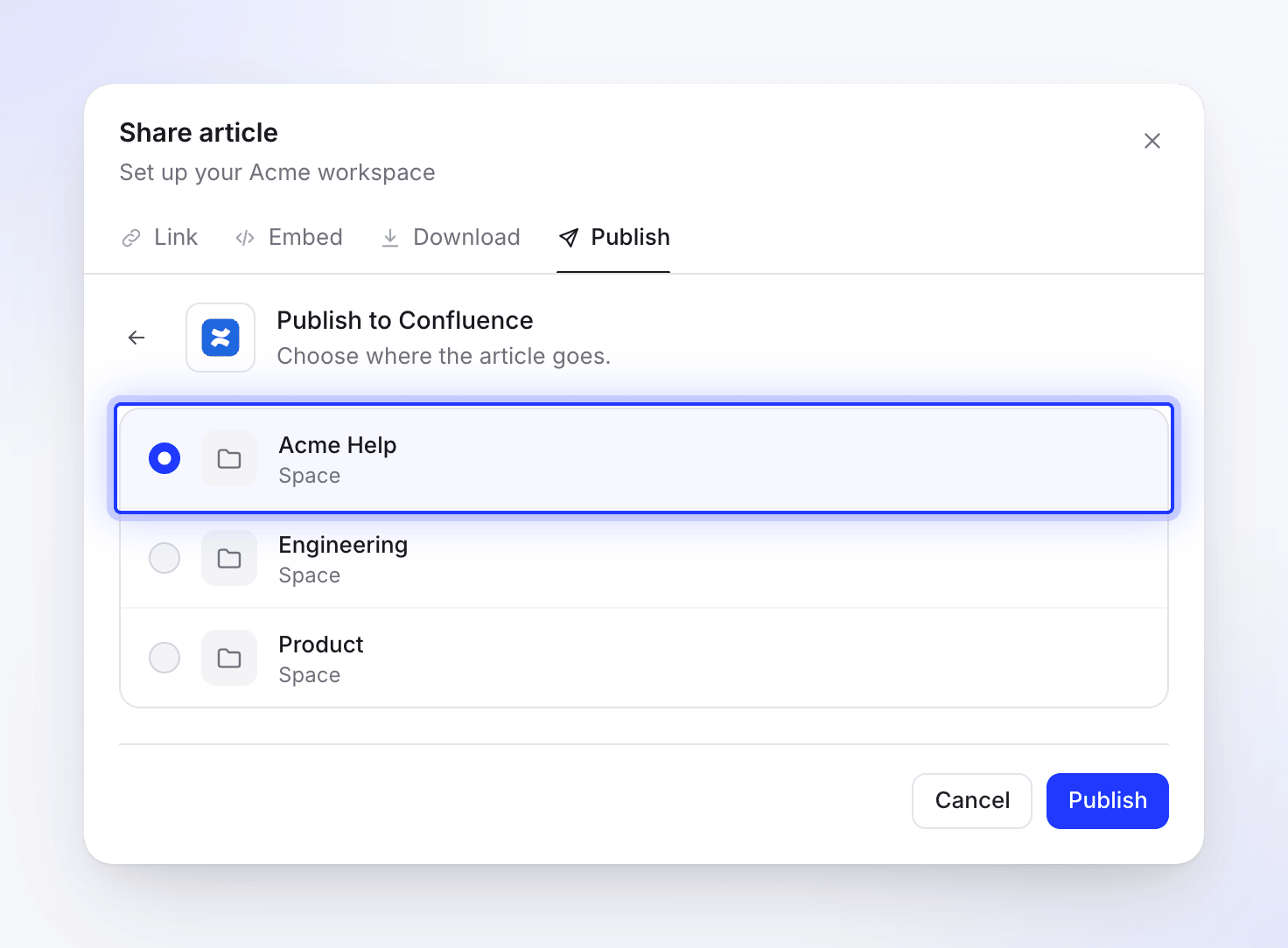
The page is created at the top level of the space. Publish
Click Publish. If a page with the same title already exists in the space, choose what to do (see Update a page you published). The page opens in a new tab and you see "Published to Confluence."
What the page looks like in Confluence
The page title is the article's title. If the video's link is shared (Share → Link → General access set to Anyone with the link), the video is embedded at the top of the page.
| In Clevera | In Confluence |
|---|---|
| Headings 1–6 | Headings 1–6 |
| Bold, italic, strikethrough, underline, inline code, links | Kept |
| Bulleted and numbered lists | Lists, nesting kept |
| Checklists | Task lists, ticked items stay ticked |
| Quotes | Quotes |
| Code blocks | Code block macro with the language set |
| Dividers | Dividers |
| Tables | Tables with the text of each cell |
| Callouts | Panels: info → Info, tip → Tip, warning → Warning, note → Note, success → Success, danger → Warning |
| Numbered steps | A paragraph that starts with bold "Step 1:" |
| Collapsible sections | Expand macro (titled "Click to expand" when it has no title) |
| Screenshots | Images attached to the page, with the caption underneath |
| A YouTube or Clevera video inside the article | A widget macro that plays it |
Inside callouts, quotes and list items only text is kept; a picture or code block placed inside one is left out.
Screenshots
Each screenshot is uploaded as an attachment named like clevera-article-image-1234.png, with the comment "Uploaded by Clevera for article publishing". Publishing again adds a new version of the same attachment instead of a duplicate file. If an upload fails, the image is linked from Clevera instead and stays valid for about a year.
Update a page you published
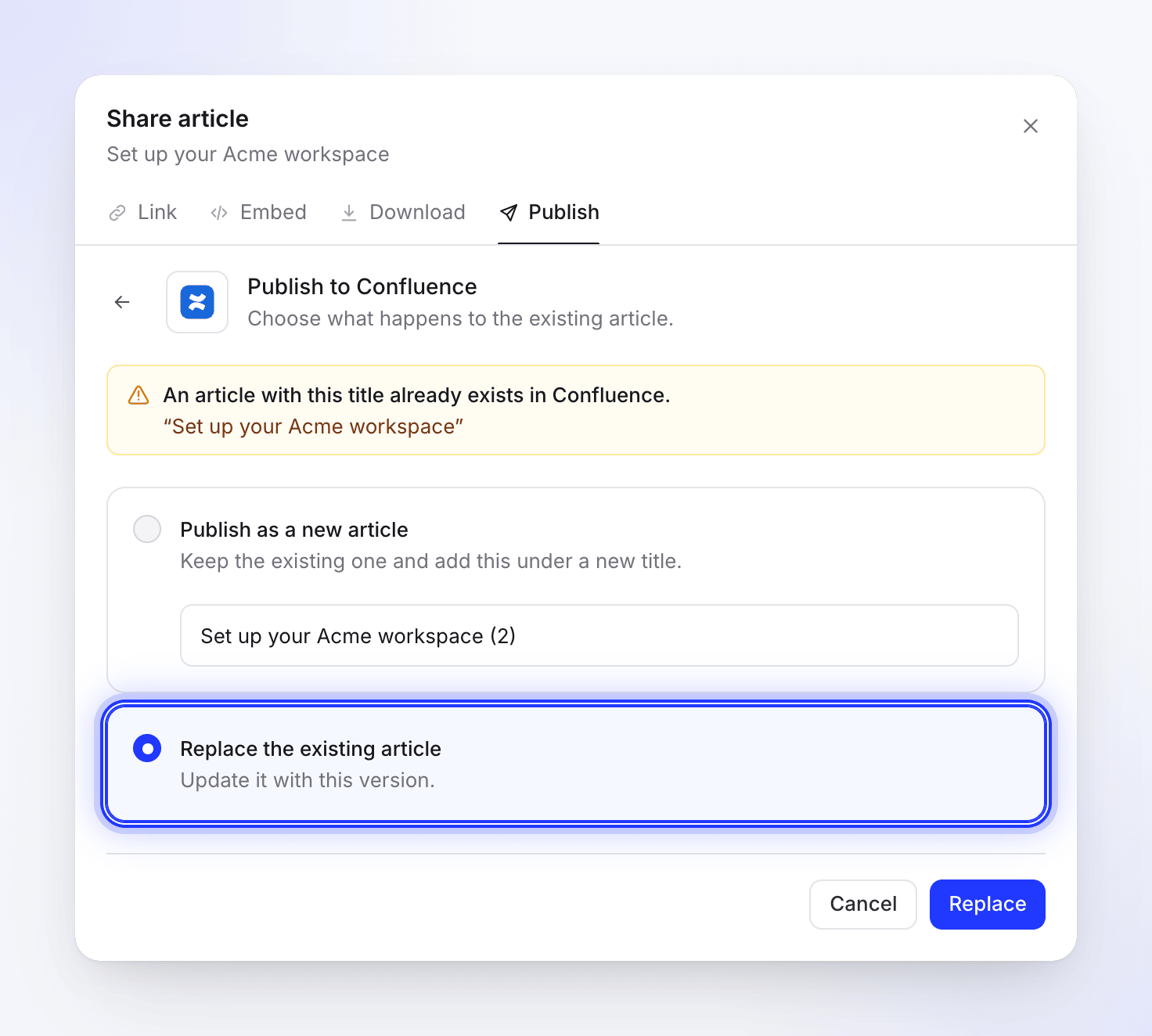
Publishing only goes one way. The Confluence page doesn't update when you edit the article in Clevera, and edits made in Confluence never come back to Clevera. After you edit the article, publish it again to the same space. Clevera finds the page with the same title (capitalization doesn't matter) and asks "An article with this title already exists in Confluence."
- Replace the existing article updates the same page: same address, a new version in the page history, comments kept. Changes made in Confluence since are overwritten; restore them from Page history if needed.
- Publish as a new article creates a second page under the title you enter. Confluence doesn't allow two pages with the same title in one space, so the new title must differ.
Disconnect and revoke access
- In Clevera, open Integrations, click Confluence, then Disconnect and confirm. Pages you already published stay in Confluence.
- To remove Clevera from your Atlassian account too, go to
id.atlassian.com, open Account settings → Connected apps, find Clevera and choose Remove access.
Limits
| Limit | Value |
|---|---|
| Spaces listed in the picker | The first 250 |
| Where the page goes | Top level of the space |
| Sites | One Confluence site per Clevera workspace |
| Same title in a space | Not allowed by Confluence; replace or rename |
Troubleshooting
| You see | What to do |
|---|---|
| "No Confluence sites found. Please grant access to at least one site." | You didn't pick a site on Atlassian's screen, or your account has no Confluence Cloud site. Connect again and choose a site. |
| "Failed to get Confluence sites." or "Failed to connect to Confluence. Please try again." | Click Connect again. |
| "Connection failed: …" or "Failed to connect to Confluence: …" | You cancelled on Atlassian's screen or it refused. Connect again. |
| "Please select a space to publish to." | Pick a space in the list first. |
| "Invalid space ID. Please try selecting the space again." | The space was renamed, archived or deleted. Reopen the Publish tab and pick it again. |
| A space is missing | Your account can't see it, it's archived, or you have more than 250 spaces. |
| A message from Confluence about permissions | Your account can't add pages or attachments in that space. Ask a space admin. |
| "Failed to retrieve existing page for update." | The page you tried to replace was deleted or moved out of your reach. Publish as a new article. |
| "Failed to update page in Confluence" | Someone may have edited the page at the same moment. Publish again. |
| "No refresh token available. Please reconnect your Confluence account." or "Failed to refresh Confluence token. Please reconnect." | Click Reconnect on Integrations. |
| "Your Confluence connection expired. Reconnect it to publish." | Clevera's access was removed or expired. Reconnect. |
| "Failed to publish to Confluence. Please try again." | Try again. If it keeps failing, reconnect. |
| The video box at the top shows an error | Your site can't show embedded frames. Delete the box and paste the video's share link on its own line; Confluence turns it into a preview. |