

Find, filter and sort your content
Use the Content page to find any video, clip or article: All, Mine, Shared and Trash tabs, search, Type/Creator/Collection/Status/Date filters, sorting, grid/table/list views and keyboard shortcuts.
The Content page is your workspace's library: every video, social clip and article you can open, in one place. This article covers the tabs, search, filters, sorting, views and keyboard shortcuts that help you find something fast.
Open the library
Click Content in the sidebar. The page title reads Content, with a line under it:
- Owners and Administrators see "Everything Acme Inc. has made, in one place."
- Everyone else sees "What you made, and what your collections share with you."
What you can see
| Your role | What the library shows |
|---|---|
| Workspace owner, Administrator | Everything in the workspace |
| Everyone else | What you made, plus items in collections you can open |
Items in a Private or Specific people collection you weren't added to don't appear, not even in search or in filter counts. A teammate's item that isn't in any collection doesn't appear either, though you can still open it if they send you its link. See Organize videos in collections and folders for how collection access works.
Pick a tab
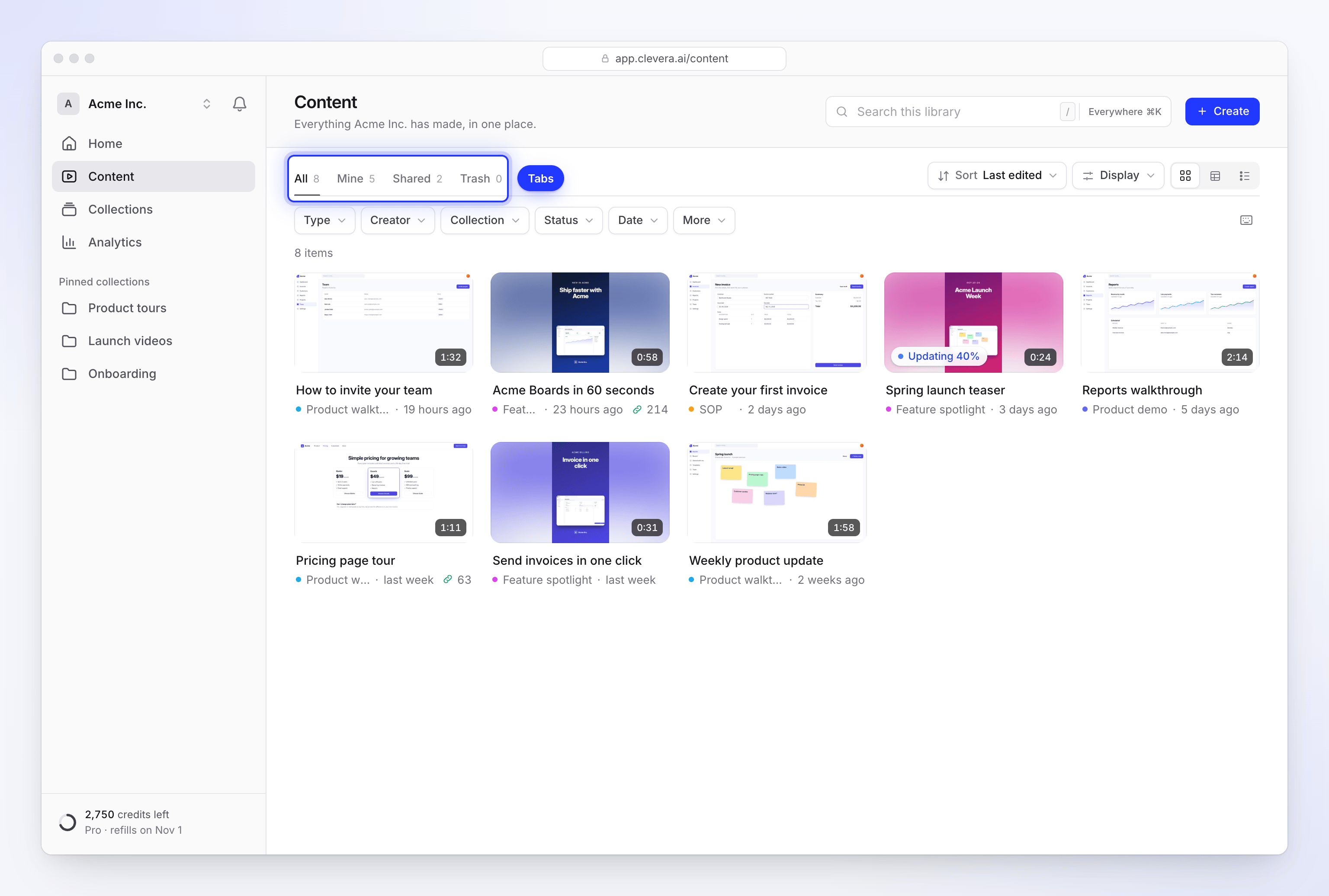
The tabs at the top split the library. Each shows a count.
| Tab | What's in it |
|---|---|
| All | Everything you can open |
| Mine | Only what you made. Hidden when it would show the same items as All (for example, when you work alone). |
| Shared | Items with a share link that's turned on |
| Trash | Items moved to the trash in the last 7 days. See Delete and restore videos and articles. |
Search
Type in Search this library at the top of the page, or press / to jump to it. The list narrows as you type and the matching words are highlighted in each title.
- Search matches titles, including the titles of translated versions.
- Capitals and accents don't matter: "cafe" finds "Café".
- Every word you type must appear in the title, in any order.
- In the Trash tab, the field reads Search the trash.
- Press Esc once to clear the search, and again to leave the field. ↓ moves from the field into the list.
To look beyond this page (collections, settings and other pages), click Everywhere at the end of the field or press ⌘ K (Ctrl K on Windows). It can take you to the Recordings page, but it doesn't list individual recordings: open Recordings to find one. See Search your whole workspace.
Filter the list
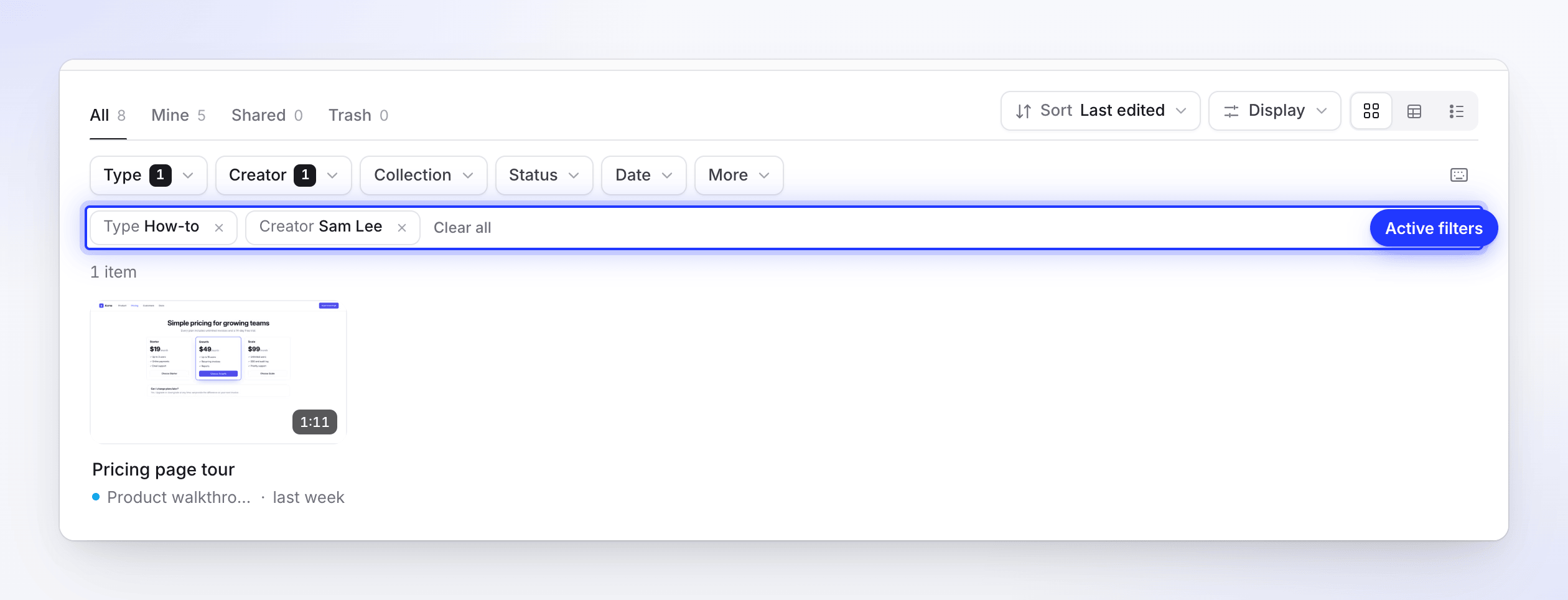
The filter row sits under the tabs. A filter that's on shows a count, and every active filter also appears as a removable chip below the row. Clear all removes them all at once. On a phone, the filters fold behind one Filters button.
| Filter | Options |
|---|---|
| Type | Families, each with its types underneath: How-to, Product demo, Social & promo, Article and Polish. Tick a family for everything in it, or single types. Clear type resets it. |
| Creator | Each person who made something here, with you marked "(you)". Shown only when at least two people have items in the list. |
| Collection | Not in a collection, then each collection you can open |
| Status | Ready, Updating, Failed, Shared, Not shared. Not shown in the Trash tab. |
| Date | Choose Edited or Created (and Deleted in the Trash tab), then Any time, Today, Last 7 days, Last 30 days or This year |
| More | Length: Under 30 s, 30 s – 3 min, 3 – 10 min, Over 10 min. Language: each language your items are in. Aspect: Landscape, Vertical, Square. |
Every option shows how many items it would match. Options inside one filter add up (Ready or Failed); different filters narrow each other (Ready and Vertical).
Sort and display
The controls on the right of the tabs change how the list looks.
Sort
Open Sort and pick one option under Sort by, then a direction under Order.
| Sort by | Order choices | Default order |
|---|---|---|
| Last edited (the default) | Newest first, Oldest first | Newest first |
| Date created | Newest first, Oldest first | Newest first |
| Name | A → Z, Z → A | A → Z |
| Length | Longest first, Shortest first | Longest first |
| Views (30 days) | Most first, Fewest first | Most first |
| Type | A → Z, Z → A | A → Z |
| Date deleted (Trash tab only, replaces Views) | Newest first, Oldest first | Newest first |
Display
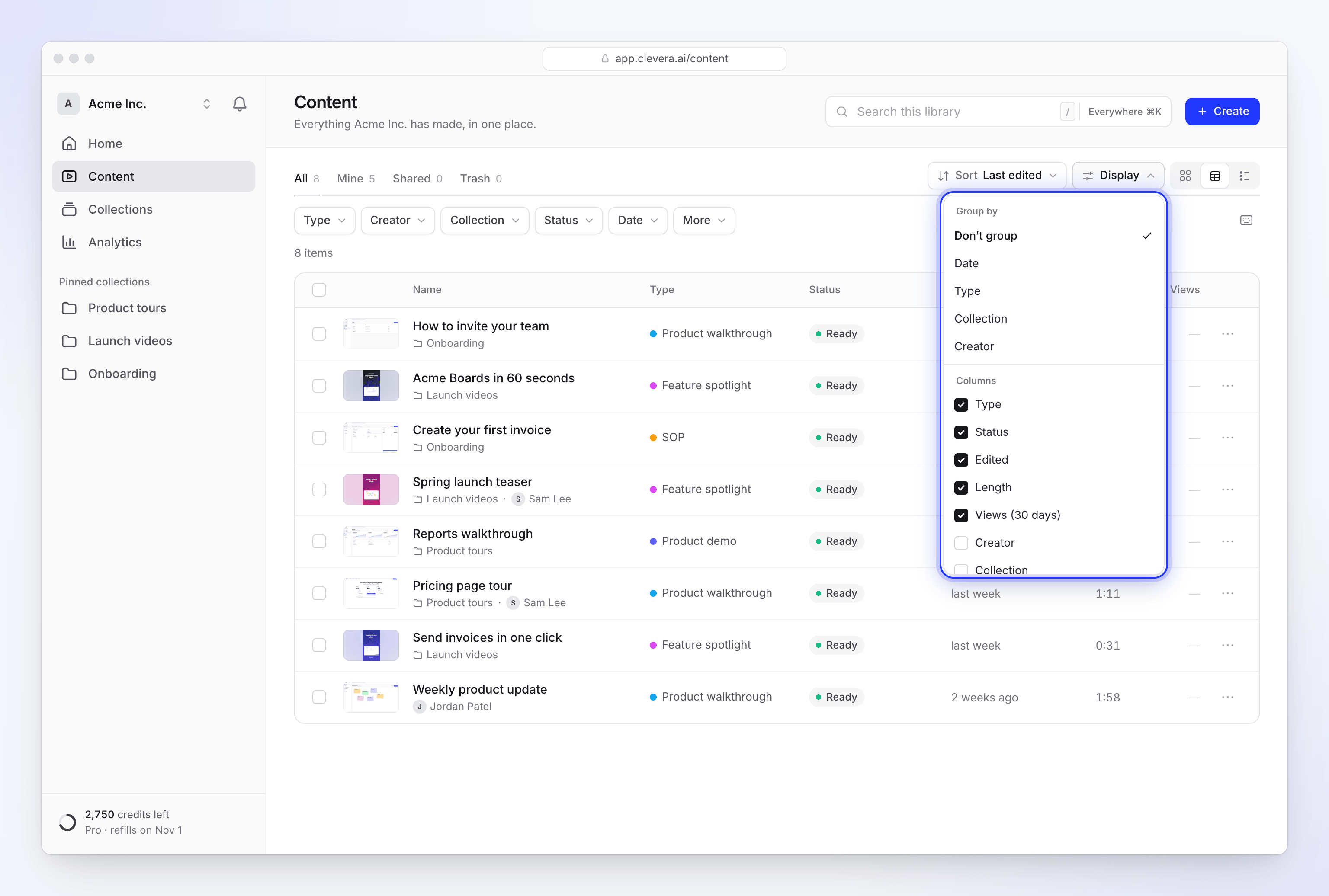
Open Display to choose:
- Group by: Don’t group, Date, Type, Collection or Creator. Date groups read Today, Yesterday, This week, This month, then month names. Click a group's header to fold it.
- Card size (grid view): Small, Medium (the default) or Large. A row holds at most 6 small, 5 medium or 4 large cards.
- Columns (table view): turn on Type, Status, Creator, Collection, Edited, Created, Length, Views (30 days), Languages and Aspect. The arrows beside a column move it left or right. Type, Status, Edited, Length and Views (30 days) are on by default.
Grid, table or list
The three buttons at the far right switch the view:
| View | Best for |
|---|---|
| Grid (the default) | Browsing by picture. Each card shows a poster, the title and when it was last edited. |
| Table | Comparing details in the columns you chose. Click a column header to sort by it. |
| List | A dense, one-line-per-item list with no headers |
In the table and list, resting the pointer on a row opens a preview card beside the title.
Read a card
- Poster: a frame from the video, or the first part of an article's page. Hovering plays a few frames.
- Length in the corner, and the date it was last edited under the title.
- Shared items show a link icon and their views over the last 30 days.
- When two items have the same title, each gets a small detail that tells them apart: who made it, its type or the day it was created.
- On hover, the top corners show a checkbox to select it, a Copy link button (shared items only) and the ⋯ menu. See Move, share or delete several items at once for what the menu offers.
Status
Most finished items need no badge. The grid shows one only when something is happening; the table's Status column always shows it.
| Status | Meaning |
|---|---|
| Ready | Finished and not shared |
| Shared | Its share link is on |
| Updating (with a percentage when known) | The AI is changing it, for example after a regeneration |
| Needs your answer | The AI asked a question and is waiting for you |
| Failed | The last run couldn't finish |
Click Needs your answer or Failed to open the generation page, where you can answer, retry or clear it. See Stop, retry or clear a generation.
In progress
When something is being made, a strip above the list sums it up, for example "2 in progress · 1 needs you · 1 couldn’t finish". Up to three runs are listed under it; with more, click the strip (Show / Hide) to see them all. Click a run to follow it.
A video that's being made for the first time waits in this strip and joins the list once it's ready.
Load more
The library loads 48 items at a time and fetches the next batch as you scroll. If it doesn't, click Load more. At the end you see "That’s everything" with the total, and Back to top takes you up again.
Keyboard shortcuts
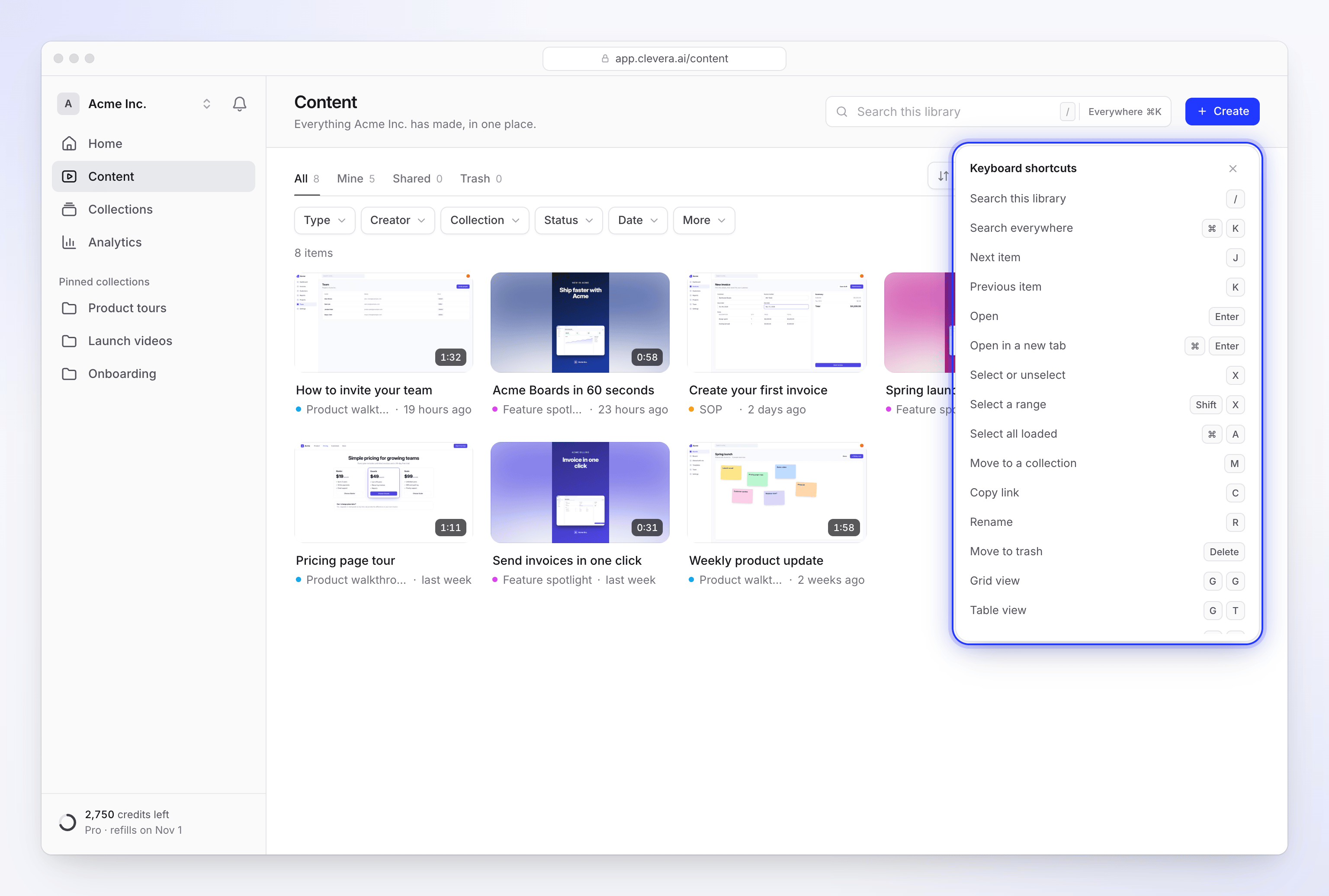
Press ? on the Content page, or click the keyboard icon next to the filters, to see the list. Shortcuts don't fire while you type in a field. On Windows, use Ctrl where the table shows ⌘.
| Keys | What it does |
|---|---|
| / | Search this library |
| ⌘ K | Search everywhere |
| J / K | Next item / previous item |
| Arrow keys | Move through the grid (up and down jump a row) |
| Home / End | First / last item |
| Enter | Open |
| ⌘ Enter | Open in a new tab |
| X | Select or unselect |
| Shift X | Select a range |
| ⌘ A | Select all loaded items |
| M | Move to a collection |
| C | Copy link |
| E | Share or export |
| R or F2 | Rename |
| Delete or Backspace | Move to trash (in the Trash tab: delete forever) |
| G then G | Grid view |
| G then T | Table view |
| G then L | List view |
| Esc | Clear selection |
| ? | Show shortcuts |
When the list is empty
| You see | What it means |
|---|---|
| "Ready when you are" | Nothing has been made in this workspace yet. Click Create something. |
| "Nothing of yours yet" | The Mine tab is empty. Your teammates' work is under All. |
| "Nothing shared yet" | No item has a share link on. Click Show everything to go back to All. |
| "No items match this filter" | Remove a chip, click Clear filters, or click Search everywhere for "…". |
| "Trash is empty" | Nothing was deleted in the last 7 days. |
| "We couldn’t load your content" | Check your connection and click Try again. |
Good to know
- There's no duplicate action. To make a variation, start a new video from the same recording or brief.
- Items can't be moved to another workspace. Each item belongs to the workspace it was made in. To work on it elsewhere, switch workspaces and make it there.
- A teammate who can't find an item probably can't open its collection, or the item isn't in a collection at all. Move it to a collection they can open, or ask an owner or Administrator to give them access.