

Update your videos when your product changes
Two Autopilot recipes keep your videos current without a help center: Update my videos when the product changes fixes words and re-records changed screens, and Record a video for every new feature proposes a video for what each release adds. You approve every plan.
Two Autopilot recipes keep your videos in step with your product, with no help center needed:
- Update my videos when the product changes checks your videos against a change and plans the fixes: new words for the narration and titles, and changed screens recorded again.
- Record a video for every new feature watches your releases and proposes a new how-to video for each feature a release adds, besides fixing the videos it changes.
Both use the same setup form. Nothing is changed or recorded until you approve the plan.
To keep a help center's videos and articles current together, use Keep your help center up to date instead.
Before you start
- Your role must be able to create content and edit videos.
- Something that tells Clevera what changed: a repository, a changelog page, or your own words. Record a video for every new feature needs a repository. To follow releases, an owner or admin connects GitHub and allows the repository under Autopilot → Connections first. See Connect a repository.
- Your app's address and a sign-in, to record. Recording changed screens again and recording new-feature videos both need Use my app. See Save an app sign-in.
Which recipe to pick
| Update my videos when the product changes | Record a video for every new feature | |
|---|---|---|
| Card line | "Fixes the words and re-records changed screens, no help center needed." | "Each release, records the features it adds." |
| When | Once, now (default), Each release or A changelog page | Each release only |
| Watch | A repository, A changelog page or Just this change | A repository only |
| Fixes existing videos | Yes | Yes |
| Proposes new-feature videos | Yes, with Use my app, unticked on the plan | Yes, with Use my app, ticked on the plan |
The two recipes set up the same kind of task. The difference is what starts it, and whether new-feature videos are ticked for you.
Set it up
Open the recipe
In Autopilot, click the recipe card under Or start from a recipe, or describe it in What should Autopilot do?, for example "Every time we ship, update the videos that show what changed". The agent panel opens with the setup card.
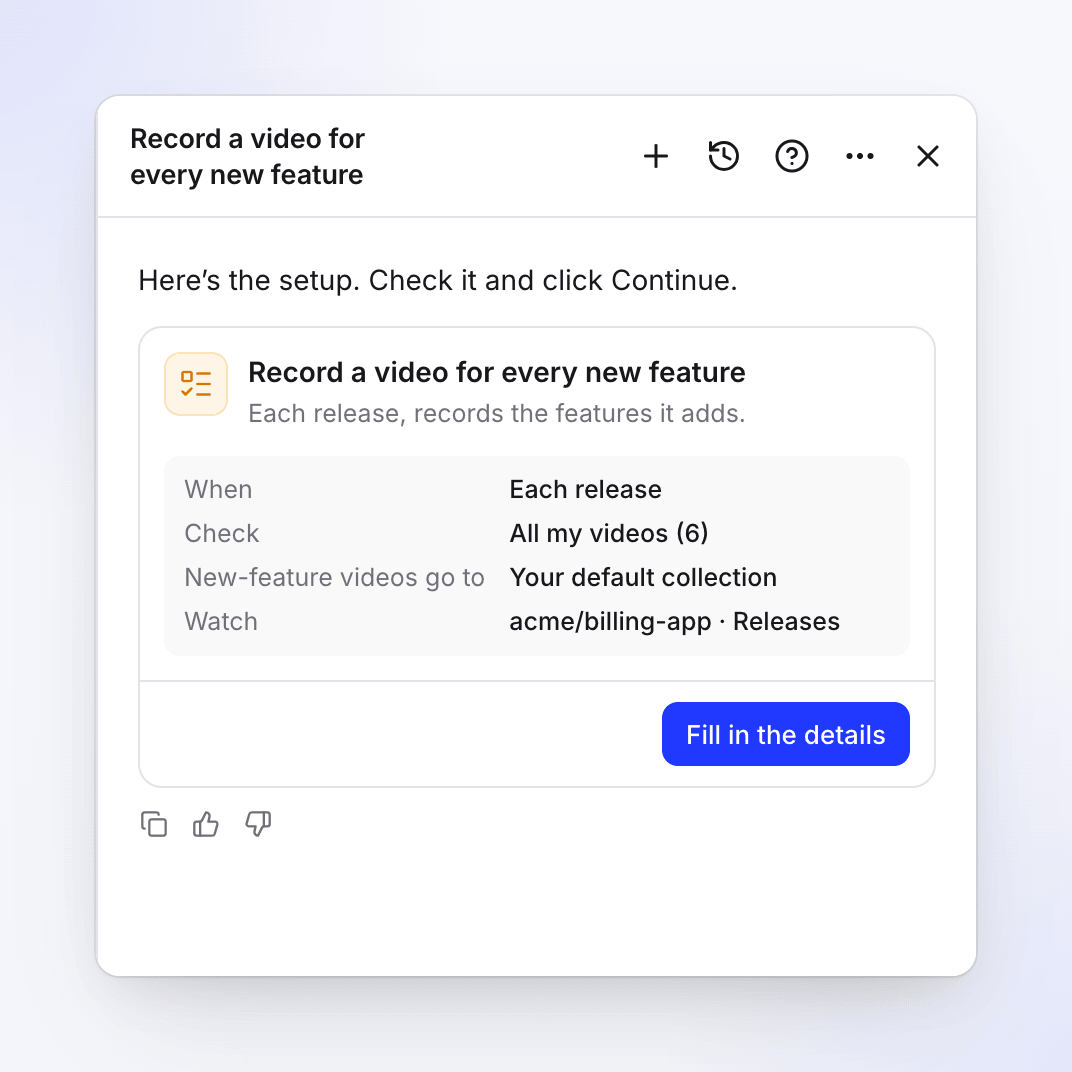
The card's summary: when it runs, which videos, where new videos go and what it watches. Fill in the details
Click Fill in the details (or Edit details), fill in the form and click Continue. See The setup form.
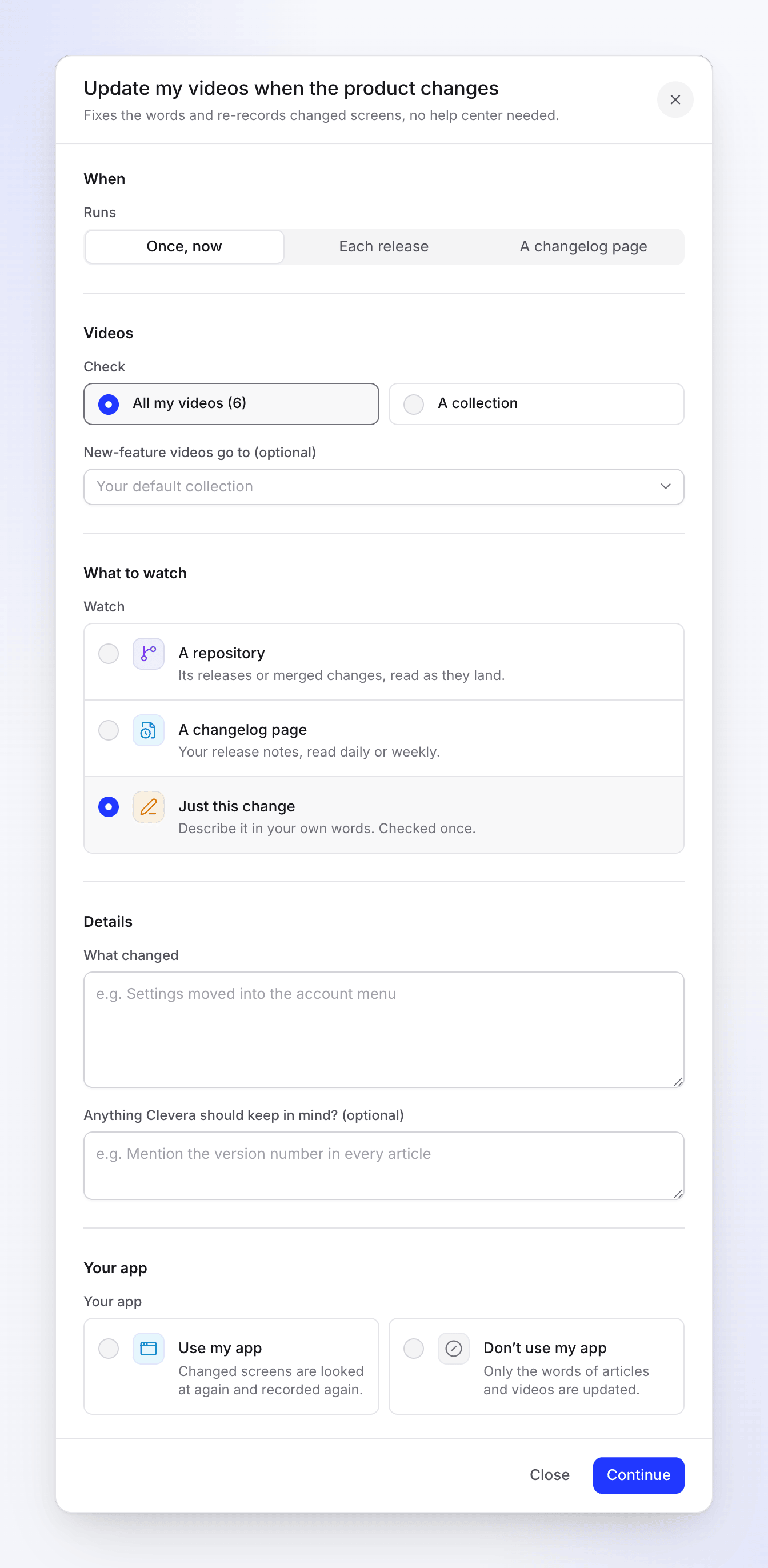
Update my videos opens on Once, now with Just this change. Check the review and create the task
The review shows When, Approval ("Each run waits for your review", for a watching task), Typical run ("10–150 credits") and Language. Click Create task.
Review each plan
With Once, now, Clevera plans the fixes right away (free, a few minutes) and posts in the chat when the plan is ready. A watching task shows No runs yet until the first change; each change then becomes a plan under Needs you.
The setup form
| Section | Field | Options and defaults |
|---|---|---|
| When | Runs | Update my videos: Once, now (default), Each release, A changelog page. Record a video for every new feature: Each release only. |
| Videos | Check | All my videos (6) (the count of videos you may edit) or A collection |
| Collection (A collection) | The collection to check | |
| New-feature videos go to (optional) | A collection. Default: Your default collection, the one set under Autopilot → Settings. | |
| What to watch | Watch | Update my videos: A repository ("Its releases or merged changes, read as they land."), A changelog page ("Your release notes, read daily or weekly.") or Just this change ("Describe it in your own words. Checked once."). It moves with Runs. Record a video for every new feature: A repository only. |
| Connection, Repository, Read (A repository) | Read: Releases (default, "Each release you publish.") or Merged changes ("Each merged pull request.") | |
| Changelog page, Check (A changelog page) | The page's address; Daily or Weekly (default) | |
| Details | What changed (Just this change only) | Required, up to 5,000 characters, for example "Settings moved into the account menu" |
| Anything Clevera should keep in mind? (optional) | Up to 2,000 characters. Every run reads it. | |
| Your app | Your app | Use my app ("Changed screens are looked at again and recorded again.") or Don’t use my app ("Only the words of articles and videos are updated."). You must pick one. |
| App address, Sign-in (Use my app) | The address starts as your brand's website. Use a sign-in or My product doesn’t need a sign-in. |
For Record a video for every new feature, pick Use my app too, or no new-feature video can be recorded.
There is no budget and no approval choice. Every run waits for your review.
What each run does
- Reads the change: the release, the merged changes, the changelog page or your words.
- Checks your videos in scope (all of them, or the collection), up to 40 per run, and reads each affected one in full. Each gets one of three outcomes: still right (not listed), new words (narration and titles, shown before → after), or record again with its new steps.
- Spots new features. With Use my app, each feature nothing covers yet becomes a line that records a new how-to video into the collection you picked.
- Record a video for every new feature: these lines come ticked, because recording them is the point of the task. The plan says, for example, "2 new features get their own videos." Untick any you don't want.
- Update my videos when the product changes: these lines come unticked. Tick the ones you want before you run the plan. The plan says, for example, "2 new features could use their own videos (not selected)."
A recorded-again video replaces the old one at its public link. Lines that need recording show "To record it again, start this task again with your app’s address and sign-in." when the task can't use your app.
A run that finds nothing to change ends as Done with "Nothing needed this time." and doesn't notify you.
Review and run the plan
Untick what you don't want, check which new-feature videos are ticked, and click Run. Ask for changes makes a new plan from your note. A plan expires after 7 days, with a reminder after 5. A fix can be reversed with Undo on its finished line.
Cost
Watching, checking and planning are free. Each line shows its credits before you run it. A typical run costs 10–150 credits: word fixes cost a few credits; recording a screen again or a new video costs more, by the number of steps it records. Ticked new-feature videos count toward the run's total, so check it before you click Run. You're charged for what each line really uses.
Troubleshooting
| What you see | What to do |
|---|---|
| "Pick a collection." | With A collection, choose one. |
| "No repository is allowed yet. Connect an account and choose the repositories Autopilot may read." / "Connect a repository first." | Click Open Connections, connect, and allow the repository. |
| "Pick a repository." | Choose the repository to watch. |
| "Add the changelog page’s address." | Fill in Changelog page. |
| "Describe what changed." | Just this change needs What changed. |
| "Choose whether Clevera may use your app." | Pick Use my app or Don’t use my app. |
| "This task can’t be started that way. Pick one of the choices under When." | The When choice doesn't fit this recipe. Pick one of the options it offers. |
| "Your role can’t edit videos in this workspace, so this task can’t update them." | Ask the workspace owner or an admin for a role that can edit videos. |
| "None of these changes adds a feature that needs its own video." | Nothing new to record this time. |
| The plan has no new-feature lines | The task doesn't use your app. Set up the task again with Use my app. |