

Add and organize pages on a doc site
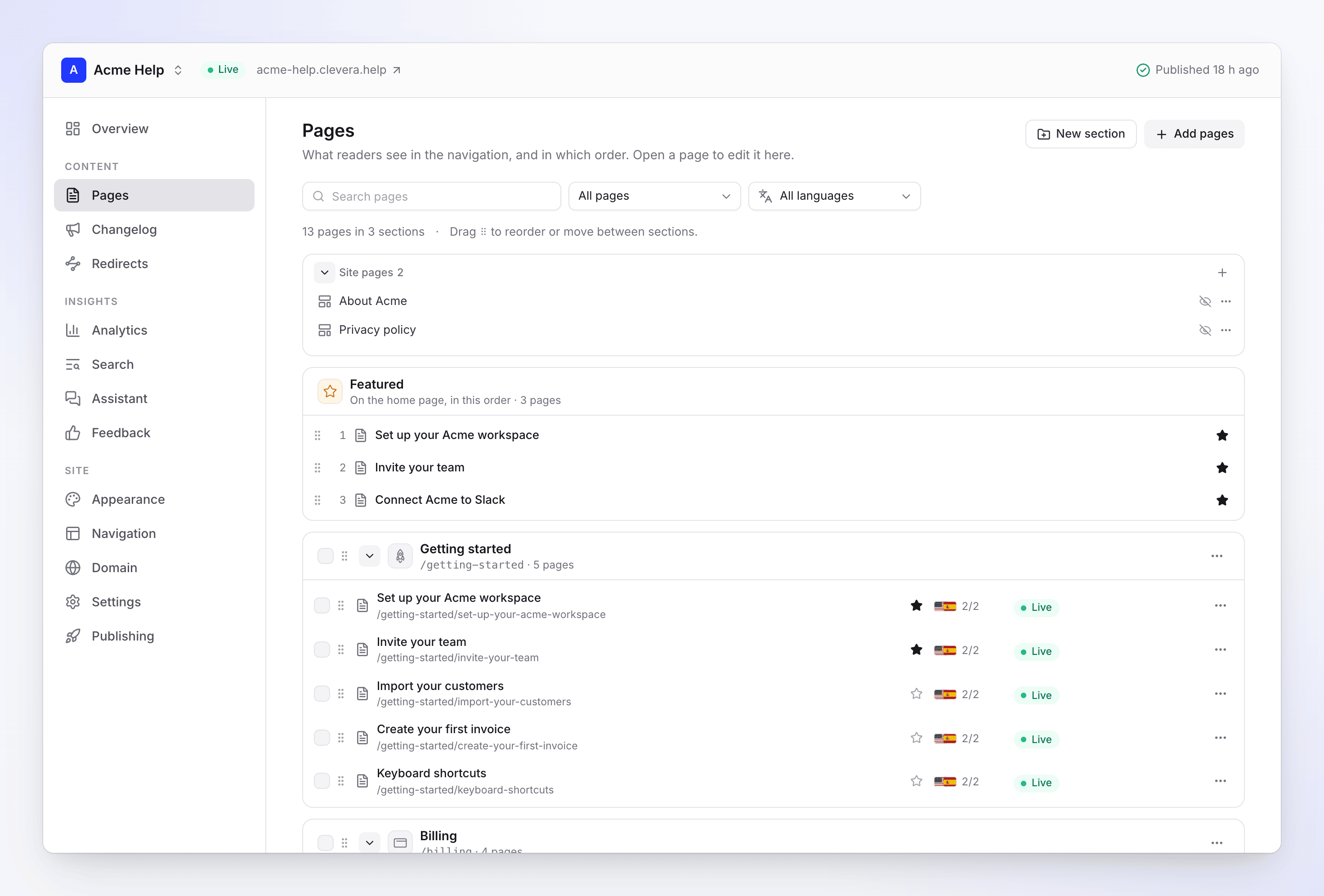
Build your doc site's navigation on the Pages screen: add articles, links and site pages, group them into sections, follow a collection folder, feature pages on the home page and set each page's address, menu title, summary and SEO.
The Pages screen is what readers see in your site's navigation, in that order. Here you add pages, group them into sections, choose what the home page features and set each page's address and search details. Changes you make here go live with the next publish.
Before you start
- Your role: owners, administrators, editors and Content Creators can change pages. Editors can add existing articles and links but can't create new articles or site pages.
- Only articles become pages. To show a video, add it to an article with the Clevera video block, then add that article. Video pages a site already has stay and keep working.
How a site is structured
| Level | What it is |
|---|---|
| Top level | Pages above the sections, such as a welcome page |
| Section | The top level of the navigation, such as "Getting started". Sections can have an icon and a one-line description. |
| Group | A headed list inside a section, such as "Install" inside "Getting started" |
| Page | One of: an Article from your library, a Link to another address, a Site page (About, landing, legal, FAQ), or an existing Video page |
The header shows the totals, for example "24 pages in 4 sections".
Add pages
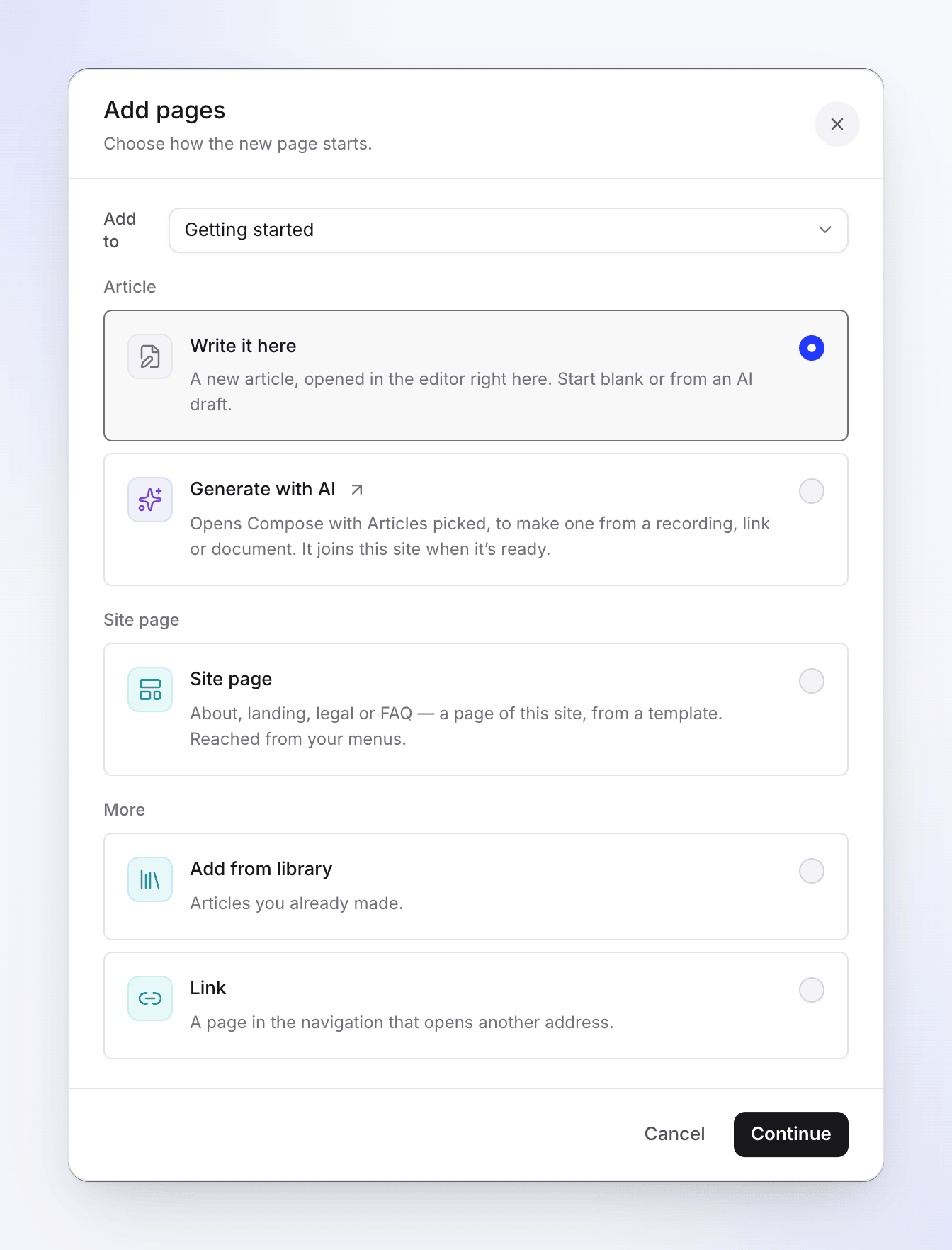
Click Add pages at the top of Pages, or open a section's or group's menu and choose Add pages here…. Pick the place under Add to, then choose how the new page starts:
| Option | What it does |
|---|---|
| Write it here | Creates a new article and opens it in the editor on this screen. Start blank or from an AI draft. See Write pages for a doc site. |
| Generate with AI | Opens Compose with Articles picked, to make one from a recording, link or document. It joins this site when it's ready. |
| Site page | About, landing, legal or FAQ, from a template. Reached from your menus. See Create site pages. |
| Add from library | Articles you already made |
| Move pages here | Pages already on this site, moved into this place. Offered when you open the dialog from a section or group. |
| Link | A page in the navigation that opens another address, such as your status page |
Add from library
Add pages from your library lists your finished articles. Search, or filter by Collection. Articles already on the site show On this site and can't be picked again. The dialog shows how much room is left, for example "The site has room for 120 more pages." Click Add 3 pages.
The articles stay in your library; the site shows them. Unfinished articles aren't listed until they're done.
Add a link
Add a link needs a Title (up to 200 characters) and an Address that starts with https:// or http://. Links open the other address; they can't be featured on the home page.
Sections and groups
Create a section
Click New section, type a Name (up to 120 characters) and an optional Description: "One line on what this section covers". It's shown on the home page's topic cards and at the top of the section. Click Create section.
Section menu
Open a section's ⋯ menu:
| Action | What it does |
|---|---|
| Add pages here… | Opens Add pages for this section |
| Add group… | A headed list inside the section |
| Rename… | Changes the section's name. With more than one language, Clevera asks "Translate the new name too?" |
| Translate title… | The name per language. Empty ones show the default-language name. |
| Icon | Pick an icon, or All icons… |
| Follow a collection folder… / Change followed folder… | New articles in that folder join this section (see below) |
| Stop following | No new articles join. Pages already added stay. |
| Delete section… | Moves its pages elsewhere, or removes them from the site |
Groups have Rename group… and Ungroup. Ungrouping keeps the pages in the section.
Follow a collection folder
Follow a collection folder connects a section to a folder in Content. Pick the Collection and the Folder, then click Follow folder. The section shows "Follows Onboarding".
- Articles added to that folder after you start following join the section the next time you publish.
- Only articles join; the folder's videos stay off the site.
- Following only adds. Moving an article out of the folder doesn't remove its page, and a page you removed from the site doesn't come back.
Delete a section
Delete section… asks what to do with Its pages: Move its 6 pages to another section or the top level, or tick Remove its pages from the site too (they stay in your library). An empty section is just removed. Either way the site changes after you publish.
Reorder and move pages
Drag a page by its handle (⠿) to reorder it or move it into another section or group. With the keyboard, press Space or Enter to pick an item up, the arrow keys to move it, Space or Enter to drop it and Escape to cancel. The screen confirms "Order saved — publish to put it live".
To reorder, clear any search and filter first.
To move a page without dragging, use its menu → Move… and answer "Where should it go?". It goes to the end of that place. Its old address redirects automatically.
Find pages
Use Search pages and the filter:
| Filter | Shows |
|---|---|
| All pages | Everything |
| Changed since publish | Pages edited since the last publish |
| Not published yet | Pages added since the last publish |
| Hidden | Published, but not in the navigation |
| Not ready in app | Articles still being written, or empty. They publish once they're finished. |
| Scheduled | Pages set to go live on a date |
With more than one language, a Language filter shows the pages of one language.
Each page row shows its status:
| Status | Meaning |
|---|---|
| Live | Readers see this version. |
| Changed | Edited since the last publish. |
| Not published yet | Added since the last publish. |
| Not ready | Finish it in the editor to publish it. |
| Hidden | Published, but not in the navigation. |
| Scheduled | Goes live on a set date. |
Page actions
Open a page's ⋯ menu:
| Action | What it does |
|---|---|
| Open / Open link / Open video editor | Opens the page to edit, the link's address, or a video page's video |
| Open in app editor | Opens the article in the full Clevera article editor |
| Page settings | The settings panel (below) |
| Show in navigation / Hide from navigation | Hidden pages still open by their address and in search |
| Feature on the home page / Remove from featured | Adds it to the home page's featured list |
| Move… | Moves it to another section or group |
| Remove from site | Takes it off the site. "It stays in your library. Its address will redirect to the section page after you publish." |
Feature pages on the home page
Click the star on a page, or Feature on the home page. Featured pages lists them "On the home page, in this order"; drag to reorder. Links can't be featured.
Change several pages at once
Tick the checkbox on pages (or on a section, to select all its pages). A bar shows "3 pages selected" with Show, Hide, Feature, Unfeature, Move… and Remove…. Removed pages stay in your library, and published addresses redirect to their section page after you publish.
Page settings
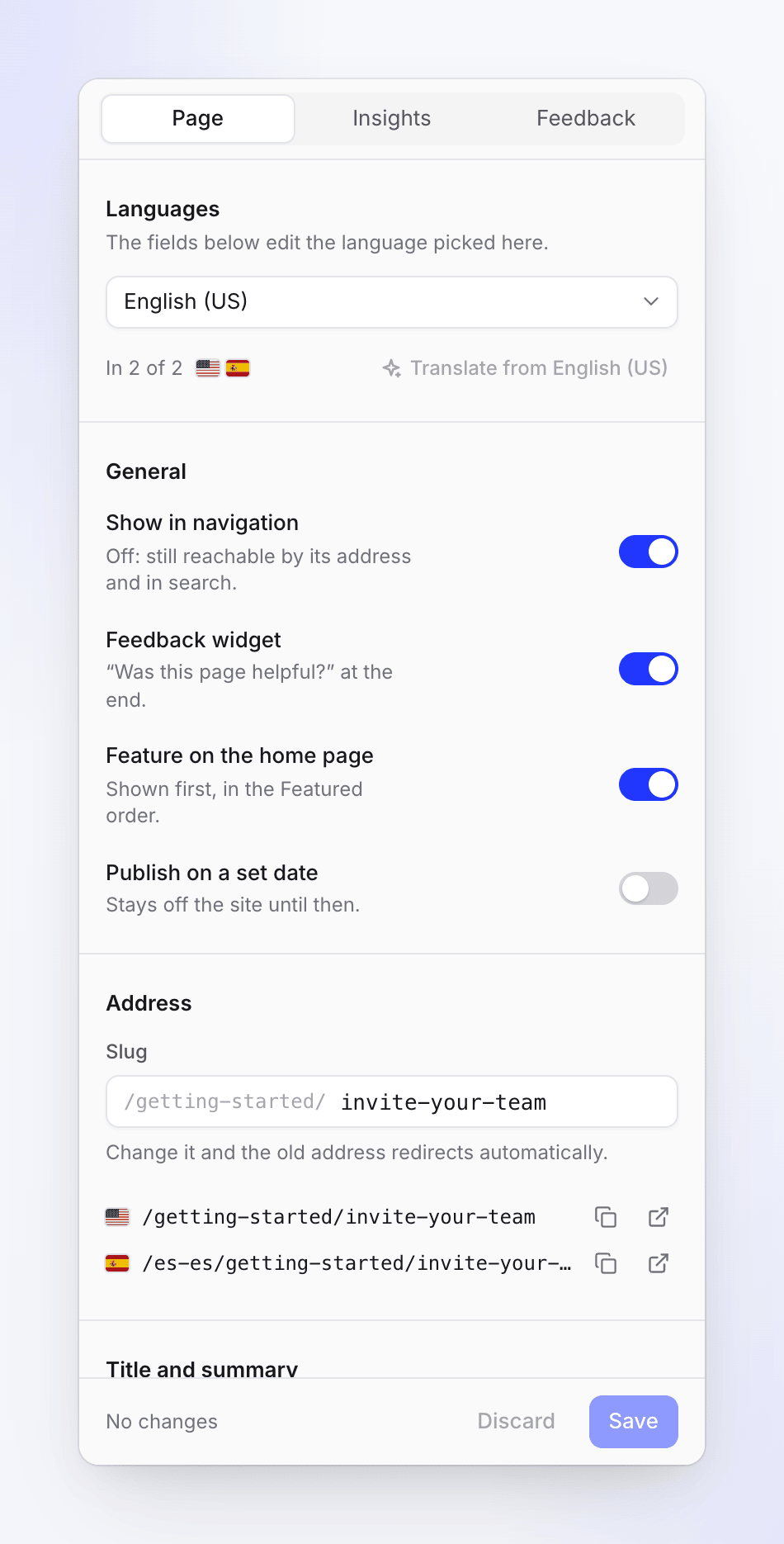
Open Page settings from a page's menu, or Details inside an open page. Edit the fields, then click Save (or Discard). With several languages, pick the Language to edit first; titles, summaries and SEO are per language. Translate from English fills the empty ones.
| Setting | What it does | Default |
|---|---|---|
| Show in navigation | Off: still reachable by its address and in search | On |
| Feedback widget | "Was this page helpful?" at the end of the page | On |
| Feature on the home page | Shown first, in the Featured order | Off |
| Publish on a set date | Stays off the site until Goes live and Time, in the site's time zone (Settings → General → Time zone). Starter and up. | Off |
| Slug | The page's address. Lowercase letters, numbers and single hyphens, up to 120 characters. "The old address will redirect automatically." | From the title |
| Menu title | A shorter title for the navigation, up to 120 characters. Empty uses the page title. | Empty |
| Summary | On cards, section lists and search, up to 300 characters | "Automatic from the first paragraph" |
| SEO title | The title in search results and link previews, up to 120 characters | The page title |
| SEO description | "One or two sentences on what this page helps with", up to 300 characters | The start of the page text |
Google preview and Social card show how the page looks in search results and when shared. Copy address and Open page use the live address. The panel footer says when the page was last published, for example "Last published in build #12, 2 hours ago", or "Not published yet: it goes live with the next publish."
A scheduled page goes live within a few minutes of its time, as long as the site is published. Pick a time in the future, or the panel says "Pick a time in the future."
Video pages
Sites can't get new video pages, but existing ones stay. Open one to see its Poster and Chapters (change both in the video editor) and Show transcript on the page: "Readers can read along under the video." Add an article version starts an article for the same item, so the page can carry text too.
A video plays from the site itself only when it has a current export. Otherwise the publish warns: "“Product tour” has no current export, so it plays through the Clevera player, which needs our servers. Export the video and publish again to play it from the site itself."
Limits
| Limit | Value |
|---|---|
| Pages per site | 5,000 |
| Sections and groups per site | 50 together |
| Pages added at once | 500 |
| Section name | 120 characters |
| Section description | 300 characters |
| Link title | 200 characters |
| Site pages per site | Per plan: see Doc site plans and limits |
Troubleshooting
| Message | What it means |
|---|---|
| "Only articles can be added to a doc site. To show a video, add it to an article with the video block." | A video was in the selection. Add an article that contains it instead. |
| "A doc site can have up to 5,000 pages." | The site is full. Remove pages or use another site. |
| "A doc site can have up to 50 sections and groups." | Merge or delete sections or groups first. |
| "Two pages in the same section would have the address “install”. Change one page's slug first." | Two pages would share an address. Change one page's Slug. |
| "The page list changed in the meantime. Reload and try again." | Someone else changed the pages. Reload the screen. |
| "Your role can edit existing content but cannot create new content." | You're an Editor. Add existing articles, or ask a Content Creator or admin to write the page. |
| "This page's article is in a collection you can't open" | You can change the page's settings and see its insights, but not its text. |