

Use Clevera from the menu bar or notification area
Clevera lives in the macOS menu bar or the Windows notification area. What its icon shows, what a click and a right-click do, every item in its menu, your recent uploads, and the Dock icon on a Mac or the taskbar button and jump list on Windows.
The Clevera desktop app lives in the menu bar on a Mac and in the notification area (system tray) on Windows. Its icon opens the recorder, shows what Clevera is doing, and holds a menu with your recent uploads, notes, settings and more.
Find the Clevera icon
The Clevera icon sits on the right of the menu bar at the top of your screen. It's always there while Clevera is open, and it can't be hidden.
On a MacBook with a notch, macOS hides menu-bar icons that don't fit. If you can't see Clevera, quit an app with a menu-bar icon or press ⌥⇧R to open the recorder anyway.
The Clevera icon sits in the notification area, next to the clock. Windows 11, and Windows 10 when space is short, can move it into the overflow: click ^ to see hidden icons.
To keep Clevera visible, open Windows Settings → Personalization → Taskbar, then turn on Clevera under Other system tray icons (Windows 11) or under Select which icons appear on the taskbar (Windows 10). With Show Clevera in the taskbar on, you can also use its taskbar button.
What the icon shows
| Icon | Meaning |
|---|---|
| The Clevera mark | Clevera is ready. |
| The mark with a dot | Something needs your attention: you're signed out, setup isn't finished, or a recording is waiting to upload. |
| A number | The countdown before a recording starts. |
| A red dot and a timer | You're recording. The timer shows the recorded time. |
| A pause sign and a time | The recording is paused. |
| A time left, such as "4:59 left" (Mac) | The last 5 minutes before the 60-minute limit. |
| A progress ring | A recording is uploading. On a Mac, the percentage shows next to it. |
On Windows, point to the icon to see the state as text, for example "Recording, 12:34" or "Uploading, 42 percent".
Click or right-click
- Click the icon when Clevera is idle to open the recorder. Click it again, or press Esc, to close it.
- Right-click (on a Mac also Control-click) to open the menu.
- While Clevera counts down, records, saves or uploads, any click opens the menu, so you can't start a second recording by accident.
The menu
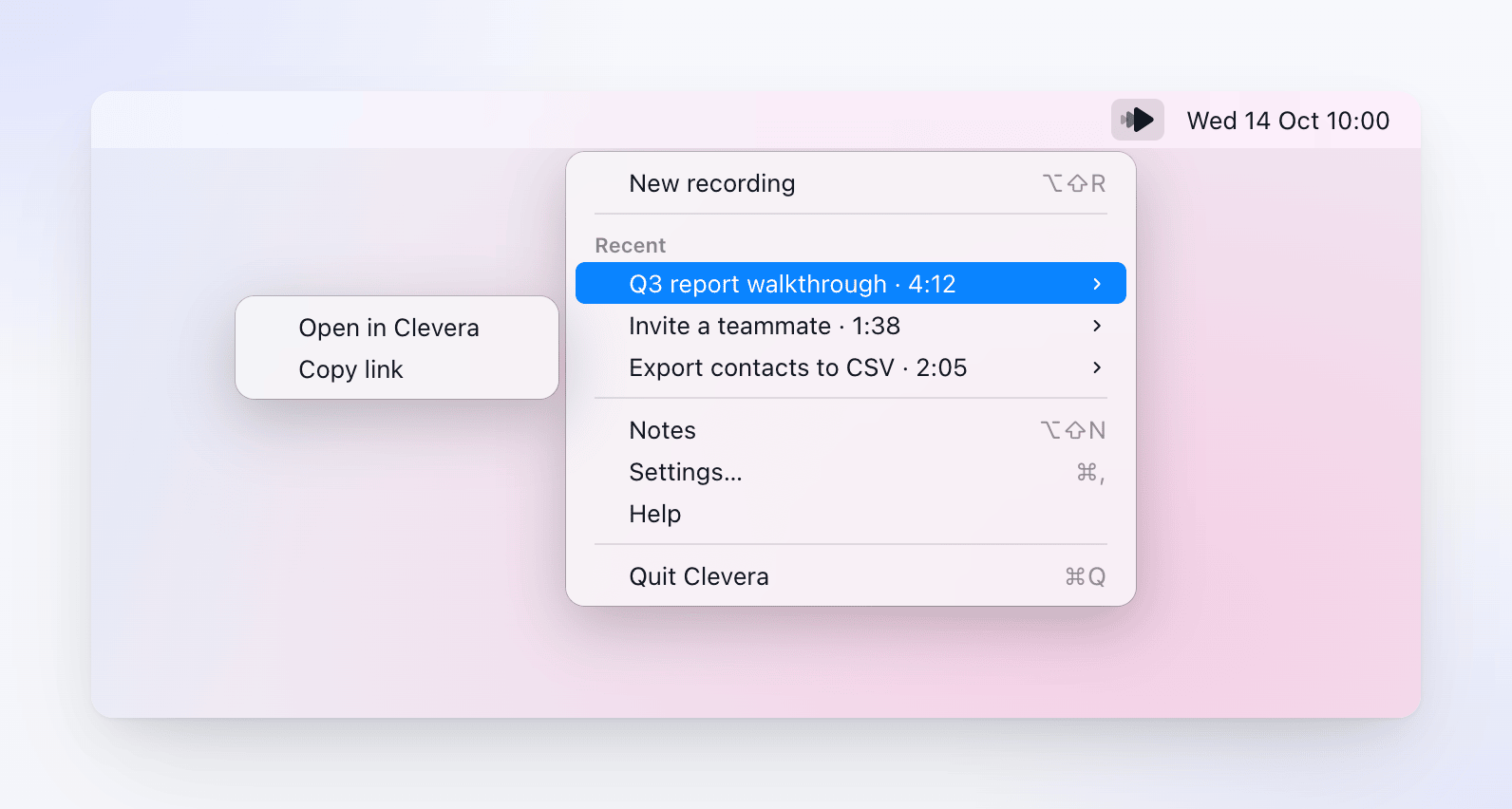
The menu changes with what Clevera is doing.
When Clevera is idle
| Item | What it does |
|---|---|
| New recording | Opens the recorder. On a Mac, its shortcut is ⌥⇧R. |
| Finish setup… | Appears until setup is complete. Opens the steps that are left. |
| Waiting to upload | Recordings kept on your computer that haven't uploaded. See Recover a recording that didn't finish uploading. |
| Recent | Your last five uploads. See Recent recordings. |
| Notes | Shows or hides your speaker notes. |
| Settings… | Opens Settings. |
| Help | Opens the Clevera help center in your browser. |
| Restart to update (Mac) | Appears when an update is downloaded and nothing is uploading. |
| Quit Clevera | Quits the app. |
When you're signed out, Sign in… replaces New recording, and Waiting to upload and Recent aren't shown.
While a recording uploads
The top line shows the progress, for example "Uploading · 42% · about 1 min left". Show upload brings back the upload card if you hid it. The rest of the menu is the same as when idle, and Quit Clevera… asks first, because quitting pauses the upload until you open Clevera again.
While you record
The top line shows the state, for example "● Recording · 12:34" or "❚❚ Paused · 12:34".
| Item | macOS | Windows |
|---|---|---|
| Pause / Resume | ⌥⇧P | Ctrl+Alt+Shift+P |
| Stop and upload | ⌥⇧S | Ctrl+Alt+Shift+Enter |
| Restart… | Not set | Ctrl+Alt+Shift+R |
| Delete recording… | Not set | Ctrl+Alt+Shift+X |
| Hide recording bar | ⌥⇧H | Ctrl+Alt+Shift+C |
| Focus recording bar | ⌥⇧B | — |
| Notes | ⌥⇧N | Ctrl+Alt+Shift+N |
| Quit Clevera… |
Restart… and Delete recording… ask before they do anything. During the countdown on a Mac, the menu has Cancel and Quit Clevera…. See Pause, restart or cancel a recording.
The recorder's ⋯ menu holds the less common items too: Notes, Finish setup…, Waiting to upload, Recent, Restart to update and Quit Clevera.
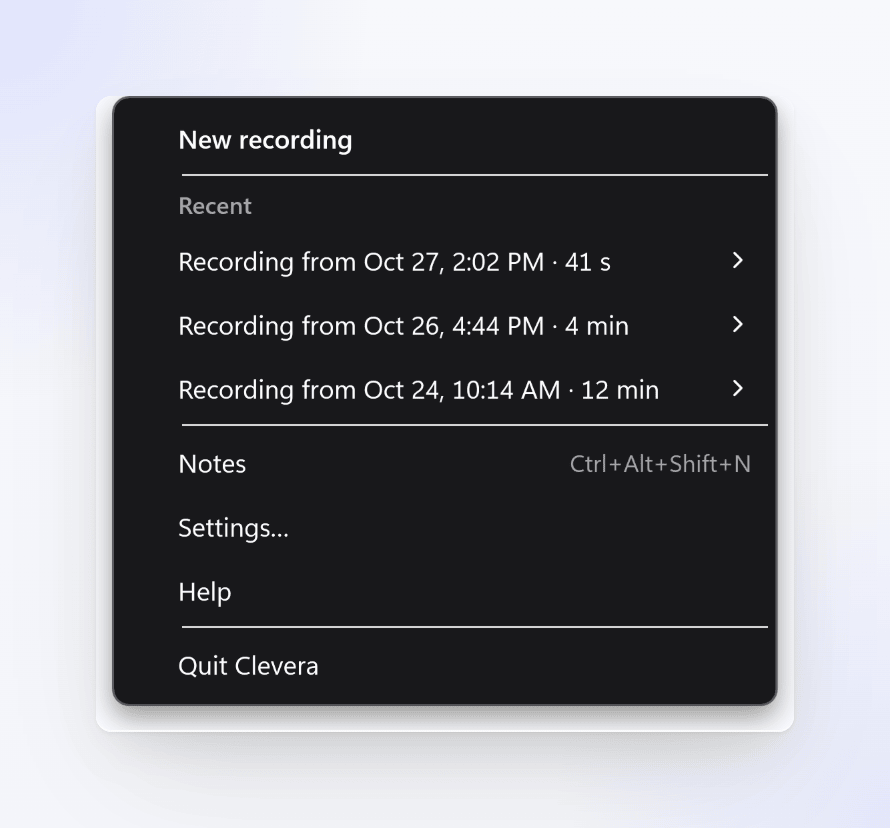
The recorder's ⋯ menu holds the less common items too: Notes, Finish setup…, Waiting to upload, Recent and Quit Clevera.
Recent recordings
Recent lists the last five recordings you uploaded from this computer, each with its name and length. Point to one and choose:
- Open in Clevera to open it in your browser.
- Copy link to copy its link. Clevera confirms "Link copied" and "Only people in this workspace can open it."
On Windows, clicking the recording's row also opens it. Signing out or switching accounts clears Recent. Older recordings are in Content → Recordings on the web; see Find your recording after it uploads.
The Dock and the taskbar
Clevera's icon appears in the Dock only while one of its windows is open, such as the recorder, Settings or the setup window. The recording bar, countdown and upload cards don't add it.
To keep Clevera in the Dock all the time, turn on Settings → General → Show Clevera in the Dock (off by default).
While a Clevera window is open, the menu bar at the top also shows Clevera's app menu, with About Clevera, Settings… (⌘,) and Quit Clevera (⌘Q).
Taskbar button and jump list
With Settings → General → Show Clevera in the taskbar on (the default), Clevera has its own taskbar button:
- Click it to open the recorder. While you record, it opens the menu instead.
- It shows a red dot while you record and the upload progress while a recording uploads.
- Right-click it for the jump list: New recording, Settings and Help. Close window quits Clevera, asking first if you're recording or uploading.
Turn the setting off to keep Clevera only in the notification area. Its windows still show on the taskbar while they're open. Opening Clevera again from the Start menu also opens the recorder.
Quit Clevera
Choose Quit Clevera from the menu (⌘Q on a Mac when a Clevera window is in front). If you're recording or uploading, Clevera asks first: "You're still recording." or "Your recording is still uploading." An upload you interrupt resumes the next time you open Clevera.
Troubleshooting
| Problem | What to do |
|---|---|
| I can't see the Clevera icon (Mac) | Make room in the menu bar, or press ⌥⇧R. If Clevera isn't running, open it from Applications. |
| I can't see the Clevera icon (Windows) | Click ^ next to the clock, or set Clevera to always show (see Find the Clevera icon). If Clevera isn't running, open it from the Start menu. |
| Clicking the icon opens the menu, not the recorder | Clevera is counting down, recording, saving or uploading. Use the menu, or wait for the upload to finish. |
| The icon has a dot | Open the menu: Finish setup…, Sign in… or Waiting to upload tells you what needs attention. |
| Recent is missing | You're signed out, or you haven't uploaded from this computer since you signed in. |