

Research a website for a social clip
Add a website to a social clip and the AI visits it, reads up to five pages and saves the pictures, videos and facts your clip needs. Learn how to start research, steer it with a note, reuse past research and read the results.
Website research sends the AI to a site you name. It reads up to five pages, opens what's folded away, and saves the pictures, videos and facts your social clip needs. Use it when your product, offer or proof lives on a public web page and you'd rather not copy it into the brief.
Before you start
- Website research is available on social clips. How-to, product demo, polish and article videos don't take links. To film your product in a browser for those, use Record with AI.
- The address must be a public
https://page. The AI doesn't sign in during research, so pages behind a login can't be read. - Research uses credits for the work the AI does. See what research costs.
Research a website
Open Research a website
On the Compose page of a social clip, click + Add in the brief box and choose Research a website in the With AI group. The row's tip reads "AI visits the site and collects pictures, videos and facts."
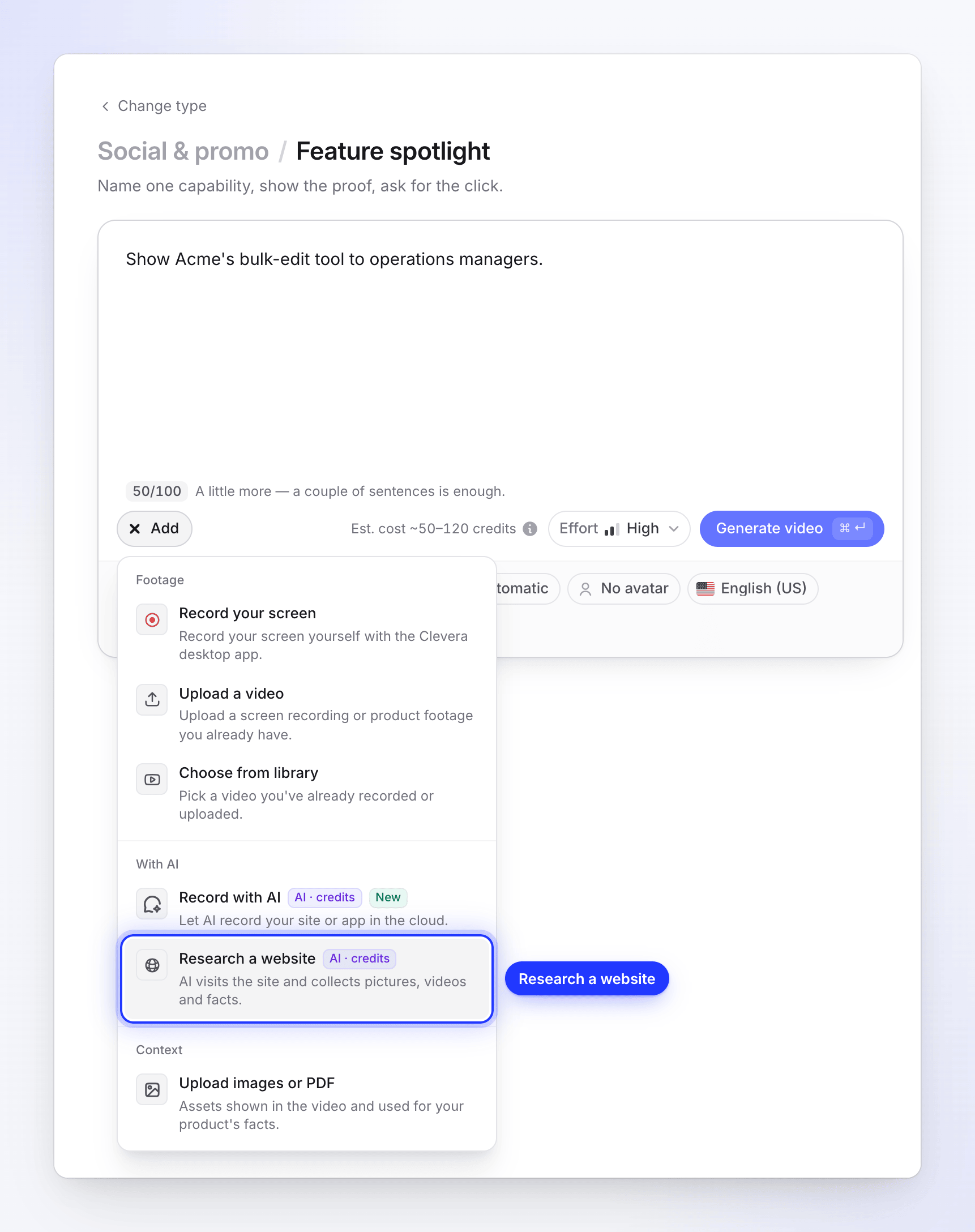
Research a website sits in the With AI group of the + Add menu. Enter the address
Type the page into Website address, for example
https://acme.com/pricing. If you typeacme.com, Clevera addshttps://for you and shows "We'll open https://acme.com" under the box.Start from the page that matters most. The AI begins there, and that page is always read first.
Tell the AI what to look at (optional)
In What should we look at?, write what the clip needs from the site, in your own words and in any language. For example: "Open the Pricing page and the reviews tab", or "The Teams plan and its yearly price".
You have up to 600 characters. With no note, the AI looks for what the product is, its features, the pricing or offer, and what customers say.
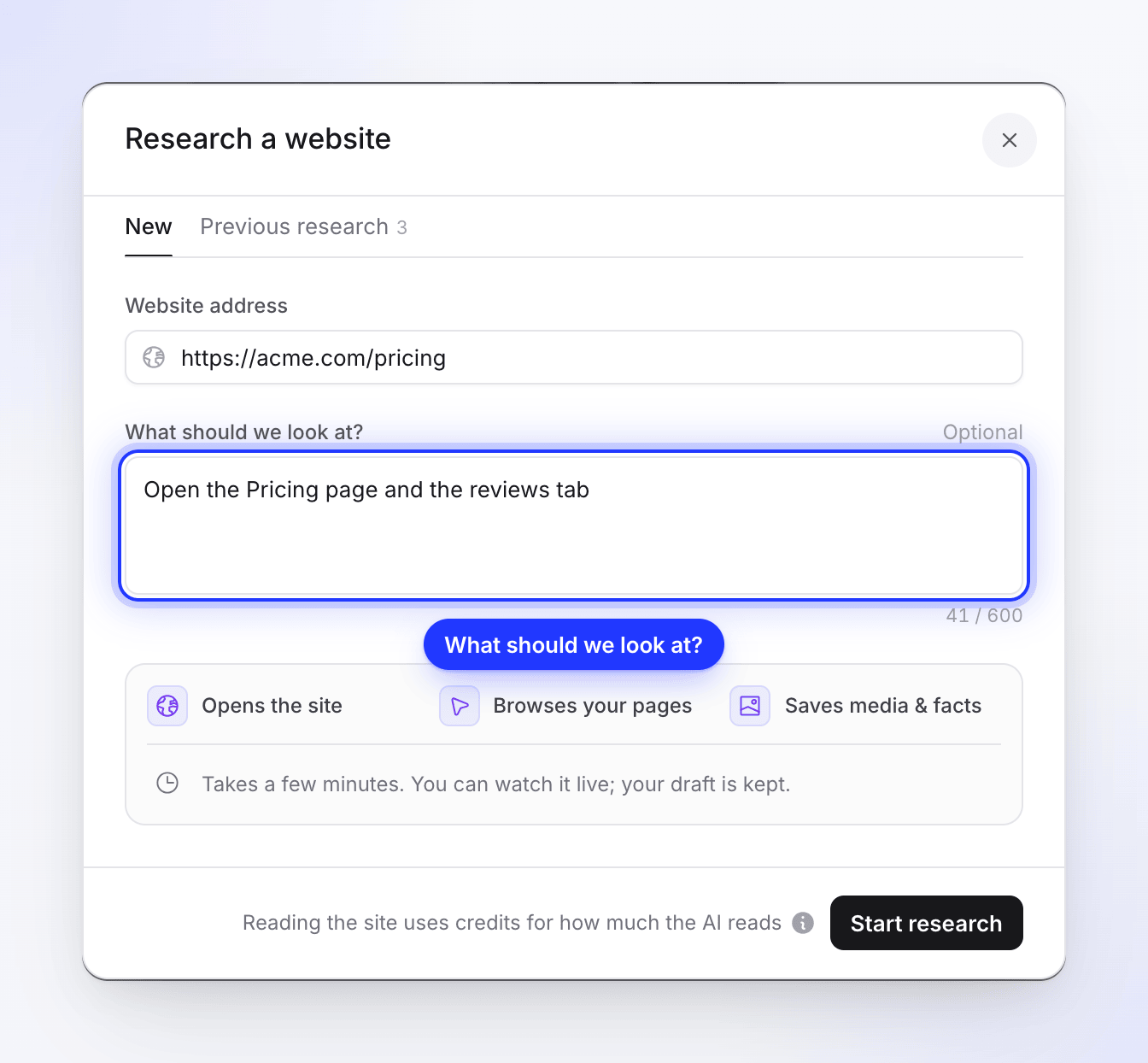
Your note tells the AI where to look first. Start research
Click Start research. The dialog closes, a tile for the link appears under your brief with the status Collecting…, and the AI opens the site.
The dialog shows what happens next: Opens the site, Browses your pages, Saves media & facts. It "Takes a few minutes. You can watch it live; your draft is kept."
Watch it or keep working
Open the link's tile and click Watch to see the AI browse live, or carry on with your brief and settings. When the tile says Collected, click See what we collected to check the results.
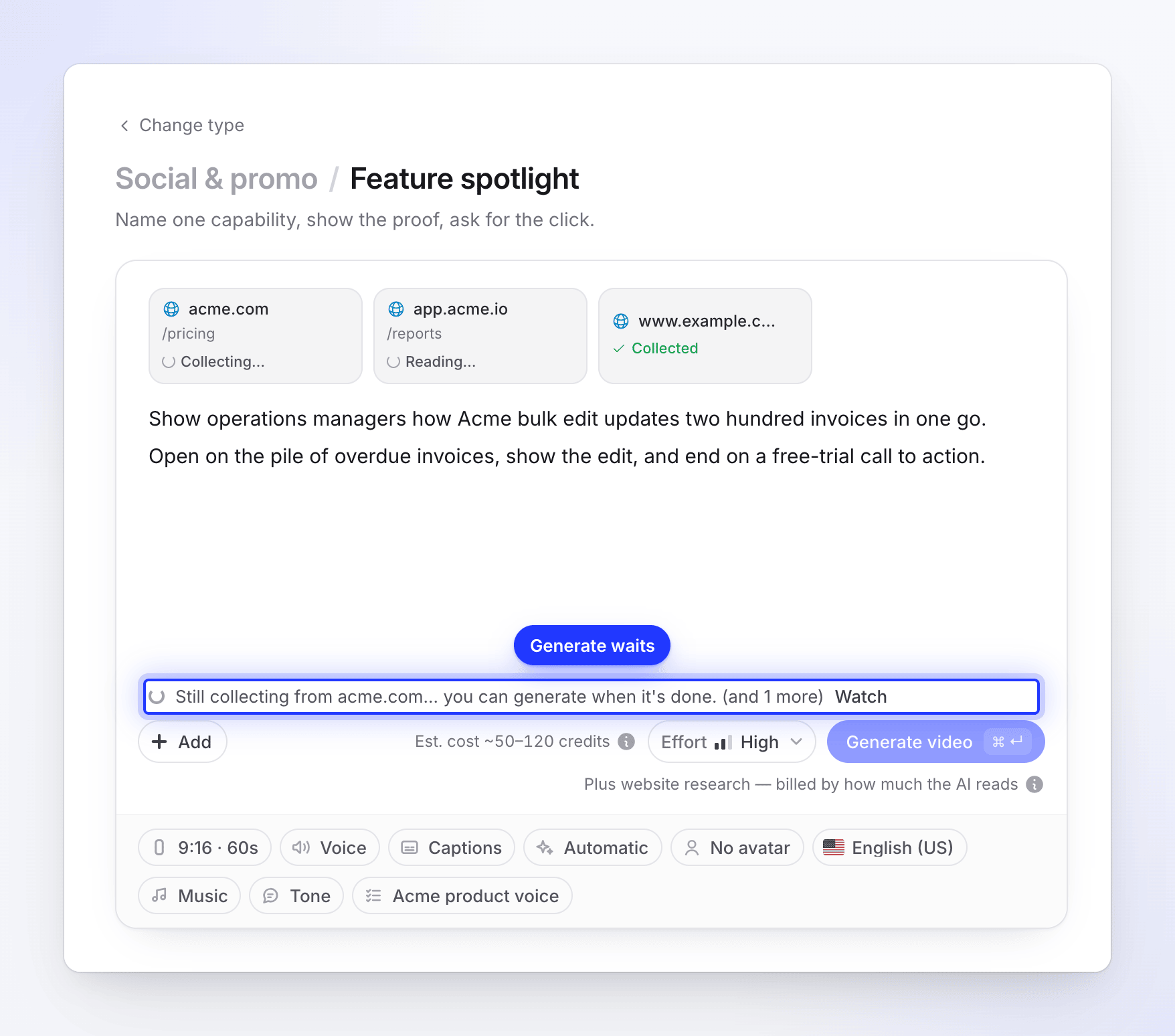
Each link shows how its research is going. Generate waits for links still collecting. Generate
Press Generate video. Your clip uses what the research collected. The AI doesn't visit the site again.
What the AI collects
| What | Details |
|---|---|
| Pages read | Up to 5, starting with the address you gave. Tabs, accordions, FAQ items, pricing toggles and "show more" buttons are opened so hidden text is read too. |
| Screenshots | Clean shots of each page and its main sections. |
| Pictures | Product images, photos and illustrations from the pages, up to 48. Icons, tiny images and header or footer graphics are left out. |
| Logo | Your logo, looked for on the first page. |
| Videos | Up to 4 videos hosted on the site itself (MP4 or WebM, up to 80 MB each). YouTube and Vimeo embeds are listed but not downloaded. |
| Facts | What the product does, who it's for, its features, proof (reviews, customers, numbers), the offer or pricing and the call to action. |
| Voice and look | How the site sounds and looks, so the clip can match its tone. |
The AI stays on the site's own pages and subdomains. It doesn't follow links to other sites, sign in, fill in forms or add anything to a basket.
For the step-by-step version, see how website research works.
Read the results
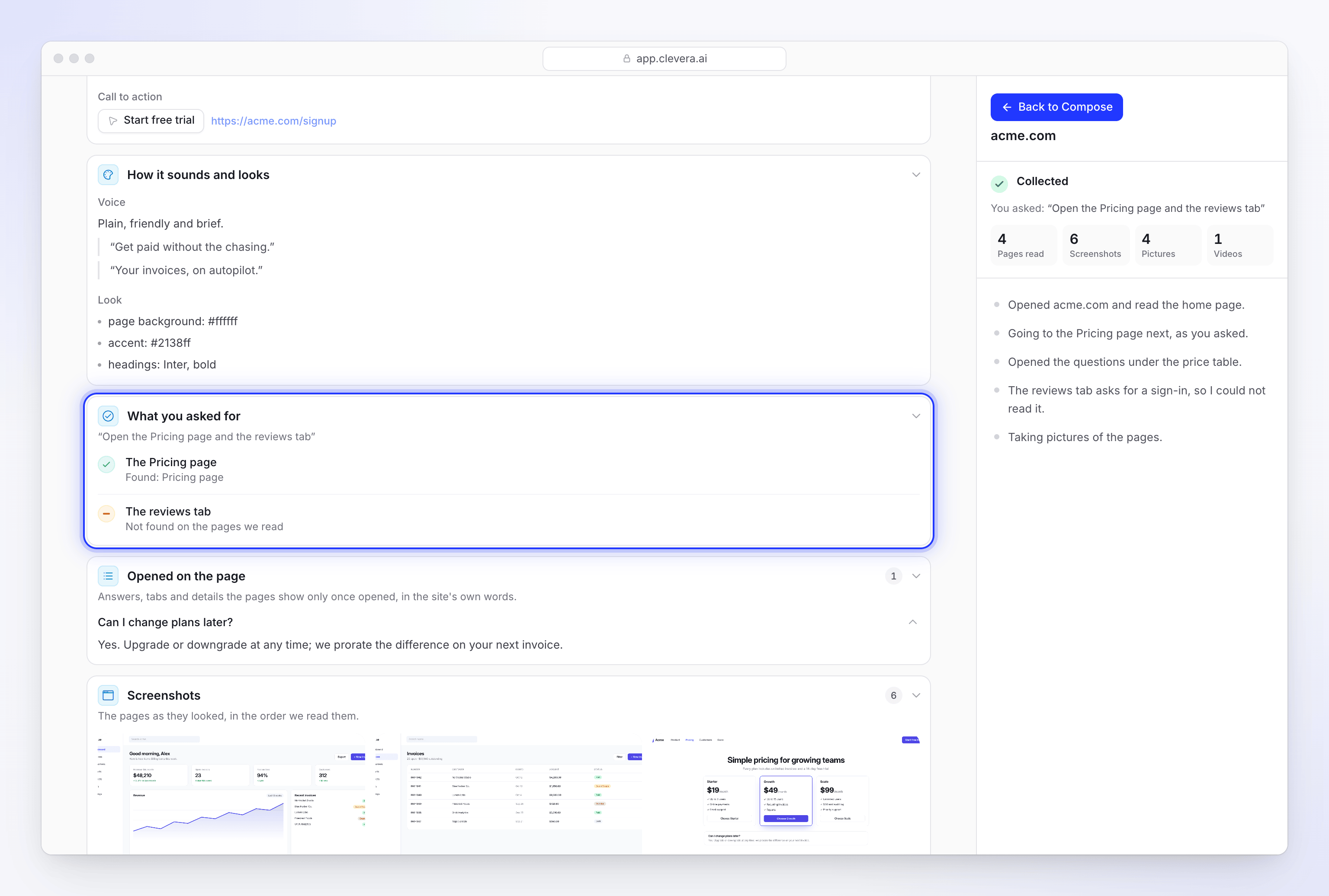
Open the link's tile and click See what we collected, or open it from Watch once the run is done. The results page has these sections:
| Section | What it shows |
|---|---|
| What the site says | What it does, For whom, Features, Proof, Offer or pricing and Call to action. |
| What you asked for | One row per thing your note asked for, marked Found (with the page it was on) or "Not found on the pages we read". Only shown when you wrote a note. |
| How it sounds and looks | The site's Voice and Look. |
| Screenshots, Pictures, Logo, Videos | What was saved. Click any item to see it larger. |
| Pages read | The addresses the AI visited. |
Click Back to Compose to return to your draft.
Link tiles in Compose
Each researched link is a tile under the brief. Its status tells you where the research is:
| Status | What it means | What you can do |
|---|---|---|
| Collecting… | The AI is on the site. | Watch it live. |
| Reading… | The visit is over, and Clevera is reading what was collected. | Watch, or wait. |
| Collected | Ready to use. | See what we collected. |
| Couldn't read | The site couldn't be read. The reason is shown on the tile. | See what happened, Try again or Remove. See Fix a website the AI couldn't read. |
While a link is still being collected, Generate video waits and says "Still collecting from acme.com… you can generate when it's done." If a link couldn't be read, it says "We couldn't read acme.com." with Try again and Remove.
Change the note after research
Open the tile to change What should we look at?. Changing the note doesn't change what was already collected, so the button changes to Collect again. Click it to research the site again with the new note, or close the dialog to keep the results you have.
Reuse earlier research
Research you've already run is kept for your workspace. To use it again without paying for a new visit:
- Open + Add → Research a website.
- Click the Previous research tab. It lists your workspace's last 60 successful researches, newest first.
- Click Use (no new research) on a site's card, or open the site to look through what it collected and click Use this take.
The link is added with its results, at no extra cost.
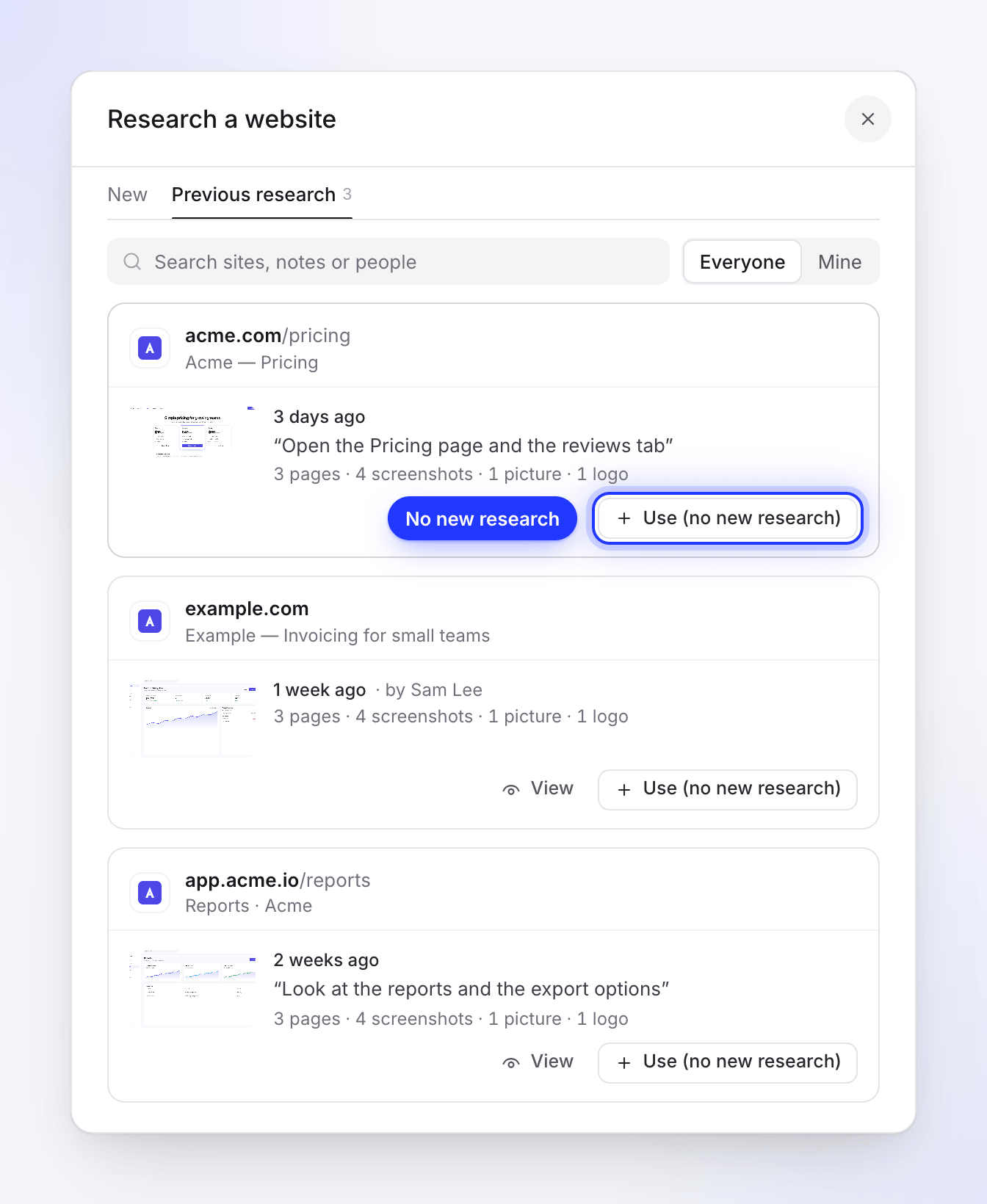
Links you paste into the brief
You can also paste an address straight into the brief. It becomes a link tile without starting research. When you press Generate video, Clevera looks for a reading of the same site, with the same note, made by your workspace in the last 7 days. If there is one, it's reused. If not, the AI researches the site then, and your clip waits for it.
A YouTube address is treated as a video, not a website. It's added without research.
Limits
| Limit | Value |
|---|---|
| Links per social clip | 10 |
| Pages read per site | 5 |
| Note length | 600 characters |
| Researches running at once | 2 per workspace |
| Time on the site | About 4 minutes, then a short reading step |
| Reuse of a reading at generation | 7 days, same site and same note |
| Previous research list | Your last 60 successful researches |
Messages you might see
| Message | What to do |
|---|---|
| "Enter a full address, like acme.com" | Type a full address with a dot and a domain ending. |
| "That link is already attached." | The site is already on this clip. Open its tile instead. |
| "No slots left for links." | Remove a link first. A clip takes up to 10. |
| "Use an https:// address." | Use the https:// version of the page. |
| "We can only open public internet pages over https." | The address isn't public, for example a company intranet or a local address. |
| "Your team is already collecting as many websites as it can at once. Wait for one to finish, then try again." | Two researches are already running in your workspace. Wait for one to finish. |
| "All our browsers are busy right now. Try again in a few minutes." | Clevera is busy. Try again shortly. |
| "Recording with AI is switched off right now. Try again later." | Research and Record with AI are paused for maintenance. Try again later. |
For messages about the site itself, such as a security check or a sign-in page, see Fix a website the AI couldn't read.