

Stop, pause, restart or delete a Chrome recording
Control a Chrome extension recording from the Clevera icon: what the icon shows, Pause, Stop, Restart and Delete, the keyboard shortcuts, Chrome's Stop sharing button and the 60-minute limit.
While the Chrome extension records, its controls live behind the Clevera icon in Chrome's toolbar, never inside the page or screen you record. Click the icon to stop, pause, restart or delete the recording, or use a keyboard shortcut. This article covers each control, the shortcuts, Chrome's own Stop sharing button and the 60-minute limit.
The Clevera icon while you record
The icon shows what's happening, and pointing to it says what a click does.
| The icon shows | Meaning | Its tooltip says, for example |
|---|---|---|
| A number | The countdown is running. | "Clevera starts recording in 3. Click to start now or cancel." |
| REC (red) | Recording. | "Clevera is recording (2:05). Click to stop, pause or restart." |
| ❚❚ (amber) | Paused. | "Clevera is paused (2:05). Click to resume, stop or restart." |
| … | Saving the recording. | "Saving the recording…" |
| A percentage, such as 42% | Uploading. | "Uploading, 42%" |
| ! | A recording needs you, or you're signed out. | "Clevera, needs attention" |
Pin the icon so it's always visible. See Install the Clevera Chrome extension.
Use the controls
Click the Clevera icon while you record. The popup opens on the controls and stays open until you click elsewhere.
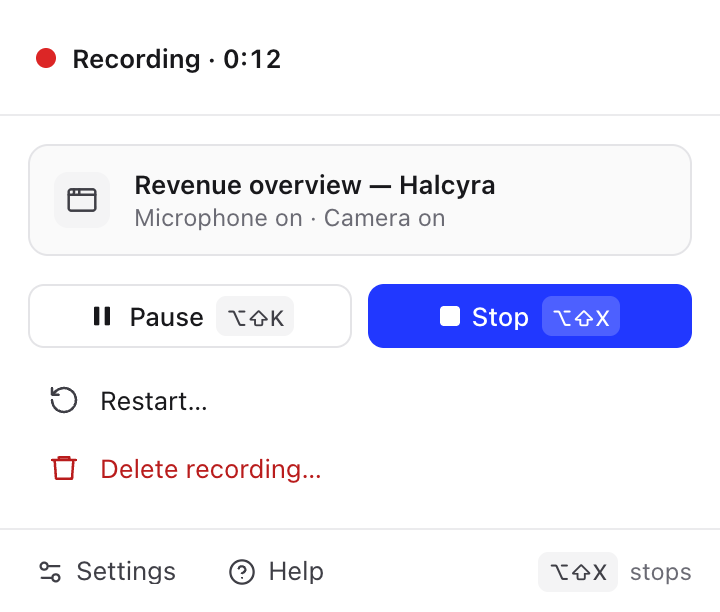
| Control | What it does |
|---|---|
| Pause / Resume | Pauses the recording. Nothing is recorded until you click Resume, and the paused time isn't in the video. The top line says Paused and the time. |
| Stop | Stops and uploads the recording. When the upload is done, it opens in Clevera. See After you stop. |
| Restart… | Asks Restart recording? ("What you've recorded so far is deleted. Then a new countdown starts, on the same tab, window or screen."). Click Restart: the take so far is deleted and a new countdown starts on the same tab, window or screen, without Chrome asking what to share again. |
| Delete recording… | Asks Delete this recording? ("It can't be recovered."). Click Delete to throw the recording away, or Keep recording to carry on. Nothing is uploaded. |
The first time you see the controls, a tip says Stop, pause and restart live here. Click × to hide it for good.
Keyboard shortcuts
| Shortcut | Mac | Windows, Linux and ChromeOS |
|---|---|---|
| Open Clevera (the popup) | ⌥⇧C | Alt+Shift+C |
| Stop and upload | ⌥⇧X | Alt+Shift+X |
| Pause or resume | ⌥⇧K | Alt+Shift+K |
The shortcuts work in any Chrome window while Chrome is the app in front. Pressing the stop shortcut during the countdown cancels the countdown; nothing is recorded.
To change a shortcut, open chrome://extensions/shortcuts (or click Change shortcuts in Chrome in Settings → Shortcuts). If another extension already uses a shortcut, Chrome may leave Clevera's unset: Settings → Shortcuts then shows Not set.
Stop with Chrome's Stop sharing
When you record a Window or a Screen, Chrome shows its own sharing bar with Stop sharing. Clicking it stops the Clevera recording too, and the recording uploads like any other.
If you stop sharing before the countdown ends, nothing was recorded yet, and the popup says "Chrome stopped sharing before the recording started."
Closing the window you share also stops the recording, and it uploads.
When the recorded tab changes
With This tab:
- Going to another page or site in that tab keeps recording.
- Closing that tab stops the recording, and it uploads.
- Opening, switching to or closing other tabs changes nothing. Only the recorded tab is in the video.
The 60-minute limit
A recording can be up to 60 minutes long. Paused time doesn't count.
- At 55 minutes, the controls show a notice, for example "5:00 left. Recording stops and uploads at 60:00." Click OK to hide it.
- In the last minute, the top line counts down, for example Recording · 0:48 left.
- At 60 minutes, the recording stops by itself and uploads, as if you'd clicked Stop.
For a longer session, stop and start a new recording before the limit. Each recording uploads on its own.