

Embed a video or article on your site
Embed a Clevera video or article on your website, WordPress, Webflow, Framer, Notion or Confluence. Covers the HTML code and link options, every embed setting and default, sizing, and why an embed stops working.
Put a Clevera video or article on your website, help center, Notion page or Confluence space. The embedded player always shows the latest version, and views from it count in your analytics.
Before you start
- Embeds use the video's share link. If the link is off, the Embed tab says "Embeds use the share link" with Turn on link. See Share a video with a link.
- You need permission to edit the video or article.
- To embed, your site or tool must accept an HTML snippet or an embed link.
Embed a video or article
Open the Embed tab
In the editor, click Share, then Embed. A live preview sits on the left and the options on the right.
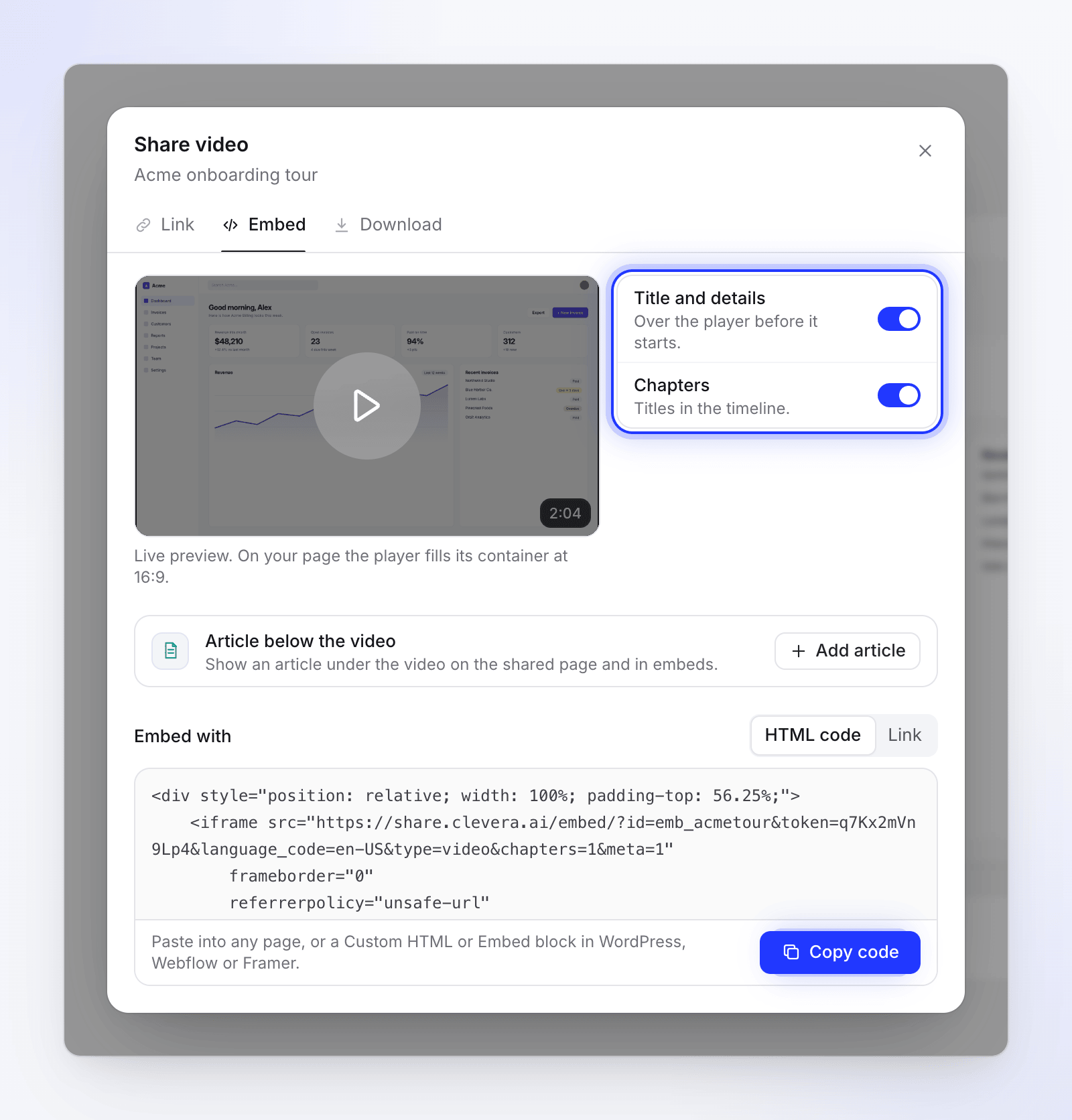
Set the options
Turn Title and details or Chapters on or off, or pick the article's theme and height. The preview updates as you go. See Embed options.
Choose how to embed
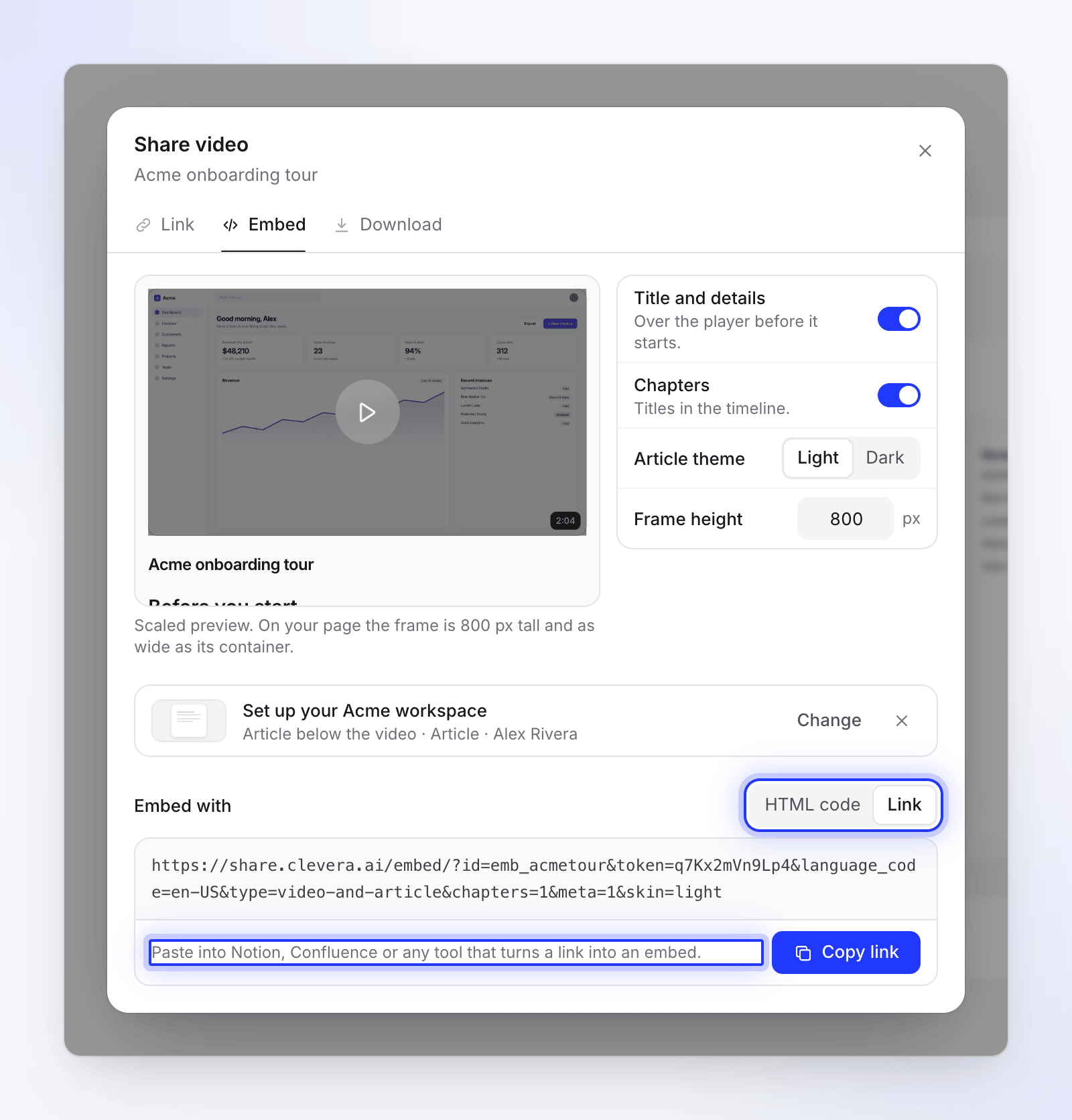
Under Embed with, pick:
- HTML code — "Paste into any page, or a Custom HTML or Embed block in WordPress, Webflow or Framer."
- Link — "Paste into Notion, Confluence or any tool that turns a link into an embed."
Copy and paste
Click Copy code or Copy link. The button changes to Copied. Paste it where you want the player. See Where to paste it.
Embed options
Which options you see depends on what you're embedding.
| Option | What it does | Default | Shown for |
|---|---|---|---|
| Title and details | Shows the title and details "Over the player before it starts." | On | Videos |
| Chapters | Shows chapter "Titles in the timeline." | On | How-to and demo videos with chapters |
| Article theme | Light or Dark article page | Light | Articles, or a video with an article |
| Frame height | Height of the frame in pixels, 300–2,000 | 800 px | Articles, or a video with an article |
The tab also has the Article below the video (or Video above the article) row. A companion you choose here shows on the share page too. See Attach a companion article.
Social clips, teasers and polished recordings don't have chapters, so the Chapters switch doesn't appear for them.
How the embed sizes itself
| You embed | On your page |
|---|---|
| A video | The player fills the width of its container and keeps a 16:9 shape at any size. "Live preview. On your page the player fills its container at 16:9." |
| An article, or a video with an article | A frame as wide as its container and as tall as Frame height. A small script in the code then grows the frame to fit the whole article, so it reads like part of your page. |
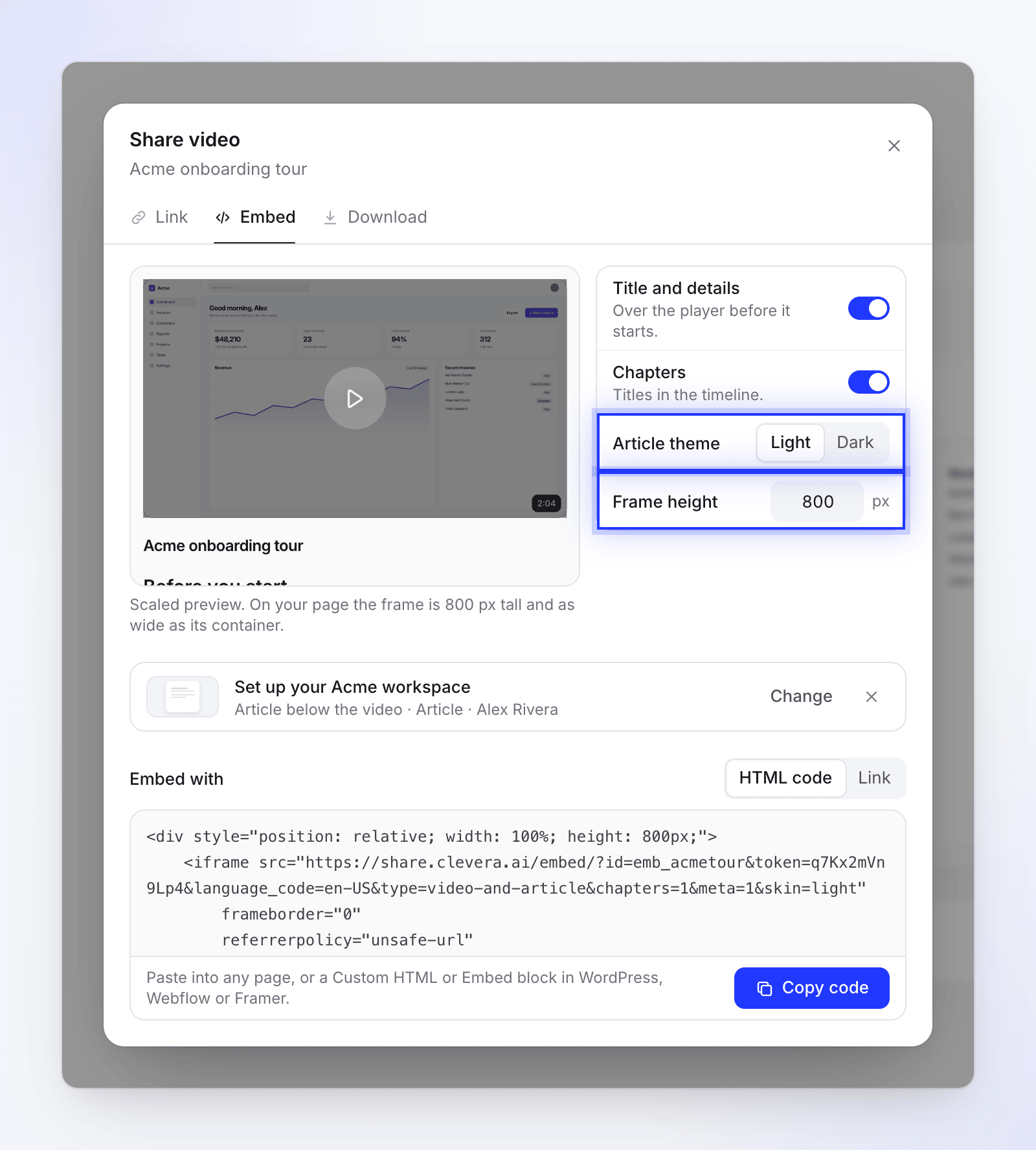
If your site removes scripts from pasted code, the article frame keeps its fixed height and the article scrolls inside it. Raise Frame height if that feels cramped.
Where to paste it
| Where | What to paste | How |
|---|---|---|
| Any website | HTML code | Paste it into the page's HTML where the player should go. |
| WordPress | HTML code | Add a Custom HTML block and paste the code. |
| Webflow | HTML code | Add an Embed element and paste the code. |
| Framer | HTML code | Add an Embed component and paste the code. |
| Notion | Link | Type /embed, choose Embed, paste the link and click Embed link. |
| Confluence | Link | Paste the link on its own line and choose the Embed view, or use an iframe macro if your site has one. |
| Other tools | Link or HTML code | Look for an "embed", "iframe" or "custom HTML" block. |
Keep embeds working
- Edits show up on their own. The embed plays the current version. There's no need to paste new code after you edit.
- Turning the link off stops every embed. They show "This video isn’t available" and "The owner has stopped sharing this video." Turn the link back on and the same embeds work again.
- Deleting the video stops its embeds. They show "This video has been removed."
- Branding follows your plan. On Free, embeds show Clevera branding. On Starter and above they don't, and you can add your own logo. See Remove the Clevera watermark.
- Views count. Plays in an embed count as views, the same as on the share page. The live preview in the Embed tab doesn't count. See Read video analytics.
Troubleshooting
| Problem | What to do |
|---|---|
| The Embed tab only shows Turn on link | The share link is off. Turn it on, then copy the code. |
| "Couldn’t copy. Select the text and copy it manually." | Your browser blocked the clipboard. Select the code in the box and copy it with ⌘ C or Ctrl C. |
| The embed shows "This video isn’t available" | The link is off, the video was deleted, or part of the code is missing. Check the Link tab, then copy the code again. |
| The page shows the code as text | You pasted into a normal text block. Use the site's HTML, Custom HTML or Embed block. |
| Notion or Confluence shows a plain link | Use Link (not HTML code), and choose the embed option when you paste. |
| The article is cut off | Your site removed the resize script. Raise Frame height. |