

Understand single sign-on (SSO) in Clevera
What single sign-on does in Clevera: which plan includes it, SAML 2.0 vs OpenID Connect, who can sign in with it, Require SSO, and what happens to existing members and passwords.
Single sign-on (SSO) lets your team sign in to Clevera with their company account from Okta, Microsoft Entra ID, Google Workspace or any SAML 2.0 or OpenID Connect provider. This article explains what SSO does in Clevera, who can set it up, and what changes for your members.
Before you start
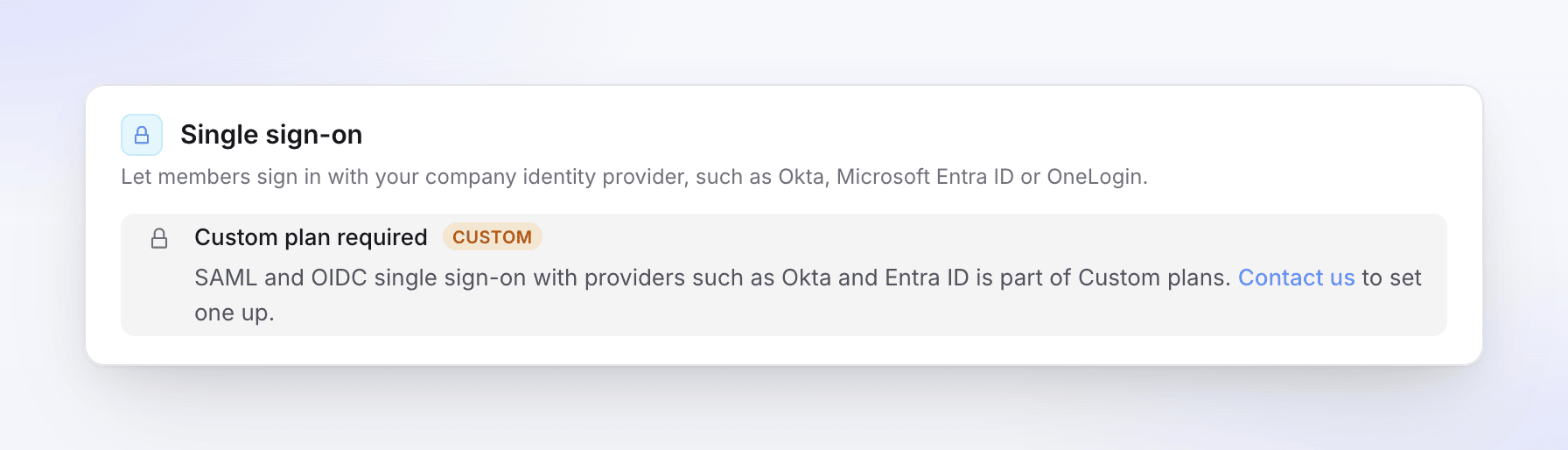
- Plan: SSO is part of Custom plans. On other plans, the owner sees Custom plan required in Team settings → Security, with a Contact us link. See Choose a plan.
- Who sets it up: only the workspace owner. Administrators can't see or change SSO settings.
- Your identity provider: someone who can create an app in your identity provider (IdP), or who can send you its values.
- Your email domains: every company domain your people sign in with, such as
acme.example.
What SSO does in Clevera
| What happens | |
|---|---|
| Sign-in | People type their work email on the Clevera sign-in page and click Continue with your provider. They sign in at your IdP and come back signed in to your workspace. |
| New people | With Create accounts on first sign-in on, someone with no Clevera account gets one the first time they sign in, and joins your workspace with the default role you chose (as an Editor if that role needs a creator seat and none is free). |
| Existing members | Members whose email domain is on your list can sign in with SSO straight away. Nothing about their videos or role changes. |
| Require SSO | With Require SSO on, members on your domains can't sign in with a password or Google any more, and new people on your domains can't sign up with a password. |
| Owner | The owner can always sign in with their password, so you can't lock yourself out. |
SSO works per workspace: the connection, its domains and its rules belong to the workspace you set it up in.
SAML 2.0 or OpenID Connect
Clevera supports both. Pick the one your IdP admin prefers; the result for your members is the same.
| SAML 2.0 | OpenID Connect (OIDC) | |
|---|---|---|
| What you enter in Clevera | IdP Entity ID, SSO sign-in URL, X.509 certificate, optional Logout URL | Client ID, client secret, and a discovery URL (or the endpoints by hand) |
| What you give your IdP | Entity ID / Audience URI and ACS URL (Reply URL) | Redirect URI (callback URL) |
| Single logout from the IdP | Supported, if you add a Logout URL | Not supported |
| Guide | Set up SSO with SAML | Set up SSO with OpenID Connect |
Provider guides: Okta, Microsoft Entra ID, Google Workspace. OneLogin (SAML or OIDC) and JumpCloud (SAML only) are in the provider list too; follow the general SAML or OIDC guide for them.
How setup works
Create an app in your IdP
Use the values Clevera shows on the first step of the setup dialog, each with a copy button: the Entity ID and ACS URL for SAML, or the redirect URI for OIDC.
Connect it in Clevera
Open the workspace menu at the top of the sidebar, choose Team settings, then Security. Under Single sign-on, click Set up SSO and work through the four steps: Provider, Identity provider, Domains & roles, Review. Click Save configuration.
Test it
Click Run test, then sign in with a test member in a private browser window.
Turn it on
Switch on Enable SSO. When everyone can sign in, switch on Require SSO if you want SSO to be the only way in.
Saving never turns SSO on by itself, so you can prepare the connection without affecting anyone.
How people sign in afterwards
- On the Clevera sign-in page, they type their work email.
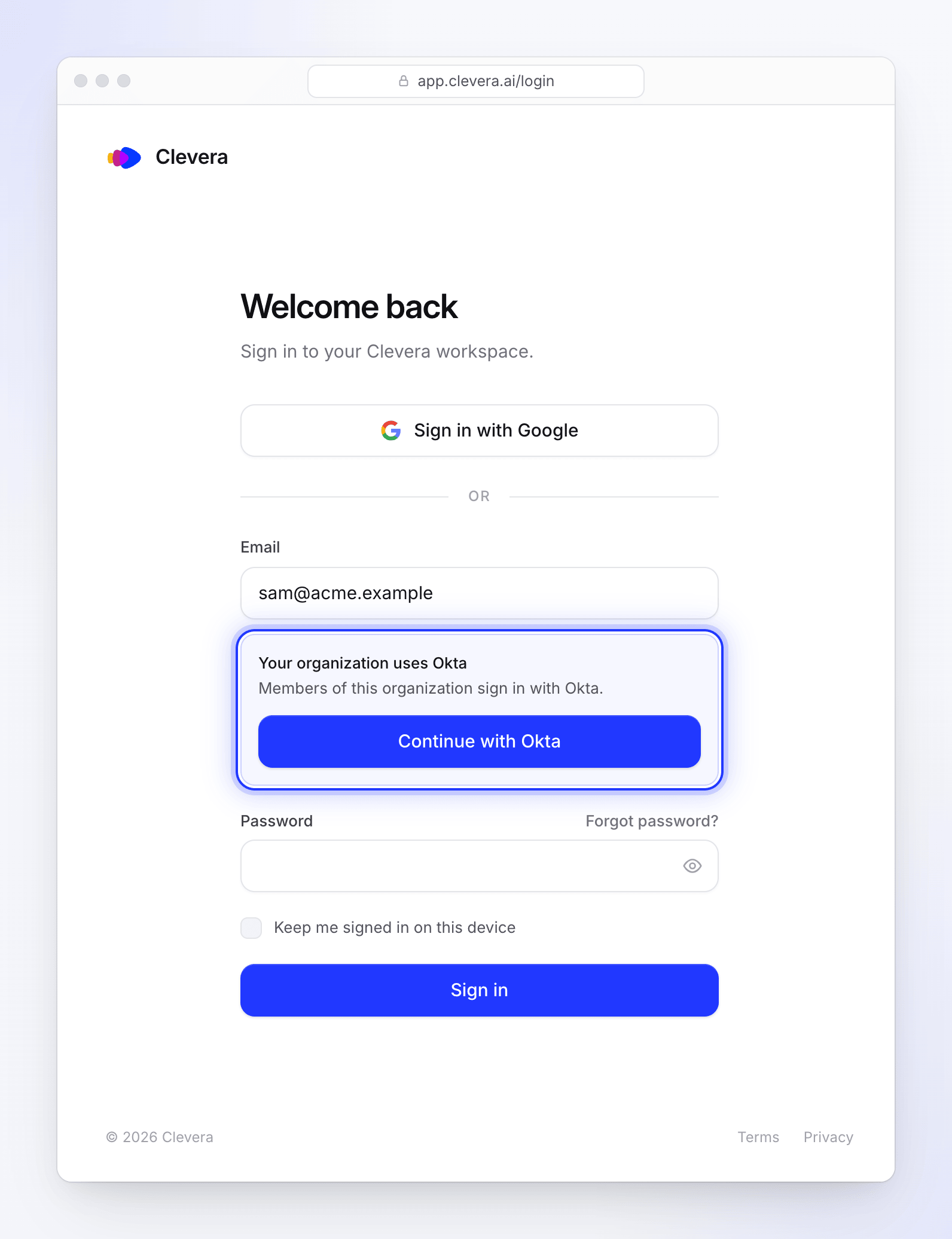
- Clevera recognizes the domain and shows "Your organization uses Okta" (your provider's name) with a Continue with Okta button. With Custom SAML/OIDC Provider, it says "Your organization uses SSO" and the button reads Continue with SSO. With Require SSO on, it adds "Members of this organization sign in with Okta."
- They click the button, sign in at your IdP, and land on their Clevera home page in your workspace. If they were opening a Clevera link when they were asked to sign in, they land on that page instead.
They stay signed in on that browser until they sign out. Signing out of Clevera doesn't sign them out of your IdP.
Desktop app: the desktop app signs in through your browser. On the browser's sign-in page, type your work email and click Continue with your provider. After you sign in at your IdP, the browser hands you back to the desktop app, which finishes signing in. See Sign in to the desktop app.
Who can use SSO
| Person | Can sign in with SSO? |
|---|---|
| A member of the workspace whose email domain is on your list | Yes |
| Someone on your domain with no Clevera account | Yes, if Create accounts on first sign-in is on. Otherwise invite them first. |
| Someone on your domain who already has a Clevera account but isn't a member of this workspace | No. Invite them, and once they've accepted, SSO works for them. |
| The owner | Yes, if they saved the SSO configuration themselves. They can always use their password too. |
| Anyone whose email domain isn't on your list | No. They keep signing in the way they do now. |
The third and fourth rows are safeguards: because email domains in Clevera aren't verified, SSO never takes over an account that isn't already in your workspace, and never signs in the owner through a connection someone else saved.
Creator seats
A person created by SSO gets the Default role for new SSO members you chose. If that's Content Creator and every creator seat in your plan is taken, they join as an Editor instead, which uses no seat. Add a seat and change their role in Team settings → Members. See Understand workspaces, roles and creator seats.
What happens to passwords
- Existing members keep their password. While Require SSO is off they can use either. With it on, a member who signs in with the right password sees "Your organization requires Single Sign-On. Use the SSO button to continue."
- New people on your domains can't create an account with a password while Require SSO is on. The sign-up form answers "Your organization signs in with single sign-on (SSO). Go to Sign in, enter this email and choose Continue with SSO." Their account is created the first time they sign in with SSO (with Create accounts on first sign-in on; otherwise invite them).
- Accounts created by SSO have no password the person knows. If SSO is later turned off or removed, they use Forgot password? on the sign-in page to set one.
- Google sign-in is blocked for members on your domains while Require SSO is on.
Remove someone's access
Clevera doesn't sync users from your IdP. Unassigning someone in your IdP stops new SSO sign-ins, but a browser that's already signed in stays signed in. To cut access straight away, remove them in Team settings → Members as well.