

Change event speed and visibility in older recordings
In videos made from recordings captured with an older desktop app, use Event settings to speed up, slow down or hide each recorded click, scroll or pause under a step.
Videos made from recordings captured with an older version of the Clevera desktop app split each step into events: the clicks, typing, scrolls and pauses you made while recording. Event settings lets you speed up, slow down or hide each event under a step.
Before you start
- Event settings appears only on the steps of how-to videos and product demos made from those older recordings. Recordings from the current desktop app and uploaded videos have Edit sync and pacing instead. See Use sync and pacing.
- You need edit rights. Changing event settings is free.
Change an event's speed or hide it
Open the step's events
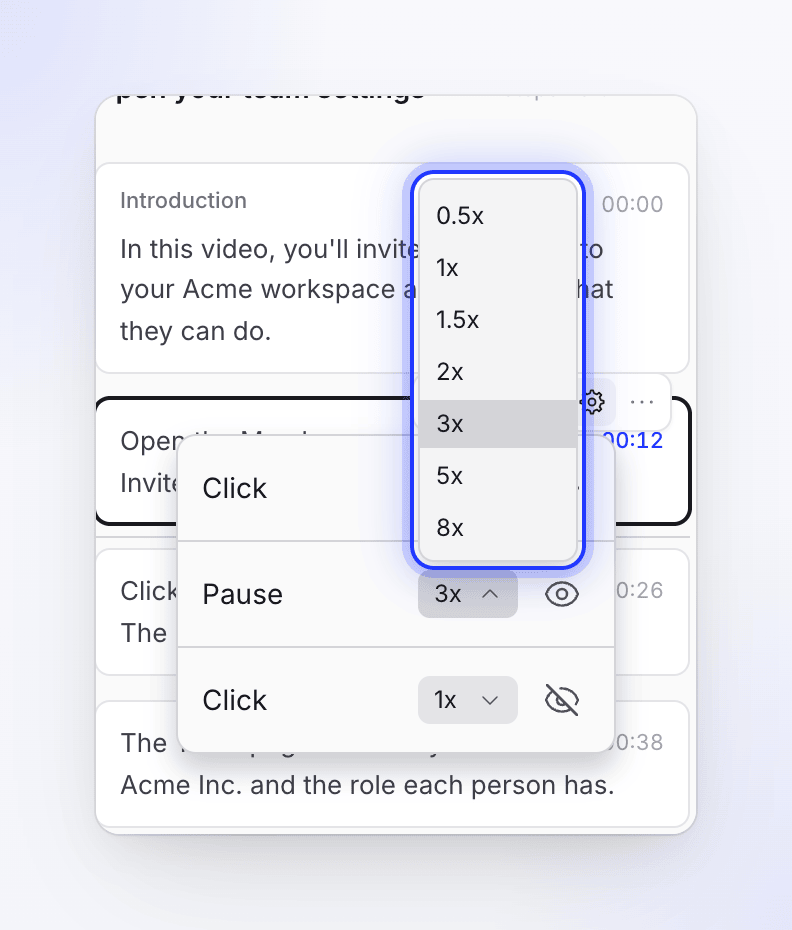
In the Script tab, hover the step and click Event settings (the gear icon). A list of the step's events opens under it, such as Click, Text Input, Scroll or Pause.
Change the speed
Click the speed next to an event (Playback Speed, for example 1x) and pick 0.5x, 1x, 1.5x, 2x, 3x, 5x or 8x.
Hide an event
Click the eye button (Hide event from video). Click it again (Show event in video) to bring it back.
Each change is saved as you make it. The narration stays as it is. Hiding an event hides it in every language of the video, because all languages share the same recording.
To get the newer, finer controls, record the video again with the current desktop app. See Update the desktop app.