

Use keyboard shortcuts while recording
Every Clevera desktop app keyboard shortcut on macOS and Windows — pause, restart, cancel, finish, speaker notes, hide controls — and how to change or turn them off.
Keyboard shortcuts let you control a recording without moving your cursor to the control bar, so the video doesn't show a detour to the edge of the screen and you don't click something by accident. The shortcuts work in any app, as long as Clevera is running.
Default shortcuts
| Action | Shortcut | Works |
|---|---|---|
| Pause / Resume recording | ⌘ ⌥ ⇧ P | While recording |
| Restart recording | ⌘ ⌥ ⇧ R | While recording |
| Cancel recording | ⌘ ⌥ ⇧ X | While recording |
| Complete recording | ⌘ ⌥ ⇧ Return | While recording |
| Show / hide speaker notes | ⌘ ⌥ ⇧ N | Any time |
| Show / hide recording controls | ⌘ ⌥ ⇧ C | While recording |
⌘ is Command, ⌥ is Option and ⇧ is Shift.
| Action | Shortcut | Works |
|---|---|---|
| Pause / Resume recording | Ctrl Alt Shift P | While recording |
| Restart recording | Ctrl Alt Shift R | While recording |
| Cancel recording | Ctrl Alt Shift X | While recording |
| Complete recording | Ctrl Alt Shift Enter | While recording |
| Show / hide speaker notes | Ctrl Alt Shift N | Any time |
| Show / hide recording controls | Ctrl Alt Shift C | While recording |
What each one does:
- Pause / Resume recording — pause the current take when you need a moment, then resume. Paused time isn't recorded.
- Restart recording — discard the current take and start fresh.
- Cancel recording — delete the active recording.
- Complete recording — finish the recording and start uploading it.
- Show / hide speaker notes — open or hide your private speaker notes.
- Show / hide recording controls — hide the control bar, then bring it back. The recording keeps running.
There is no shortcut to start a recording or open the recording window. Start from the recording window, the Mac menu bar icon or the Windows tray icon.
Change or turn off a shortcut
Open Keyboard shortcuts
In the recording window, click More → Keyboard Shortcuts. On a Mac you can also use the Clevera menu → Keyboard shortcuts, or the menu bar icon → Keyboard Shortcuts....
Click the shortcut you want to change
Each action has a row with its description, the current shortcut and a checkbox. Click the shortcut. The field changes to Press keys....
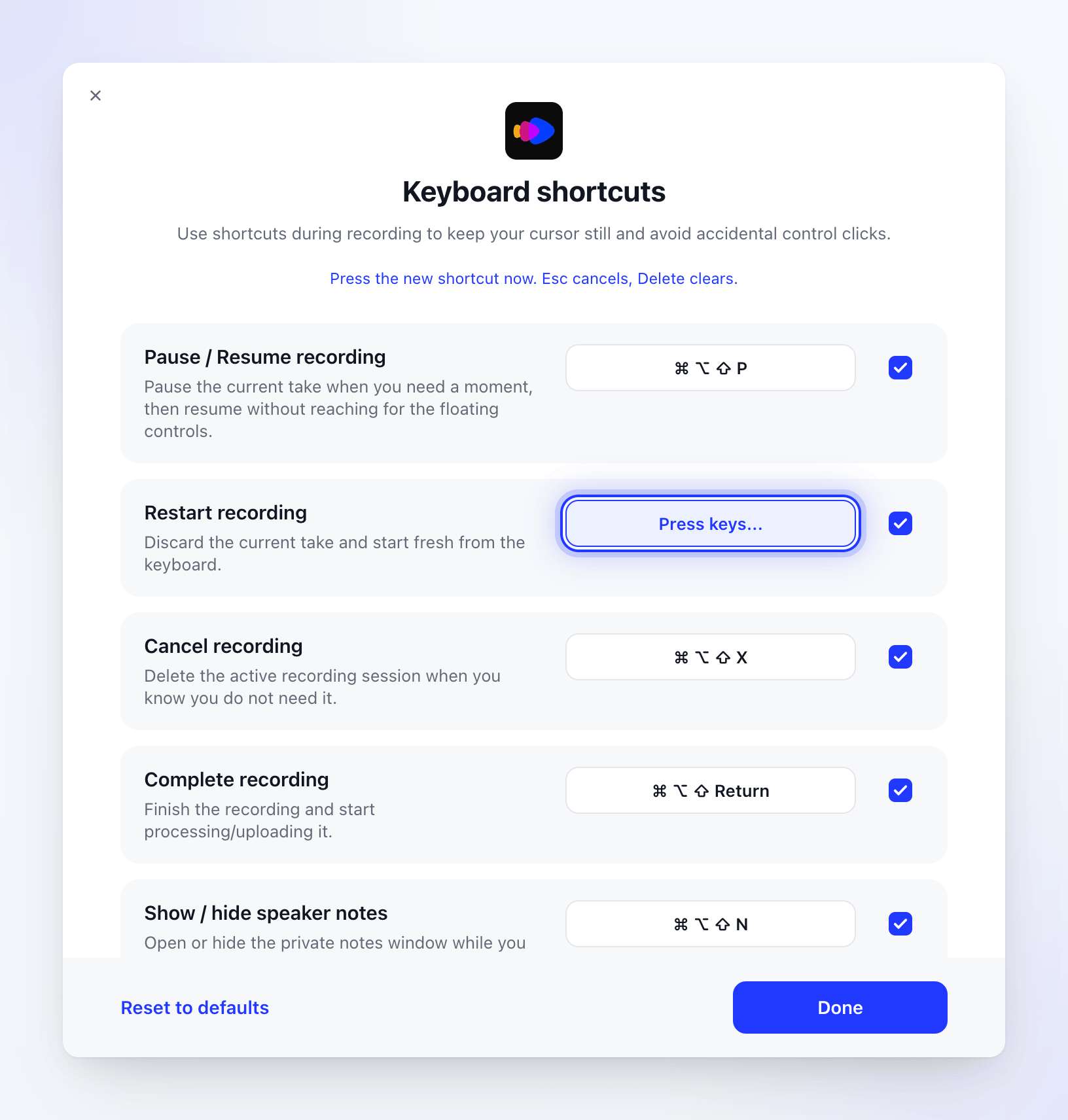
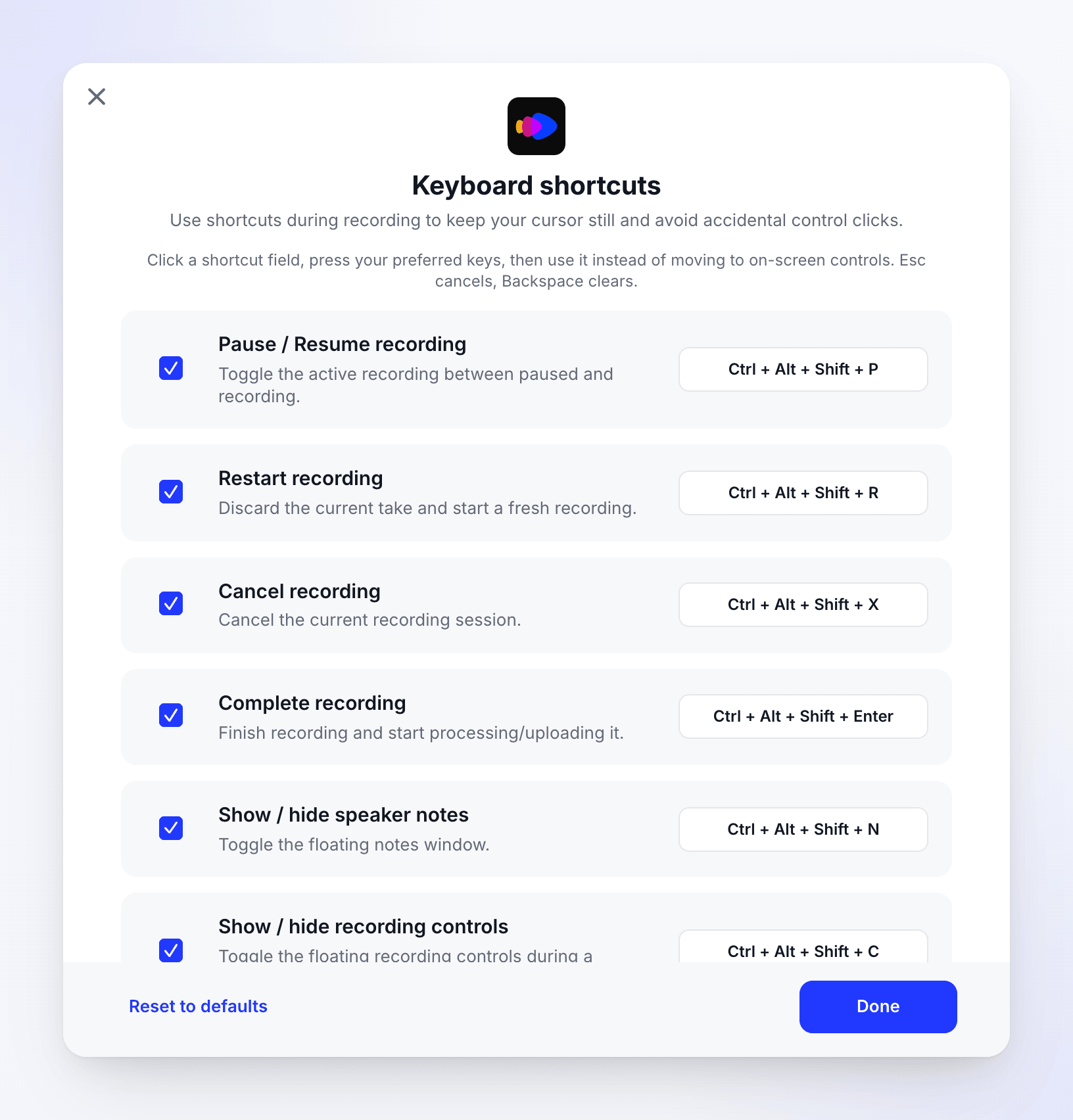
The default shortcuts on Windows. The list scrolls. The Windows window works the same way. A cleared shortcut shows Not set.
Press the new keys
Hold at least one modifier key and press a key. The status line confirms "Shortcut saved."
- Press Esc to cancel without changing anything.
- To clear the shortcut, press Delete on a Mac or Backspace on Windows. The action then has no shortcut.
Turn a shortcut on or off
Clear the checkbox at the end of a row to turn that shortcut off without losing it. Select it again to turn it back on.
Click Done
To go back to the original shortcuts, click Reset to defaults ("Shortcuts reset to defaults."). On Windows, confirm "Reset all shortcuts to the recommended defaults?" first.
Messages you may see
| Message | Meaning |
|---|---|
| "Add at least one modifier, such as ⌘, ⌥, ⌃, or ⇧." (Mac) or "Add at least one modifier, such as Ctrl + Alt + Shift." (Windows) | A shortcut needs a modifier key. Hold one or more while pressing the key. |
| "Already used by "Pause / Resume recording". Pick a different shortcut." | Another Clevera action already uses those keys. Choose different keys, or change the other action first. |
| Shortcut already used (Windows, when you turn a shortcut back on) | Another action now uses those keys. Change one of them before turning it on. |
| "Shortcut saved." | The new shortcut works straight away. |
Shortcuts are saved for your user account on this computer, not for your Clevera account.
Other keys
| Where | Key | Does |
|---|---|---|
| Area selection | Return (Mac) or Enter (Windows) | Starts recording the selected area |
| Area selection, target card | Esc | Cancels and closes the overlay |
| Anywhere in Clevera (Mac) | ⌘ Q | Quits Clevera |
| Anywhere in Clevera (Mac) | ⌘ ? | Opens Clevera Help |