

Fix what's missing when you press Generate
When something is missing, Generate points at the control that fixes it and says why. Here is every message you can see on the Compose page when you press Generate, what it means and how to fix it.
Generate is never greyed out because something is missing. When you press it and the video can't start yet, a short message appears next to the control that fixes it (the + button, the brief, a file tile or a pill), and that control is highlighted. Fix it and press Generate again.
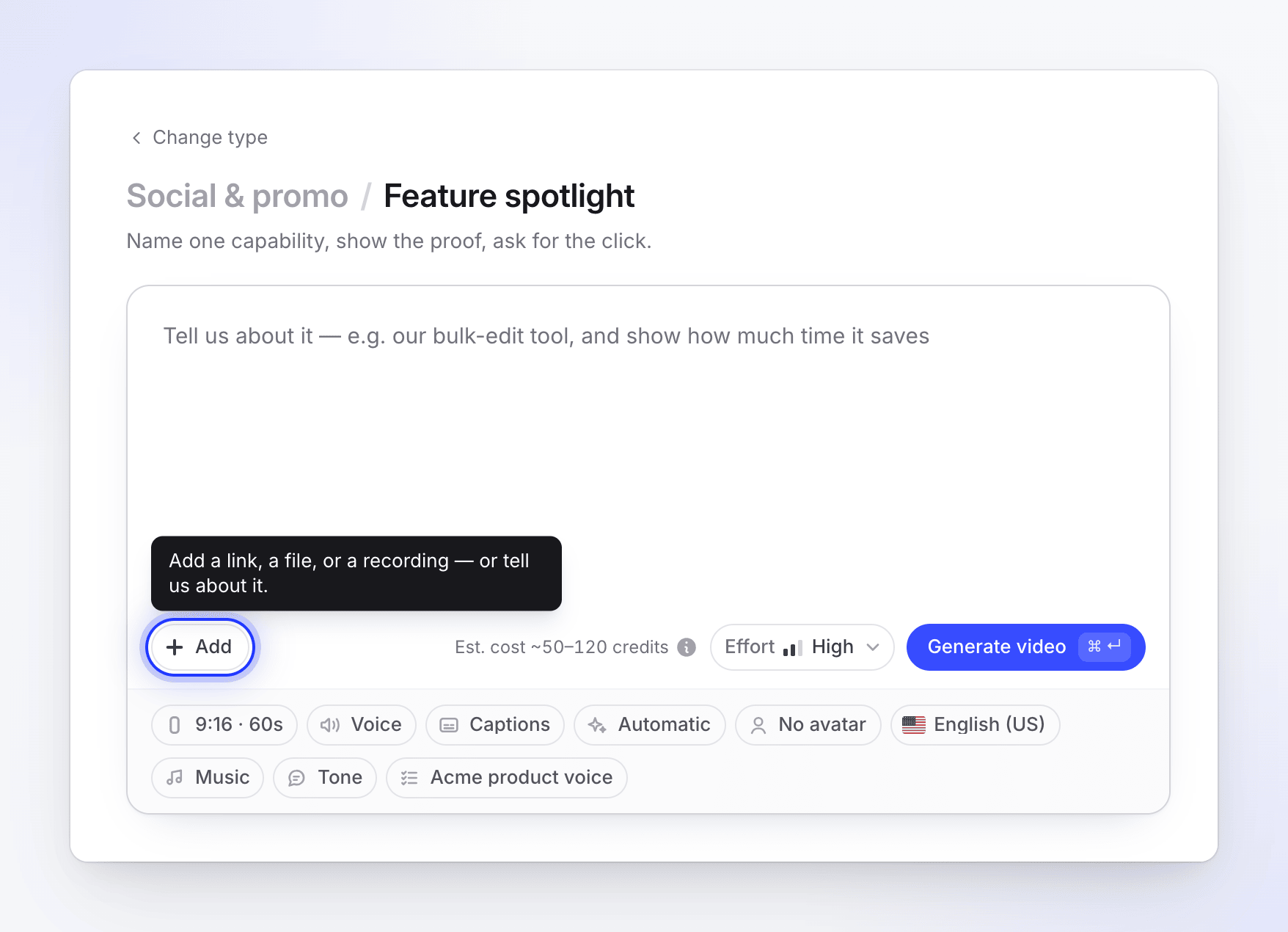
Something to work from
| Message | Where it points | Fix |
|---|---|---|
| "Add a link, a file, or a recording — or tell us about it." | The + button | Social clips: add any material, or write a brief. |
| "Add a video first — record, upload, or choose from your library." | The + button | How-to, demo, polish and article need a video. How-to and demo can use pictures or PDF pages instead. |
| "A little more — a couple of sentences is enough." | The brief | Your brief is under its minimum: 40 characters for Start from scratch, 100 for a social clip with nothing attached. See Write a brief that gets a good video. |
| "Give the video a title." | The Title field | Styled for sharing needs a title. |
Files still on their way
| Message | Fix |
|---|---|
| "Wait for the upload to finish." | A video is still uploading or processing. Wait for its tile to finish. |
| "Wait for this file to finish uploading." | A picture or PDF is still uploading. |
| "Your PDF is still being read — one moment." | How-to and demo read a PDF before they can show its pages. It takes a few seconds. |
| "This upload failed — try again or remove it." | Retry the video's tile, or remove it. |
| "This file didn't upload — retry it or remove it." | Retry the picture or PDF tile, or remove it. |
Recordings and research still running
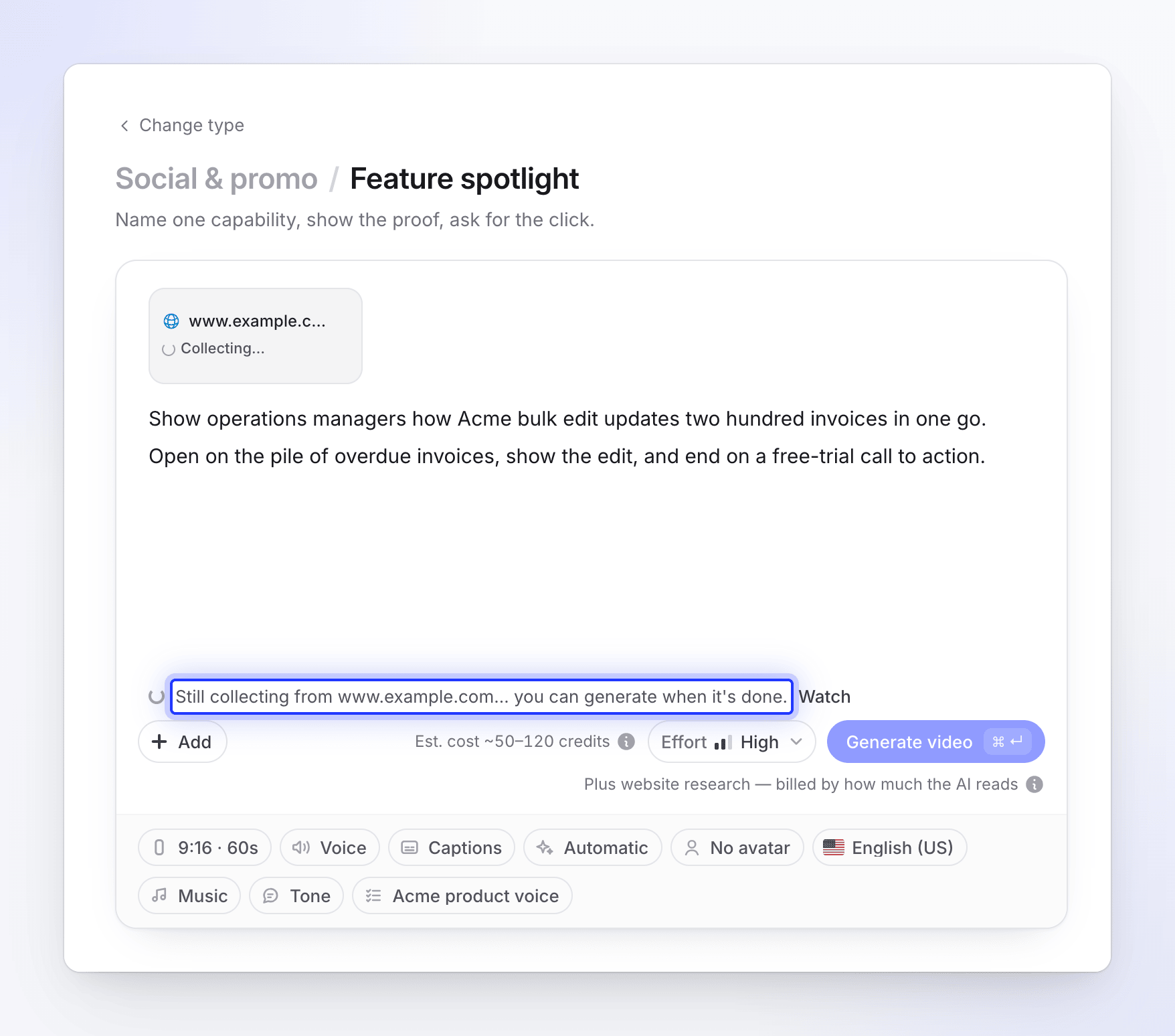
While Record with AI or Research a website is still working, Generate waits and the line under the box says why. These are the only times Generate can't be pressed.
| Message | What to do |
|---|---|
| "Still recording example.com… you can generate when it's done." | Wait, or click Watch to see it. |
| "Still saving the recording of example.com… you can generate when it's done." | Wait a moment. |
| "Still recovering the recording of example.com… you can generate when it's done." | The recording hit a problem and is being rescued. Wait. |
| "The recording of example.com is waiting for you." | The AI needs you, for example to sign in. Click Watch and take over. |
| "The recording of example.com didn't finish." | Click Try again or Remove. See what happened shows why. |
| "We can't check on the recording of example.com right now." | Click Check again. "You can generate once we know it has finished." |
| "Still collecting from example.com… you can generate when it's done." | Website research is running. Wait, or click Watch. |
| "Still reading what we collected from example.com… you can generate when it's done." | Nearly done. |
| "We couldn't read example.com." | Click Try again, or remove the link. See Fix a website the AI couldn't read. |
| "Recording with AI didn't finish — retry it or remove it." | Retry the recording's tile or remove it. |
Choices you still need to make
| Message | Fix |
|---|---|
| "Choose an avatar — this style is built around one." | The AI avatar type needs a presenter. Click the AI avatar pill and pick one. |
| "Choose an avatar before generating." | You turned the avatar on but haven't picked a face. |
| "Choose a template." | How-to, demo and polish need a video template. Click the Template pill. |
| "Create a template to continue." | No template is available yet. Create one from the Template pill. |
| "No video template is available for this type yet." | Contact support. |
| A message about the custom size | Your Custom size is outside the allowed range (256–3,840 pixels a side, shapes between 1:3 and 3:1). Adjust it in the Format pill. |
If pictures or PDFs on a how-to or demo still need an answer, Generate opens A few quick questions first. See Tell the AI how to use a picture or PDF.
Messages after the press
These come back from Clevera after you press Generate.
| Message | What to do |
|---|---|
| "Add a recording to make this video." | Attach a recording. |
| "This recording is still processing. Please wait until it is ready." | Wait for the recording to finish processing. |
| "Only a how-to guide or a product demo can be made from pictures and PDFs alone." | Add a video, or switch to How-to or Product demo with Change type. |
| "Only a how-to guide or a product demo can be made from several videos." | Keep one video, or switch type. |
| "Polish works on your video alone. Remove the pictures, PDFs and links and try again." | Remove the other materials. |
| "Links aren't available for this video type yet. Remove the link and try again." | Website research is for social clips only. |
| "Please verify your email address before your first generation. Check your inbox for the verification link." | Click the link in the verification email, then try again. |
| "This needs about N credits and you have M left. Buy more credits or upgrade your plan in Billing to continue." | A video needs enough credits to start. Add credits, then press Generate again. See I ran out of credits. |
| "You have used all your credits for this billing period. Buy more credits or upgrade your plan in Billing to continue. Your included credits renew on your next billing date." | Add credits, or wait for the refill. |
| "You have used this month's Free plan credits. Upgrade to keep creating, or wait for your credits to renew on Nov 3." | Upgrade, or wait for the date shown. |
| "The Free plan makes videos up to 3 minutes. Trim the recording or upgrade to make longer videos." | Use a shorter recording, or upgrade. |
| "The Free plan runs one generation at a time. Wait for the current one to finish, or upgrade to run more at once." | Wait for the running video to finish. |
| "The AI avatar is not included in the Free plan. Upgrade to add one." | Remove the avatar or upgrade. |
| "Free plan generations are paused for the rest of today. Upgrade to a paid plan to keep creating now, or try again tomorrow." | Try again tomorrow, or upgrade. |
| "This video type is temporarily unavailable: … Please try again later." | We've paused this type for a short while. Try later or pick another type. |
| "AI avatars are temporarily unavailable: … Please try again later." | Remove the avatar or try later. |
| "Too many starts in a minute. Wait a moment and try again." | Wait a minute. |
| "This page has been open a long time. Reload it and press Generate again." | Reload the page. Your brief is kept. |
| "We could not reach Clevera. Check your connection and try again." | Check your internet connection. |
| "Something went wrong creating your video. Please try again." | Try again. If it keeps happening, contact support. |
| "Your video has started, but its page did not open. Find it in your library." | Nothing is lost. Open it from In progress in the sidebar or your library. |
While it starts
After a successful press, the button shows what it's doing: "Reading your attachments…", "Starting…", then "Opening…". Then the generation page opens. See Follow your video while it generates.