

Connect WordPress or Ghost to send blog drafts
Connect WordPress with an application password or Ghost with an Admin API key in Autopilot's Connections, then send blog posts from your Content library as drafts. No Autopilot recipe sends blog drafts right now.
Connect your own WordPress or Ghost blog in Autopilot's Connections, and you can send any blog post from your Content library to it as a draft. Clevera only creates and updates drafts there; you publish them on your blog.
Before you start
- Autopilot must be open to your workspace, and you need to be the workspace owner or an admin to connect a blog.
- You need to be able to create a credential on your blog. For WordPress, use an account with the Author role or higher.
- Your blog's address must be public and start with
https://. - What you send is a Blog post: an article made with the Blog post type in Create.
Connect WordPress
Make an application password in WordPress
In WordPress, open Users → Profile. Under Application Passwords, type a name such as "Clevera" and click Add New Application Password. Copy the password WordPress shows. It isn't your sign-in password, and WordPress shows it only once.
Open Connections
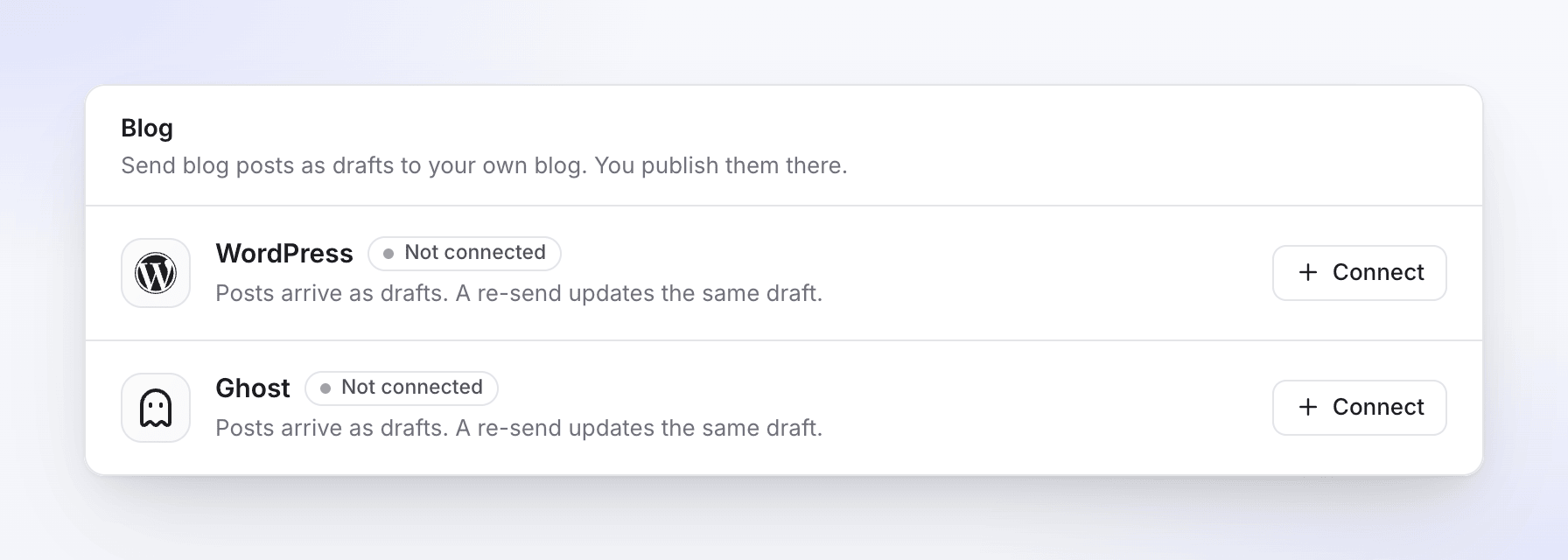
In Autopilot, open Connections under Setup. In the Blog card, click Connect next to WordPress.
Fill in the form
Field What to enter Site address The full address of your site, for example https://example.comUsername Your WordPress username Application password The password you just copied 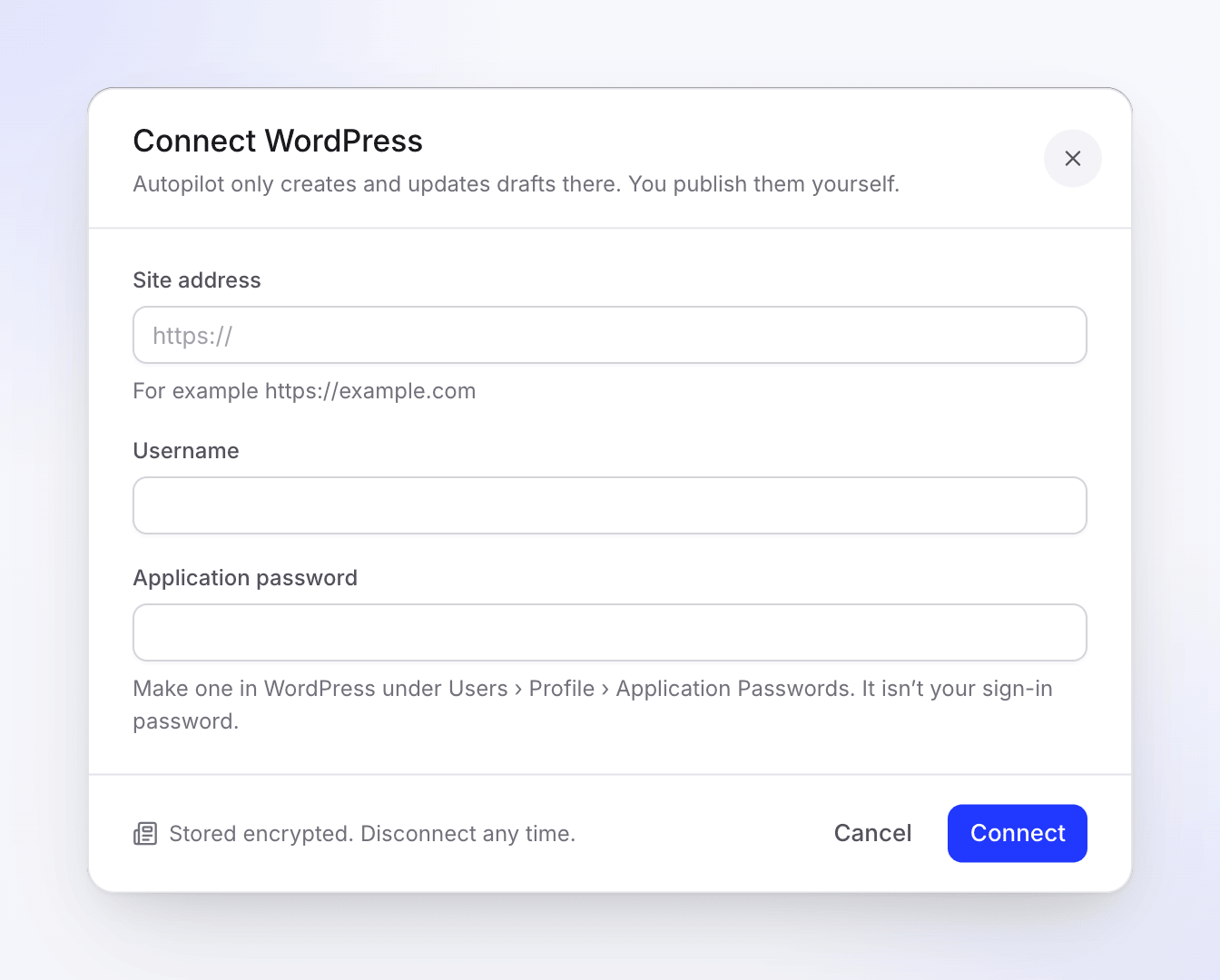
Click Connect. Clevera checks the login before it saves anything.
| Message | What to do |
|---|---|
| "This WordPress user can’t write posts. Use an account with the Author role or higher." | Use an account with more rights, or raise this one's role. |
| "No WordPress site answered at this address. Check it and try again." | Check the address and that the site is public. |
| "WordPress didn’t receive the login. If the username and application password are right, the site or its host blocks application passwords: ask your host to allow them (the Authorization header)." | Ask your host to allow application passwords. |
| "Enter the full address of your site, starting with https://." | Add https:// to the address. |
Connect Ghost
Make an integration in Ghost
In Ghost, open Settings → Integrations and click Add custom integration. Name it, for example "Clevera", and copy its API URL and Admin API key.
Open Connections
In Autopilot, open Connections. In the Blog card, click Connect next to Ghost.
Fill in the form
Paste the API URL and the whole Admin API key (two parts joined by a colon), then click Connect.
If the key is cut short you see "Paste the whole Admin API key, both parts with the colon."
Both forms say "Stored encrypted. Disconnect any time." and "Autopilot only creates and updates drafts there. You publish them yourself." Once connected, the blog shows Connected, with its name and when it was last used. Connect another adds a second blog.
Send a post to your blog
- In Content, find the blog post. Open its ⋯ menu, or open the post and use the ⋯ menu in its top bar.
- Click Send as draft and pick the blog. You see "Sending to WordPress as a draft" (or Ghost), then the post shows Sent to WordPress · draft.
- Open your blog and publish the draft there.
| What you see | What it means |
|---|---|
| Sent to your blog · draft | The post is a draft on your blog. |
| Update draft (next to the blog in the menu) | You sent it before. Sending again updates the same draft. If you already published it on your blog, it stays published. |
| Published on your blog | You published it there. |
| Not sent to your blog | The send failed. Try again. |
The same menu has Export as Markdown and Export as HTML if you'd rather paste it yourself, and Connect a blog when none is connected yet. Pictures go with the post: up to 4, the hero image first.
If a connection stops working
If your blog stops accepting the password or key, for example because you deleted it, the blog shows Access revoked and you get an inbox notice. Make a new password or key and connect again. A blog that is slow or rate limited shows Paused briefly, retrying and needs nothing from you.
Disconnect a blog
- Open Connections in the Autopilot menu.
- Click ⋯ on the blog, then Disconnect.
- Confirm. "Autopilot stops sending drafts there. Drafts already sent stay on your blog."
Disconnecting removes the credential from Clevera and deletes nothing from your blog. Also delete the application password or the integration in WordPress or Ghost so it can't be used again.