

Add an API reference to a doc site
Turn an OpenAPI, Swagger or Postman file or link into endpoint pages on your doc site, with examples, code samples and Try it, or write the endpoints by hand. Covers notes, hiding endpoints, Try it settings, secrets and plan limits.
An API reference turns your API file into pages on your doc site: one page per endpoint, with its parameters, request and response examples, code samples and a Try it button readers use to send a real request. Add one from an OpenAPI, Swagger or Postman file or link, or write the endpoints in Clevera.
Before you start
- Your role: owners, administrators and Content Creators can add an API reference. Owners and administrators also choose the link it syncs from, the schedule, push from CI and whether example values that look like secrets are shown.
- Your file: OpenAPI 3.0 or 3.1, Swagger 2.0, or a Postman collection (v2.0 or v2.1), as JSON or YAML. Uploads go up to 25 MB; a link can point at a file up to 40 MB. No file? You can write the endpoints by hand instead.
- Your plan sets how many references a site has and how many endpoints each one shows. See Plans and limits.
Add an API reference
Open Add pages
On your doc site, open Pages and click Add pages. Pick the place under Add to, choose API reference and click Continue. You can also click Add API reference on the Do more card of the site's overview.
Choose how to start
The Add an API reference dialog offers three ways under How to start:
Option What it does From a file or link Upload an OpenAPI, Swagger or Postman file, or paste a link to one. You can also paste the file's text. Write it here Describe your endpoints in a form. No file needed. See Write endpoints by hand. Paste a curl command Turn a curl command into an endpoint. For a file, drop it on the box or click Choose file. For a link, paste it in the same box: the link must be public, and the file it points at must be on an
https://address. With a link you can turn on Keep this in sync and pick How often: Don't refresh automatically, Once a day or Every hour (see Keep an API reference up to date). Uploaded files don't refresh by themselves; you upload a new one when your API changes.Check the report
Click Continue. Clevera reads the file and shows a report: the API's name, version and format, how many endpoints, groups, webhooks and servers it has, and how readers sign in.
- Needs fixing lists what stops the file from being used, such as a file that isn't JSON or YAML, or one with no endpoints. Fix the file and choose it again.
- Worth improving lists things that don't block you, such as endpoints with no description, no servers, or no sign-in method described. Endpoints with no example get one made from their fields, marked Generated example on the page.
- Over your plan shows when the file has more endpoints than your plan includes (see Plans and limits).
A Postman collection is converted to an API file first; its request bodies become examples and field types are guessed from them. Use Copy report or Download report (.txt) to send the findings to whoever maintains the file.
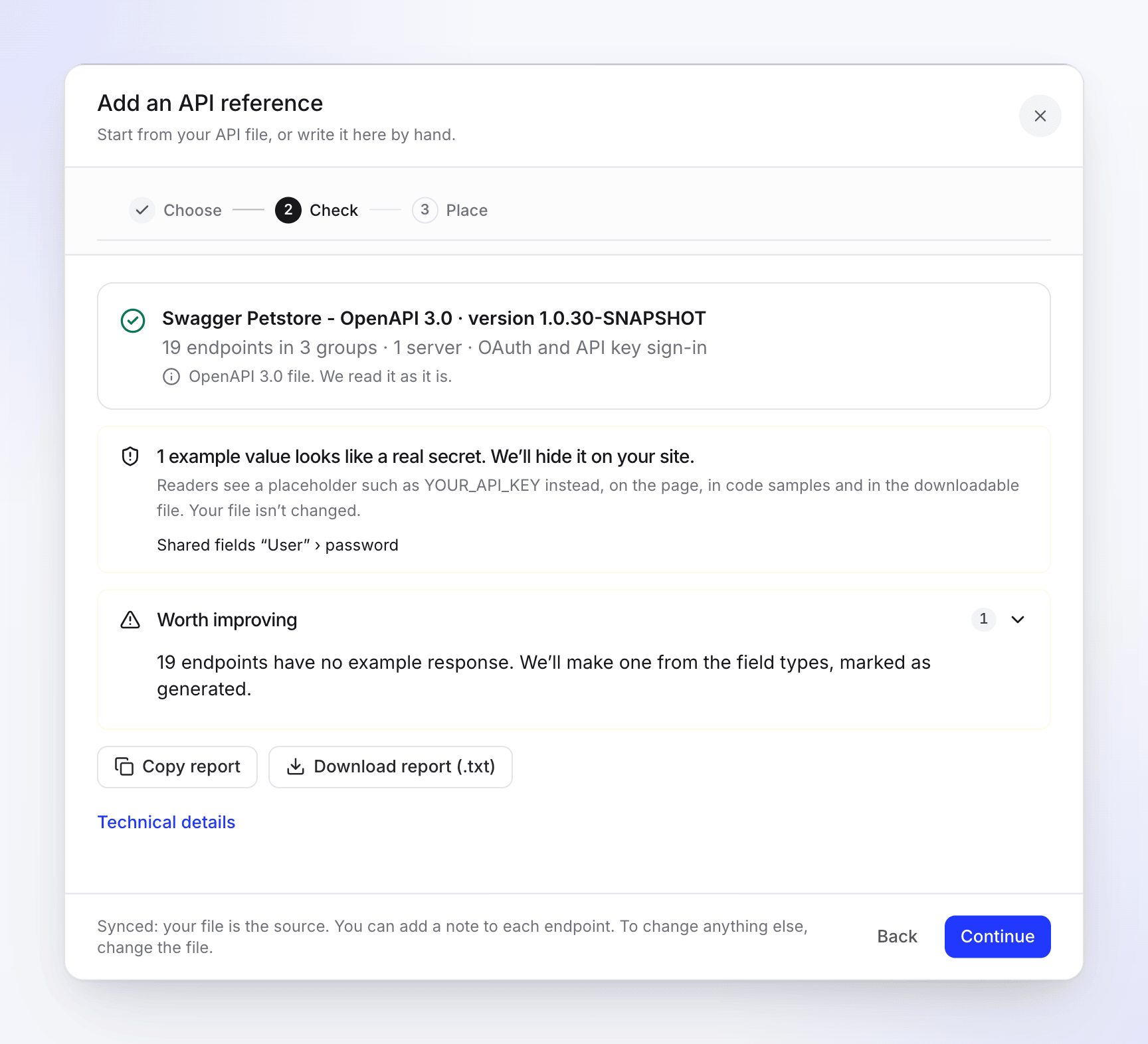
The report for an OpenAPI 3.0 file Place it on your site
Set the Title (taken from the file), Where on your site (At the end of the sidebar or before one of your sections) and the Address, the part of the link after your domain, such as
/api. Then choose:- Show readers a Try it button: on when the file lists a server. "Readers send requests with their own keys. We never store them."
- Publish now: off by default, so the new pages wait in your unpublished changes until you publish.
Click Add API reference. Clevera opens the reference on its Endpoints tab.
Synced or edited here is a choice you make once. A reference made from a file or link is Synced: "your file is the source. You can add a note to each endpoint. To change anything else, change the file." One written in the form is Edited here: you write the endpoints in Clevera and can download them as an API file any time.
What readers get
Each endpoint becomes its own page in a section of your site, with one sidebar group per tag in your file and Webhooks at the end. Readers can filter the endpoints from the sidebar.
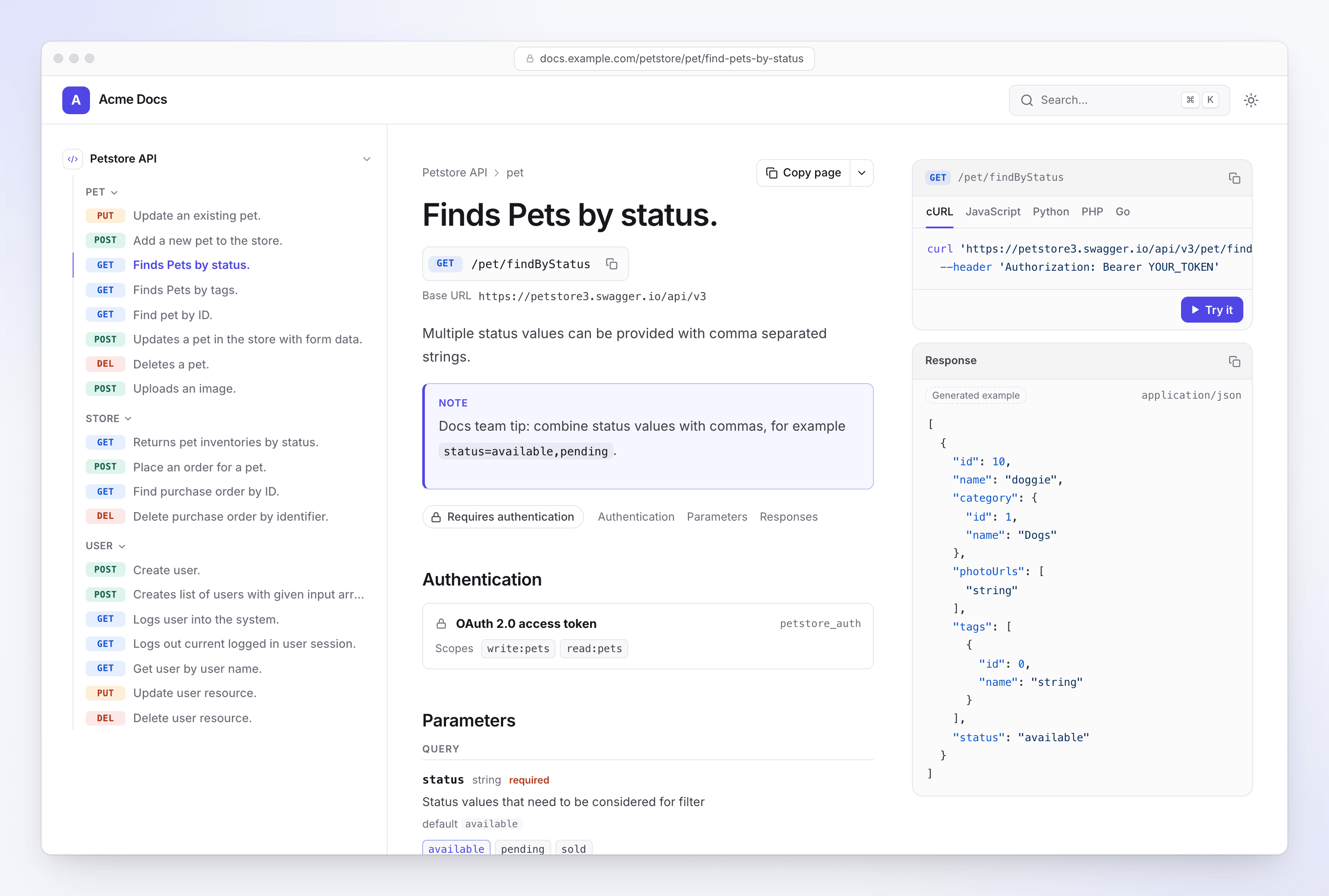
Every endpoint page shows:
- The method and path, the description from your file and your note, if you added one.
- Authentication, Parameters, Request body and Responses, with nested fields that open and close.
- Request and response examples and code samples in your chosen languages, with a copy button.
- Try it, when it's on: readers fill in the parameters, add their key and click Send to see the real response.
The section's first page lists the servers, how to sign in and every group. Endpoint pages are in your site's search, answered from by the doc site assistant, and included in the Markdown copy of each page and in llms.txt for AI tools. API pages are in your default language only; other languages show the same page.
Manage endpoints
Open the reference from Pages to see three tabs: Endpoints, Sources & changes (Import & export for an edited reference) and Settings.
On Endpoints, search by path or title, pick a group, and filter by Has note, Hidden, Missing description or Changed. Each endpoint's ⋯ menu has Hide or Show, Turn Try it off or Turn Try it on, Copy link and Open as Markdown. Tick several endpoints to hide, show or switch Try it for all of them at once. Organise changes the order of the groups and endpoints; the order stays when your file syncs again.
Click an endpoint to open it:
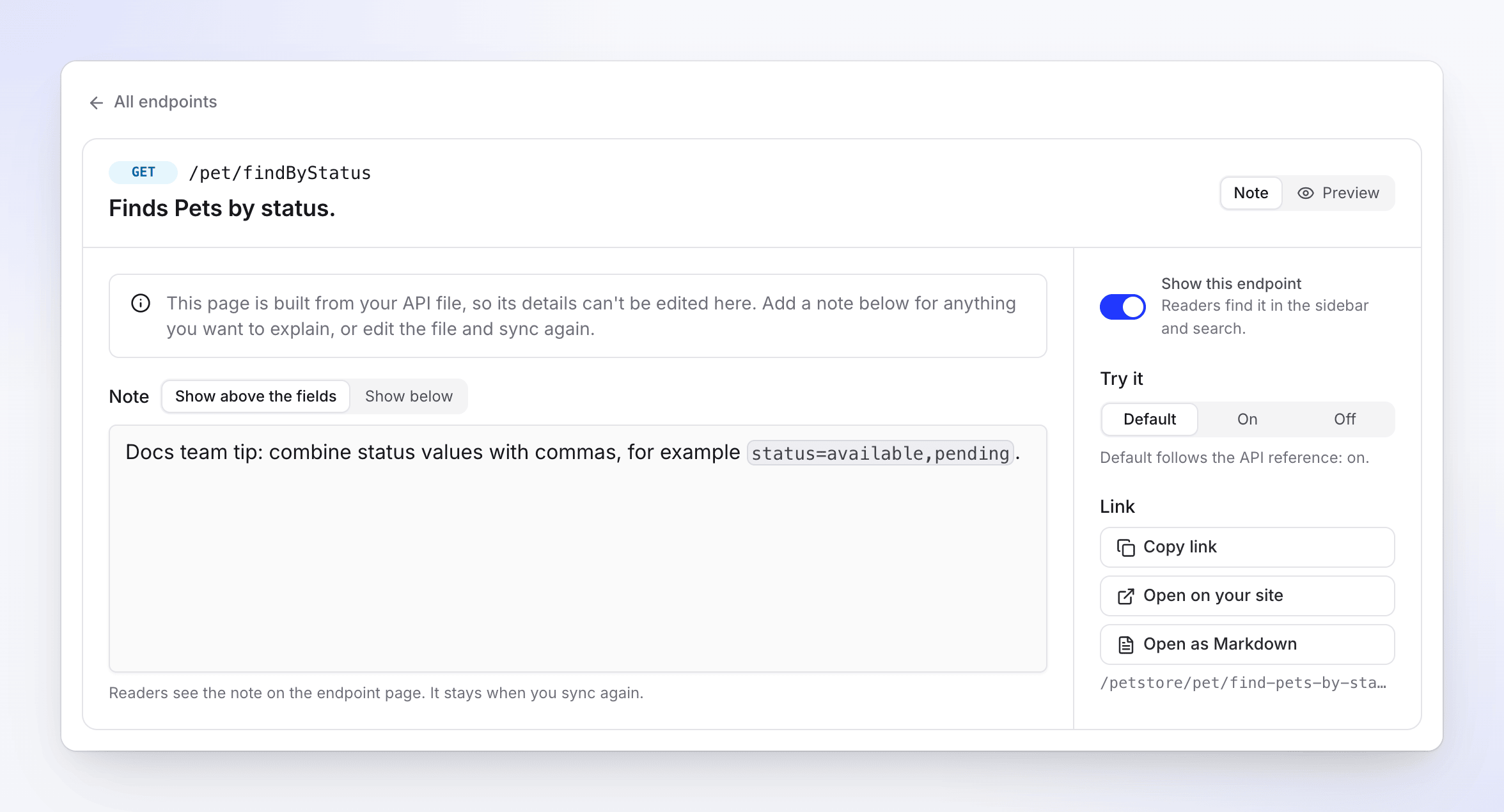
| Control | What it does |
|---|---|
| Note | Your own words on the endpoint page, written in Markdown. It saves as you type and stays when you sync again. Choose Show above the fields or Show below. |
| Show this endpoint | Off: hidden from readers, not in the sidebar, search or downloads, and its address shows the site's not-found page. |
| Try it | Default follows the reference's setting, or On / Off for this endpoint only. With Try it off, readers see the code samples only. |
| Preview | The page as readers get it once you publish. |
In a synced reference, the endpoint's own details come from your file: "This page is built from your API file, so its details can't be edited here. Add a note below for anything you want to explain, or edit the file and sync again." An endpoint marked x-hidden in your file starts hidden; Follow the file again undoes your choice. Endpoints marked x-internal never reach Clevera and don't count toward your plan.
Changes on these tabs show on your site after you publish. See Publish a doc site.
Settings
| Card | What you set |
|---|---|
| General | The title, the Address and Show in the sidebar. Changing the address of published pages adds redirects from the old links. With Show in the sidebar off, the pages still open by their address: point a header link at them in Navigation. |
| Try it | Let readers try endpoints, the Servers readers can call, How requests are sent and what Readers can send. See below. |
| Authentication | How readers sign in, as your file describes it. |
| Downloads | Let readers download the API file. Off by default. The downloadable file leaves out hidden endpoints and the servers readers can't call. |
| Code samples | Which languages endpoint pages show (up to 8) and the one Shown first: cURL, JavaScript, Python, PHP and Go to start with, plus Ruby, Java, C# and Swift. |
| Changelog | Draft a changelog entry when you apply changes. See Keep an API reference up to date. |
| Danger zone | Remove this API reference. Download the API file first if you may need it again. |
A synced reference also has Edit here instead: Take over editing stops syncing and makes the endpoints editable in Clevera. Notes are kept. This can't be undone, so download the current file first if you may want it.
Try it
Let readers try endpoints is on by default when your file lists a server, and each endpoint can still turn it on or off for itself.
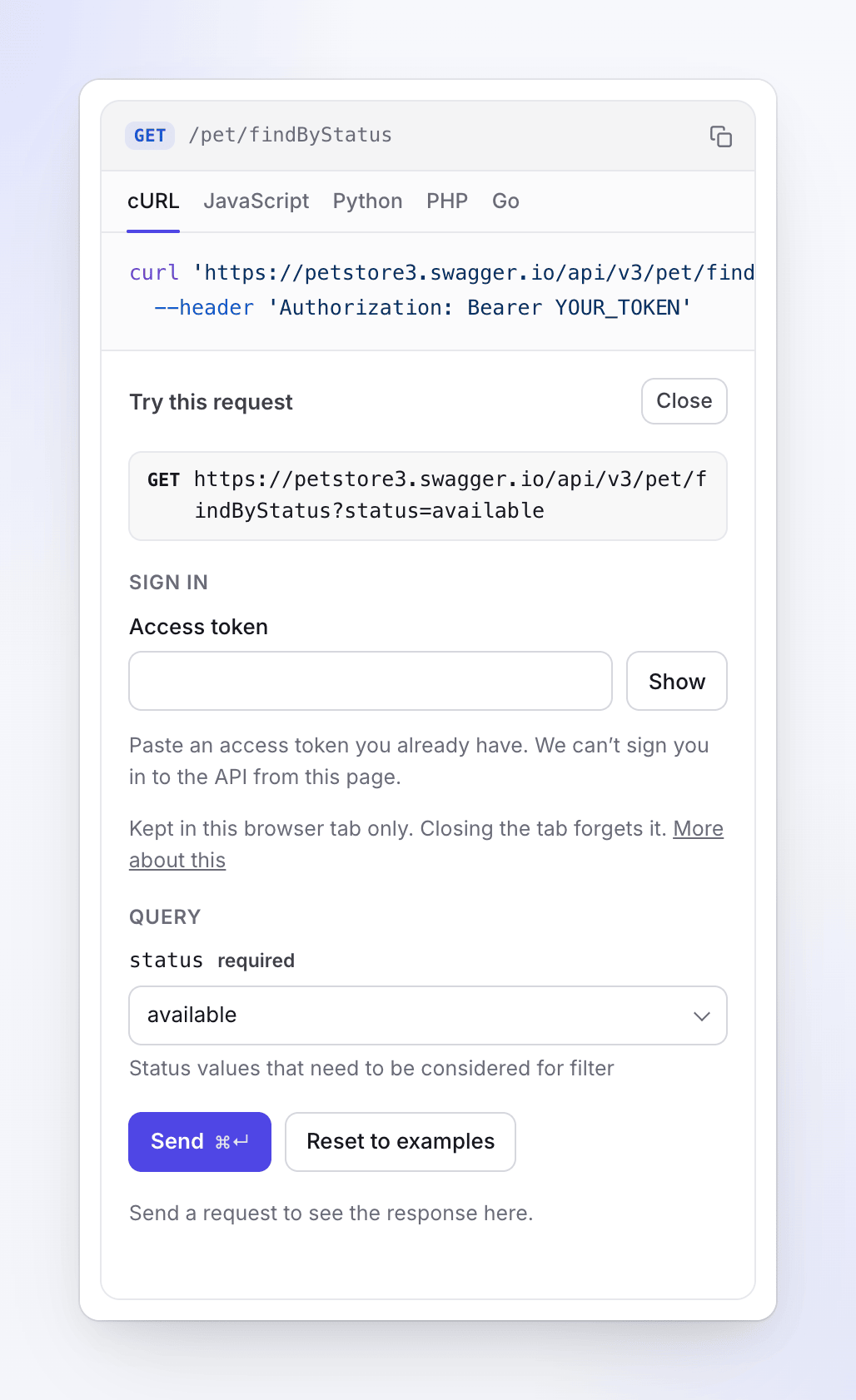
- Servers readers can call: the
httpsservers in your file start on. Turn off any readers shouldn't send real requests to, or Add a server. A server onhttpstarts off, because browsers block those requests from your docs page. - How requests are sent:
| Option | How it works |
|---|---|
| Automatic (recommended) | Reading requests go straight from the reader's browser; when your API blocks calls from other websites (CORS) or a request changes data, it goes through Clevera's proxy. |
| Directly from the reader's browser | Your API must allow cross-origin requests (CORS). Clevera never sees the request. |
| Through Clevera's proxy | Works with any API. Clevera sees the request while it passes through; it isn't stored. |
- Readers can send: Reading and writing (all) (the default) or Only reading (GET). With reading only, requests that change data show their code samples only. Readers are asked to confirm before a request that changes or deletes data.
The proxy only calls the servers you allowed, never private network addresses, waits up to 10 seconds for an answer and passes on responses up to 5 MB.
Example values that look like secrets
When Clevera reads your file, it looks for example values that look like real keys, tokens or passwords. If it finds any, the report and the Sources & changes tab say how many and where, and readers see a placeholder such as YOUR_API_KEY instead: on the page, in code samples and in the downloadable file. Your file isn't changed.
If they are only examples, an owner or administrator can click Show them anyway. Hide them again brings the placeholders back.
Write endpoints by hand
Choose Write it here in the dialog, then fill in Your API: a name, the API address (where your API answers requests; optional) and How do readers sign in?: No sign-in, API key in a header, Bearer token, Username and password (Basic) or OAuth token (readers paste one). Then place it like any reference.
On the Endpoints tab, click Add endpoint (or Add webhook). The form has the endpoint's Basics (title, method, path, group, what it does), Sign-in, Parameters, Request body and Responses, with a live Preview of the page. Fields are a tree you edit in plain words (text, number, true/false, lists, groups of fields); Paste an example builds the fields from a JSON example, and JSON Schema shows the schema itself. A group of fields you use often can be saved and reused.
Paste a curl command turns a command you already use into an endpoint. Clevera reads it in your browser and removes keys and tokens from it: "We removed your token from the example. Readers use their own."
An edited reference has Import & export instead of Sources & changes: Import from a file adds a file's endpoints to yours (Add to existing) or replaces them (Replace everything), and you can download the reference as OpenAPI 3.1 in JSON or YAML.
Plans and limits
| Free | Starter | Pro, Business and Custom | |
|---|---|---|---|
| API references per site | 1 | 1 | 5 |
| Endpoints per reference | 25 | 300 | Unlimited |
| Refresh from a link | Not automatic | Once a day | Every hour |
| Push from CI | No | No | Yes |
Endpoint pages don't count toward your site's page limit. When a file has more endpoints than your plan includes, choose Upgrade to show all or Choose 25 to show (the number is your plan's). The others are hidden because of your plan, not deleted, and come back when your plan allows them. After a downgrade, nothing is deleted: endpoints and references over the limit stay on your site as they are, read-only.
Troubleshooting
| Message | What to do |
|---|---|
| "This file is larger than 25 MB. Put it online and paste its link instead." | Click Use a link instead and paste a public link to the file (up to 40 MB). |
| "We support OpenAPI 3.x, Swagger 2.0 and Postman collections. Export your API in one of those." | Export the API in one of those formats from the tool you use. |
| "Add at least one endpoint to the file, then choose it again." | The file has no endpoints, or every one is marked x-internal. |
| "No servers are listed. Readers can't use Try it until you add one." | Click Add a server, or add one later under Settings → Try it. |
| "Try it is on, but no server is allowed. Readers will see no Try it button." | Turn on at least one server under Servers readers can call. |
| A reader sees "The request didn't reach a response. This is usually because the API doesn't allow calls from this website (CORS), or the server is down." | Allow your doc site's address in your API's CORS settings, or set How requests are sent to Automatic (recommended) or Through Clevera's proxy. |
| "You've reached your API references" | Your plan's references for this site are used. Remove one or upgrade. |