

Restore an earlier version of an article
Every change to an article is kept in revision history. Find a version by person, source, name or text, preview it, compare it with the current article, and restore it, with Undo restore if you change your mind.
Clevera keeps a history of every article: your edits, your teammates' edits, the assistant's changes and the original generated version. You can preview any version, see exactly what changed, name or pin the ones that matter, and restore one in a click. Restoring never deletes anything, so you can always undo it.
Before you start
- You need edit access to the article to open its history and restore. See Write an article together with your team for who can edit.
- Each language of an article has its own history.
- For videos, see Restore an earlier version of a video.
Restore a version
Open revision history
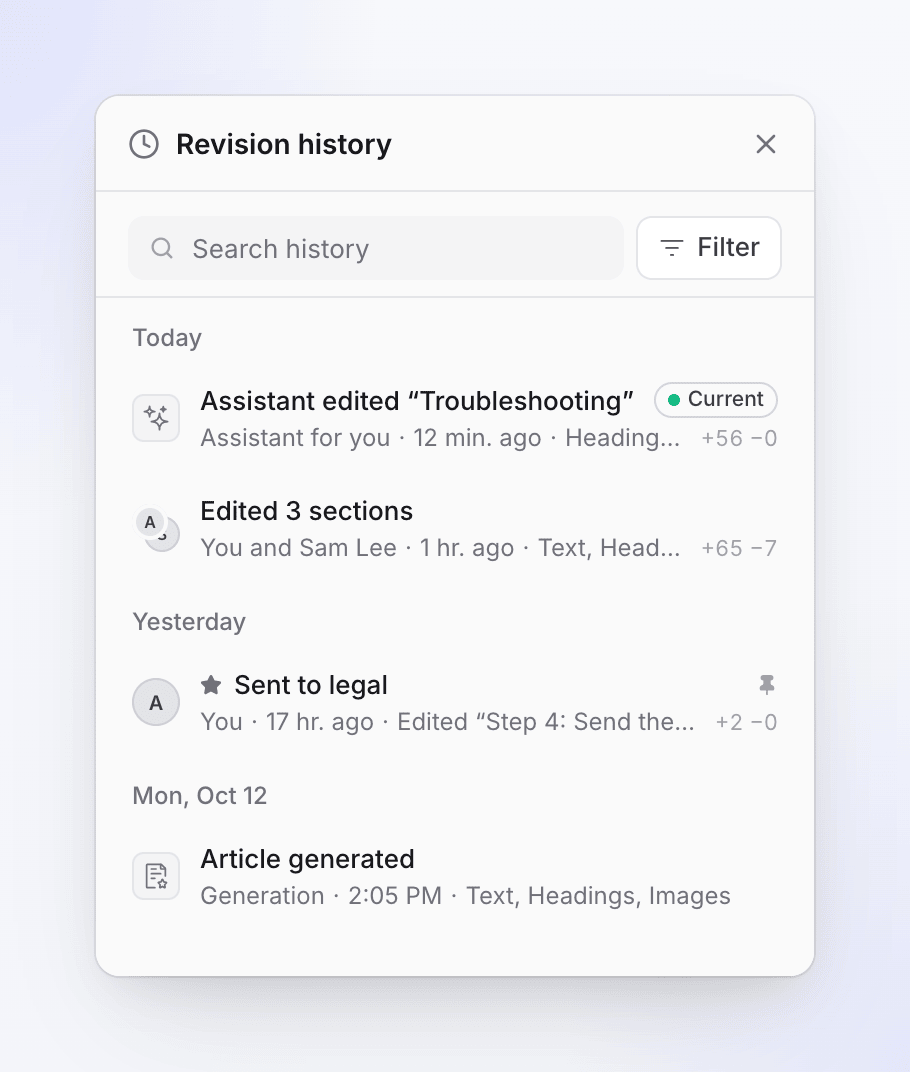
In the editor's top bar, click the history (clock) button, or choose ⋯ → Revision history. The keyboard shortcut is ⌘⌥⇧H on Mac and Ctrl+Alt+Shift+H on Windows. The Revision history panel opens on the right, newest first.
Find the version
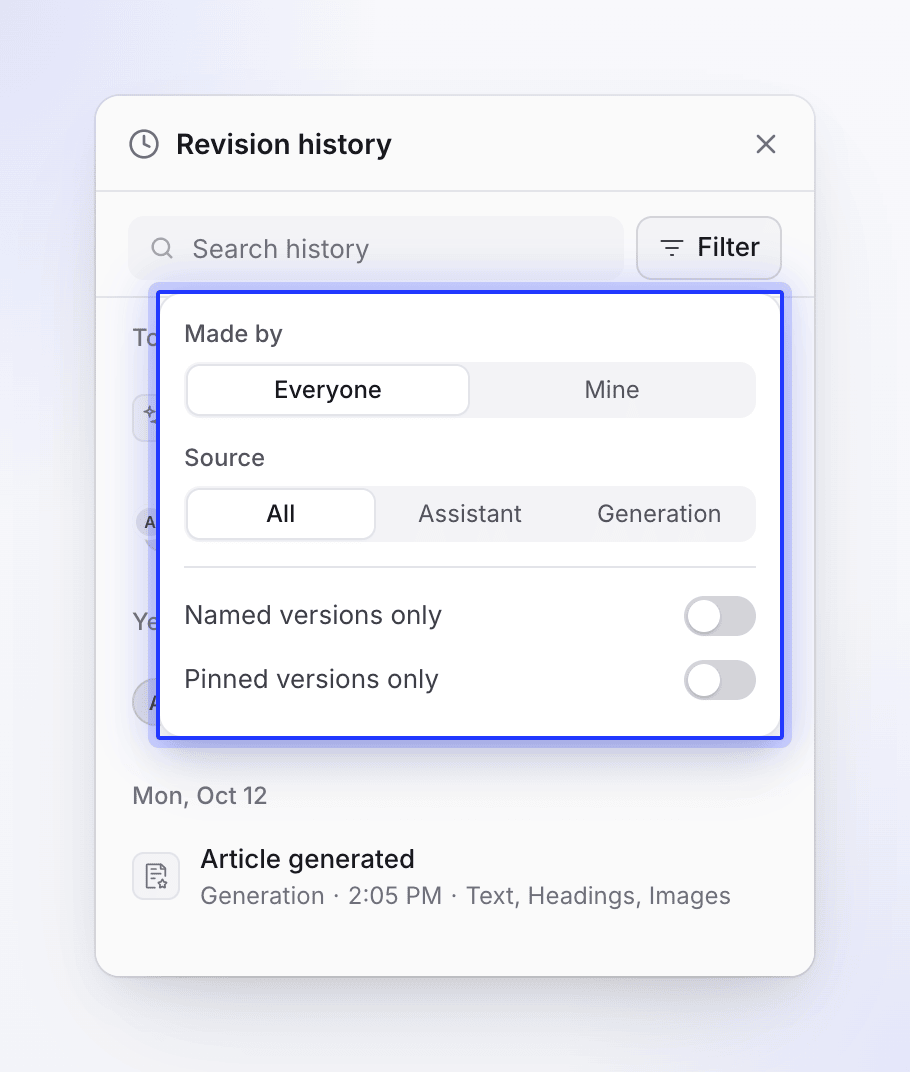
Scroll the list, type in Search history, or click Filter (see Find a version). Each row shows what changed, who made the change, when, and which parts of the article it touched.
Preview it
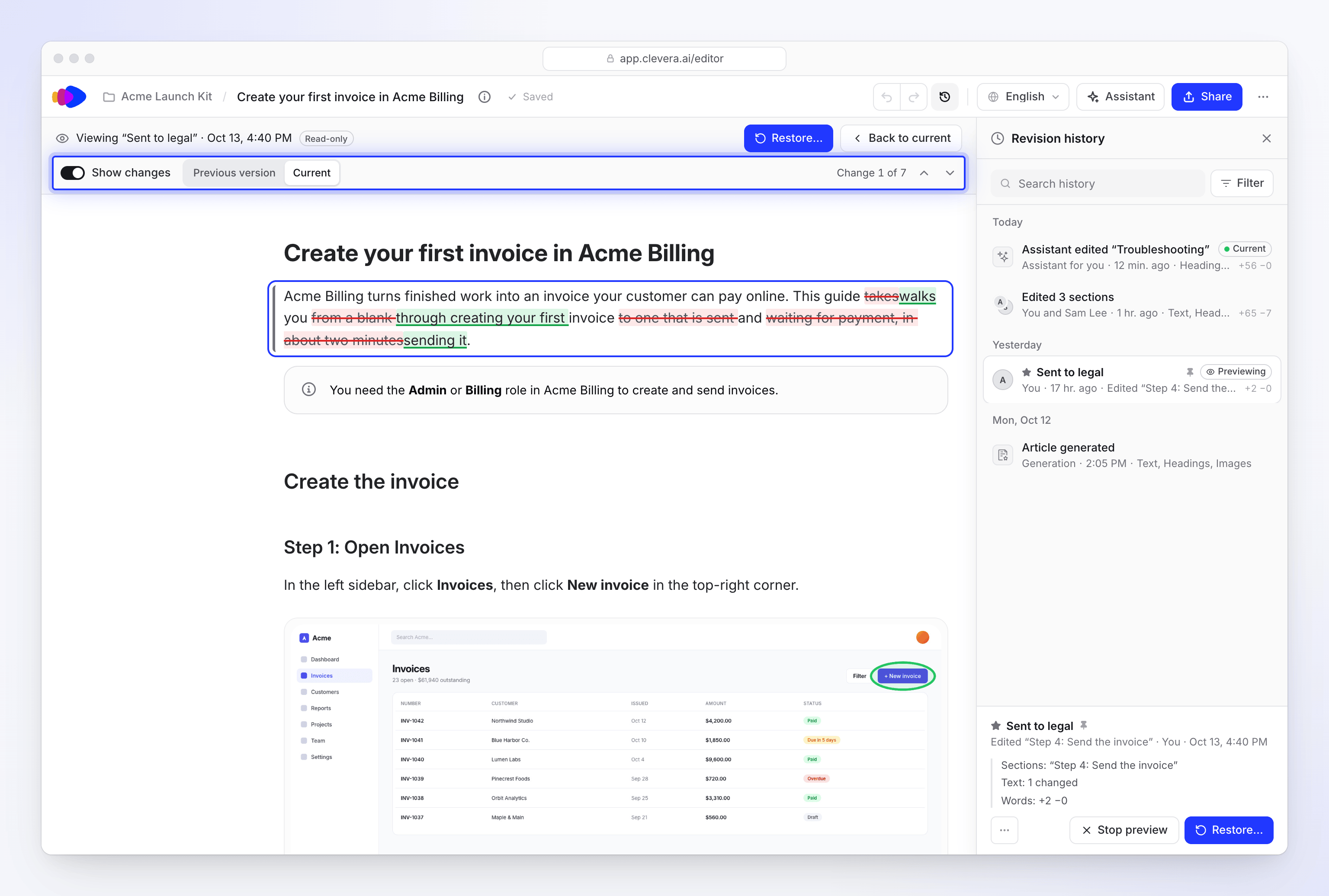
Click a row to preview it. The article shows that version, read-only, with "Viewing “…”", the time and Read-only at the top. Turn on Show changes to compare it with Previous version or Current, and step through each change ("Change 1 of 7") with Previous change (Alt+↑) and Next change (Alt+↓). Press Esc, Back to current or Stop preview to leave the preview.
Restore it
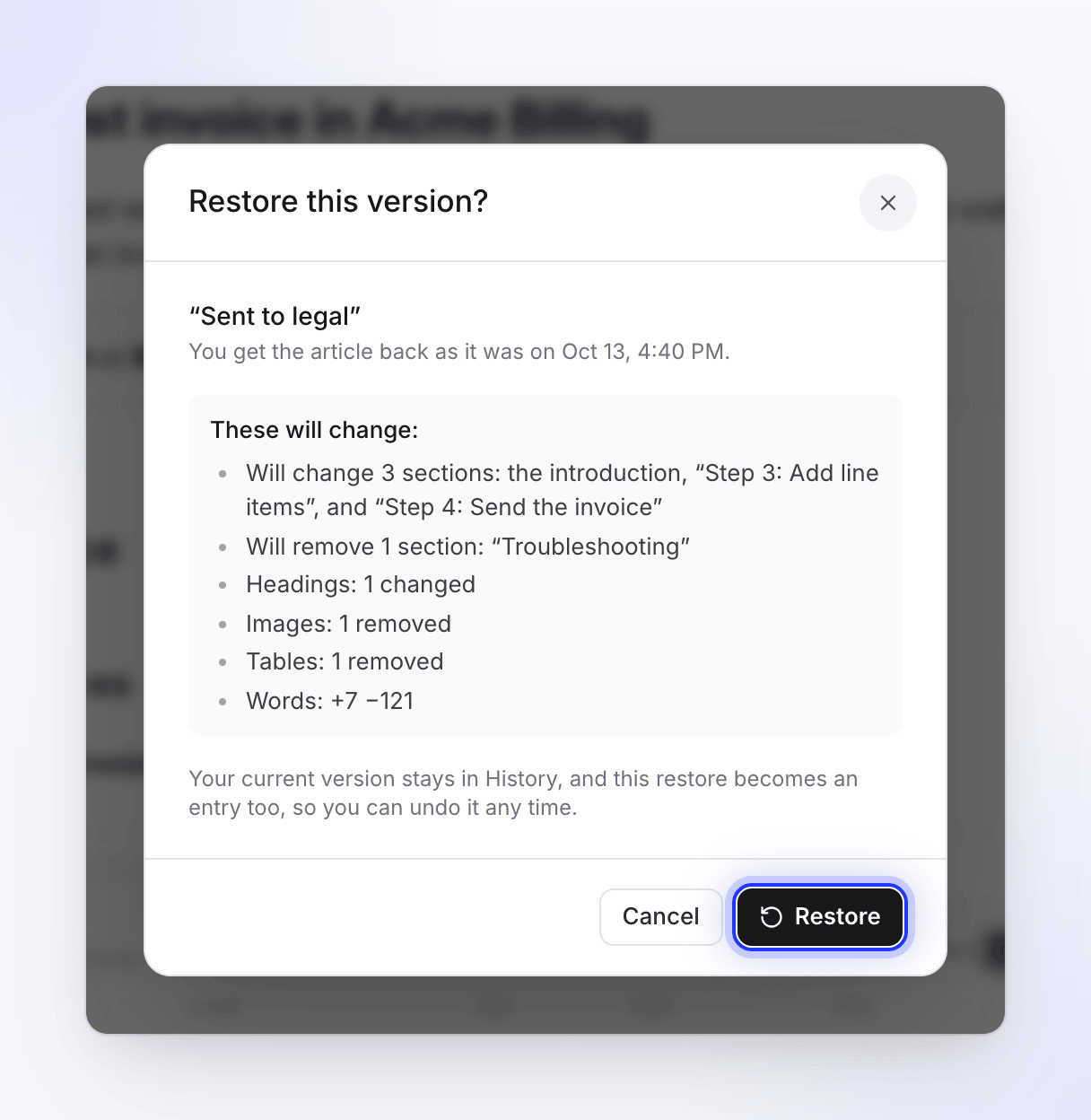
Click Restore…. The Restore this version? dialog lists what will change and says: "Your current version stays in History, and this restore becomes an entry too, so you can undo it any time." Click Restore.
Undo if needed
After a restore the panel shows "Restored the version from …" with Undo restore. Undo restore works until someone makes another change; after that, restore the version you want from the list instead.
What each entry means
Edits don't create a new entry on every keystroke. A burst of editing becomes one entry; a new one starts after about 5 minutes without saves, or after 30 minutes of continuous editing. When several people edit together, the entry lists all of them.
| Entry | When it appears |
|---|---|
| "Article generated" | The first version the AI wrote |
| "Edited the article", "Edited the introduction", "Edited “Section name”", "Edited 3 sections" | Hand edits |
| "Added section “…”", "Removed section “…”", "Added 2 images", "Removed an image" | Sections or pictures added or removed |
| "Changed the title", "Changed formatting" | Title or formatting only |
| "Assistant edited the article", "Assistant edited “…”", "Assistant improved the article" | Changes made by the assistant |
| "Undid an assistant change", "Redid an assistant change" | Undo or redo from the assistant chat |
| "Translated from English" | The first version of a translation |
| "Restored an earlier version" / "Restored the version from …" | A restore |
| "Saved automatically", "Saved before regenerating" | Safety copies Clevera keeps before a big change |
| "Earlier version" | Saved before history kept details: "It is restored exactly as it was saved." |
Who made the change shows as You, a teammate's name, "Alex Rivera and Sam Lee", Assistant (or Assistant for you when you asked), Generation, Translation or Automatic.
Find a version
| Tool | Options |
|---|---|
| Search history | Searches entry names, section names and version names |
| Filter → Made by | Everyone or Mine |
| Filter → Source | All, Assistant or Generation |
| Named versions only | Shows only versions you named |
| Pinned versions only | Shows only pinned versions |
Name or pin a version
Open a row's More actions for this version menu:
- Name this version gives it a name of up to 120 characters, for example "Sent to legal". The name replaces the automatic label and is searchable. Use Rename this version to change it.
- Pin to keep for good marks a version you never want to lose, such as the one you published. Unpin removes the pin.
When you can't restore
| You see | Why |
|---|---|
| "Already identical, nothing to restore." | That version matches the current article. |
| "Restore is available once the article finishes generating." | Wait for the generation to finish. |
| "Restore is available once the assistant finishes improving it." | Wait for the assistant to finish. |
| "Restore is available once the translation finishes." | Wait for the translation to finish. |
| "The article changed since you opened History. Refresh to see the latest versions." | Someone edited meanwhile. Click Refresh and try again. |
| "Your latest edits could not be saved first, so nothing was restored." | Check your connection and try again. |
| "Suggestions you haven't reviewed yet are replaced. They stay in History." | A warning in the dialog: highlighted AI changes you haven't kept or discarded are replaced by the restore. |
| "You don't have permission to edit this article." | Ask for edit access. |
| "That version no longer exists." | Pick another version. |
If you have unsaved edits when someone else restores a version, a banner asks you to choose Reload latest or Keep mine. See When the article changes under you.