

Create a doc site
Create a hosted help center in three steps: name it and pick its free address, choose the articles that go on it, and give it a logo, colour and font. Covers address rules, languages, limits and what happens after Create site.
Creating a doc site takes three short steps: a name and free address, the articles that go on it, and a look. You can change everything later. This article walks through each step, the address rules and what happens when you click Create site.
Before you start
- Your role: workspace owners and administrators can create doc sites. Others see "Only workspace owners and admins can create doc sites."
- Your plan's site count: Free and Starter include 1 doc site, Pro includes 2–5 depending on seats. See Doc site plans and limits.
- Articles: a site shows articles. To start from content, make at least one article first. You can also start empty and write pages on the site itself.
Ways to start
| Where | What it opens |
|---|---|
| Doc sites in the sidebar, first visit | Three cards: From a collection, Pick content, Start empty. Each opens the wizard with that start picked. |
| Doc sites → New doc site | The wizard, starting at step 1. The count next to it reads, for example, "1 of 2 sites". |
| A collection's menu in Content → Publish as doc site | The wizard with that collection picked, its folders ready to become sections |
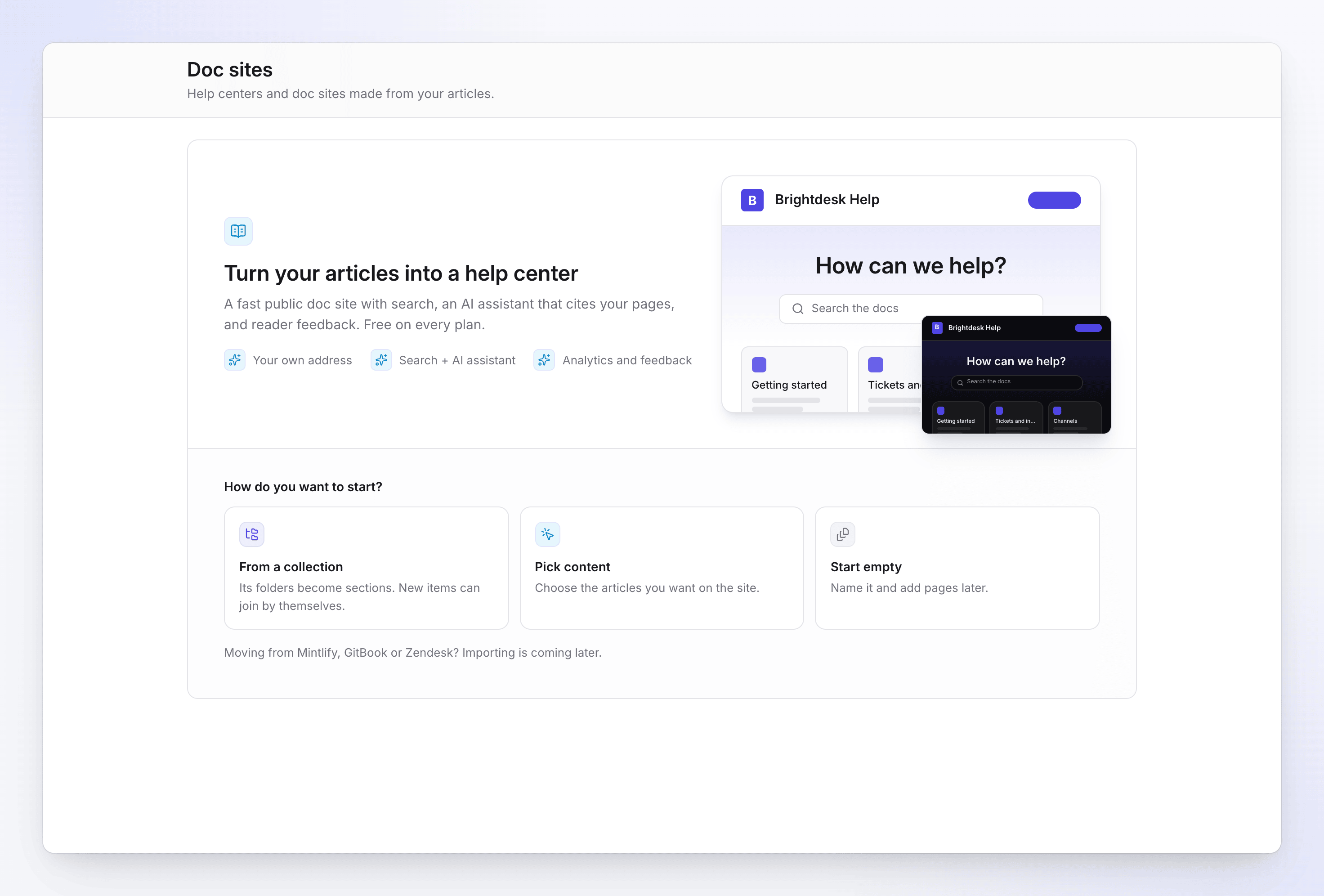
Create the site
Name the site and pick its address
Under Name your site, type a Site name, for example "Acme Help". Readers see it in the header, browser tabs and search results.
The Address fills in from the name as you type, followed by
.clevera.help. Edit it if you want something else. A live check under the field shows "Checking…", then "Available" or the reason it isn't (see Address rules).Pick the Language you write the site's name, sections and labels in. Clevera suggests the language most of your recent content uses. Add More languages if readers should be able to switch; a page without a translation shows its default-language version.
Click Continue.
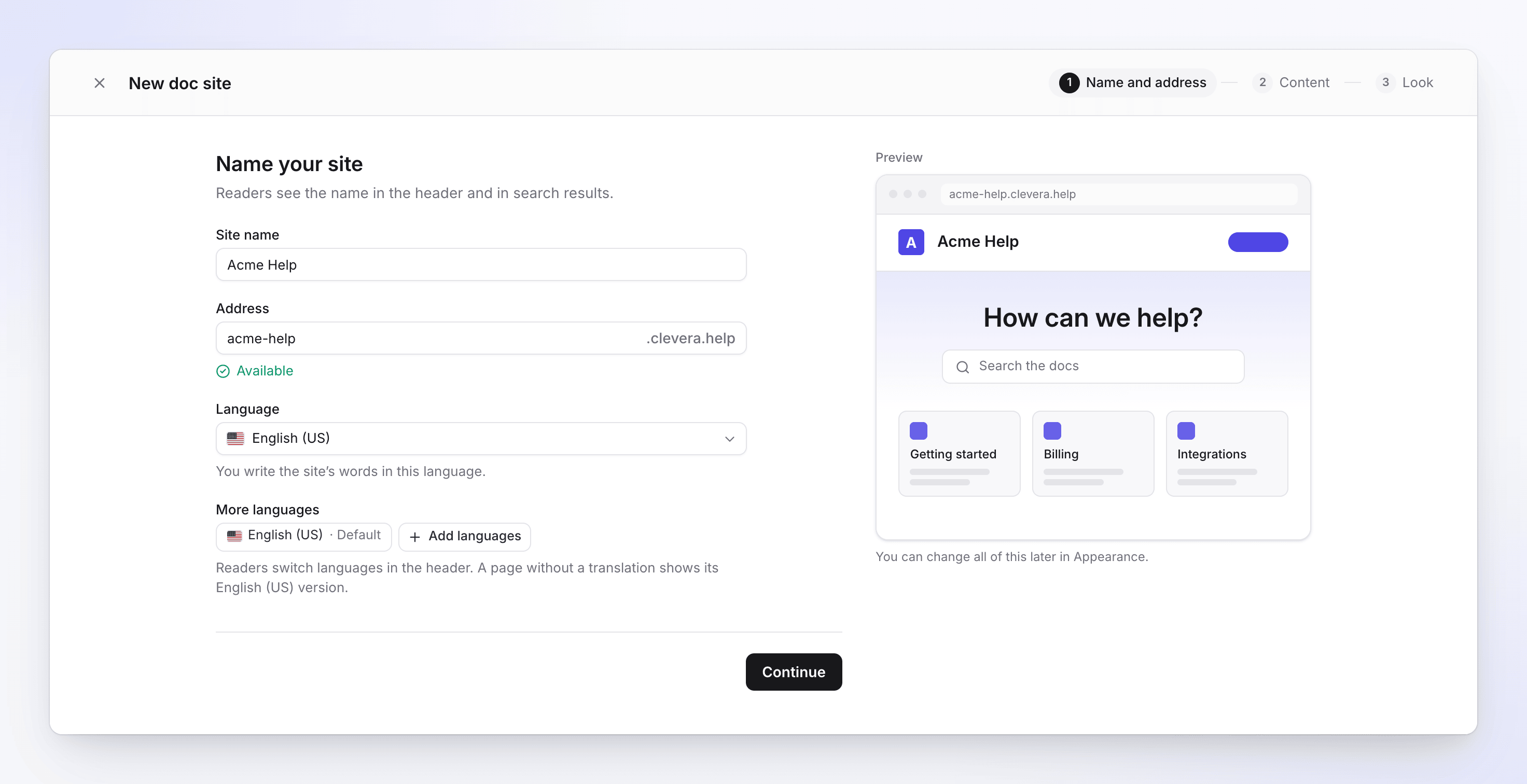
Step 1: name and address Choose what goes on it
Under What goes on it?, pick one:
Start What happens From a collection Pick a Collection. Each folder with finished articles becomes a section, and articles outside folders become a section named after the collection. Add new items automatically (on by default) keeps adding new articles from those folders as pages. Pick content Search your library and tick articles one by one. They become pages at the top level. Unfinished articles aren't listed. Start empty The site starts with a home page. Add sections and pages later from Pages. The footer shows what you're adding, for example "24 pages in 4 sections". Click Continue.
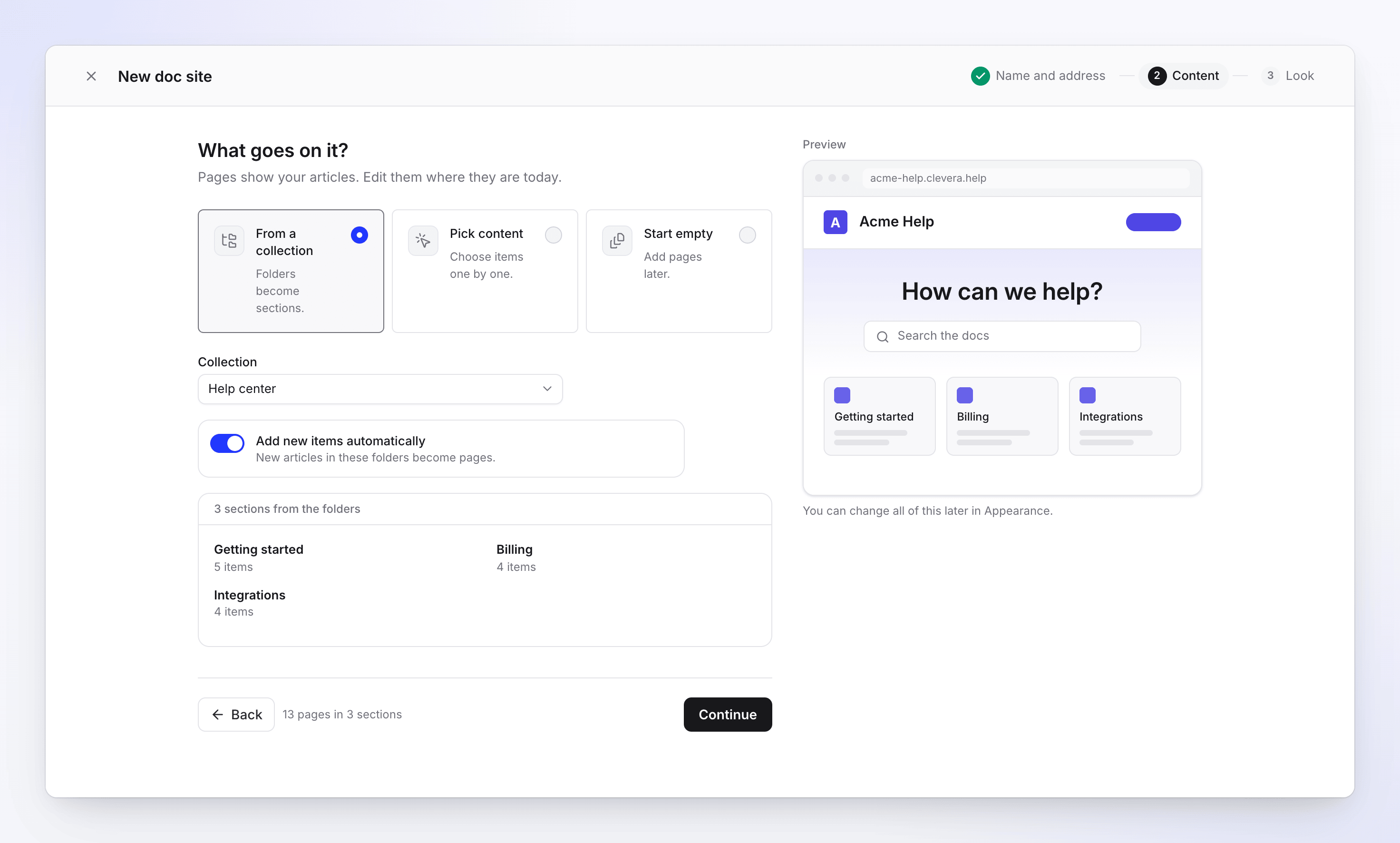
Step 2: what goes on the site Make it yours
Under Make it yours, set the look:
Setting Options Default Logo PNG, SVG, JPEG or WebP. Square PNG or SVG works best. None Brand colour 8 presets, or type a hex colour like #4f46e5#4f46e5Font Inter, Geist, Manrope, Plus Jakarta Sans, DM Sans, IBM Plex Sans, Space Grotesk + Inter, Source Serif + Sans Inter Default appearance System, Light, Dark. Readers can still switch. System The Preview on the right updates as you go.
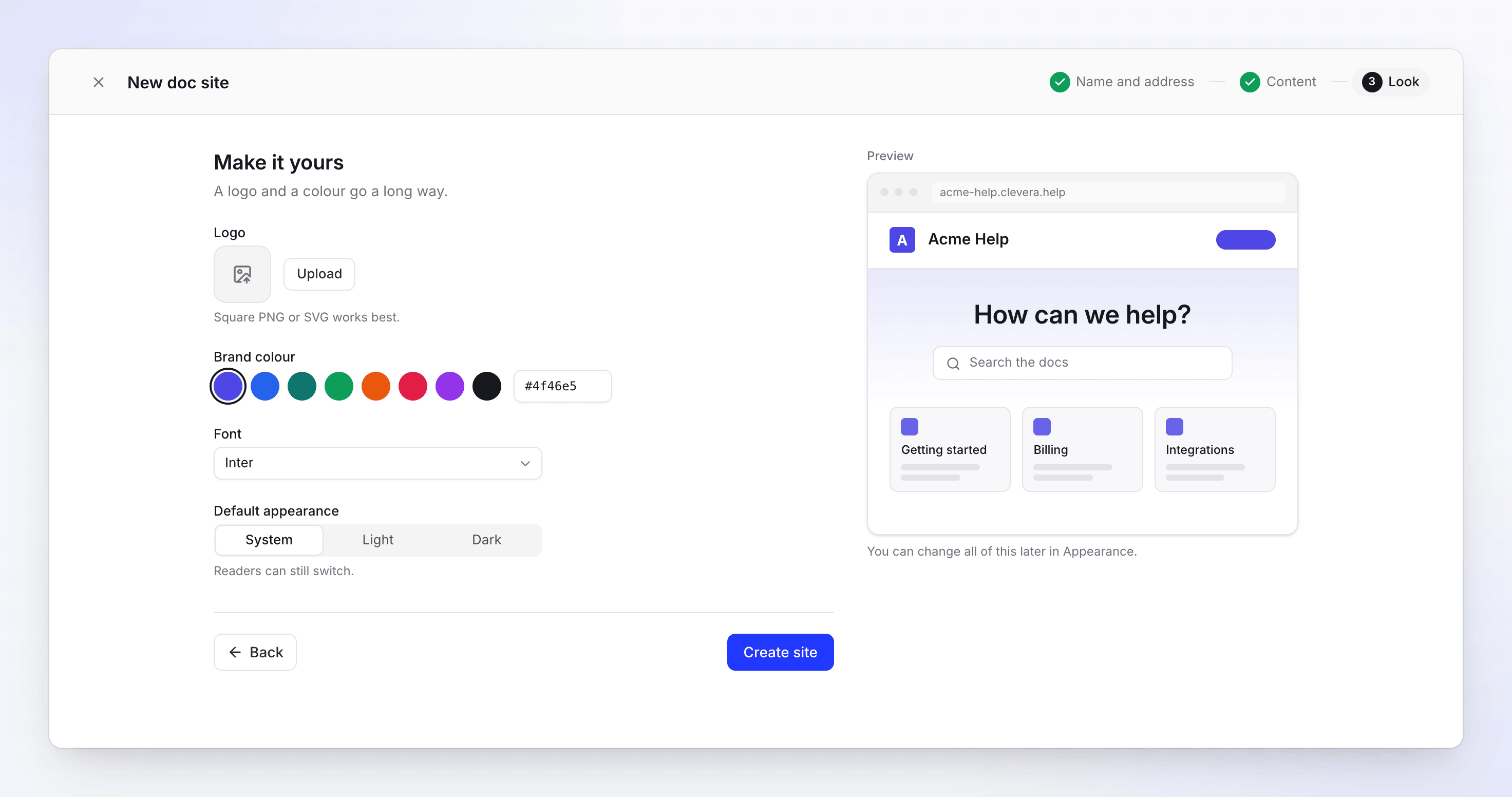
Step 3: logo, colour and font Create the site
Click Create site. A "Building your site…" window ticks through creating the site, adding its pages, building search and the assistant's index, and publishing to its address. When it's done you land on the site's Overview.
You can go Back to any earlier step, and close the wizard with × at any time; nothing is created until you click Create site. Your browser's Back and Forward buttons move between steps too.
Address rules
The free address is <address>.clevera.help. An address:
- has 6–40 characters,
- uses lowercase letters, numbers and single hyphens, with no hyphen at the start or end,
- isn't already used by another doc site, or by a site deleted in the last 90 days.
A name in another script, such as Japanese or Greek, gets a transliterated address suggestion. Once you type in the Address field yourself, the name stops changing it.
| Message under Address | What to do |
|---|---|
| "Use at least 6 characters." | Make the address longer. |
| "Use 40 characters or fewer." | Shorten it. |
| "Use lowercase letters, numbers and single hyphens." | Remove other characters and double hyphens. |
| "This address is reserved." | Some words are kept for Clevera. Choose another. |
| "This address contains a protected name. Contact support if it's your brand." | The address includes a well-known brand name. If it's yours, contact support. |
| "Another site already uses this address." | Choose another one. |
| "Couldn't check this address. Try again." | The check didn't reach Clevera. Wait a moment and type again. |
You can change the address later in Settings → General. The old address then redirects to the new one for 90 days before it's released.
Verify your email on Free
On the Free plan, publishing needs a verified email address. If yours isn't verified, the Look step shows Verify your email to publish: "We create the site now, unpublished. Publish it once your email is verified." Click Send link, open the email, then publish from the site header.
What happens after Create site
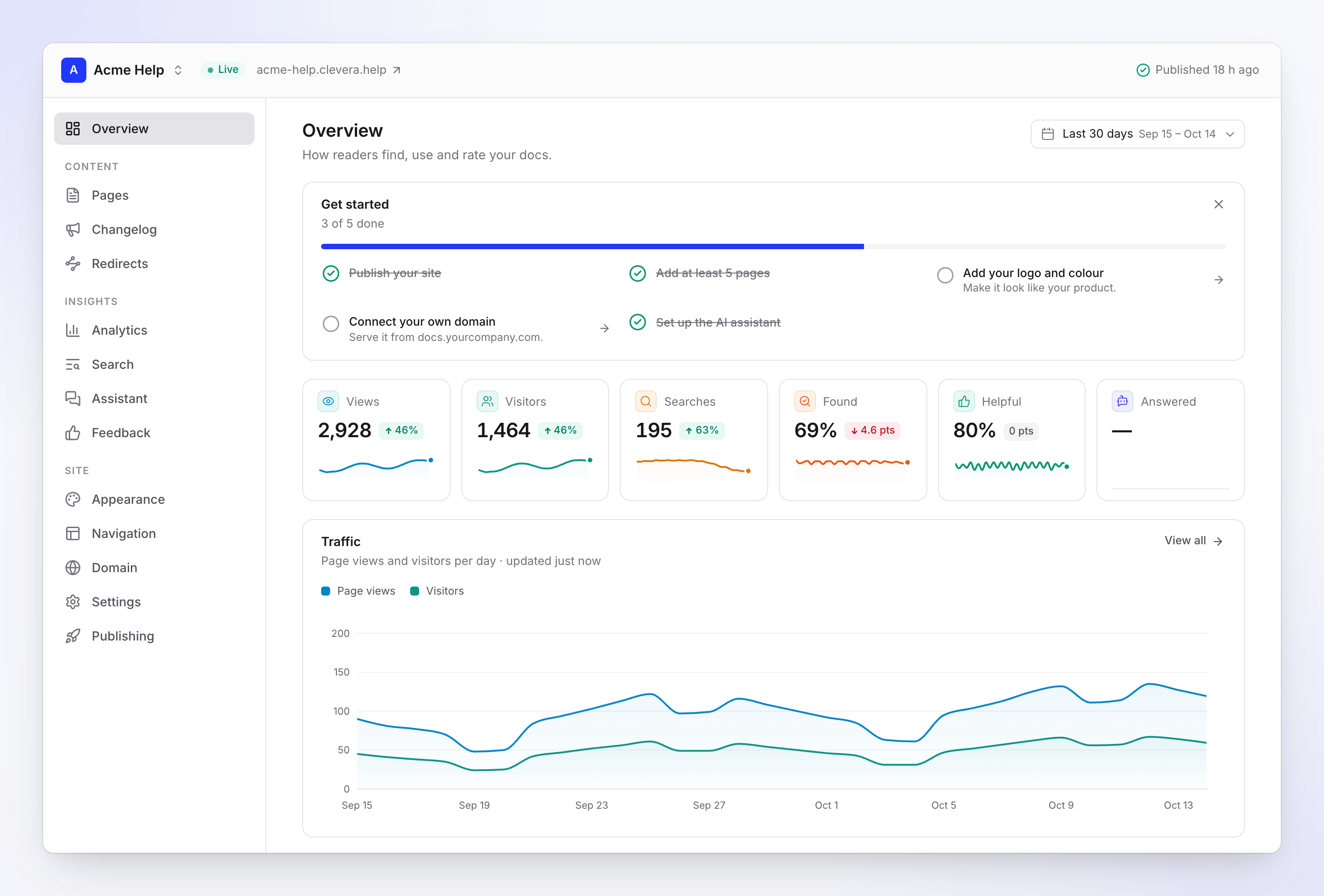
- The site opens on Overview with a Get started checklist: Publish your site, Add at least 5 pages, Add your logo and colour, Connect your own domain and Set up the AI assistant. Hide it with Hide the checklist.
- If you started from content, the site publishes right away and the header shows its progress. It's live at its free address within seconds.
- If you started empty, there's nothing to publish yet. Publishing waits until the site has at least one finished page; until then it says "Add pages before publishing."
- Publish automatically is on for new sites: once the site is live, saved changes go live after about two minutes without edits. See Publish a doc site.
Limits
| Limit | Value |
|---|---|
| Doc sites per workspace | Per plan: Free 1, Starter 1, Pro 2–5 by seats, Business 5, Custom set with us |
| New sites | 5 in any 24 hours, deleted ones included |
| Site name | 80 characters |
| Address | 6–40 characters |
| Articles picked in the wizard | 500 |
| Languages per site | Free 2, Starter 5, Pro and up every language (74 to pick from) |
Troubleshooting
New doc site opens a plan dialog instead of the wizard
Your workspace has all the doc sites its plan includes. The dialog shows the way out: Upgrade (Free and Starter), Add seats (Pro) or Contact us (Business and Custom). On the wizard itself you see, for example, "Your plan includes 1 doc site".
"You can create up to 5 doc sites a day. Try again tomorrow."
You created 5 sites in the last 24 hours. Sites you deleted count too. Try again later.
"Nothing to add yet" or "Make an article first."
Your library has no finished articles. Make an article, or choose Start empty and write pages on the site.
"This collection has no folders with finished items."
The collection's folders hold only videos or unfinished articles. Pick another collection or Pick content.
"Your site is ready, but the logo didn't upload."
The site was created without its logo. Add the logo in Appearance.
"Could not start publishing. Publish from the site header."
The site was created but its first publish didn't start. Click Publish at the top of the site.