

Connect Claude, ChatGPT, Codex or Cursor to Clevera
Add Clevera to Claude or ChatGPT as a custom connector with a sign-in, or set up Claude Code, Codex CLI, Cursor and other MCP clients with an API token. Server URL, setup snippets and troubleshooting.
You can let AI apps such as Claude, ChatGPT, Claude Code, Codex and Cursor work in your Clevera workspace through Clevera's MCP server. Chat apps connect with a sign-in (a connector, no token needed); coding agents and scripts connect with an API token.
Before you start
- AI agents & API, including connectors for Claude and ChatGPT, is on the Pro, Business and Custom plans. On other plans the connector shows "Claude.ai and ChatGPT connectors are on Pro and up."
- An agent acts as you, within what your role allows. See Agent permissions.
Choose how to connect
| You use | Connect with | What you do |
|---|---|---|
| Claude (claude.ai) or ChatGPT | A connector (sign in with Clevera) | Paste the Connector URL in the app and allow access. No token. |
| Cursor | A connector, or an API token | Add the MCP server URL; sign in when Cursor asks, or send a token in the header. |
| Claude Code, Codex CLI, other MCP clients | An API token | Run the setup command with your token. |
| Your own scripts | An API token | Call the REST API. |
The MCP server address is the same for every app:
https://app.clevera.ai/mcp
Connect Claude or ChatGPT
Copy the connector URL
Open the workspace menu and choose AI agents & API, then open the Connected apps tab. Copy the Connector URL under Connect Claude or ChatGPT: "No token needed: add Clevera as a custom connector and sign in."
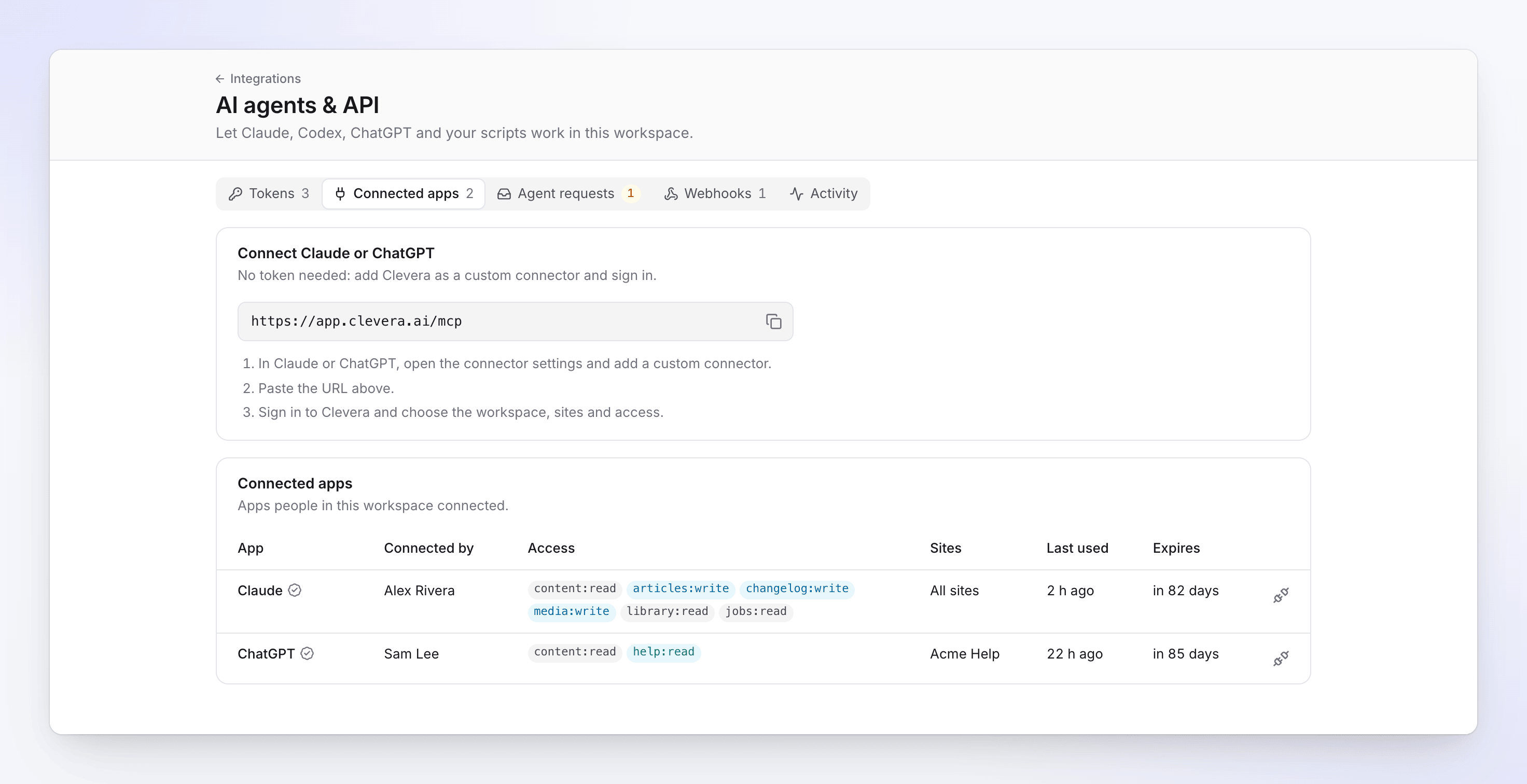
Copy the connector URL into Claude or ChatGPT. Add a custom connector in the app
In Claude or ChatGPT, open the connector settings and add a custom connector. Paste the URL.
Sign in and choose the access
The app sends you to Clevera's Connect app to Clevera screen. Sign in if you aren't, then choose:
- Workspace: the workspace the app works in.
- Sites: All sites ("Every current and future site of this workspace.") or Chosen sites, when the access includes doc sites.
- Access: a preset or Custom permissions. Permissions your role doesn't allow show Not for your role. See Agent permissions.
- Connection lasts: 30 or 90 days. The default is 90 days.
Allow access
Click Allow access. You go back to the app, which can now use Clevera's tools. "You can disconnect it any time in Integrations → AI agents & API." Click Deny to send nothing.
The connect screen shows who you're connecting:
- Verified app · returns you to address: a known app (Claude, ChatGPT or Cursor), recognized by the address it returns to.
- Returns you to address: any other app. Check the address before you allow access.
The workspace owner and admins get a notification, "app was connected to workspace", with the access you chose.
What a connected app can and can't do
- It acts as you, within your role, with the access you picked. It only sees the recordings, videos and collections you can see.
- It works over MCP only. Its sign-in can't be used on the REST API: "OAuth connector tokens work on the MCP server only. Use a static token for the REST API."
- It has no spend caps of its own, so every paid start from a connected app waits for a person to approve it on Agent requests. See Control agent spending and approvals.
- Each person can have up to 20 connected apps.
- The connection ends when its lifetime (30 or 90 days) runs out; then you connect the app again. An app that doesn't use Clevera for 30 days also has to sign in again.
Connect Claude Code, Codex or another agent with a token
Create an API token first. When it's created, Connect an agent shows ready-made setup with your workspace's server address. Every snippet reads the token from the CLEVERA_TOKEN environment variable, so the token itself never goes into a file: "Set CLEVERA_TOKEN to the token in your shell or the agent’s secret store."
claude mcp add --transport http clevera https://app.clevera.ai/mcp --header "Authorization: Bearer $CLEVERA_TOKEN"
codex mcp add clevera --url https://app.clevera.ai/mcp --bearer-token-env-var CLEVERA_TOKEN
Or add it to ~/.codex/config.toml:
[mcp_servers.clevera]
url = "https://app.clevera.ai/mcp"
bearer_token_env_var = "CLEVERA_TOKEN"
{
  "mcpServers": {
    "clevera": {
      "type": "http",
      "url": "https://app.clevera.ai/mcp",
      "headers": {
        "Authorization": "Bearer ${CLEVERA_TOKEN}"
      }
    }
  }
}
curl -H "Authorization: Bearer $CLEVERA_TOKEN" https://app.clevera.ai/api/v1/docs/me
Cursor and other MCP clients that read an mcpServers file take the same server entry as .mcp.json.
Check that it works
Ask the agent what it can do in Clevera, or to list your recordings. The agent only sees the tools its permissions allow, so a short list usually means a narrow token. Everything it does shows on the Activity tab.
Disconnect an app
On the Connected apps tab, click the disconnect button at the end of the app's row and confirm with Disconnect ("Disconnect app?"). "The app loses access immediately. Connecting it again needs a new sign-in." The row stays listed (dimmed) for 30 days.
The workspace owner and admins see every connected app in the workspace ("Apps people in this workspace connected.") and can disconnect any of them. Everyone else sees and disconnects their own ("Apps you connected.").
Troubleshooting
| On screen | Cause | Fix |
|---|---|---|
| Claude or ChatGPT only says it couldn't connect, or the Clevera tools stop working | The workspace is no longer on Pro or up; Clevera answers "The agent API is not on this workspace's plan. It is on Pro and up." | Upgrade the workspace to Pro. The app works again; nothing was deleted. |
| workspace "(plan doesn’t include connected apps)" on the connect screen / "This workspace’s plan does not include connected apps." | That workspace isn't on Pro or up. | Upgrade it, or choose another workspace. |
| "This request expired" / "Too much time passed since the app asked. Start connecting again from the app." | The connect screen was left open too long. | Start connecting again from the app. |
| "This app isn’t registered" / "The app that sent you here is unknown to Clevera." | The app's registration is missing or was removed. | Remove the connector in the app and add it again. |
| "This request can’t be trusted" / "The app asked to send you back to an address it didn’t register. Nothing was shared." | The return address didn't match. | Start connecting again from the app. If it keeps happening, don't connect that app. |
| "Choose a workspace you are a member of." | No workspace was chosen, or you left it. | Pick one of your workspaces. |
| The agent says it has no Clevera tools | The token or connection has none of the permissions the task needs, or it was revoked. | Check the token's access on the Tokens tab, or connect again. |
| "OAuth connector tokens work on the MCP server only." | A script used a connector's sign-in on the REST API. | Use an API token for scripts. |
More messages: Fix agent and API errors.