

See where you're signed in and sign out other sessions
See every browser and desktop app signed in to your Clevera account, and sign out all of them except the one you're using. What it signs out, and what to do if you sign in with Google or SSO.
Your account settings list every browser and desktop app signed in to your Clevera account. Check it when something looks unfamiliar, and sign out everything except the browser you're using, for example after losing a laptop.
See where you're signed in
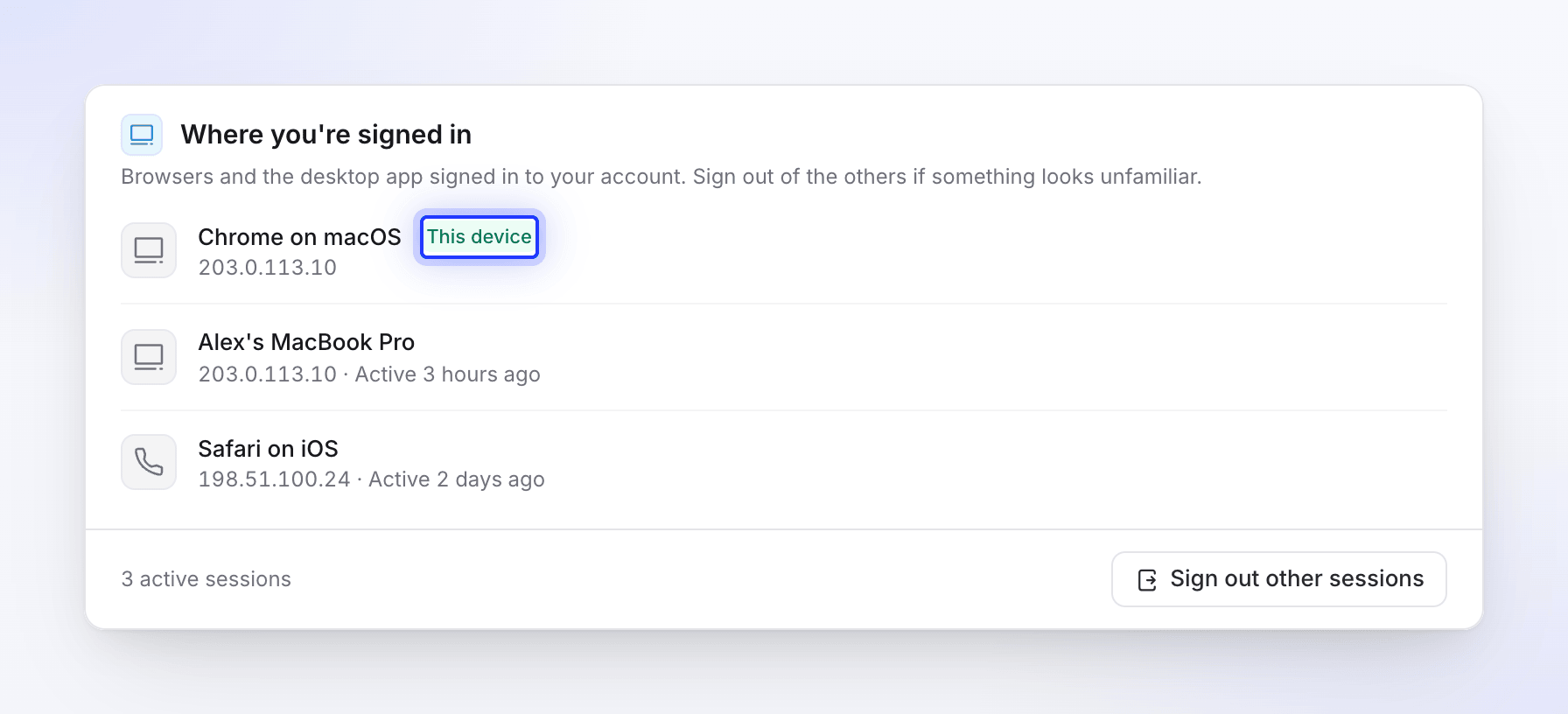
Open the menu at the top of the sidebar, choose Account settings, then the Security tab. The Where you're signed in section lists:
| Row | Example | Details |
|---|---|---|
| A browser | Chrome on macOS | The IP address and when it was last active. The browser you're using now has a This device badge and comes first. |
| The desktop app | The computer's name, such as Alex's MacBook Pro | The IP address it last used, and when it was last active (or "Never used"). |
The footer shows how many sessions are active, for example "3 active sessions".
Sign out of other sessions
Start
Click Sign out other sessions. The button is greyed out when this is your only session.
Confirm it's you
The Sign out other sessions? dialog says "Every browser and app except this one is signed out. You stay signed in here." Type Your password and click Sign out others. If you sign in with Google or SSO, you type your email instead (see below).
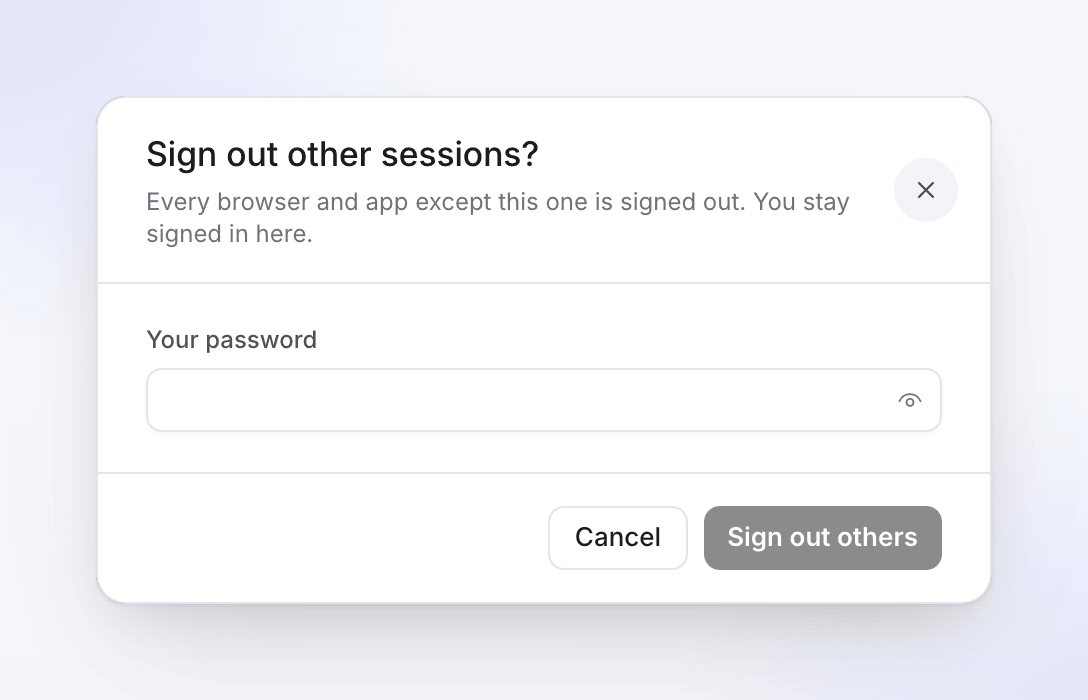
Sign out others stays greyed out until you fill in the field. Check the list
You see "Signed out of your other sessions." and the list now shows only this browser.
What it signs out:
- Every other browser session, including browsers that stayed signed in with Remember me and browsers signed in through Google or SSO. They have to sign in again.
- Every desktop app signed in to your account. Each one asks you to sign in again the next time you use it, so finish any recording upload first.
If you sign in with Google or SSO
If your account was created with Continue with Google or your company's single sign-on, you never chose a Clevera password, so the dialog asks for your email instead: under Type your email to confirm ("You sign in with Google or SSO, so no password is needed."), type the email address of your account and click Sign out others.
If your workspace uses single sign-on, signing out of your company account doesn't sign you out of Clevera. Use Sign out other sessions here.
Troubleshooting
| You see | What to do |
|---|---|
| "The provided password was incorrect." | Retype your password. |
| "Type the email address of your account to confirm." | Type the exact email you sign in with. |
| "Failed to log out from other devices" | Try again in a moment. If it keeps failing, contact support. |
| "Couldn't load your sessions" | Reload the page. |
| A session you don't recognize | Sign out other sessions, change your password, and contact support if it comes back. |