

Manage, regenerate and revoke API tokens
Find your API tokens, regenerate a secret (once, with an optional 24-hour overlap), revoke a token, understand expiry and IP allowlists, and see why a token stopped working.
The Tokens tab lists your API tokens with their access, limits and last use. From there you regenerate a token's secret, revoke a token, and see why a token stopped working.
Where to find your tokens
Open the workspace menu and choose AI agents & API. The Tokens tab is the first tab; each tab shows its count.
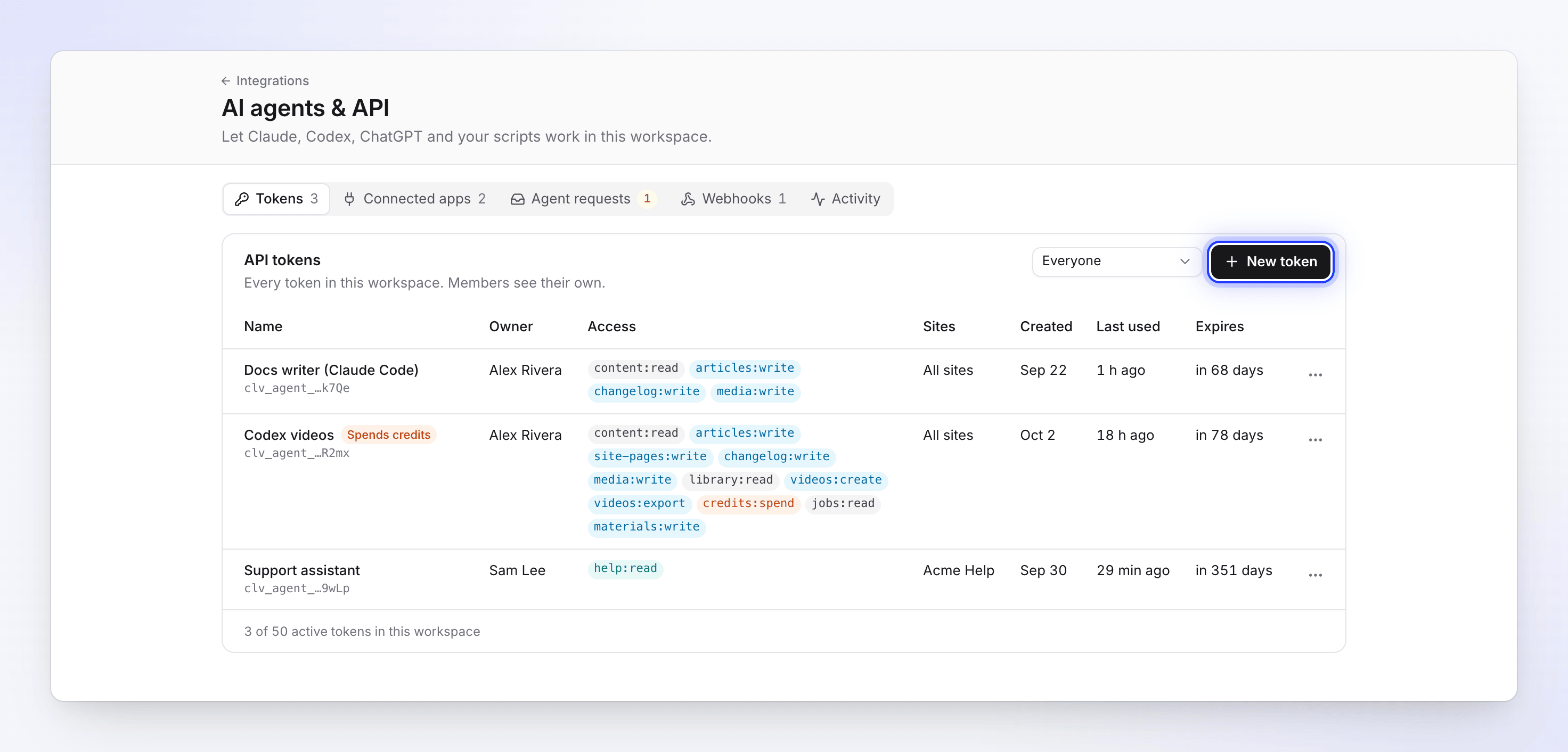
Who sees which tokens:
| Your role | You see | You can |
|---|---|---|
| Owner or admin | "Every token in this workspace. Members see their own." Filter by person with the owner menu (Everyone shows all). | Revoke any token. Regenerate only your own. |
| Editor or Content Creator | "Your tokens. Agents using them act as you." | Revoke and regenerate your own tokens. |
Each row shows the Name (with the last characters of the secret, like clv_agent_…k7Qe), the Owner, the Access (its permissions), the Sites it covers, Created, Last used and Expires. The footer counts the workspace's active tokens against its limit. Badges on a row:
| Badge | Meaning |
|---|---|
| Spends credits | The token has credits:spend. Point at it to see its caps: Per job, Per day, Per month ("no cap" when empty) and "Approved automatically below n credits" or "A person approves every paid start". |
| IP limited | The token has an IP allowlist and only works from those addresses. |
| Exceeds role | "The owner’s role changed. Calls needing the struck-out abilities are refused." |
| Revoked / Expired | The token no longer works. The reason shows next to it (see Why a token stopped working). |
Revoked and expired tokens are hidden by default. Click Show revoked and expired (count) to list them; they stay listed for 30 days.
Change a token's access
A token's permissions, sites, expiry, spend caps and IP allowlist can't be edited after it's created. To change any of them, create a new token with the new settings, switch your agent over, then revoke the old one.
Regenerate a token's secret
Regenerate when a secret may have leaked, or to rotate it on a schedule. The new secret has the same name, access, sites, IP allowlist, spend caps and expiry date.
Open the token's menu
On the Tokens tab, open the ⋯ menu on the token's row and choose Regenerate secret.
Choose when the old secret stops
The dialog asks "Regenerate “name”?": "You get a new secret with the same access. The old one stops working." Tick Keep the old secret working for 24 hours if agents are still using it and you need time to switch them over. Leave it unticked to stop the old secret at once.
Copy the new secret
Click Regenerate. The Token created dialog shows the new secret once. Copy it, update your agent or secret store, then click I’ve stored it.
Rules for regenerating:
- Only the person who created a token can regenerate it. An owner or admin who didn't create it sees "Only the person who created this token can regenerate it. You can revoke it."
- A secret can be regenerated once. After that, the old row shows "Replaced by a regenerated secret" and has no Regenerate secret option; regenerate the new token instead. Trying again on the old secret returns "This token was already regenerated, revoked or has expired; use its replacement or create a new one."
- The expiry date doesn't move. A token created for 90 days still expires on its original date. If the old secret's 24 hours would run past that date, it stops at the expiry date.
- You can regenerate even when the workspace is at its active-token limit. During the 24-hour overlap both secrets work and both count as active tokens.
- Regenerating needs the workspace to be on Pro or up; otherwise Regenerate secret opens the upgrade dialog.
Revoke a token
- Open the ⋯ menu on the token's row and choose Revoke.
- Confirm with Revoke token: "Agents using this token lose access immediately. This can't be undone."
A revoked token frees its place in the workspace's active-token limit right away.
Expiry
Every token expires. You pick the lifetime when you create it: 7 days, 30 days, 90 days (the default) or 1 year. There is no "never expires" option, so a forgotten token can't stay valid forever. The Expires column shows the date.
After the expiry date, every call returns "This token has expired. Create a new one in Integrations → AI agents & API." An expired token can't be renewed or regenerated; create a new one.
IP allowlist
A token can be limited to the addresses your agent runs from (for example a CI runner or a server). You set it on the wizard's Limits step under Advanced → IP allowlist: "Optional. One address or range per line; calls from anywhere else are refused."
- Enter IPv4 or IPv6 addresses (
203.0.113.7) or ranges in CIDR form (198.51.100.0/24), up to 20 entries. - Leave it empty to allow any address. The review step then shows Any address.
- A call from another address returns "This token can't be used from this IP address."
- An entry that isn't an address or range is refused: "value is not an IP address or range."
Why a token stopped working
| Shown on the token | What happened | What to do |
|---|---|---|
| Expired | Its lifetime ran out. | Create a new token. |
| "Revoked by its owner" | The person who made it revoked it. | Create a new token if it's still needed. |
| "Revoked by an admin" | The workspace owner or an admin revoked it. | Ask them why before creating a new one. |
| "Revoked: owner left the workspace" | The person who made it was removed from the workspace. All their tokens are revoked. | Someone still in the workspace creates a new token. |
| "Revoked: owner’s account was deleted" | The owner deleted their Clevera account. | Create a new token. |
| "Replaced by a regenerated secret" | The secret was regenerated. | Use the new secret. |
| "Revoked: found in a public repository" | The token was found in a public GitHub repository and revoked automatically. | Remove it from the repository's history, then create a new token and keep it in a secret store. |
| "Revoked: unusual activity" | It made many refused requests in a few minutes (more than 50 in 10 minutes). | Check Activity for what it tried, fix the agent, then create a new token. |
| "Revoked: token reuse detected" / "Revoked: app disconnected" | These apply to connected apps, not API tokens. | Connect the app again. |
| Every call returns "The agent API is not on this workspace's plan. It is on Pro and up." | The workspace moved off Pro, Business or Custom. | Upgrade to Pro. See If the workspace leaves Pro. |
Unusual activity
Clevera watches each token for bursts and tells the workspace owner with an "Unusual activity on token" notification:
- Many refused requests in a few minutes: the token is revoked. "It made many refused requests in a few minutes."
- An unusually high number of changes in a few minutes (more than 200 writes or 20 page removals in 10 minutes): its writes pause for 10 minutes. Calls return "Writes from this token are paused after an unusual burst of changes. The workspace owner was notified." Reads still work.
- Credits spent unusually fast: the token can't start paid work for 24 hours. "It spent an unusually high number of credits in a few minutes, so it can’t start paid work for now."
If the workspace leaves Pro
AI agents & API is on the Pro, Business and Custom plans. If the workspace moves to Starter or Free, the page shows "AI agents & API are included in Pro": "Upgrade to let Claude, ChatGPT and your scripts work in this workspace. Existing tokens and apps stop working until then; you can still revoke them here."
- Tokens stay listed and can be revoked, but every call is refused with
plan_locked. - Regenerate secret opens the upgrade dialog instead.
- Upgrading back to Pro makes the tokens work again. Nothing is deleted; tokens still expire on their dates.