Get workspace reports by email
Get a weekly, twice-weekly or monthly report on your workspace, a recap of your own videos and a reminder when work is waiting on you. Choose the day, time and time zone, send a test, or pause them.
Clevera can email you a regular report on your workspace, a recap of your own videos, and a reminder when work is waiting on you. This article covers each email, who gets it by default, when it arrives and how to change or stop it.
The emails
| What's in it | Who can get it | Default | |
|---|---|---|---|
| Workspace report | Videos, views, top content, who made what, and credits. | Owners and admins | Weekly for the owner, Off for admins |
| Your recap | Your videos, their views and your credits. Skipped when there's nothing new. | Everyone | Weekly |
| Needs your attention | Failed or unfinished work and credits running out. At most every 3 days. | Everyone | On |
| Tips in your reports | One short tip when a feature would help you. | Everyone | Off |
| What you missed | A note when your workspace has been busy while you were away. | Everyone | On if Product news and tips is on, otherwise off |
Every report comes from [email protected], so you can filter or allow-list that address.
Change your email reports
Open the Digests & reports card
Click your workspace name at the top of the sidebar, choose Account settings and open the Notifications tab. Scroll to Digests & reports.
Pick the scope
If you're in more than one workspace, the Settings for picker at the top of the tab applies here too. All workspaces sets your defaults; choosing one workspace changes the emails for that workspace only ("These choices apply only to this workspace. Everything else follows your all-workspaces settings."). Rows you changed there say Set for this workspace.
Choose how often
Each email has its own menu:
- Workspace report and Your recap: Weekly, Twice a week, Monthly or Off.
- Needs your attention: On or Off.
- Tips in your reports and What you missed: a switch.
Changes save as you make them ("Saved.").
Set the day, time and time zone
Day (shown when an email is weekly), At and Time zone decide when the emails arrive. The defaults are Monday at 9:00 in your time zone. These apply to all your reports, in every workspace.
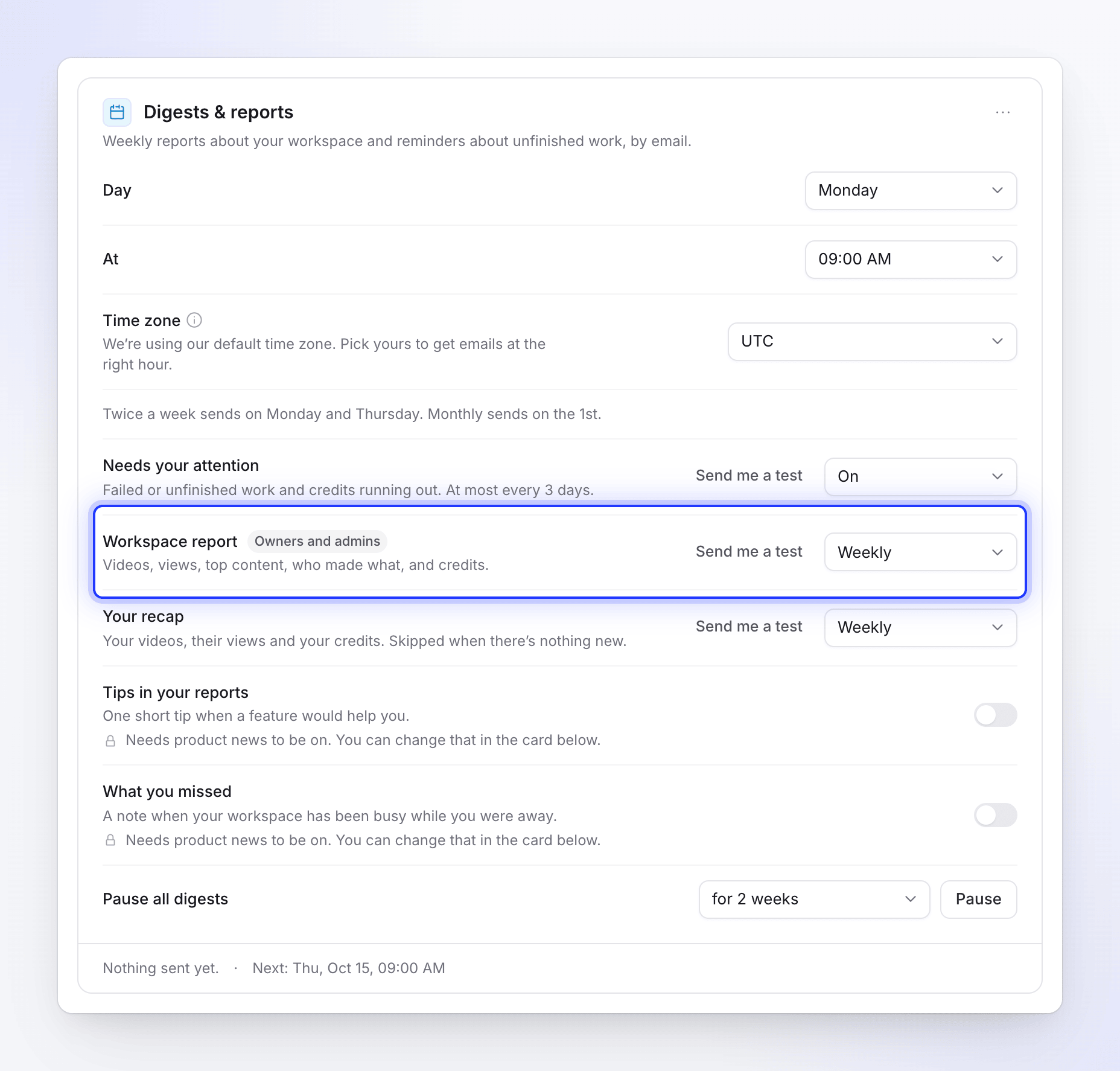
The footer of the card shows Last sent (which email, and when) and Next (when the next one is planned).
When they arrive
| Choice | Sent |
|---|---|
| Weekly | On your chosen day, at your chosen time |
| Twice a week | Monday and Thursday, at your chosen time |
| Monthly | On the 1st of the month, at your chosen time |
| Needs your attention | Checked every day at your chosen time; sent only when something new needs you, and at most every 3 days |
- Time zone: by default it follows where you sign in from. If your browser reports a different zone, the card offers to use it (for example "Use Europe/Berlin"); you can also pick any zone from the list. Use detected goes back to the detected one.
- At most 2 report emails a day: you get no more than two of these emails per day, across all your workspaces. If more are due, Needs your attention goes first, then the workspace report, then your recap; the rest are covered by the next period's email.
What's in each email
Workspace report
The subject line sums up the period, for example "Acme Inc., 6–12 Oct: 6 new items, 214 views". Inside:
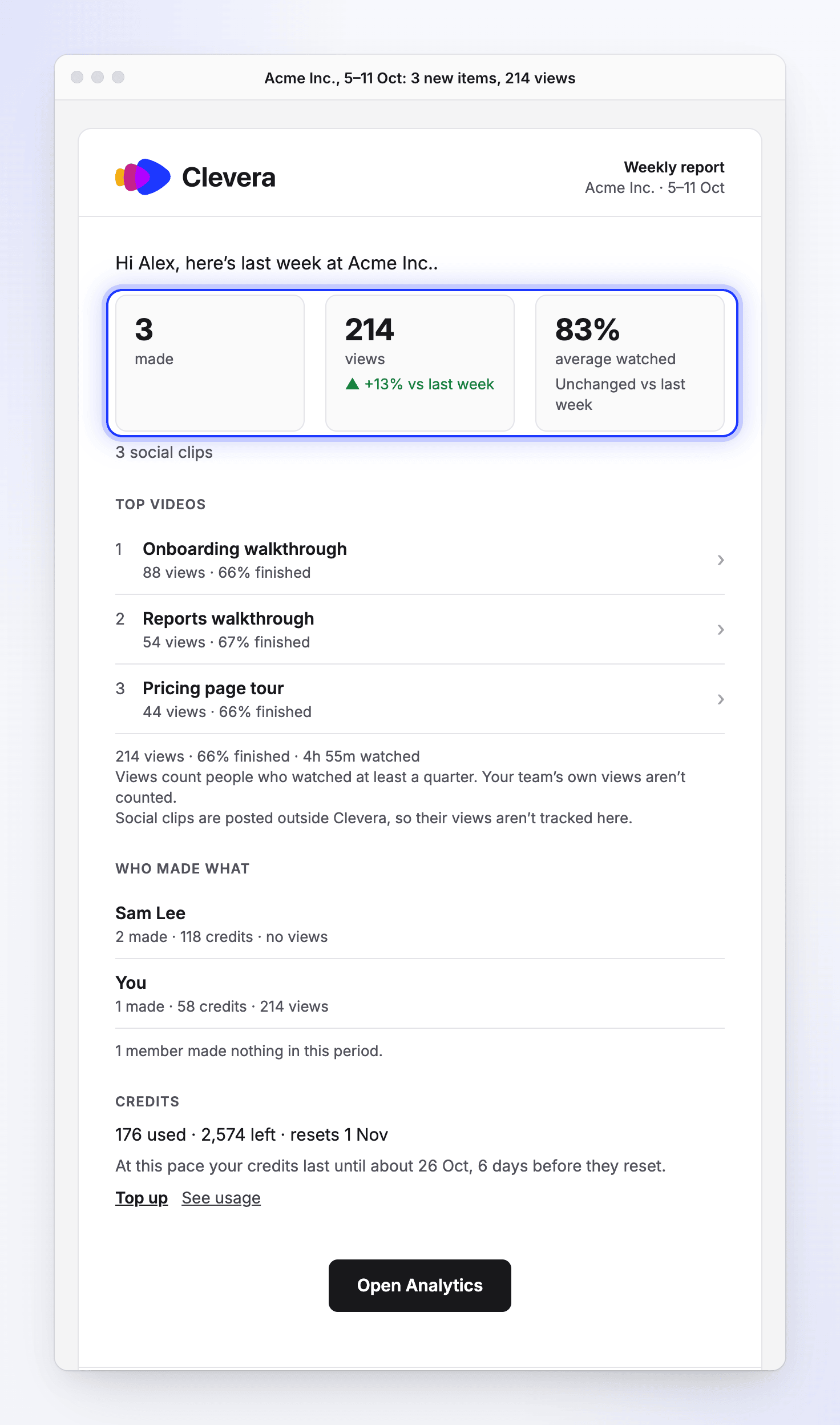
- Tiles: items made, views, and average watched. Under a tile, a line compares it with the previous period, for example "▲ 12% vs last week". The line is left out when the previous period is too small to compare.
- What you made: videos, social clips, articles and translations, and how many minutes were finished.
- How it was watched: views, how many finished, and time watched. Views count people who watched at least a quarter. Your team's own views aren't counted. Social clips are posted outside Clevera, so their views aren't tracked here.
- Top videos: the three most-viewed, each with an Open link.
- Who made what: each person's items, credits and views.
- Credits: credits used, credits left and when they reset, plus a forecast such as "At this pace your credits last until about 24 Oct, 6 days before they reset." When credits are running out, a Top up link appears. See Buy extra credits.
- Exports and Referrals, when there were any. Exports are free.
- Open Analytics at the end. See Read video analytics.
The report only names videos you can open.
Your recap
Your own work in one workspace: what you made, the views on your content, the credits you used, your top item, and anything still running or waiting for your answer. It's sent only when you made something, got views, or have something running or waiting.
Needs your attention
One email across all your workspaces, grouped by workspace, with a button for each item:
| Item | Button |
|---|---|
| A video or export that failed and wasn't retried | See what happened |
| A question from the AI still waiting for you | Answer |
| A payment that failed | Update payment |
| A video that's ready but hasn't been exported or shared yet | Open |
| Credits running out within a week, or already gone | Top up |
| Seats on your plan with nobody in them | Manage seats |
| A collection you made that's still empty | Open collection |
It's only sent when at least one item is new since the last one, and it leaves out anything the app already emailed you about in the last 24 hours. See Choose which notifications you get.
Tips and What you missed
Tips in your reports adds one short line inside your workspace report or recap; it's never its own email. What you missed goes out if you haven't been in a busy workspace for a while, with what it finished since. We send at most two.
Both need Product news and tips turned on in the Email card below. Without it, the row says "Needs product news to be on. You can change that in the card below."
Send yourself a test
Click Send me a test next to the workspace report, your recap or Needs your attention to see what it looks like.
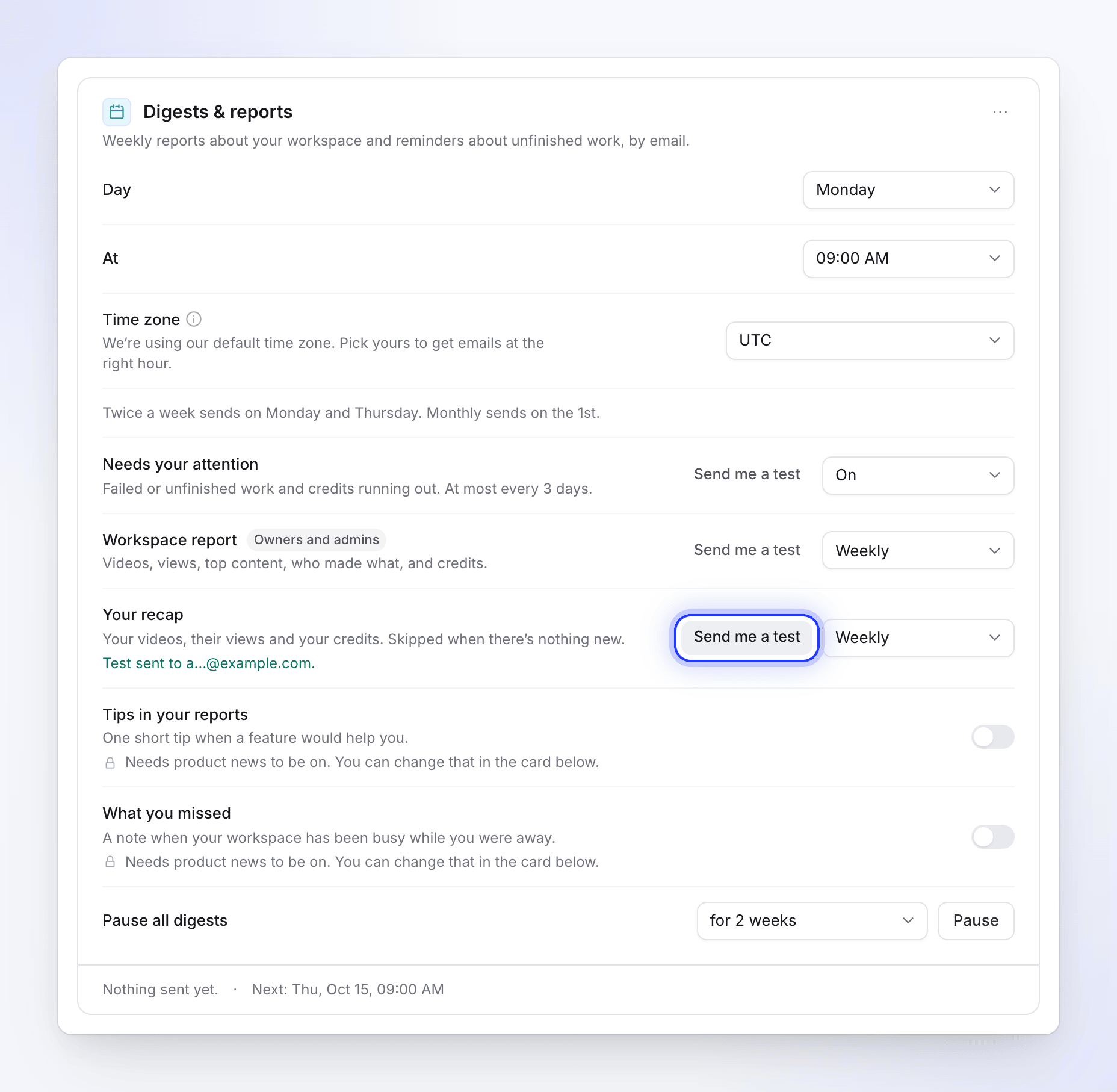
- It goes to your own email address only, and the card says "Test sent to a…@example.com."
- It covers the current period so far and is sent even if nothing happened, with a banner saying it's a test. The subject starts with "[Test]".
- You can send 3 tests an hour. After that: "You've sent a few tests already. Try again in about 20 min."
- With All workspaces selected, the workspace report and recap tests use the workspace you're in.
Tips and What you missed can't be sent as tests.
Pause or stop all reports
- Pause all digests: choose for 1 week, for 2 weeks, for 4 weeks or until I turn them back on, then Pause. Your choices are kept and start again when you click Resume.
- Turn off all digests: in the card's ⋯ menu. Nothing is emailed until you click Turn digests back on.
From the email itself
Every report ends with a line saying why you got it, for example "You get this report because you own Acme Inc.", and two links that work without signing in:
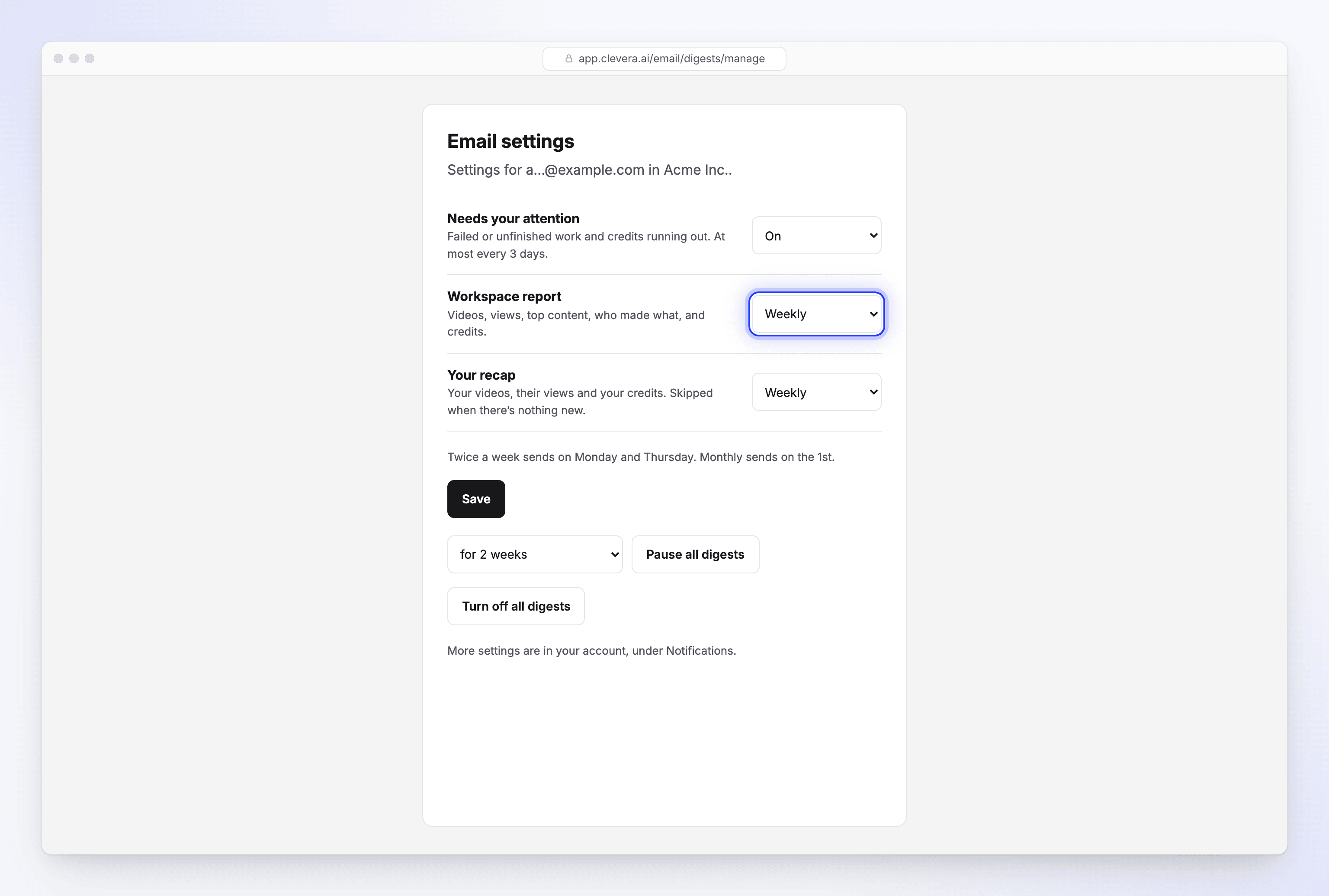
- Manage email settings opens an Email settings page for that workspace, where you can change how often each email comes, pause, or turn everything off. It can turn marketing emails off but not on.
- Unsubscribe from this email asks you to confirm with Turn off Workspace report for Acme Inc. (or the email you're reading). Your mail app's own unsubscribe button does the same in one click.