

Show a video in an article
Put a Clevera video anywhere inside an article with the Clevera video block: paste the video's share link, and the player shows on the share page, in embeds, in exports and in publishes while the link is on.
To show a video with an article, put it inside the article with a Clevera video block. Paste the video's share link and its player sits exactly where you place it: at the top, between two steps, or at the end. Readers watch it on the share page, in embeds and wherever you publish the article.
Before you start
- You need edit access to the article.
- The video must be in the same workspace, and its share link must be on. See Share a video with a link.
Add the video
Copy the video's share link
Open the video, click Share and turn the link on if it's off. Copy the link. An embed link of the video works too.
Add a Clevera video block
In the article, go to an empty line, type
/and choose Clevera video (in the Media group).Paste the link
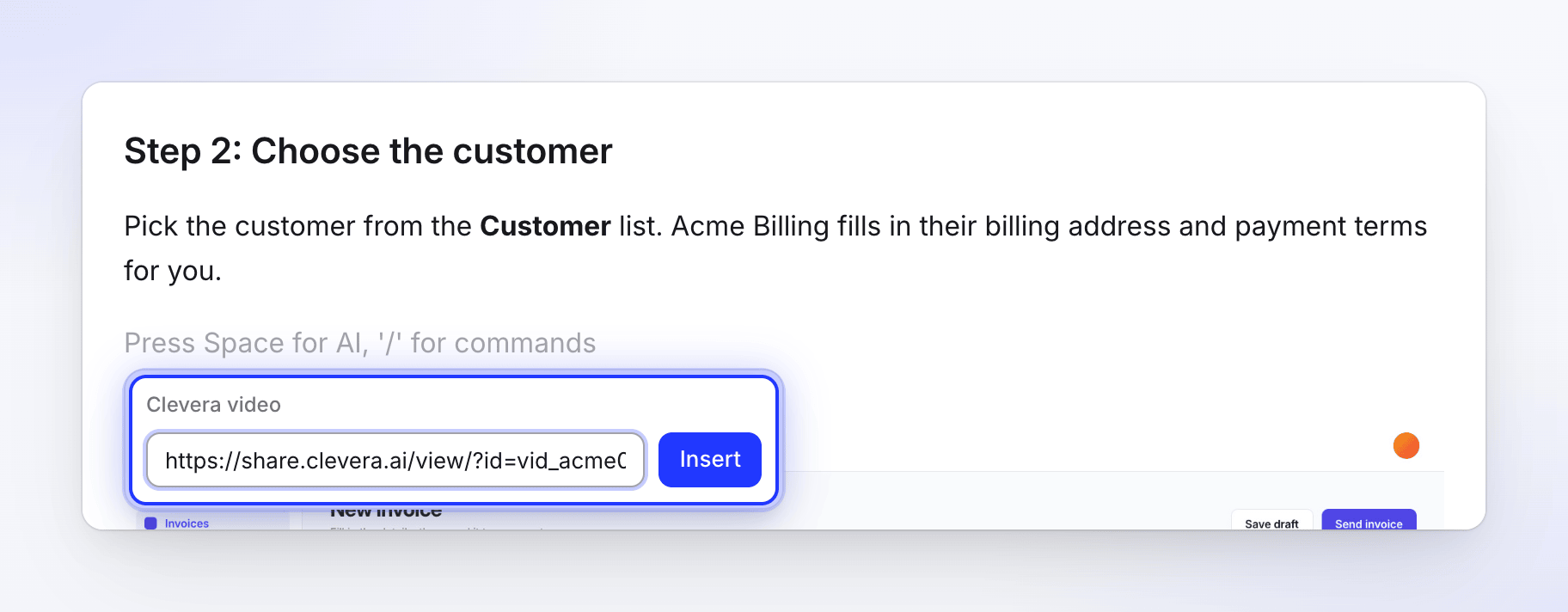
Paste it where it says "Paste a Clevera share link" and confirm. The player appears in the article.
Change or remove it
Click the player to select it. Its toolbar has two buttons:
| Button | What it does |
|---|---|
| Change video | Shows the current link so you can paste another one |
| Delete | Removes the block. The video itself is not touched. |
Move the block like any other with its handle. See Edit an article and its screenshots.
The player always shows the video alone, never with an article under it. Playing it in the editor doesn't count as a view.
Where the video shows
| Where | What readers get |
|---|---|
| The article's share page and embeds | The player, in place, sized to the video's shape |
| PDF, Word and other downloads | A link to the player |
| Published copies (Notion, Confluence, GitHub and the others) | The player or a link to it, depending on the tool. See Connect Clevera to other tools. |
The video shows in all of these only while its share link is on. If you turn the link off or reset it, the block is left out of the share page, embeds, downloads and new publishes. In the editor it then reads "This video isn't published in this workspace".
Articles that were paired with a video
Clevera used to pair an article with a video so they were shared together. That pairing is gone. Articles that were paired now start with that video as a Clevera video block, so readers still see it. Move or delete the block like any other.
Other kinds of video
| Block | Use it for |
|---|---|
| Clevera video | A video made in your Clevera workspace |
| Embed | A YouTube, Vimeo or Loom link |
| Video file | An https link to a video file, with Autoplay, Loop and Mute |
Troubleshooting
| You see | What it means |
|---|---|
| "That isn't a Clevera video link." | Paste a Clevera share or embed link. Links to other sites go in an Embed block. |
| "This video isn't published in this workspace" | The video's link is off, or the video is in another workspace. Turn its link on in Share. |
| The video is missing from a download or a published copy | Its share link was off when you exported or published. Turn it on and export or publish again. |