

My recording didn't upload
Your desktop recording or MP4 upload didn't reach Clevera, or it uploaded but couldn't be processed. Keep the app open, retry the upload, and match the exact message you see to its cause and fix, on Mac, Windows or the web.
After you stop a recording, the desktop app sends it to Clevera and opens it in your browser. If that doesn't happen, or an MP4 you uploaded on the web never becomes usable, this page helps you find out where it stopped and get the recording through.
Quick checks
- Leave the desktop app open and look at the upload window.
- Check your internet connection. A recording needs a connection to start, while it records, and to finish.
- If the window offers a retry, use it. On a Mac it's Retry upload; on Windows it's Try Recording Again. Both resend the same recording, and you can retry as many times as you need.
- Check the recording's length. Clevera can finish recordings of up to 60 minutes; we recommend staying under 30.
- Check free disk space. The temporary files of a long recording can take several GB.
- Look in the Recordings page before recording again. The upload may have finished and opened in a browser window you didn't see. Newest recordings are first; you can also search by title.
The upload failed in the desktop app
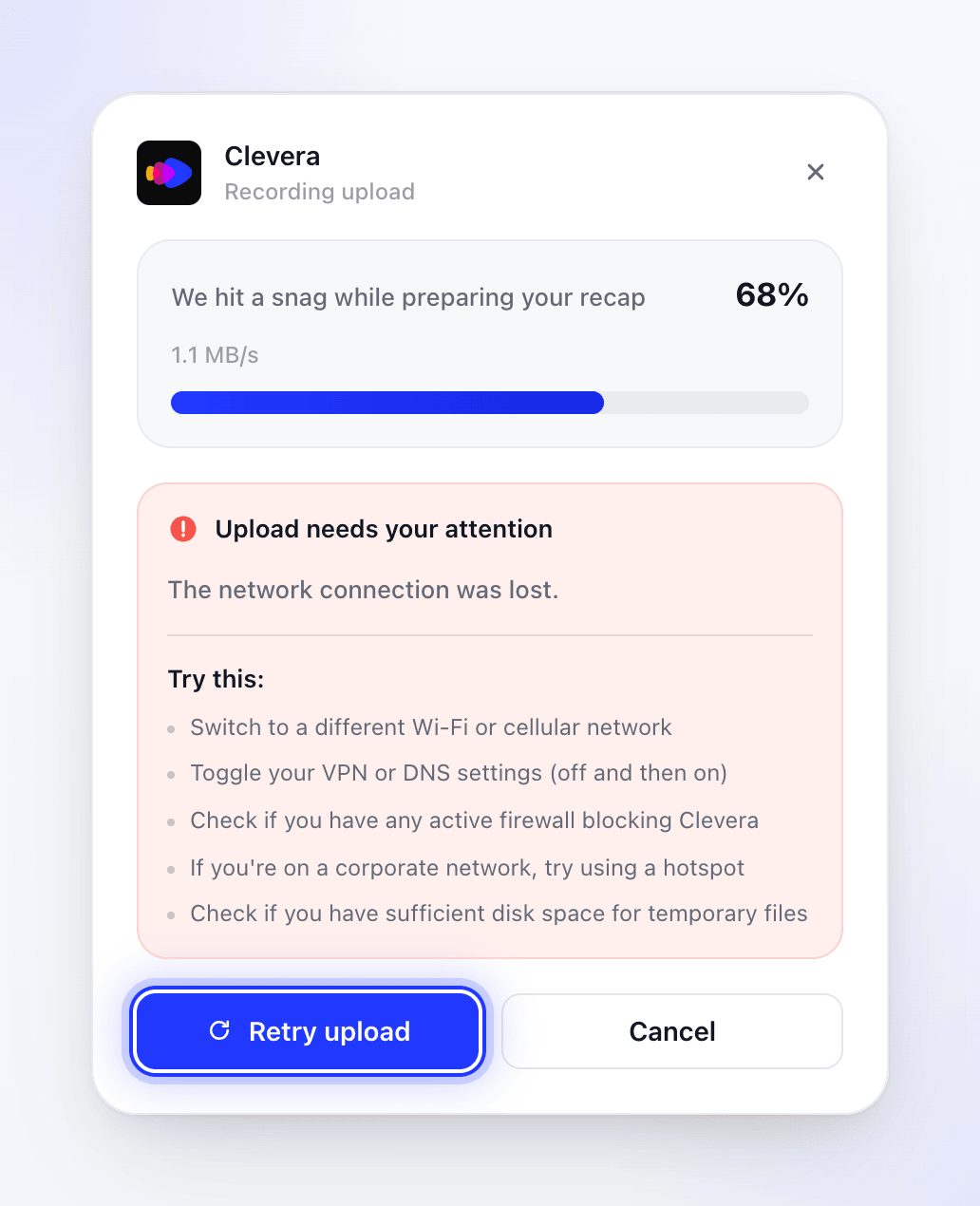
When an upload fails, the window's status changes to "We hit a snag while preparing your recap", and a panel Upload needs your attention shows the error and these tips under Try this:
- Switch to a different Wi-Fi or cellular network
- Toggle your VPN or DNS settings (off and then on)
- Check if you have any active firewall blocking Clevera
- If you're on a corporate network, try using a hotspot
- Check if you have sufficient disk space for temporary files
Fix what you can
Change network, turn your VPN off and on, or free up disk space. On a company network, a firewall or proxy may block uploads; a phone hotspot is a quick way to test that.
Click Retry upload
Clevera sends the recording again from the temporary files on your computer.
Wait for "Your recording is ready!"
The window closes by itself a couple of seconds later and your browser opens the recording on the Create page.
If the network is just slow, you see Slow upload detected: "Your recording is still uploading, but the network is slower than usual. Clevera will keep working until it finishes." That isn't an error. Keep the app open and let it finish.
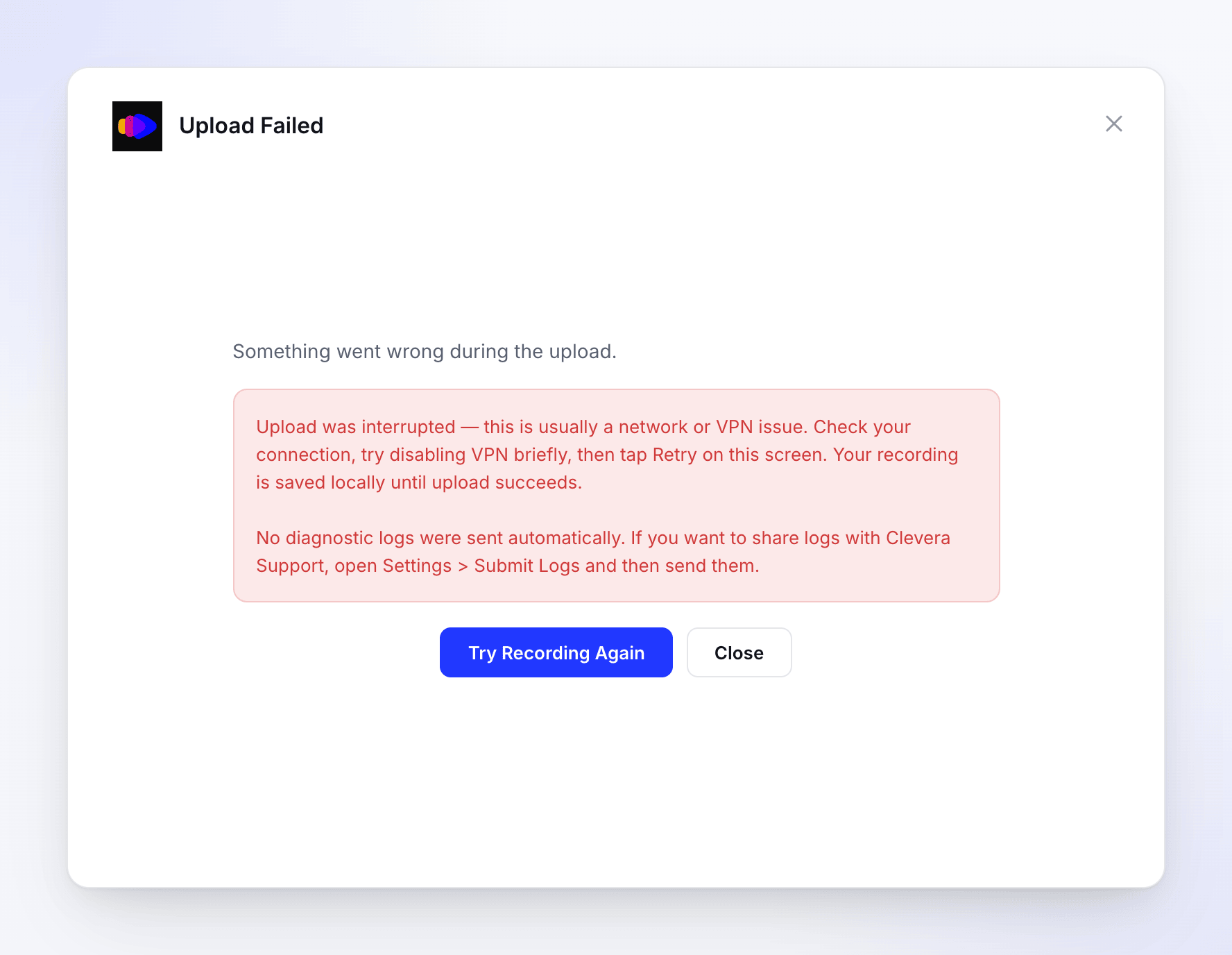
When an upload fails, the window changes to Upload Failed — "Something went wrong during the upload." — with the error underneath and two buttons, Try Recording Again and Close.
Fix what you can
Change network, turn your VPN off for a moment, or free up disk space. On a company network, a firewall or proxy may block uploads; a phone hotspot is a quick way to test that.
Click Try Recording Again
Despite the name, this doesn't make you record again: Clevera sends the same recording again from the files on your computer. The status shows "Retrying upload...".
Wait for Upload Complete
The window says Upload Complete, your browser opens the recording and the window closes about 1.5 seconds later.
The Windows upload window has no percentage or slow-upload warning. A long recording on a slow connection can take a while; keep the app open.
Messages in the upload window
| Message | Cause | Fix |
|---|---|---|
| A network error, or "Request timed out." | The connection dropped or was too slow to finish. | Fix the connection, then Retry upload. A faster, more stable connection helps with long recordings. |
| "Failed to complete recording: …" | The last step, where Clevera puts the pieces together, failed. | Retry upload. If it fails again, contact support before you quit the app. |
| "The video duration cannot exceed 60 minutes." | The recording is longer than 60 minutes. The recording timer doesn't stop at 60 minutes, but Clevera can't finish a longer recording. | Record again in parts, ideally under 30 minutes each. |
| "The file you're trying to upload is too large." | A video file is over 5 GB. | Record shorter parts, or a smaller area or window. |
| "Microphone audio file is empty or incomplete …" | The microphone was on but stopped delivering sound during the recording, so the recording can't be finished. | Check the microphone in the recording window, then record again. To record without your voice, turn the microphone off first. |
| "File operation failed: …" | Clevera couldn't read or write its temporary files. | Free up disk space, then Retry upload. |
| "Missing recording data. Please try again." | The app lost track of the recording's files. | Click Retry upload. If it repeats, the recording can't be recovered; record again. |
| "Unable to complete the recording. Please try again." | The server couldn't finish the recording. | Click Retry upload after a minute. |
| "Authentication error: Please log in again" | Your sign-in expired and couldn't be refreshed. | Sign in again from the app, then retry. See Sign in to the desktop app. |
| "You don't have permission to complete this recording." | Your role in the workspace changed while you were recording, or you were removed. | Ask the workspace owner to check your role. See Understand workspaces, roles and creator seats. |
When an alert offers Copy Details, click it and paste the details into your message to support.
| Message | Cause | Fix |
|---|---|---|
| "Upload was interrupted — this is usually a network or VPN issue. … Your recording is saved locally until upload succeeds." | The connection dropped or a VPN blocked the upload. | Fix the connection, then click Try Recording Again (the message says "tap Retry"; it means this button). The recording is only kept while the window stays open. |
| "Clevera could not detect enough interactions in this recording …" | The recording had no clicks, key presses, scrolls or drags; only mouse movement. The Windows app can't upload such a recording. | Record again and click or type at least once. The click on Stop doesn't count. |
| "Clevera needs permission to complete this recording." | Clevera couldn't capture your mouse and keyboard, or your role doesn't allow recording. | Open More → Permissions and check Mouse & Keyboard Capture, then record again. If it repeats, ask the workspace owner to check your role. |
| "We could not finish this recording. Please try recording again." | Any other failure while finishing the recording. | Click Try Recording Again. If it fails again, send your logs (below) and contact support before you close the window. |
The error ends with a note that no logs were sent automatically and points to Settings > Submit Logs. On Windows you send logs from the tray icon → Submit logs, or from More → Submit logs in the recording window. See Send your desktop app logs to support.
The recording never started uploading
A recording starts uploading the moment it begins. If the app shows an error as soon as you click Start recording, the recording never began, so there's nothing to upload. Common causes are no internet connection, an app update you haven't installed ("Update Required" on a Mac, "Recording initialization failed: …" on Windows), or a role without recording rights. See Clevera can't record my screen.
The upload finished but nothing opened
The app opens the recording in your default browser when it's done. If you didn't see it:
- Check the other browser windows and the default browser setting on your computer.
- Open Clevera on the web and go to the Recordings page, or click + in Compose and choose Choose from library.
- Recordings go to the workspace that was selected on the web when you started. Switch workspaces if you can't find it. See Sign in to the desktop app.
It uploaded but couldn't be processed
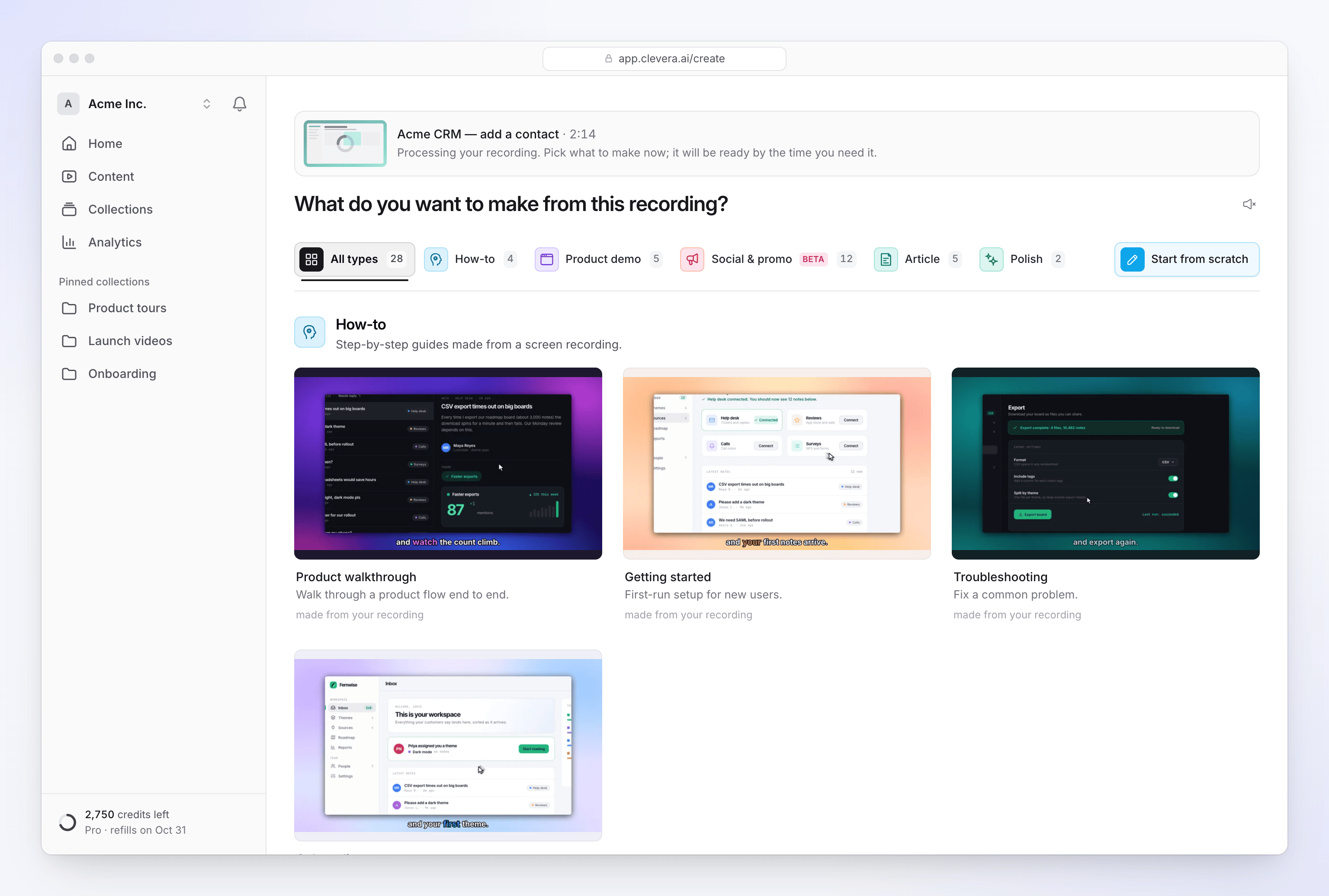
After upload, Clevera prepares the recording for editing. That usually takes a few minutes. While it runs, the recording's page says "Still processing…" and the Create page says "Processing your recording. Pick what to make now; it will be ready by the time you need it."
| Message | Cause | Fix |
|---|---|---|
| "This recording couldn't be processed. You can still make something without it." | Processing failed after the upload. | Record again, or upload the video as an MP4 instead. |
| "We couldn't prepare your video for editing. Please try uploading it again." | The video couldn't be converted for smooth editing. | Upload it again. If it was exported from another tool, re-export it as MP4 (H.264) first. |
| "Something went wrong while processing your recording." | Processing failed for another reason. | Try again with a new recording or upload. If it repeats, contact support. |
An MP4 upload on the web failed
You can upload an existing MP4 instead of recording: in Compose, click + and choose to upload a video ("MP4 up to 250 MB. We'll add it to your library and select it here."). These are the messages you can see:
| Message | Fix |
|---|---|
| "Only .mp4 video files are supported." | Convert the file to MP4 first. |
| "Please choose a video file." | Pick a video file, not a folder or another kind of file. |
| "Your video is 312 MB. Please upload a video that's 250 MB or smaller." | Shorten or compress the video. For longer videos, record with the desktop app instead. |
| "A network error interrupted the upload." | Check your connection and upload again. |
| "The upload was cancelled." | The upload was stopped, for example by closing the window. Upload again. |
| "We couldn't start your upload. Please try again." or "We couldn't upload your video right now. Please try again." | Try again in a minute. |
| "Please wait a moment before uploading another video." | You started several uploads quickly. Wait a few seconds. |
| "We couldn't find your workspace. Please refresh the page and try again." | Refresh the page, check the workspace and upload again. |
| "Upload finished but we couldn't open the recording preview. Please refresh and try again." | The file arrived. Refresh the page; it's in your library. |
| "We couldn't track your upload. Please refresh and try again." | Refresh the page and check your library before uploading again. |
| "Your video is taking longer than usual. We'll keep processing it — try refreshing in a moment." | Large files take longer. Refresh after a minute or two. |
| "We couldn't finish processing your video. Please try again." | Upload the file again. |
| "The video is too short to use. Please upload a video longer than half a second." | Upload a longer video. |
| "This video is too long to process. Please upload a video shorter than 240 minutes." | Split the video into shorter parts. |
| "This video's resolution is too high to process. Please export it at 7680 pixels or fewer on its longest side and try again." | Re-export at a lower resolution, such as 4K. |
| "We couldn't read this video's dimensions. Please re-export it as MP4 and try again." | Re-export the file as a standard MP4. |
Limits
| Limit | Value |
|---|---|
| Recommended desktop recording length | Under 30 minutes |
| Desktop recording length | 1 second to 60 minutes |
| Desktop video file | Up to 5 GB each |
| MP4 upload on the web | Up to 250 MB |
| Uploaded video length | Up to 240 minutes |
| Uploaded video resolution | Up to 7680 pixels on the longest side |
When to contact support
Contact support from the chat in the app, before you quit the desktop app, if:
- the retry keeps failing on a good connection,
- the same message comes back for every new recording,
- a recording you uploaded shows as processed but won't play.
Include the exact message, the time you recorded, your app version and whether you're on Mac or Windows. If the alert has Copy Details, paste those too. Sending your logs (More → Submit logs) helps the team see what went wrong: see Send your desktop app logs to support.