

Ask the assistant to change your article
Ask the article assistant to rewrite, shorten, proofread, add sections or tables, answer questions about the article or recording, and translate it. What it can and can't do, how undo and review work, limits and credits.
The article assistant is a chat beside your article. Tell it what to change ("make the introduction shorter", "add a troubleshooting table") or ask it a question, and it edits the article directly. This article covers what it can do, how to undo or review its changes, its limits and what it costs.
Before you start
- The article must be written. Before that, the panel says "No article yet" or, while it is being written, "Your article is on its way".
- You need edit access to the article. Editors, Content Creators, Administrators and the owner can all use the assistant on articles they can edit.
- Each request uses credits from the workspace. See What it costs.
Ask for a change
Open the assistant
Click Assistant in the editor's top bar (tooltip "Show assistant"). The panel opens on the right, titled Assistant with the article's language underneath, for example "Article · English (United States)".
Write your request
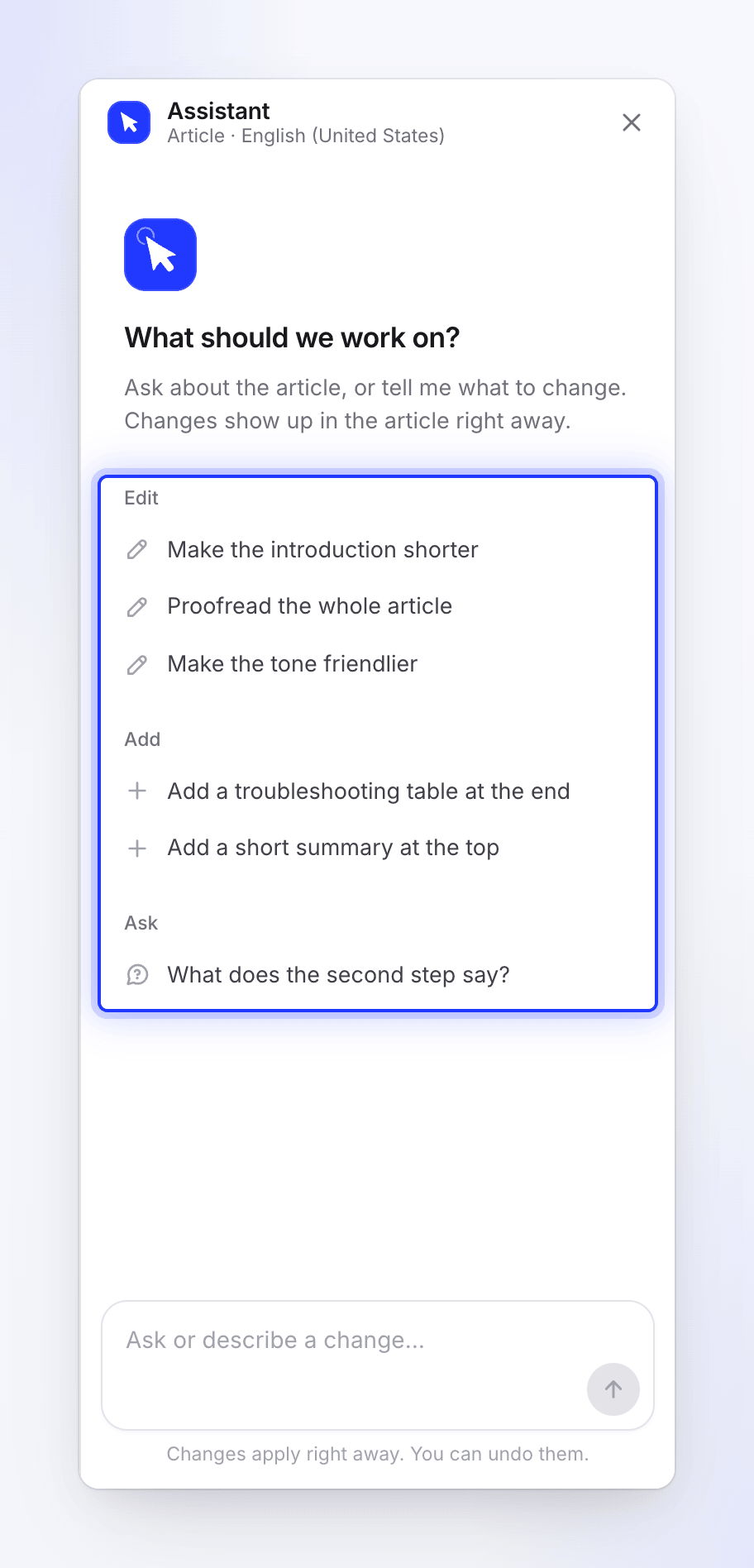
Type in the box ("Ask or describe a change…") or pick a starter. The first time you see "What should we work on?" with three groups:
Group Starters Edit "Make the introduction shorter", "Proofread the whole article", "Make the tone friendlier" Add "Add a troubleshooting table at the end", "Add a short summary at the top" Ask "What does the second step say?" A message can be up to 4,000 characters. Press Enter to send.
Watch it work
The panel shows what it is doing: Thinking, Reading the article, Editing the article or Writing an answer. After 30 seconds you see "This is taking longer than usual…". To cancel, click Stop; nothing on the article changes.
Check the result
"Changes apply right away. You can undo them." The changed parts are highlighted in the article, and the reply says what changed, for example "Done. The changed parts are highlighted in the article." Under the reply you may get up to three suggested next requests; clicking one puts it in the box without sending it.
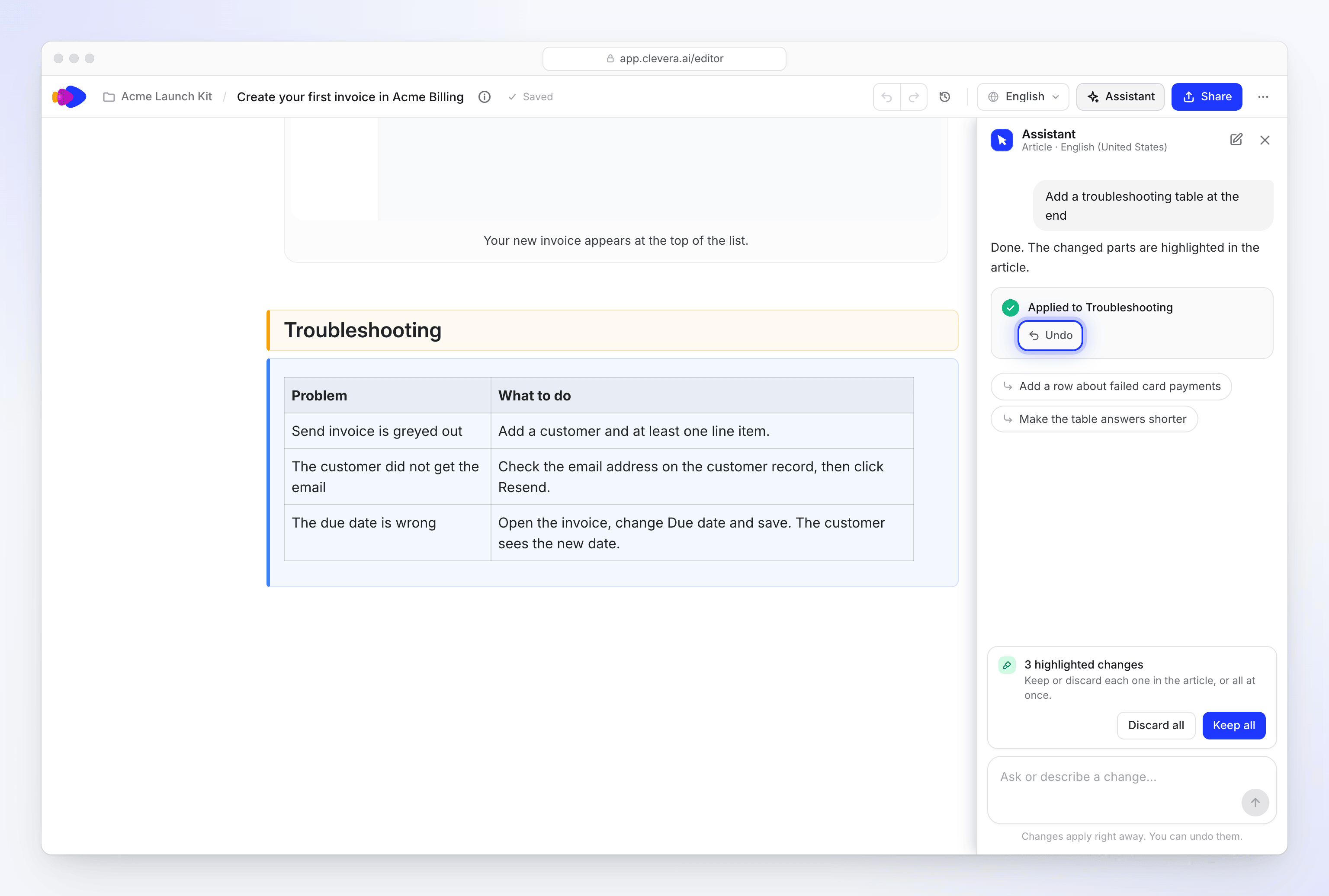
Changes apply right away; Undo works until your next message.
What it can and can't do
| It can | It can't |
|---|---|
| Change any part of the article: rewrite, shorten, expand, add or remove sections, steps, tables, callouts, code blocks and FAQs | Make new screenshots or pictures. Use the image picker instead. |
| Change the whole article at once: tone, reading level, proofreading | Publish or export. Use Share. |
| Edit screenshot captions and move screenshots | Change the video made from the same recording |
| Answer questions about the article and about the recording it was made from, including what you said while recording | Change billing or your plan |
| Translate the article, or update its translations after a change, after showing the cost | Work on two requests at once for the same article |
The assistant is "Clevera's assistant". It doesn't share which technology powers it.
Undo and review changes
| What you want | How |
|---|---|
| Undo the last change | Click Undo on the change in the chat. It works until you send your next message. "Undone. The article is back as it was before that change." |
| Undo after someone edited the article | The chat asks first. Choose Undo anyway or Keep it. |
| Undo an older change | The chat says "This change can no longer be undone from the chat. Use Revisions in the editor for an earlier version." Open revision history. |
| Review highlighted changes | When changes are still marked for review, a strip shows, for example, "3 highlighted changes" and "Keep or discard each one in the article, or all at once." Use Keep all, Discard all, or keep and discard each block in the article. |
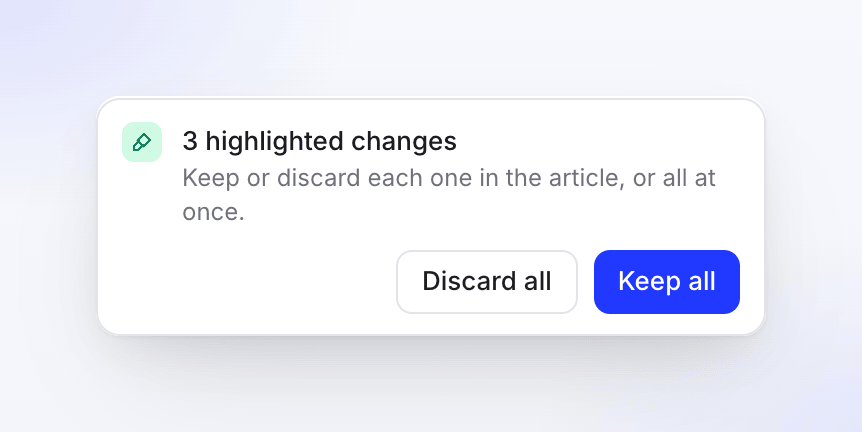
Every assistant change is also saved in revision history, labelled "Assistant edited the article" or "Assistant edited “Section name”", so you can always go back.
Translate with the assistant
Ask "Translate this into German and French". The assistant answers with a Translation card that lists the languages and the estimated credits, with Translate and Not now.
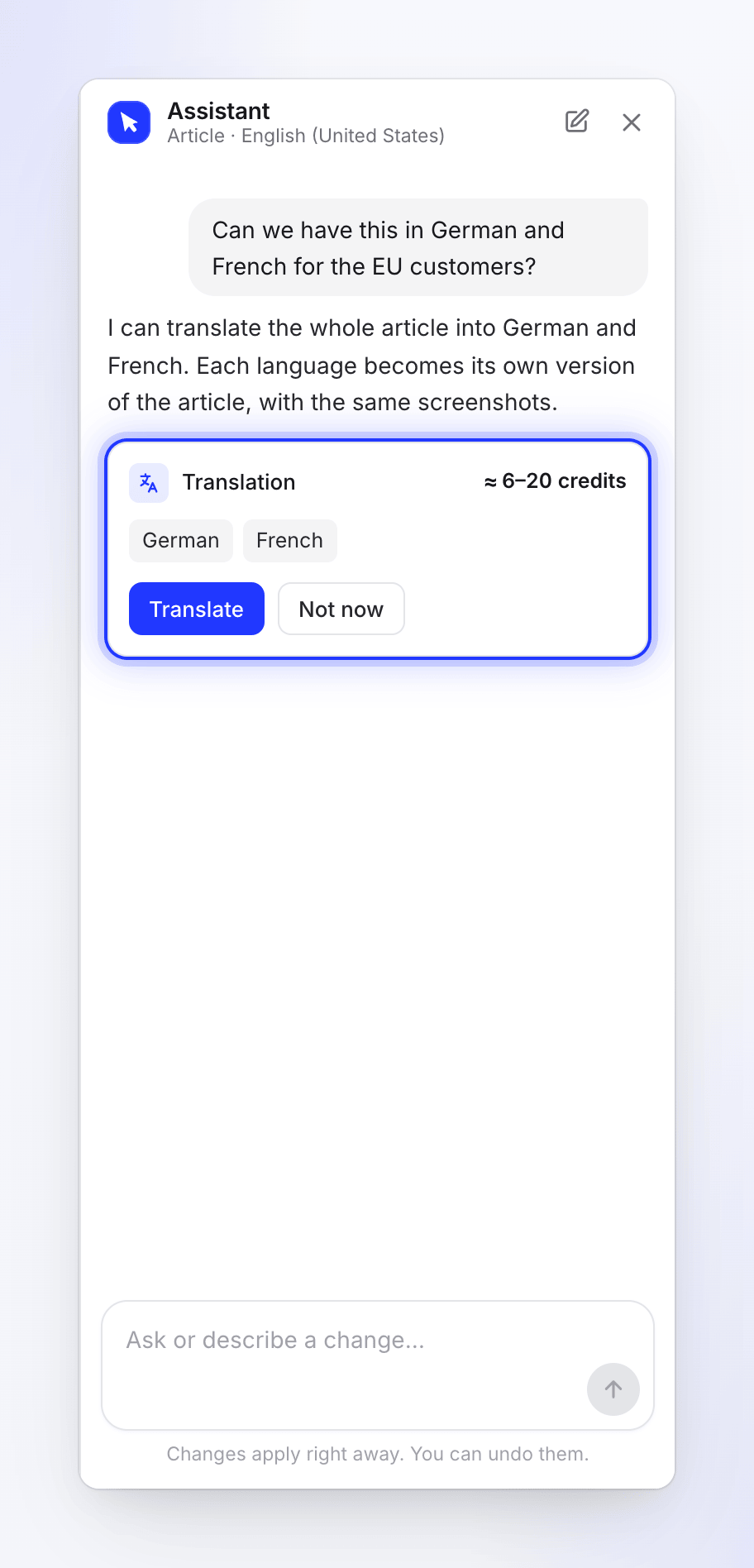
After you confirm: "Translating the article into German and French. It shows up in the language menu when it is ready." If a translation into that language is already running you see "A translation into this language is already running." You can also translate from the top bar's language menu with Translate….
Conversations and languages
- Each language of the article has its own conversation. Switching language in the top bar switches the chat too.
- New chat clears the conversation: "Start a new chat?" / "The assistant forgets this conversation. Changes already made stay."
- Closing the panel doesn't stop a running request.
Limits
| Limit | What you see |
|---|---|
| One request at a time per article | "The assistant is still working on your last request." |
| Your own open requests across the workspace | "The Assistant is already working on other requests of yours. Send this again once one has finished." |
| Open requests for the whole workspace | "Your workspace's Assistant is already working on other requests. Send this again once one has finished." |
| Time per request: 5 minutes | "The request ran past its time limit." |
| A request that runs out of room | "I made part of the change before reaching this request's limit. You can ask for the rest." |
| Daily workspace limit | "You've reached today's Assistant limit for your workspace. It resets at midnight UTC." |
| Billing problem on the workspace | "Your workspace cannot use the assistant right now." |
What it costs
The assistant shows no estimate and has no fixed price. Each request is charged for the work it does: a quick answer costs little, a change across a long article costs more. Charges appear on the Usage page as AI assistant edit. Translations show their estimate before you confirm and usually cost 3–10 credits per language.
The quick AI actions inside the article editor (Improve on a selection, Ask AI and Continue Writing) are free and don't use credits. See Use the quick AI actions.
Troubleshooting
| You see | What to do |
|---|---|
| "Nothing to work on yet" / "The assistant opens once this article has content." | Add some content, or regenerate the article. |
| "The assistant is off" / "It isn't available for this article right now. Everything else in the editor works as usual." | Edit by hand for now. Contact support if it stays off. |
| "Couldn't reach the assistant" / "Check your connection, then try again." | Check your connection and click Try again. |
| "The assistant could not take that request. Try again." | Send the message again. |
| "I could not find that in this article." | Rephrase, or name the section you mean. |