

Sign in to the desktop app
Sign in to the Clevera desktop app through your browser, choose which workspace your recordings go to, and fix a sign-in that doesn't finish.
The desktop app signs in through your web browser, so you never type your Clevera password into the app. Once you're signed in, every recording you make uploads to the workspace that is currently selected in the Clevera web app.
Before you start
- Install the desktop app.
- Make sure you can sign in to
app.clevera.aiin your default browser. If you use Google sign-in, single sign-on or two-factor authentication on the web, the same applies here: you finish it in the browser.
Sign in
Click Sign in
When you open the app and you aren't signed in, the window Let's get you signed in appears. Click Sign in.
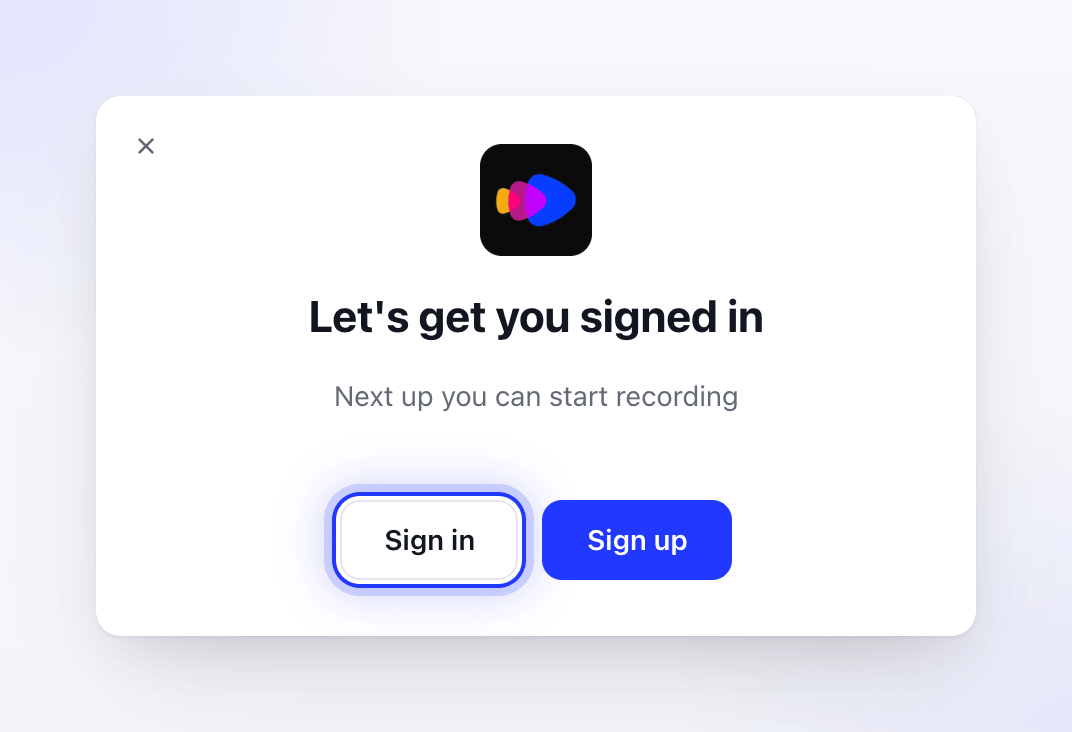
Sign in opens Clevera in your browser. If you don't have an account yet, create one first. On a Mac, Sign up opens the Clevera sign-up page in your browser. On Windows, create your account at
app.clevera.aiin your browser. Then come back and click Sign in.Finish in your browser
Your default browser opens Clevera. If you aren't signed in on the web, sign in first. Clevera then shows the page Open the Clevera app.
Let the browser open Clevera
Your browser asks whether to open Clevera. Choose Open (the exact wording depends on your browser). If you tick the box that always allows it, you won't be asked next time.
Go back to the app
The page changes to You're signed in and the desktop app opens the recording window. You can close the browser tab with Close this tab.
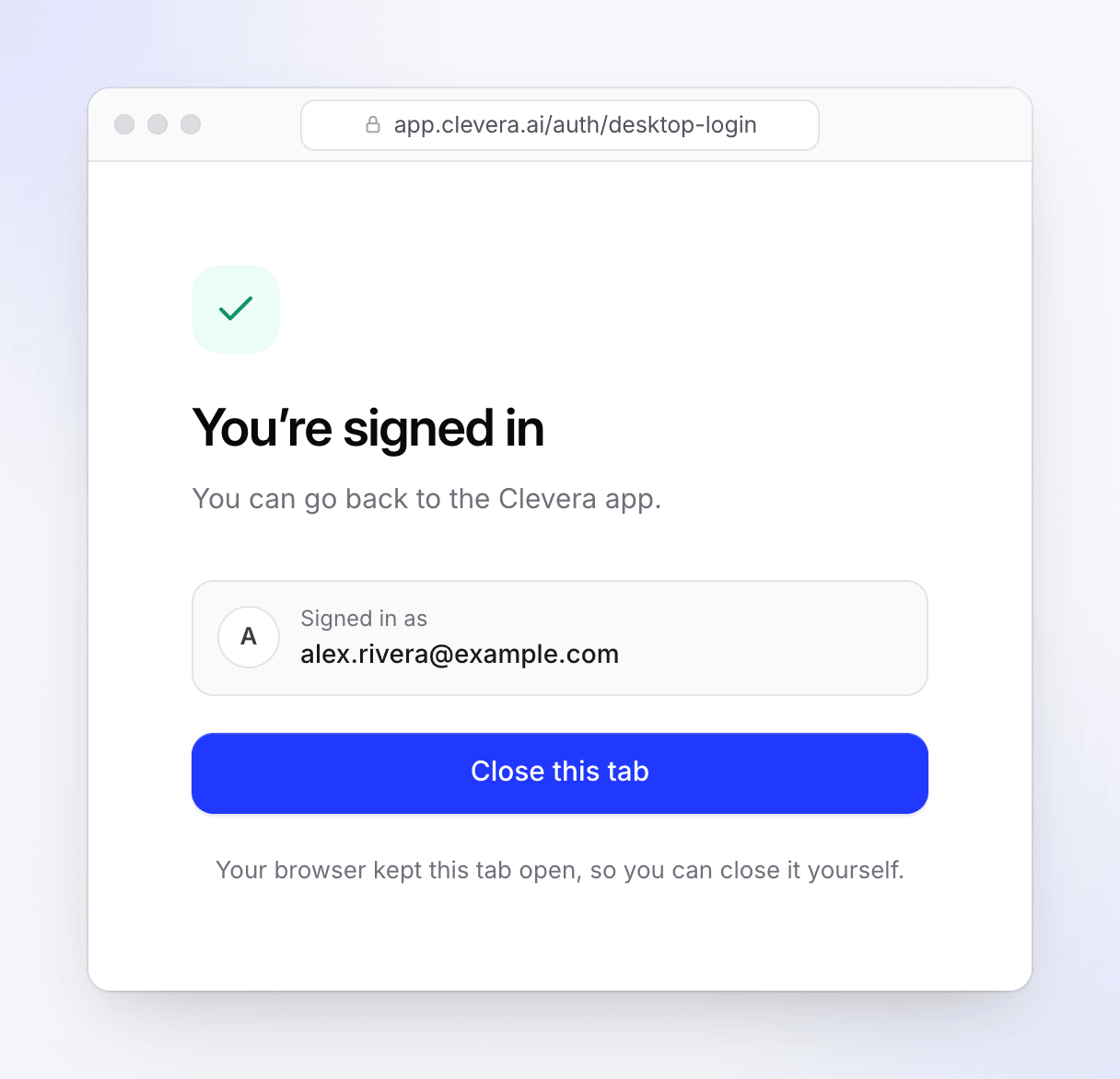
Once the app has your sign-in, you can close the tab.
Where your sign-in is stored
Your sign-in is stored in the macOS keychain on this Mac.
Your sign-in is stored in Windows Credential Manager under Clevera.Credentials, for your Windows account only.
Choose which workspace your recordings go to
The app has no workspace picker. When you start a recording, it asks Clevera which workspace you currently have selected on the web and uploads the recording there.
To record into a different workspace:
- In the Clevera web app, switch to the workspace you want.
- Start the recording in the desktop app.
If you start a recording from inside a collection on the web (with Record your screen), the recording is also filed into that collection, as long as the collection belongs to that workspace.
Sign out
- In the recording window, click More → Sign out.
- Or, with Clevera active, open the Clevera menu in the menu bar → Sign out.
- Or click the Clevera icon in the menu bar → Log Out.
Signing out closes every Clevera window and removes your sign-in from this Mac. Your settings, shortcuts and recording consent stay.
- In the recording window, click More → Sign out, then confirm "Are you sure you want to sign out?" with Yes.
- Or right-click the Clevera icon in the notification area (system tray) → Log out, then confirm.
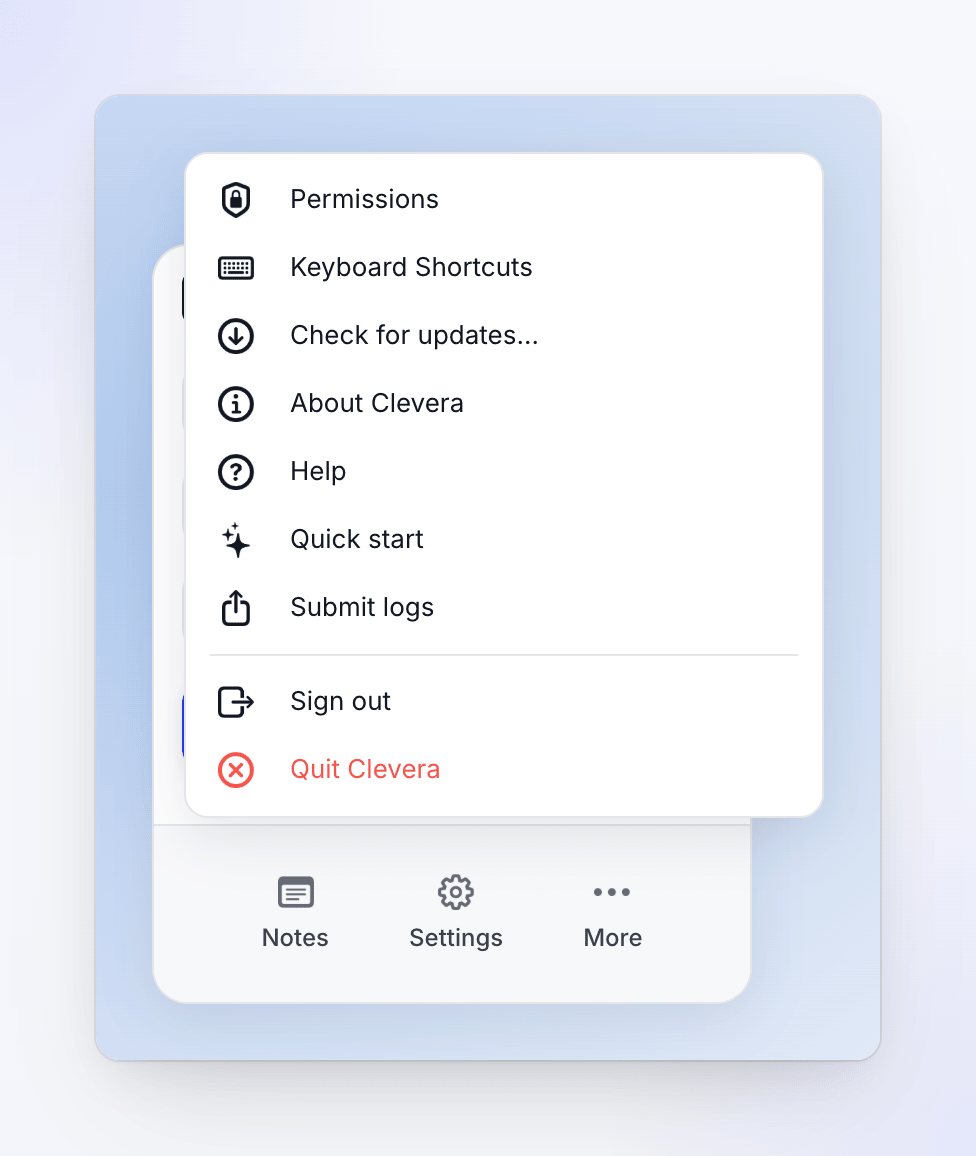
Signing out removes your sign-in from this PC. Your settings and shortcuts stay. While you're signed out, the tray menu shows Sign in instead.
To sign in with a different account, sign out, switch accounts on app.clevera.ai in your browser, then click Sign in in the app again.
Troubleshooting
| What you see | What to do |
|---|---|
| Didn't open? — "If nothing happened, open the app again, or download it if it isn't installed yet." | Click Open Clevera again. If the browser never asks to open Clevera, check that the app is installed and opened at least once, then try again. |
| "We couldn't open the Clevera app. Try again." | Click Try again. If it keeps failing, close the tab, then click Sign in in the app again. |
| "This sign-in has expired. Start again from the Clevera app." | The page waits about 3 minutes for the app. Click Sign in in the app again to get a fresh link. |
| "This sign-in belongs to another account. Start again from the Clevera app." | You signed in on the web as a different person than the one who started the sign-in. Click Sign in in the app again. |
| "You seem to be offline. Still trying…" | Reconnect to the internet. The page keeps checking on its own. |
| The app signed you out on its own | Your sign-in expired or was revoked. The Let's get you signed in window comes back; sign in again. |
| "Authentication error: Please log in again" when you start recording | Sign out, then sign in again. |
| "Team ID is missing" when you start recording | Sign in to app.clevera.ai and make sure you belong to at least one workspace, then try again. |
| Windows: "Screen recording or audio permission is required" when you aren't signed in | The Windows app shows this message when your sign-in is missing. Sign in from the tray icon (Sign in) and record again. |